In this article, I will guide you to block the installation of 21H1 on Windows 10. Although 21H1 will have many new features, changes, and new interfaces, there are still many people who still do not like to update because they are afraid of making mistakes.
| Join the channel Telegram belong to AnonyViet 👉 Link 👈 |
How to block updates to Windows 10 version 21H1
Windows 10 21H1 has just been released but some hardware is still not compatible, so you are susceptible to unexpected errors. The best way is to postpone updating to Windows 21H2, wait for a while when many users feel it is fine, then update later. We will do it in the following way:
Step 1: Check which version your computer is running?
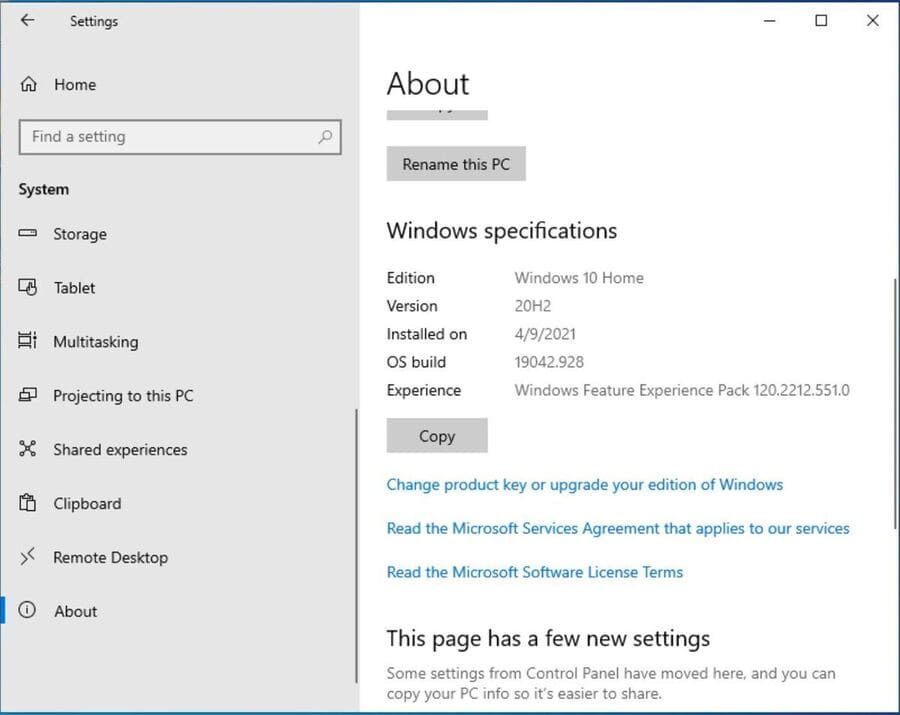
The method of blocking installation of versions varies depending on the version of Windows 10 you are running. To see the running instance, go to Start > Settings (the gear icon) > System and on the bottom left side, click About.
You will now see a screen similar to the one below. You just need to note whether you are using the Home, Pro, Education or Enterprise version.
Step 2: If you are using version 1909 or lower, update to a newer version as soon as possible
For Home and Pro editions, the last security update for Windows 10 version 1909 was on May 11, 2021. That means that starting in June, that edition will no longer receive security updates.
You must update to higher versions of Windows 10 1909. As these releases fall out of support, you will start to see more and more notifications that your machine is ready for version 20H2. At this point, 20H2 is good enough for you to take the time to update.
The best way to update 20H2 is to download the Windows 20H2 ISO file. Back up everything first, then follow the steps in Windows Update Assistant. Alternatively, you can go to Windows Update (Start > Settings > Update & Security) and click Download and install for version 20H2, but using Windows Update Assistant allows you to save a copy of ISO 20H2 for future use.
Once the 21H1 release is ready, Windows Update Assistant (as well as Windows Update) will start offering version 21H1 updates instead of 20H2.
Step 3: If you are using version 20H2, do not upgrade to 21H1
Both Home and Pro users running Windows 10 version 2004 or 20H2 will see a Windows Update notification (Start > Settings > Update & Security) as shown below, indicating that 21H1 is ready to download and install.
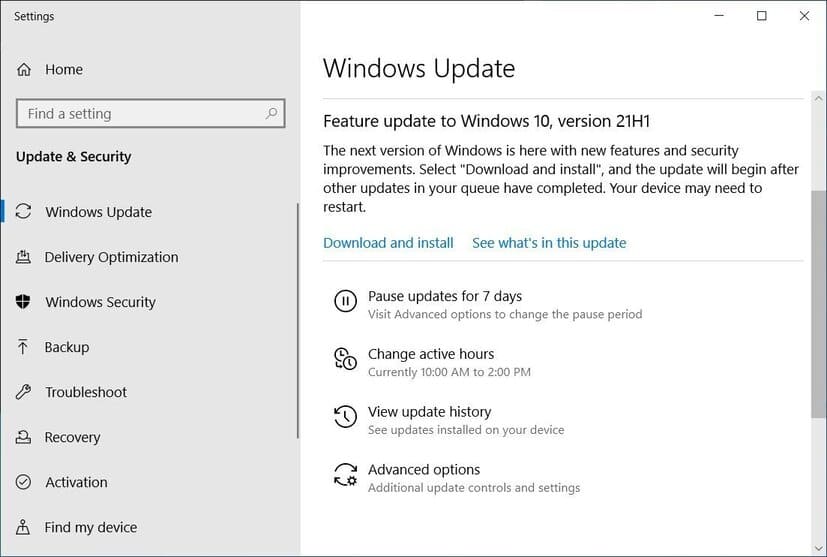
If you want to block installation of version 21H1, do not click Download and install. And always remember not to click Check for updatesbecause this will offer .NET updates that you do not want to install.
Step 4: The best way not to update to 21H1
For those who are comfortable with editing the Windows registry, it will be easier for them to block 21H1. Using a registry called TargetFeatureRelease, you can ensure the computer is not provisioned with version 21H1.
Step 1: Before editing the registry, you should always back up the registry and your computer in case something goes wrong.
Step 2: Open Registry Editor by typing regedit into Windows Search and clicking Registry Editor.
Step 3: Find key WindowsUpdate : HKEY_LOCAL_MACHINE\SOFTWARE\Policies\Microsoft\Windows\WindowsUpdate
Step 4: Right-click the key, select New and then select DWORD.
Step 5: Enter the new key name TargetReleaseVersion.
Step 6: Set value to 1.
Step 7: Right click again on the key WindowsUpdate select New > String value.
Step 8: Enter the name as TargetReleaseVersionInfo.
Step 9: Set value as the version you want, I will enter it 20H2.
If the WindowsUpdate key is not displayed in Registry Editor, try the following steps first:
Step 1: Open Registry editor.
Step 2: Find key: HKEY_LOCAL_MACHINE\SOFTWARE\Policies\Microsoft\Windows
Step 3: Right click on the key and select New>Key.
Step 4: Enter the key name as WindowsUpdate.
Step 5: Repeat the steps above.
Additionally, you can also download Windows 20H2 Update Block file This process is from the AskWoody website. Click to open the file to automatically block Update.
When you are ready to install 21H1, you can go back to the Registry and change the value TargetReleaseVersionInfo to 21H1 or Download the file to allow Update 21H1 from AskWoody.
In addition, you can also see more detailed information about the new features of version 21H1 here.
Frequently asked questions
I am using an older version of Windows 10 20H2. Should I update to 21H1 now?
It is not recommended to update to 21H1 immediately. It’s best to update to version 20H2 first to ensure stability and compatibility before moving to a newer version.
How to prevent Windows 10 from automatically updating to version 21H1?
You can prevent updates by not clicking “Download and install” in Windows Update, or using the Registry Editor to create the “TargetReleaseVersion” and “TargetReleaseVersionInfo” keys with appropriate values, or download the update blocking file from a reputable source.
If I accidentally updated to 21H1 and encounter problems, can I go back to the old version?
This article focuses on how to prevent updates, not instructions on restoring old versions. However, you can search for instructions on restoring your Windows version on Microsoft support sources or technology forums.