How to hide formulas in Excel is an extremely useful skill that helps you protect your important and dedicated calculations. When working with sensitive files such as payroll or financial reports, hiding formula structures not only increases security but also helps your spreadsheet become more professional in the eyes of others. Let’s explore the detailed steps to apply immediately to work!
| Join the channel Telegram belong to AnonyViet 👉 Link 👈 |
Why is it important to hide formulas?
Before going into the steps, let’s find out why you should use this feature. Hiding the above formula Excel brings two main benefits:
- Prevent others from viewing, copying, or learning the complex computational logic you’ve built, especially important with files containing proprietary business data.
- Helps prevent other users from accidentally clicking and editing, distorting the calculation results of the entire spreadsheet.

Detailed instructions on how to hide formulas in Excel
To successfully hide a formula, you need to follow three main stages sequentially: Unlock the entire worksheet, mark the cells that need to be hidden, and finally activate the password protection layer.
Stage 1: Unlock all cells
By default, all cells are in Excel are all in the “Locked” state. The first step is to remove this status for the entire sheet so we can customize it later.
- First, you need to select all the cells in the sheet by clicking triangle icon in the top left corner, where the row and column meet.
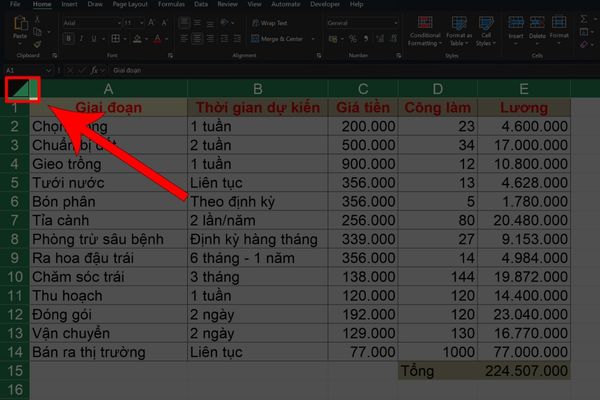
- Next, press the key combination Ctrl + 1 to open the Format Cells dialog box.
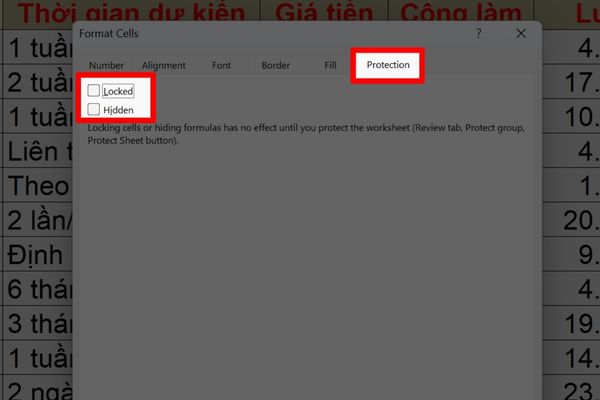
- In the dialog box that appears, find the tab Protection and uncheck the box Locked. Then press OK to complete.
Stage 2: Lock the cells containing formulas that need to be hidden
Once you have “opened” all the cells, it is now time to specify exactly which cells need to be protected and hidden.
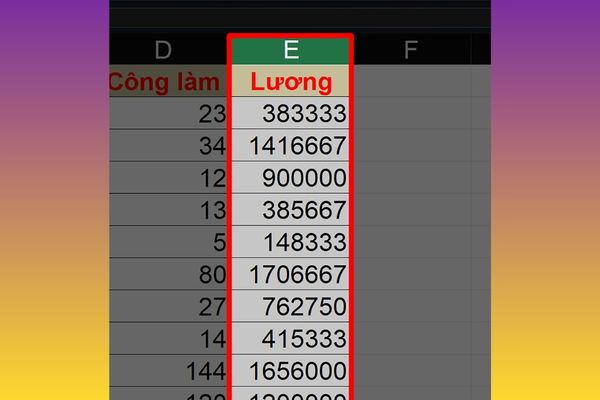
- Use your mouse to highlight and select cells, columns or rows that contain formulas that you want to hide.
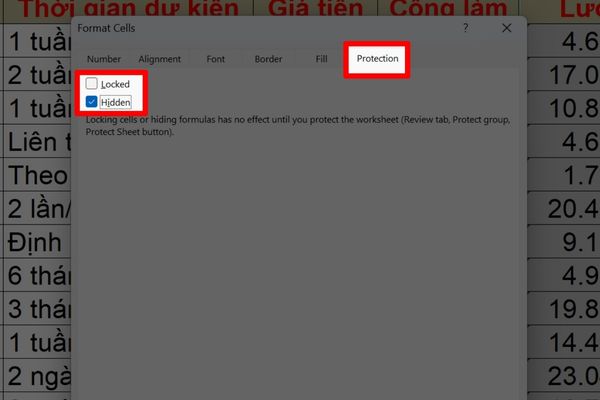
- Once again, you press the key combination Ctrl + 1 to reopen the Format Cells dialog box.
- At tab Protectionthis time please check the box Hidden. This will instruct Excel to hide the formula content in the Formula Bar when the cell is selected.
Stage 3: Activate password protection
This is the final and most important step for your settings to take effect. If you skip this step, the formula will still display as usual.
- On the toolbar, find and select the card Review.
- In the tool group of the Review tab, click on the function Protect Sheet.
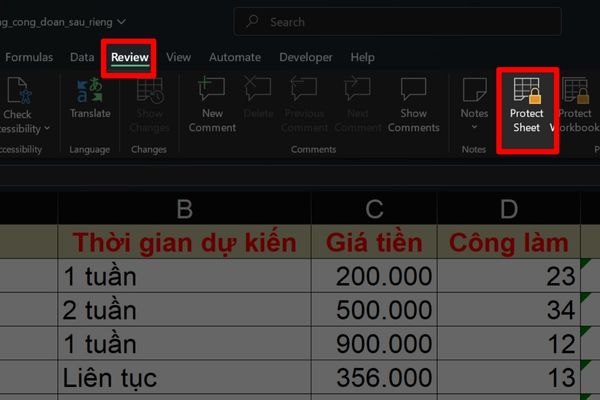
- A window will appear, here you enter the security password in the box “Password to unprotect sheet“.
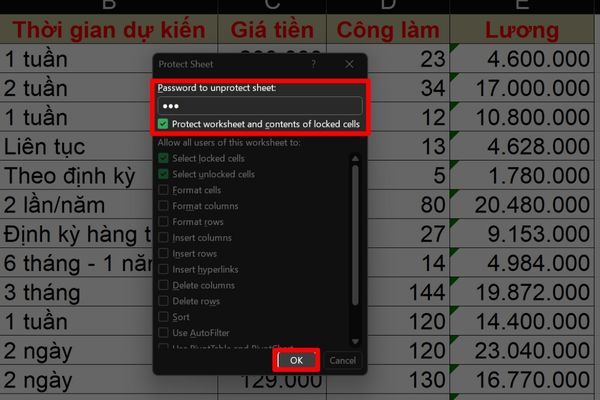
- Press OKExcel will ask you to confirm the password again to ensure accuracy. Once confirmed, the process of hiding the formula is complete.
Now, when anyone clicks on the cells you selected, they will only see the final result and will no longer be able to see the calculation formula inside the formula bar.
Conclusion
With just a few simple steps, you have done it successfully How to hide formulas in Excel to protect your data. This trick not only helps you avoid the risks of unwanted copying or editing, but also shows professionalism in spreadsheet management. Hope this article will be useful and help your work become more effective.