MBOX files contain an archive of emails. For example, when you Download Backup Gmail using Google Takeout, you will receive an MBOX file containing all your emails. So, in this article, I will guide you to view the content of MBOX files containing emails using Mozilla Thunderbird.
| Join the channel Telegram belong to AnonyViet 👉 Link 👈 |

Download Mozilla Thunderbird
My favorite application for opening MBOX files is an open source application Mozilla Thunderbird. I use Mozilla Thunderbird version 78, which is the current version as of January 15, 2021.
Load Mozilla Thunderbird and install it. It is available for Windows, macOS and Linux.
Launch Thunderbird and set up an account
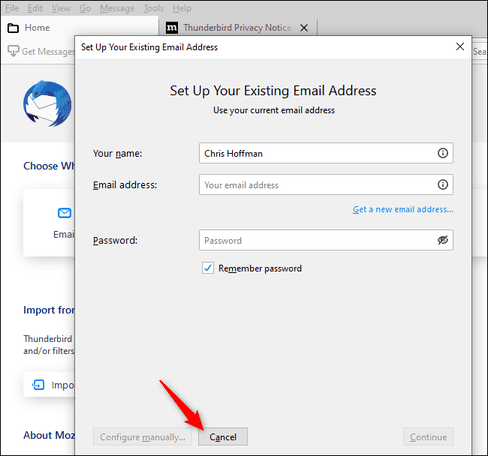
If you have not used Mozilla Thunderbird before, you will see the “Set Up Your Existing Email Address” dialog box the first time you open it. Click “Cancel” to continue.
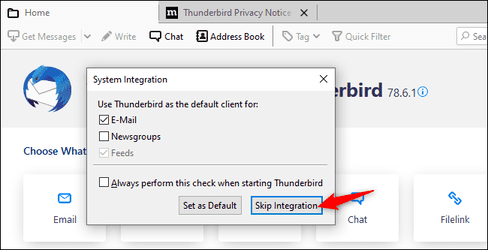
Thunderbird wants to be your default email client. Uncheck “Always perform this check when starting Thunderbird” and click “Skip Integration” to remove this option.
Mozilla Thunderbird is a bit strange and it needs you to set up a local “account” before you can continue viewing MBOX content.
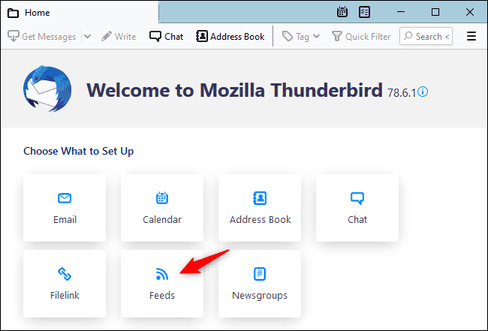
To create a blank local account, click “Feeds” under Choose What to Set Up. You can also click menu > New > Feed Account.
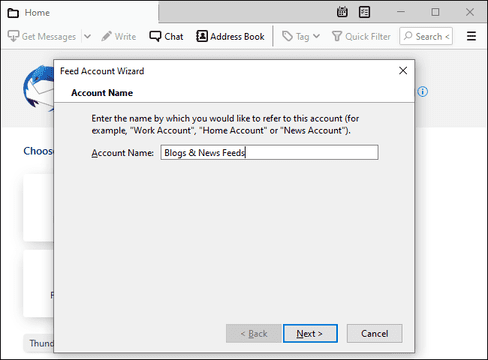
Click the “Next” button and click “Finish” to create an account.
Point Thunderbird to the MBOX file
You can now open Thunderbird and view the contents of your MBOX file.
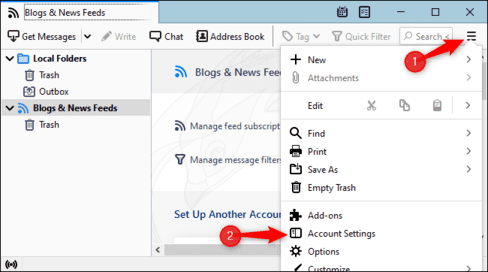
To get started, click menu > Account Settings.
On the Account Settings screen, click “Local Folders”.
In Message Storage, click the “Browse” button to the right of Local Directory.
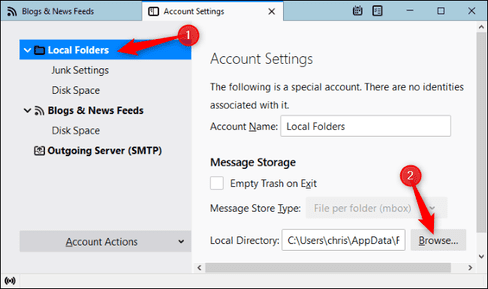
Browse to the folder containing your MBOX file and click “Select Folder.”. For example, if your MBOX file is in C:\Users\[Name]\Downloads\Takeout\Mail, browse to that “Mail” folder and click “Select Folder”.
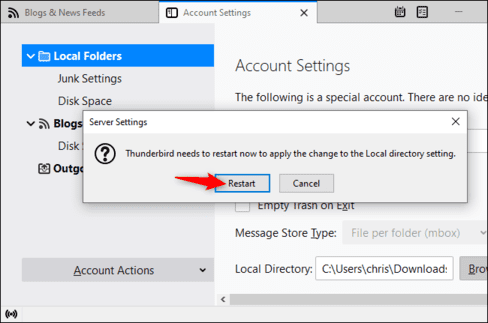
Thunderbird will ask you to restart the software Click “Restart”.
View the contents of the MBOX file
You can now view the contents of your MBOX file in Thunderbird. You will see the name of the MBOX file in “Local Folders”. Click on it and you can see the contents of the MBOX file.

Delete Feeds Account
By the way, you can now delete the empty “Blogs & News Feeds” account you created earlier.
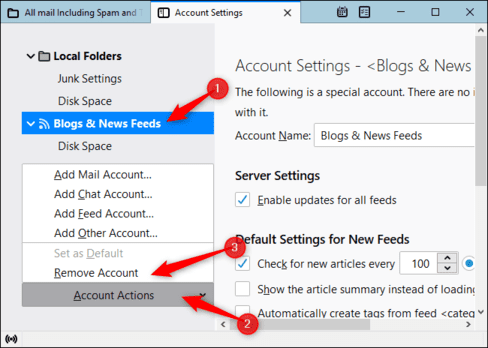
To do so, click menu > Account Settings. Select “Blogs & News Feeds”. At the bottom of the window, click the “Account Actions” box and click “Remove Accounts.”
Click “Remove” and then click “OK” to confirm your changes.
Now you can open Thunderbird whenever you want to view the contents of the MBOX file. Remember that Thunderbird is pointed at your MBOX file on your computer. So if you move the MBOX file to another folder, you’ll need to go back into Thunderbird’s account settings and point it to the new location of the MBOX file.
Frequently asked questions
What should I do if Thunderbird doesn’t automatically detect my MBOX file?
You need to manually guide Thunderbird to the folder containing the MBOX file. Enter Menu > Account Settings > Local Foldersthen click “Browse” in the Local Directory section to select the folder containing the MBOX file.
Can I open multiple MBOX files at the same time in Thunderbird?
Maybe. After setting the path to an MBOX file, you can repeat the above process to add other MBOX files to Thunderbird’s Local Folders.
If I move an MBOX file, what happens?
Thunderbird will no longer find your MBOX file. You need to update the path to the MBOX file in Thunderbird’s account settings again.