How to use Now Bar is a hot topic when Samsung launches the One UI 7 update. This is a great solution to help users interact with important information without having to spend time constantly unlocking the screen. If you know how to take advantage of it, this compact toolbar will completely change your daily smartphone usage habits in a more convenient and modern way.
| Join the channel Telegram belong to AnonyViet 👉 Link 👈 |
What is Now Bar and the accompanying utilities?
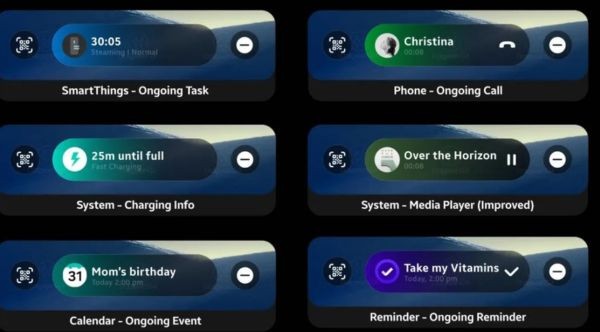
Now Bar It is essentially a smart toolbar that displays live activities (Live Activities) neatly located at the bottom of the lock screen or on the always-on screen mode (Always on Display – AOD). Many users may initially underestimate this feature, but it is actually a huge step forward in terms of user experience (UX).
Instead of having to access deep into the phone, Now Bar allows displaying a list of applications as real-time notifications. You can easily control your music player, view a stopwatch, track sports scores, or update your GPS route from Google Maps.
In addition, health indicators from Samsung Health Such as step counting or sleep scores are also integrated right here. While the initial list of supported apps is limited, Samsung is committed to expanding compatibility in the future.
Instructions for setting up Now Bar on Samsung devices
To start the experience, the prerequisite is that your Galaxy device must be running the operating system One UI 7 or more. This feature needs to be manually enabled in the system settings to work as desired by the user.
The setup process is quite simple:
- Access the section Setting on the phone.
- Find and select the item Lock screen and AOD.
- Click on options Now Bar.
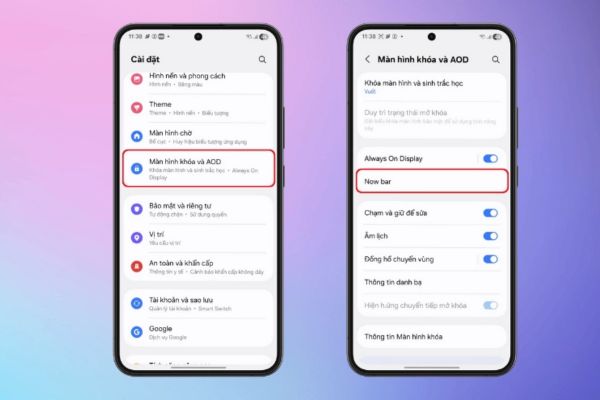
- In the Live notifications section, select See more to expand the list.
- Flip the switch to on for the apps you want to display.
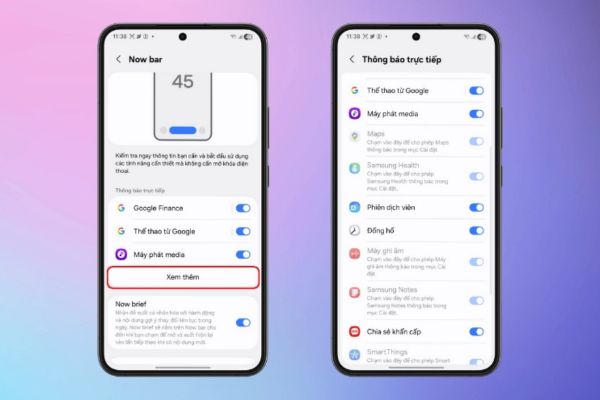
An important note to use Now Bar smoothly is that you need to give full notification permissions to these applications on the lock screen. If system notifications are turned off, Now Bar will not be able to collect data for display.
How to use Now Bar on lock screen and AOD
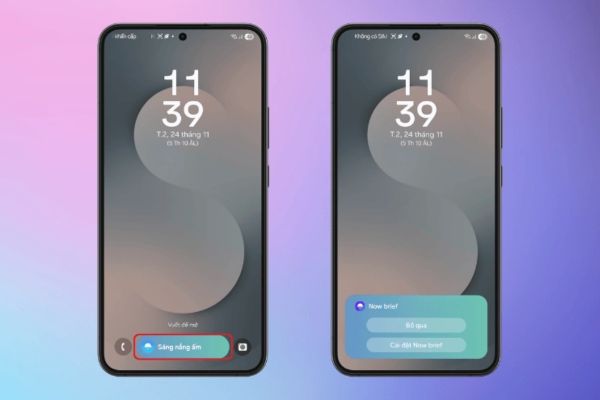
After setup is complete, knowing how to use the Now Bar requires users to grasp a few basic gestures. This toolbar is designed as a small pill at the bottom of the screen, next to application shortcuts.
- To use, you can wake up the screen (double tap or power button), then swipe up on the pill-shaped notification bar or tap the Now Bar directly to expand the content.
- If you want to quickly customize or delete notifications, long press this bar to display options like “Remove” or quick access to settings.
It is important to understand that the Now Bar only appears when the application is running in the background or has direct activity. For example, if you don’t play music or set a timer, this bar will not be displayed. Therefore, make sure the app is opened before locking the device to see this feature in action.
Impact of Now Bar on battery life
Power issues are always a top concern, especially with features running on AOD. However, reality shows that using Now Bar does not cause significant battery drain, especially on newer models like the Galaxy S25.
On the contrary, this feature also helps save energy overall. The reason is that users can minimize the number of times they have to light up the entire screen and unlock the device just to perform simple tasks such as changing songs or checking the time.
Now Bar’s minimalist interface consumes much less power than opening the full Spotify or YouTube app. If you feel like too many notifications are distracting or are concerned about your battery, you can completely go into settings to turn off unnecessary applications.
Combine Now Brief to optimize the experience
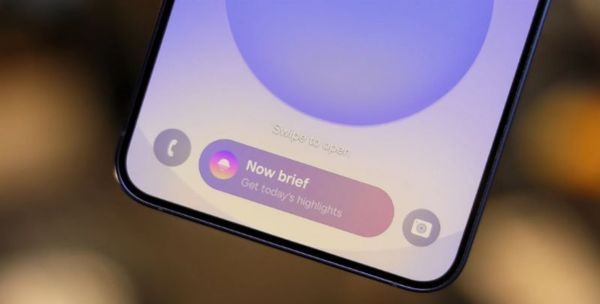
Next to Now Bar, Samsung Also introduced Now Briefand these two features work independently but complement each other very well. Now Brief uses artificial intelligence (AI) to synthesize important information during the day such as weather, schedules, reminders based on users’ living habits and sleep data.
Information from Now Brief will also appear right in the Now Bar notification area. Therefore, for a fully personalized experience, users should also set up Now Brief in the lock screen settings. This combination turns the phone into a true virtual assistant, displaying everything you need as soon as you glance at the screen.
Conclusion
The mastery How to use Now Bar will bring seamlessness and modernity to your Samsung device usage experience. Even though it’s just a small change in the interface, the actual value it brings in saving time and operations is huge. Try setting up today to experience outstanding convenience on your Galaxy.