Welcome to the update Windows Terminal First of 2021! This update brings new features to Windows Terminal Preview version 1.6 as well as moves Windows Terminal to version 1.5, including legacy features. You can download both versions from the Microsoft Store or from GitHub release page. Below are some of the highlights in this update, but we recommend checking out the update notes to see what’s been improved with version 1.6.
| Join the channel Telegram belong to AnonyViet 👉 Link 👈 |
Settings UI
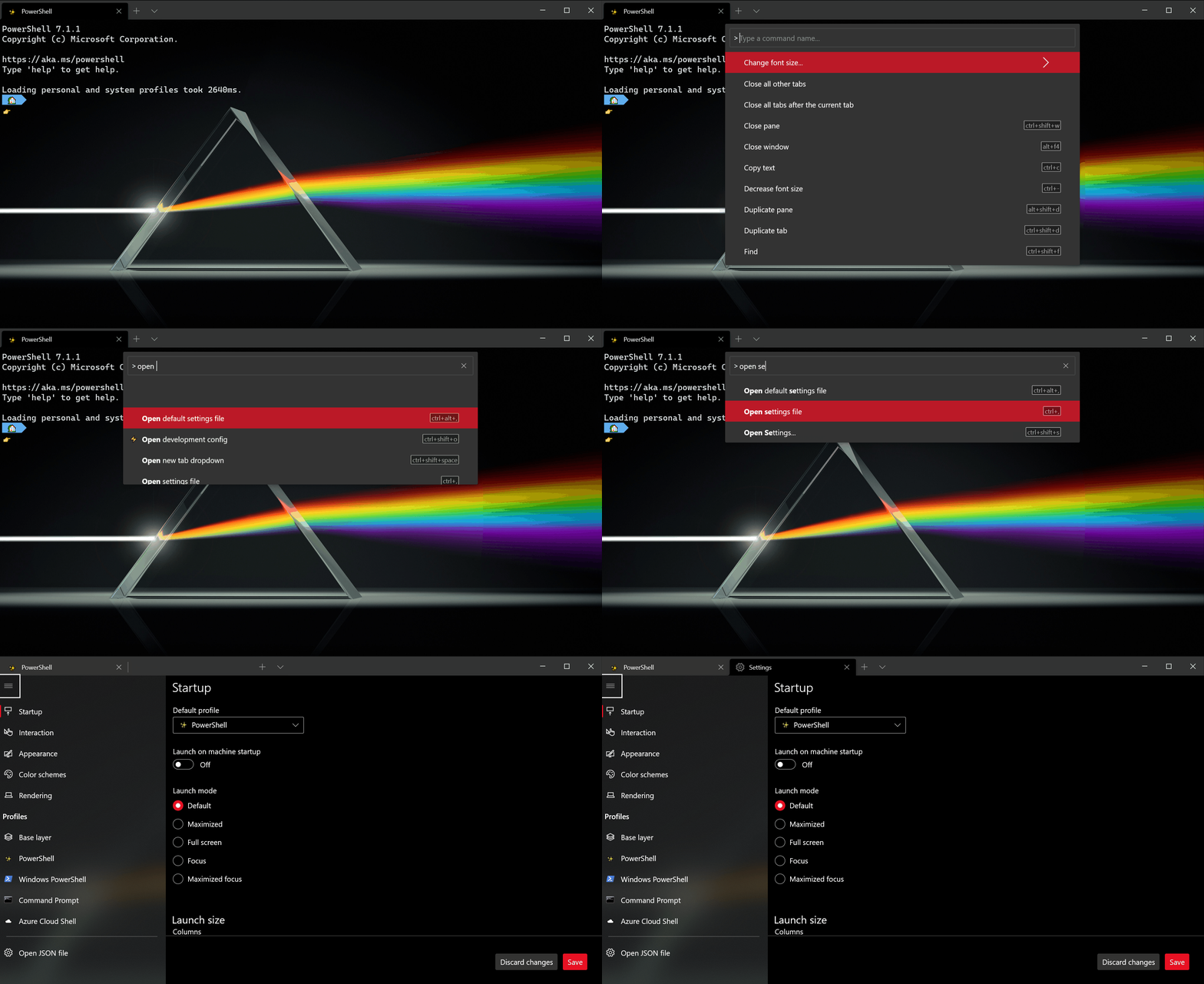
It’s finally here! Windows Terminal Preview now includes the release alpha. alpha of the settings user interface (Settings UI) new. The Settings UI is unbound by default and will not open when clicking the Settings button in the drop-down menu, so you will need to add a snippet of code to your settings.json file to open it with the command palette or your keyboard.
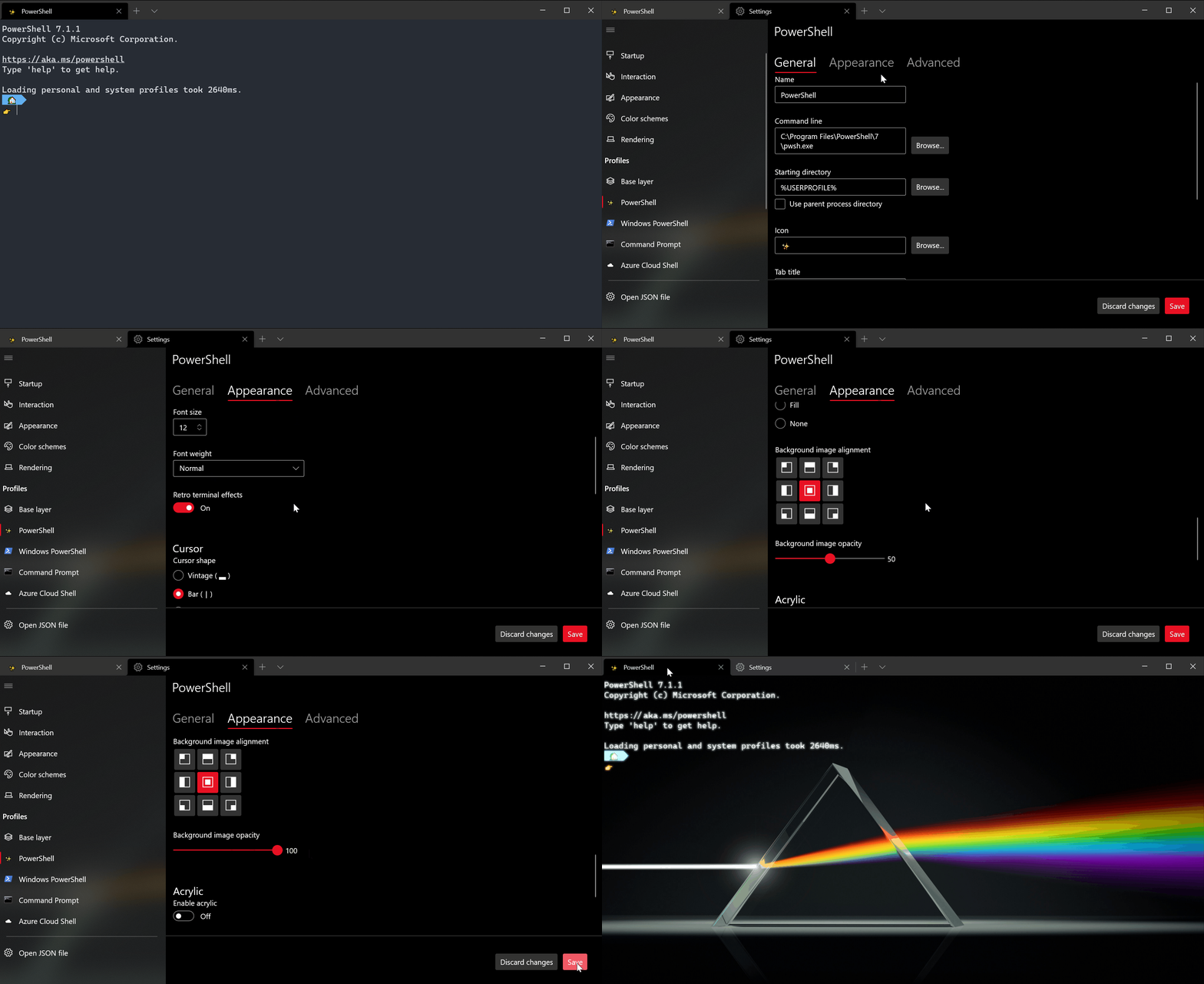
How to open Settings UI
To Settings UI by key “Ctrl + Shift + ,”add the following code to your actions array (or keybindings if you’re using an older version of the settings file):
{ "command": { "action": "openSettings", "target": "settingsUI" }, "keys": "ctrl+shift+," },
Back up installation files
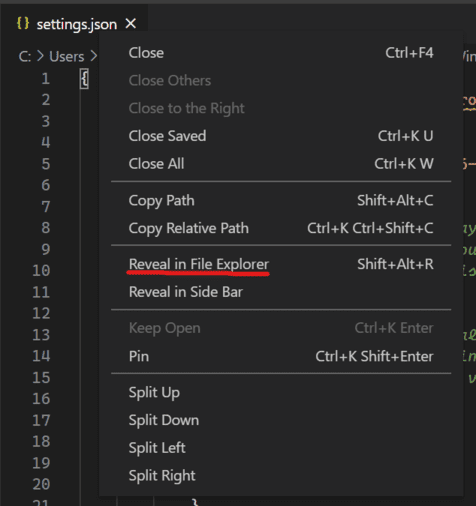
While the Settings UI remains in preview, you’ll still have a backup of your previous settings files created in case something goes wrong while editing the settings and you need to reset the defaults. These backup files can be found in the same location as your settings.json file. The easiest way to navigate here is to right-click on the settings.json file tab in Visual Studio Code and select “Reveal in File Explorer”.
Next updates
The Windows Terminal team is still actively working on Settings UI and will continuously release new updates. Here are some things the team is working on:
- Ensure Settings UI has intuitive keyboard navigation and improved accessibility.
- Add actions and key bindings to Settings UI.
- Provides the function to reorder profiles.
Startup actions
Do you want to start your terminal in a custom configuration when you launch it? You can now set startup actions in your general settings to configure how the terminal launches. Setting startupActions accepts arguments wt. More information about arguments can be found on the page Windows Terminal documentation.
// Launch terminal with multiple tabs
"startupActions": "new-tab; new-tab"

//Launch terminal with one tab split into a PowerShell pane and an Ubuntu pane
"startupActions": "split-pane -p PowerShell ; split-pane -p Ubuntu"
Note: This setting is not yet available in Settings UI and is only available when editing in the settings.json file.
Progress indicator
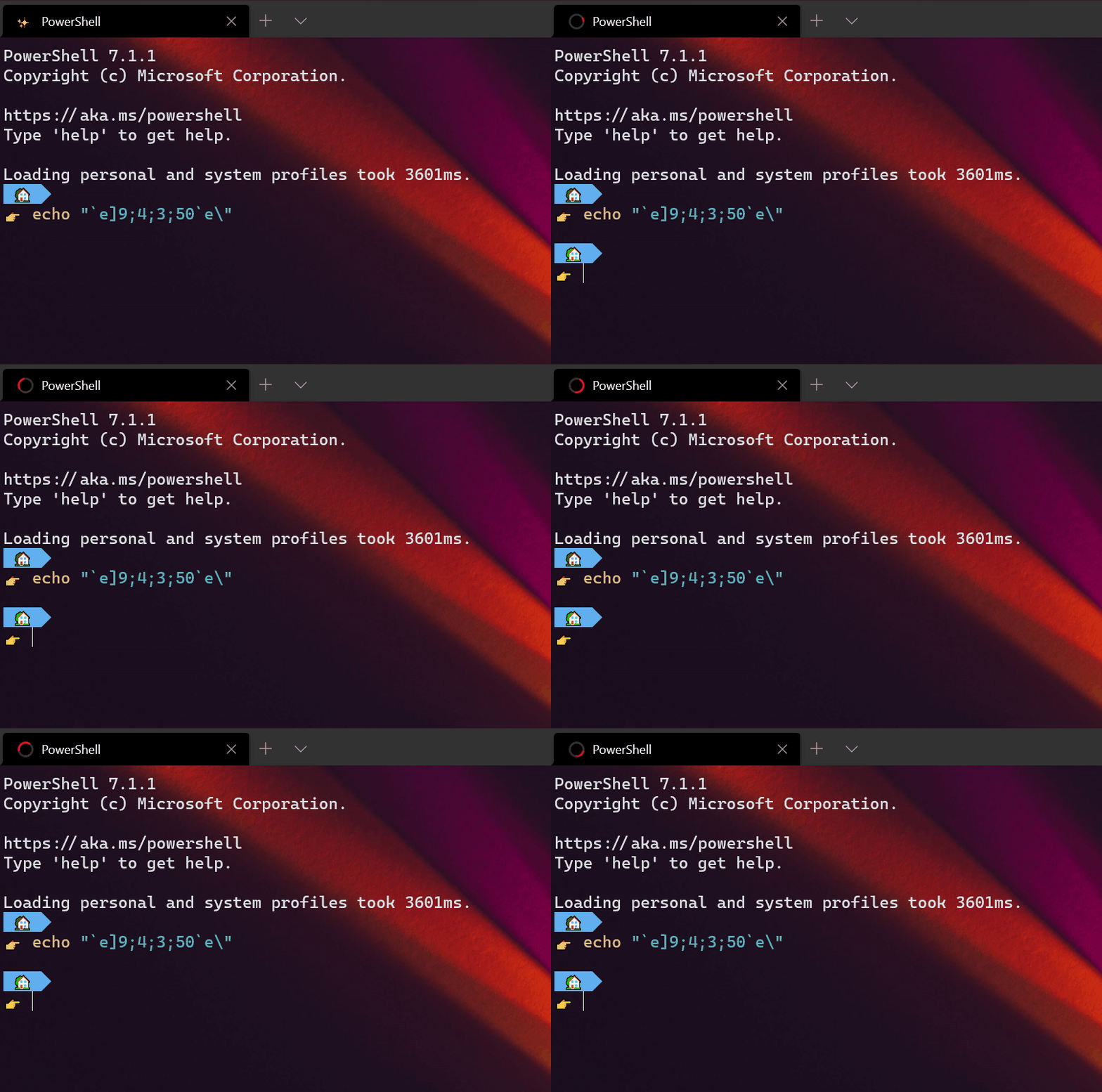
Terminal will display a progress indicator in tabs and taskbar whenever an OSC 9 sequence is received; 4. You can find more information about the remaining tasks and documentation for the progress indicator on GitHub.
Pixel shaders
As a new experimental feature, you can now use the HLSL pixel shader inside your profiles. Some shader examples can be found in the Windows Terminal repository.
"experimental.pixelShaderEffect": "C:\\temp\\invert.hlsl"
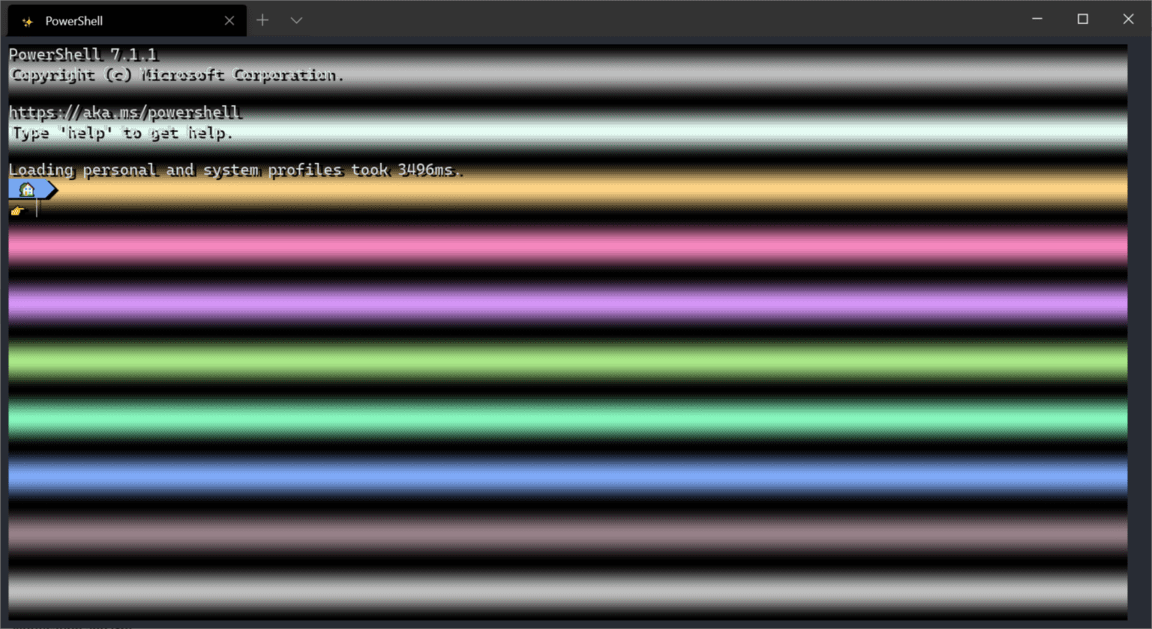
Note: This setting is not yet available in Settings UI and is only available when editing in the settings.json file.
New Actions
Scroll to the beginning and end of history
You can use commands scrollToTop and scrollToBottom to scroll to the beginning or end of the history.
{ "command": "scrollToTop", "keys": "ctrl+shift+home" },
{ "command": "scrollToBottom", "keys": "ctrl+shift+end" }
Focus on the most recently used compartment
Actions moveFocus went in a new direction, initially it allowed you to navigate to the last used pane using your keyboard.
{ "command": { "action": "moveFocus", "direction": "previous" }, "keys": "ctrl+alt+left" }
Move tabs
You can now move your tabs back (left) and forward (right) using the keyboard with the moveTab command.
{ "command": { "action": "moveTab", "direction": "backward" }, "keys": "" },
{ "command": { "action": "moveTab", "direction": "forward" }, "keys": "" }
Note: This action is not available by default.
Other features
- Actions
splitPaneand argumentsspnow accepts a size parameter to determine the size of the pane. - Arguments
move-focushas also been added, so you can specify which pane to focus on when launching the terminal using the command. - You can now specify tab colors for each new tab or pane via the command line with
--tabColor #rrggbb. - Terminal now supports ConEmu’s OSC 9;9, setting the current working directory. If you use OSC 9; 9 ;, creating a copy of that pane or tab will use the Windows path you specified.
- When you use BEL, the terminal displays a bell icon in the tab. Now you can also set the ringtone to “
visual“, this will cause the taskbar to flash. - You now have a double underscore cursor in the terminal.
- Command palette now supports “
launchMode“, can be set to “action” or “commandLine“.
Other improvements
- The “Open Windows Terminal here” menu item will now display inside folders.
- The command palette, when in command line mode, parses and validates the commands you have entered and displays recently used commands.
- Windows Terminal will now display italic fonts.
- Start a search with the selected text and copy it into the search field.
- Terminal received a performance improvement of about 33% in total runtime for bulk text results.
And other fixed errors you can see more in the Windows Terminal github page.
Frequently asked questions
Where can I download Windows Terminal Preview 1.6?
You can download Windows Terminal Preview 1.6 from the Microsoft Store or from the GitHub releases page: https://github.com/microsoft/terminal/releases.
How do I open the new Settings UI?
Settings UI is alpha version and not enabled by default. You need to add code { "command": { "action": "openSettings", "target": "settingsUI" }, "keys": "ctrl+shift+," } into the array actions in file settings.json your.
Does Settings UI support all Windows Terminal 1.6 features?
No, the Settings UI is still in alpha development. Some features, like launching with multiple custom tabs or using pixel shaders, can currently only be configured by directly editing the file settings.json.