• Home
  • News
  • Software
  • Knowledge
  • MMO
  • Tips
  • Security
  • Network
  • Office
AnonyViet - English Version
  • Home
  • News
  • Software
  • Knowledge
  • MMO
  • Tips
  • Security
  • Network
  • Office
No Result
View All Result
  • Home
  • News
  • Software
  • Knowledge
  • MMO
  • Tips
  • Security
  • Network
  • Office
No Result
View All Result
AnonyViet - English Version
No Result
View All Result

Lesson 133: Format Date and Time in Excel

AnonyViet by AnonyViet
January 25, 2023
in Office
0

Date and time in Excel can be displayed in different ways. To apply formatting Date and Timeperform the following steps.

Join the channel Telegram of the AnonyViet 👉 Link 👈

Format Date and Time in Excel

1. Select cell A1.

Lesson 133: Format Date and Time in Excel

2. Right-click, then select Format Cells.

3. In Category, select Date, and choose a date format.
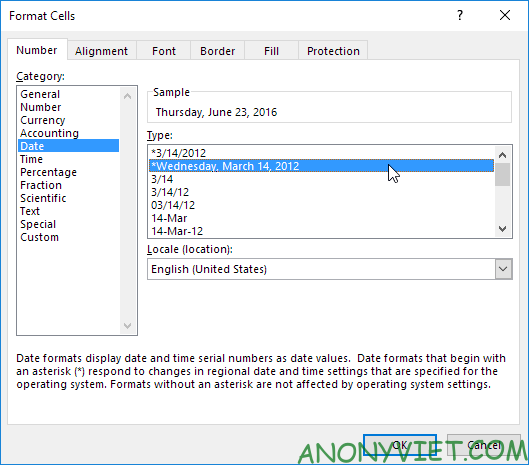
Lesson 133: Format Date and Time in Excel 10

4. Click OK.

Lesson 133: Format Date and Time in Excel 11

Note: to apply the Time format, in the Category list, select Time.

5. Dates are stored as numbers in Excel and count the number of days since January 0 , 1900. Time is treated internally as a number from 0 to 1. To make this clear, let’s change the format. of cells A1, B1 and C1 to General .

Lesson 133: Format Date and Time in Excel 12

Note: 42544 is the number of days since 0 Jan 1900 or 23 Jun 2016. 6:00 is 0.25.

6. You can enter the time as 6:00, but Excel shows this time as 6:00:00 AM in the formula bar.

Lesson 133: Format Date and Time in Excel 13

7. Change the format of cell C1 to Date.

Lesson 133: Format Date and Time in Excel 14
In addition, you can also view many other excel articles here.

The article achieved: 5/5 – (100 votes)

Tags: DateExcelFormatLessontime
Previous Post

11 Best Free and Paid Game Download Websites 2022

Next Post

10 steps to take when infected with data encryption Ransomware

AnonyViet

AnonyViet

Related Posts

How to add Watermark to Google Docs to protect copyright
Office

How to add Watermark to Google Docs to protect copyright

April 19, 2026
Instructions on how to hide formulas in Excel to secure data
Office

Instructions on how to hide formulas in Excel to secure data

February 6, 2026
Top who creates the most beautiful presentation slide today
Office

Top who creates the most beautiful presentation slide today

September 23, 2025
Automatically check and correct spelling errors on Google Docs
Office

Automatically check and correct spelling errors on Google Docs

February 23, 2025
Instructions for downloading Google Docs files easily on any device
Office

Instructions for downloading Google Docs files easily on any device

December 18, 2024
Launching AI image creation feature on Google Docs
Office

Launching AI image creation feature on Google Docs

November 20, 2024
Next Post
10 steps to take when infected with data encryption Ransomware

10 steps to take when infected with data encryption Ransomware

0 0 votes
Article Rating
Subscribe
Login
Notify of
guest

guest

0 Comments
Oldest
Newest Most Voted
Inline Feedbacks
View all comments

Recent News

Key Smart Call Blocker Premium 1 year – Block spam calls

Key Smart Call Blocker Premium 1 year – Block spam calls

May 13, 2026
How to use multiple Zalo on one computer for business people

How to use multiple Zalo on one computer for business people

May 13, 2026
Compare vivo X300 Ultra and vivo X200 Ultra: A comprehensive leap forward for the photography “monster”

Compare vivo X300 Ultra and vivo X200 Ultra: A comprehensive leap forward for the photography “monster”

May 12, 2026
Instructions for receiving 1 month of ChatGPT Plus for free

Instructions for receiving 1 month of ChatGPT Plus for free

May 12, 2026
Key Smart Call Blocker Premium 1 year – Block spam calls

Key Smart Call Blocker Premium 1 year – Block spam calls

May 13, 2026
How to use multiple Zalo on one computer for business people

How to use multiple Zalo on one computer for business people

May 13, 2026
Compare vivo X300 Ultra and vivo X200 Ultra: A comprehensive leap forward for the photography “monster”

Compare vivo X300 Ultra and vivo X200 Ultra: A comprehensive leap forward for the photography “monster”

May 12, 2026
AnonyViet - English Version

AnonyViet

AnonyViet is a website share knowledge that you have never learned in school!

We are ready to welcome your comments, as well as your articles sent to AnonyViet.

Follow Us

Contact:

Email: anonyviet.com[@]gmail.com

Main Website: https://anonyviet.com

Recent News

Key Smart Call Blocker Premium 1 year – Block spam calls

Key Smart Call Blocker Premium 1 year – Block spam calls

May 13, 2026
How to use multiple Zalo on one computer for business people

How to use multiple Zalo on one computer for business people

May 13, 2026
No Result
View All Result
  • Home
  • News
  • Software
  • Knowledge
  • MMO
  • Tips
  • Security
  • Network
  • Office

wpDiscuz
0
0
Would love your thoughts, please comment.x
()
x
| Reply