• Home
  • News
  • Software
  • Knowledge
  • MMO
  • Tips
  • Security
  • Network
  • Office
AnonyViet - English Version
  • Home
  • News
  • Software
  • Knowledge
  • MMO
  • Tips
  • Security
  • Network
  • Office
No Result
View All Result
  • Home
  • News
  • Software
  • Knowledge
  • MMO
  • Tips
  • Security
  • Network
  • Office
No Result
View All Result
AnonyViet - English Version
No Result
View All Result

Instructions for upgrading Canva Education for free

AnonyViet by AnonyViet
December 18, 2025
in Tips
0

Instructions for upgrading Canva Education is currently the most sought-after keyword by the amateur design community who wants to save costs. Instead of having to pay a large amount of money every month, users can fully take advantage of modern AI tools to own an account with full advanced features. The article below will share a clever “circumvention” process that will help you access Canva’s huge resource store without spending a dime.

Join the channel Telegram belong to AnonyViet 👉 Link 👈

The birth of Canva and the educational edition perks

Before diving into the tips, we need to clearly understand the value of this platform. Founded by Melanie Perkins in 2012 and officially launched in 2013, Canva was born as a lifeline solution when Perkins realized the complexity of Photoshop. The goal is to make design easy for everyone online.

In there, Canva Education (Canva Pro Education) is a special version for teachers, students and educational organizations. This is essentially a free version but includes all the features of Canva Pro. It provides maximum support for teaching, making slides, and assigning exercises with professional tools. Because of these privileges, the need to own it is huge.

The birth of Canva and the educational edition perks

Detailed step-by-step instructions for upgrading Canva Education

To convert a regular account to an educational account without the need for official documents, we will combine the power of AI and online photo editing tools. Below is the specific process:

Step 1: Create verification material with Google Gemini

First, here is the ID Card image, please download it to your device in advance:
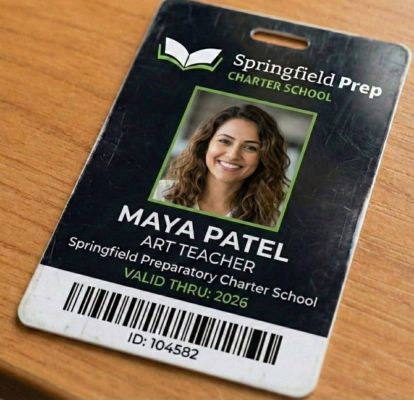
Download this ID Card photo

Then, access it Gemini’s homepage. Here, upload the ID card image and enter the exact command line: “Remake a same image with random name with photo”.

Note, select the processing mode as “Thinking with 3 Pro” (Thinking with 3 Pro) then press the send arrow.

Select the processing mode "Thinking with 3 Pro"
Select the processing mode as “Thinking with 3 Pro”

You need to patiently wait a few minutes for the AI ​​to process and create a new image with random information. When done, please download images computer results.
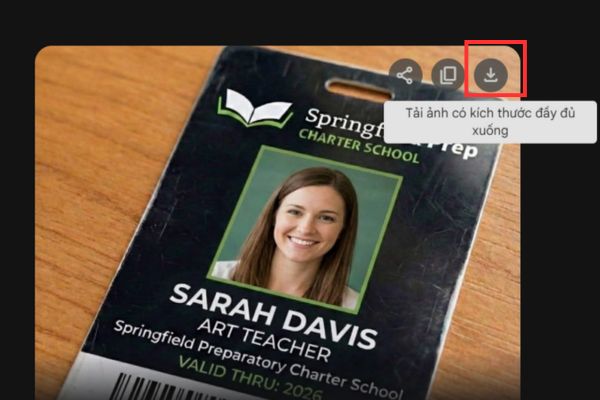
Download the resulting image to your computer

Step 2: Post-editing with Photopea

Once the images from Gemini are available, the next step is to clean up the AI ​​traces to increase reliability.

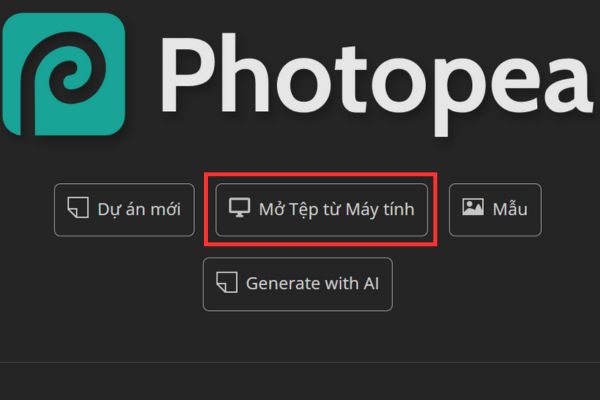
Visit Photopea site and select “Start using Photopea“.
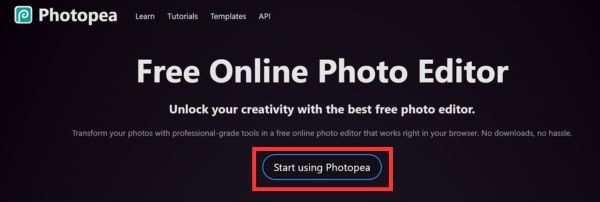
Select "Start using Photopea"
Select “Start using Photopea”
Select Open file from computer

Open the image file you just downloaded from your computer. For safety and ease of editing, press a key combination Ctrl + J To duplicate the layer, create a new Layer (Layer 1) above the original layer.

Step 3: Process image details

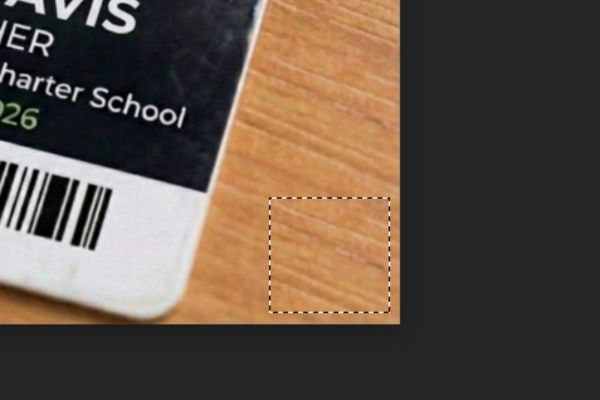
At Layer 1 just created, use the tool “Select square area” on the toolbar. Cleverly drag the mouse to select an empty area on the image (for example, a table top or smooth background).
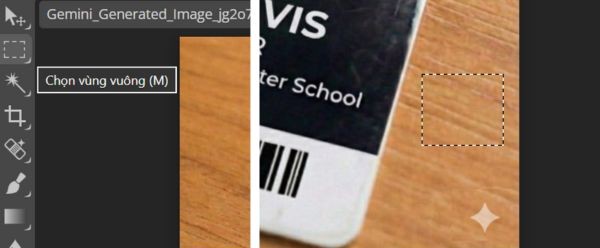
Process image details

Next, press v key on the keyboard to switch to the move tool, then drag the selected background over the position with the AI ​​icon.

Overwrite the position with the AI ​​icon

Finally, go to the menu File > Save As > JPG.
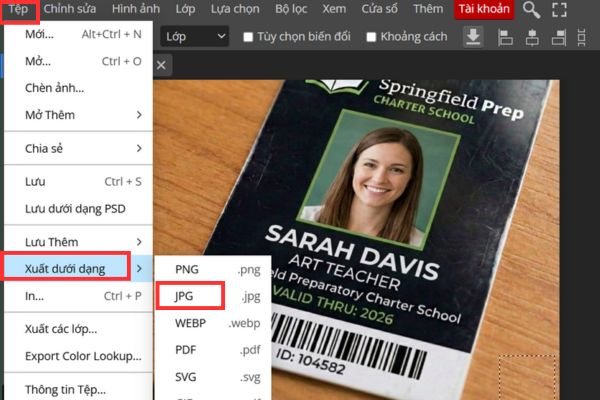
Save image file
Save image file

Remember to name the file to match the name displayed on the card to increase uniformity, then click Save.
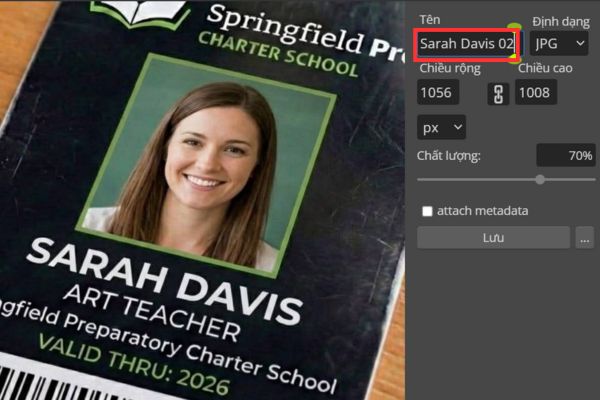
Name the file to match the name displayed on the card

Step 4: Declare information on Canva

This is the decisive step in this Canva Education upgrade guide process. You access Canva Education home page and find the Teachers section, press the button Get Verified.
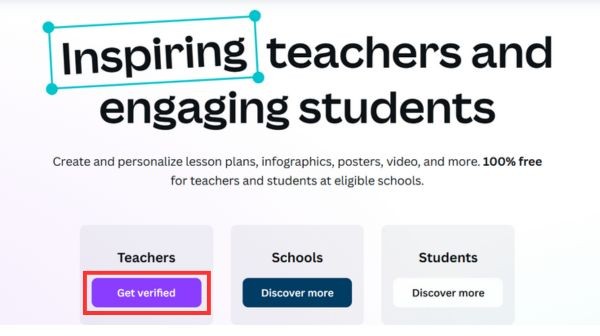
Click the Get Verified button

The system will ask to enter information, you need to fill in the following data accurately to match this “tip”:

  • Country: United States
  • Check the box: I don’t have a school email.
  • School location: Springfield, MA, USA.
  • School name: Springfield Preparatory Charter School
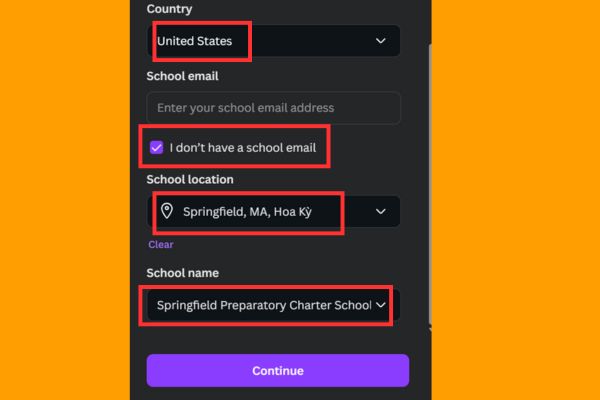
Fill in the following data accurately

After pressing Continueif the system cannot find it, select the line “My school isn’t here“. Canva will now automatically create a separate Team for you, click Continue to continue.
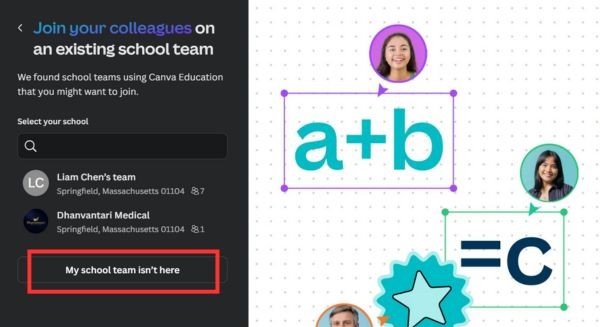
Please select the line "My school isn't here"
Select the line “My school isn’t here”

In the document verification section (Teaching license), click Choose files and upload the image you edited in Step 3.
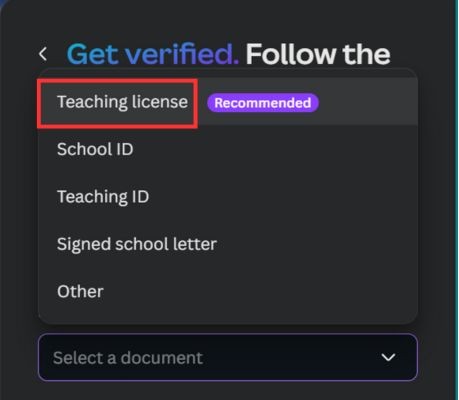
Select Teaching license

Re-enter the full name and school name information again then press Continue. If everything goes well, you will receive it email notification of success and the Canva interface after returning to the home page will change immediately.
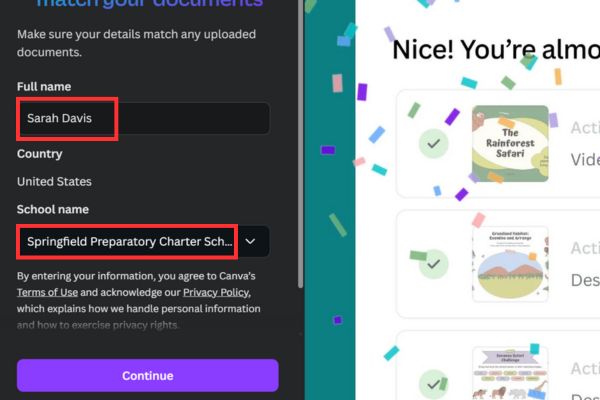
Re-enter your full name and school name information

Conclusion

The above is the whole thing Instructions for upgrading Canva Education through taking advantage of smart support tools. With just a few steps with Gemini and Photopea, you can unlock unlimited creativity with full Pro features. Hope this tip will help make your design and studying work more convenient!


Tags: CanvaEducationfreeInstructionsupgrading
Previous Post

5+ prompts to create sparkling Christmas photos for mothers and babies at home

Next Post

How much RAM do you really need?

AnonyViet

AnonyViet

Related Posts

Instructions for receiving Lovable Pro 12 months for free
Tips

Instructions for receiving Lovable Pro 12 months for free

May 29, 2026
Instructions for receiving 1 month of ElevenLabs Creator for free worth
Tips

Instructions for receiving 1 month of ElevenLabs Creator for free worth $22

May 25, 2026
How to create beautiful studio-like preschool graduation photos for your child
Tips

How to create beautiful studio-like preschool graduation photos for your child

May 21, 2026
Instructions on how to change iPhone fonts beautifully with Lara
Tips

Instructions on how to change iPhone fonts beautifully with Lara

May 20, 2026
Create images of guardian mascots using AI according to year of birth
Tips

Create images of guardian mascots using AI according to year of birth

May 20, 2026
Try the Shopee Profit Calculator now, avoid the risk of selling at a loss
Tips

Try the Shopee Profit Calculator now, avoid the risk of selling at a loss

May 19, 2026
Next Post
How much RAM do you really need?

How much RAM do you really need?

0 0 votes
Article Rating
Subscribe
Login
Notify of
guest

guest

0 Comments
Oldest
Newest Most Voted
Inline Feedbacks
View all comments

Recent News

How to turn off Gemini Nano on Chrome to free up 4GB of memory

How to turn off Gemini Nano on Chrome to free up 4GB of memory

May 30, 2026
Instructions for receiving Lovable Pro 12 months for free

Instructions for receiving Lovable Pro 12 months for free

May 29, 2026
How to extract text from photos using Zalo is super simple

How to extract text from photos using Zalo is super simple

May 29, 2026
HONOR 600 in hand – High-end design, 200MP camera, not cheap price

HONOR 600 in hand – High-end design, 200MP camera, not cheap price

May 28, 2026
How to turn off Gemini Nano on Chrome to free up 4GB of memory

How to turn off Gemini Nano on Chrome to free up 4GB of memory

May 30, 2026
Instructions for receiving Lovable Pro 12 months for free

Instructions for receiving Lovable Pro 12 months for free

May 29, 2026
How to extract text from photos using Zalo is super simple

How to extract text from photos using Zalo is super simple

May 29, 2026
AnonyViet - English Version

AnonyViet

AnonyViet is a website share knowledge that you have never learned in school!

We are ready to welcome your comments, as well as your articles sent to AnonyViet.

Follow Us

Contact:

Email: anonyviet.com[@]gmail.com

Main Website: https://anonyviet.com

Recent News

How to turn off Gemini Nano on Chrome to free up 4GB of memory

How to turn off Gemini Nano on Chrome to free up 4GB of memory

May 30, 2026
Instructions for receiving Lovable Pro 12 months for free

Instructions for receiving Lovable Pro 12 months for free

May 29, 2026
No Result
View All Result
  • Home
  • News
  • Software
  • Knowledge
  • MMO
  • Tips
  • Security
  • Network
  • Office

wpDiscuz
0
0
Would love your thoughts, please comment.x
()
x
| Reply