Explore now cHow to transfer music from other services to Apple Music and say goodbye to the hassle of having to recreate playlists from scratch. Apple has listened to users and launched a built-in conversion tool, making the process of transferring music from Spotify or other services smoother and more convenient.
| Join the channel Telegram belong to AnonyViet 👉 Link 👈 |
Apple Music releases global music transfer tool
After a long period of testing and a limited rollout in a few countries, Apple has finally released its global music transfer tool. This is good news for those who want to “move house”. Apple Music but don’t want to waste time rebuilding the library from scratch. The tool is now available in most countries, except China, Myanmar and Russia, opening a new chapter for music experiences.

Necessary conditions to start conversion
To use this feature, the most important requirement is that you must have an active Apple Music subscription account. If you don’t have one, you can register for 65,000 VND/month and enjoy a completely free trial month to experience before deciding to stick with it long-term.
How to transfer music from another service to Apple Music
On the phone
This tool works smoothly on both popular mobile operating systems: iOS and Android. The steps are a little different at the beginning.
For iPhone or iPad users:
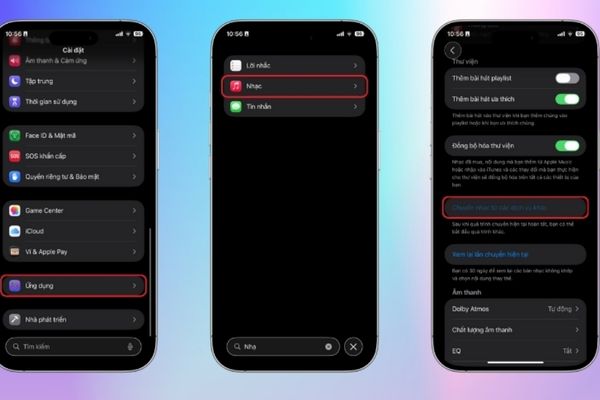
- First, you need to access the item Setting on your device.
- Next, scroll down and find Application > Select Music.
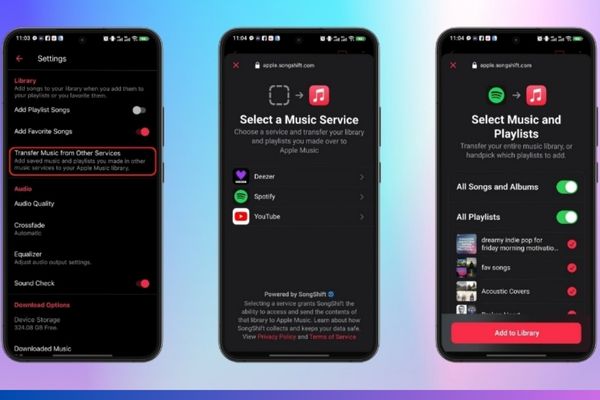
- Here, you will see options Transfer Music from Other Music Services (Transfer music from other music services).
For Android device users:
First of all, you need to open the Apple Music application installed on your device.
- Then you click More and select item Settings.
- Similar to iOS, you will find the text Transfer Music from Other Music Services.
Next steps for both platforms:
- After clicking on the music transfer option, a list of supported services will appear. Select the platform you want to move to (for example, Spotify) and log in to that account.
- The system will let you select the specific content you want to transfer, including saved songs and personal playlists.
- Finally, you just need to press Add to Library (Add to library) and wait. This is the most important step in the process of transferring music from another service to Apple Music.
On the web browser
If you are using a computer, the conversion process is also extremely convenient through a web browser.
- Please visit the address music.apple.com.
- Next, you click the button Sign In and sign in with the Apple account you use for the Apple Music service.
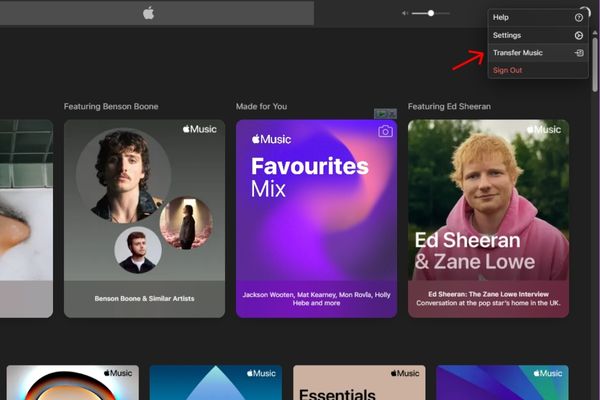
- After successfully logging in, click on your avatar or the first letter of your name in the upper right corner of the screen.
- In the drop-down menu, you select the item Transfer Music (Switch music).
- The interface will display supported services, you just need to select the source service and log in.
- Select the content you want to bring over and click Add to Library.
- Track and complete the conversion process
After you initiate the request, Apple Music will begin the process of scanning and comparing songs from the old service with its vast music store. When the process finishes, you will receive one of the following two messages:
- Transfer Complete: This message means that Apple Music has found all the corresponding tracks and has successfully added them to your library.
- Some Music Needs Review (Some songs need to review): This happens when Apple Music can’t find an exact match but has found alternative versions (for example, remixes, live versions, or other albums). You need to click Review Now, select the most suitable version and click Save to complete.
Important notes you need to know
- Apple allows users 30 days from the initial transfer to review and select alternative versions for unmatched songs.
- This tool only supports transferring playlists you create yourself. Playlists pre-edited by the old platform (like Spotify’s “Discover Weekly”) will not be carried over.
- Make sure you clearly understand how to transfer music from another service to Apple Music so the process goes smoothly and avoids unnecessary mistakes.
Conclusion
With this new tool, switching to Apple Music is no longer a barrier. Now you can easily carry your entire world of music without worrying about losing it. Try it now How to transfer music from another service to Apple Music to experience the convenience and seamlessness that Apple brings!