How to filter noise using CapCut is an extremely useful skill that helps you quickly upgrade the quality of your videos. Unwanted noises such as wind, traffic or surrounding activities often reduce the viewer’s experience. Luckily, this powerful and free tool will help you completely solve the problem with just a few simple steps.
| Join the channel Telegram belong to AnonyViet 👉 Link 👈 |
How to filter noise using CapCut on the phone
To remove noise from your video, follow these steps:
Step 1: Create a project and add videos
First, open the CapCut application and click on the icon New project. Then, go to your media library, select the video containing noise that needs to be processed and tap More to bring the video into the editing interface.
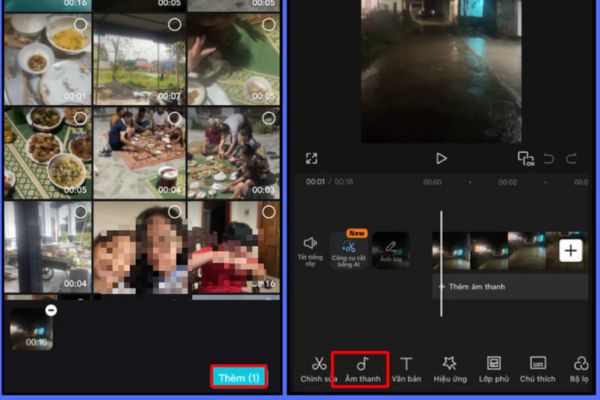
Step 2: Access the audio processing tool
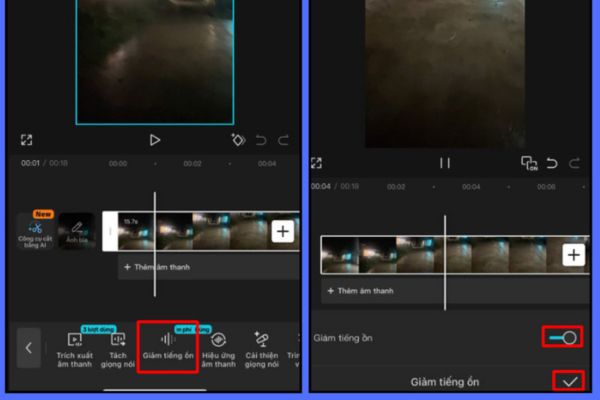
On the timeline, click on the video you just added. At this point, a toolbar will appear at the bottom. You find and select the item Noise reduction (Noise Reduction).
Step 3: Activate the feature and confirm
A new interface will appear, you just need to flip the switch next to the text Noise reduction to enable the feature. Immediately, CapCut’s algorithm will automatically analyze and remove noise. Finally, click traces to confirm changes.
Step 4: Check and export the finished video
After applying, you should wear headphones and listen to the entire video again to make sure the sound is clear and the voice is not distorted. If you are satisfied, you can proceed to export the video with the desired quality.
A good tip is to split videos with complex noise to process them separately, making the final sound sound more natural and avoiding distortion of the main voice.
Discover how to filter noise using CapCut desktop version
CapCut on the computer not only retains the simplicity of the mobile version but also provides more advanced tools. The noise filtering process is also extremely quick.
Step 1: Start the project on CapCut PC
Open CapCut software on your computer and select New project. Next, import the video you want to edit into the project’s file management area.
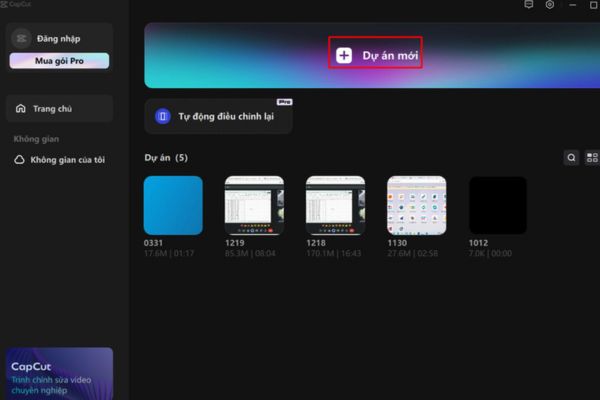
Step 2: Add the video to the timeline
Simply drag and drop videos from your library to the timeline bar at the bottom of the screen to prepare for the editing process.
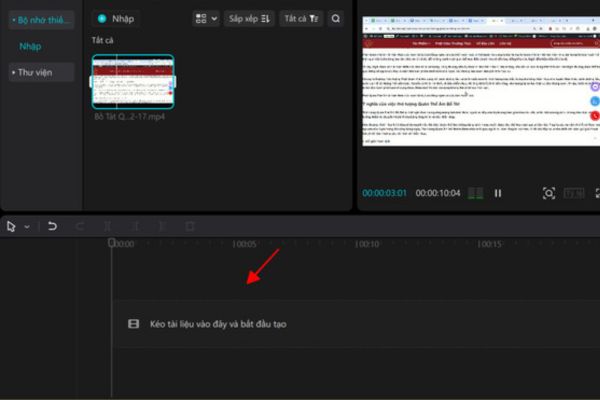
Step 3: Apply automatic noise reduction
Click to select the video on the timeline. Look at the upper right corner of the screen and you will see a control panel. Please select the tab Sound (Audio), then navigate to section Noise reduction (Noise Reduction) and check the box next to it.
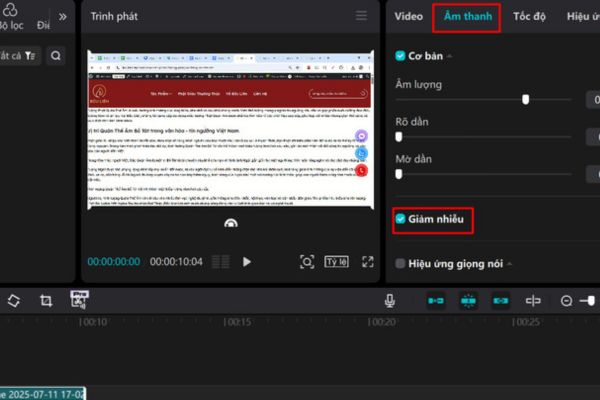
Step 4: Fine-tune and save the video
The tool will automatically work immediately. You can play back the video to hear the difference. When the sound quality is satisfactory, press the button Download (Export) to save the complete video.
Is CapCut the optimal choice for filtering noise?
CapCut is a great and completely free solution for those who need to process audio quickly without installing complicated software like Adobe Audition. Its automatic noise filtering feature works very well with common noises.
However, for professional video projects or when videos are shot in extremely noisy environments with a variety of complex background noises, CapCut’s capabilities may be limited. In these cases, combining CapCut with a dedicated audio software will yield the best results.
Conclusion
With the above instructions, hopefully you have a clear understanding How to filter noise using CapCut to confidently create videos with perfect sound quality. This is a powerful, accessible tool that makes your videos more professional and appealing to viewers. Apply now to see the difference!