In spite of YouTube is still the current leading entertainment video site on the internet, and you don’t think much about customizing or fiddling with YouTube URLs. But whether you are a normal user or regularly watch the Chief’s Live Stream every day, you still have all kinds of ways to customize Youtube.
| Join the channel Telegram belong to AnonyViet 👉 Link 👈 |
One of those ways is to use URLs. Below are some URL tricks to help you be more PRO when using Youtube, such as converting videos into GIFs.
1. Play the video at the specified time
Normally, when you copy a link to a YouTube video and open it, it plays the video from the beginning. But if you want to show someone a certain part of the video or skip a lengthy intro, you can add the time to the URL to play the video at the time you want.
You can do this by adding &t=YmXXs to the end of the video URL manually, and replace Y minutes and XX seconds in the video you want. You can also just use seconds eg 90s equal to 1 and a half minutes.
For example this video:
youtube.com/watch?v=Tt5ShaI5hW8
Now if you want the video to start at minute 2, you can do the following:
youtube.com/watch?v=Tt5ShaI5hW8&t=120
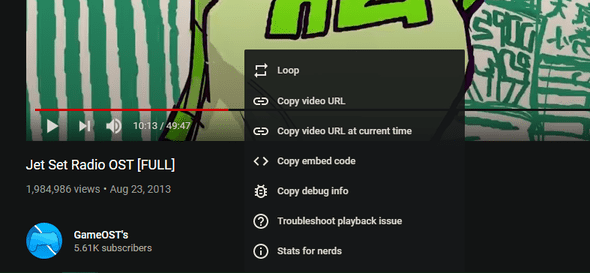
If you don’t want to use this manual method, stop the video at the point you want to share, then right-click the video and select Copy video URL at current time.
2. Continuous video playback
YouTube is the best place to listen to music that you can’t find anywhere else, such as EDM, Chill, Pop music, etc. If you like a song and want to listen to it over and over again, you can add this line in the URL.
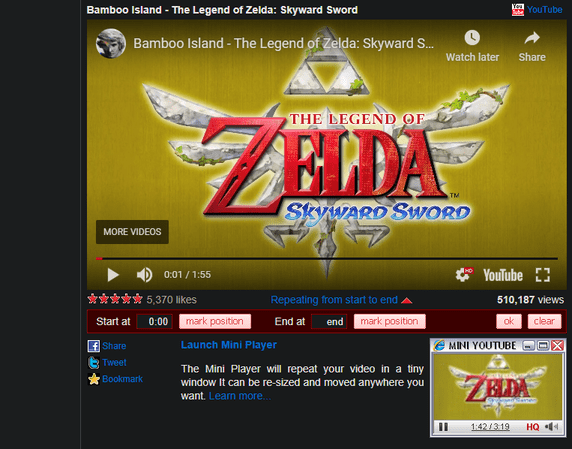
This will open the video at YouTubeRepeater.com, which will repeat it for you.
For example, the video below:
youtube.com/watch?v=shibvkpyb8E
After changing the URL it will look like this:
youtuberepeater.com/watch?v=shibvkpyb8E
Using the options below videos on the new page, you can change the start or end time for the video, if desired.
While I wanted to highlight this URL hacking method, you can also do the same thing right on YouTube. Just right click on the YouTube video and enable Loop to continue playing the video.
3. Ignore age restrictions
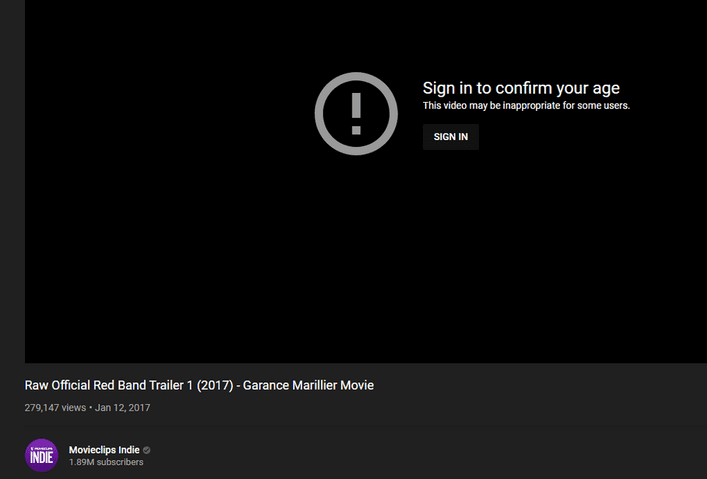
YouTube has age-restriction policies for some videos flagged as containing adult content. Even if you don’t have a YouTube account or don’t want to log in to watch videos, you can still watch the content below by changing the URL.
Example of an age-restricted video:
youtube.com/watch?v=wvZ6nB3cl1w
Now, let’s add nsfw in front of the letter youtube of URL as below:
nsfwyoutube.com/watch?v=wvZ6nB3cl1w
The video will be opened on a new website and has no age restrictions. In case you still see the age restriction message, click here to try another method at the top of the page. This will open the video in another new website in the hope that it will be successful.
4. Ignore video time
Similar to the URL wizard that allows you to choose the start time of your video, you can also choose to skip a certain number of seconds at the start of the video. You can’t specify minutes with this tip, so use 90 (seconds) for one and a half minutes.
To skip the first 30 seconds of this video:
youtube.com/watch?v=M03bTkQxVUg
You just need to add &start=30 at the end of the video’s URL:
youtube.com/watch?v=M03bTkQxVUg&start=30
This tip is similar to tip 1, but it’s faster to type and doesn’t require you to remember the exact time to start the video.
5. Customize the URL for your Youtube channel
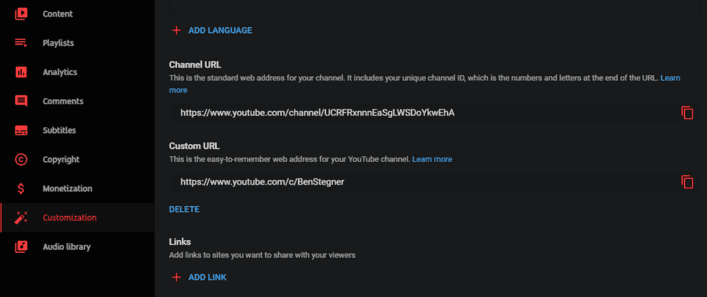
If you have your own YouTube channel and meet certain requirements, you can set a vanity URL for your page. This makes your Youtube channel easier to remember than random characters, so you can easily add your Youtube URL to your social media pages or work CV.
To be able to customize your URL, your channel needs to meet the following criteria:
- Have at least 100 subscribers
- The channel exists for at least 30 days
- Has a profile picture and YouTube channel image
If you meet these requirements, please visit YouTube Studio by clicking your avatar at the top right of YouTube and selecting YouTube Studio. On the left menu, click Customizationthen click next Basic info at the top.
Under Channel URLyou’ll see your channel’s normal URL as well as fields to set a custom URL, if you’re eligible. Use this tool to choose vanity URLs for your channel.
You can only have one custom URL. If you already have a vanity URL, you cannot change it, but you are allowed to delete your current URL and create a new one. You will have 3 changes per year, so think carefully before changing.
6. Change the homepage to the page where Youtube channels are registered
Many times, the suggestions given by YouTube are not helpful. Whether your recommendations are filled with strange content or contain videos you’re not interested in, luckily you can switch from YouTube’s recommendations page to the videos page that shows channels you’re subscribed to.
Once you’re logged into YouTube, try changing your YouTube bookmarks from the main home page to your subscription page using this URL:
youtube.com/feed/subscription
This lets you watch the latest videos from channels you’re subscribed to, so you won’t miss out on any of their new content. You should control what you see instead of letting Youtube do it.
7. Get the thumbnail of any video
With the URL customization tip, you can easily view high-quality thumbnails (video avatars, thumbnails) for any video on YouTube (if available) by visiting the following link:
img.youtube.com/vi/[VideoID]/maxresdefault.jpg
Replace [VideoID] by the back v= at the end of the YouTube video. For example:
youtube.com/watch?v=YMbm_SFJugQ
Will be converted to:
img.youtube.com/vi/YMbm_SFJugQ/maxresdefault.jpg
8. Create GIFs from YouTube Videos
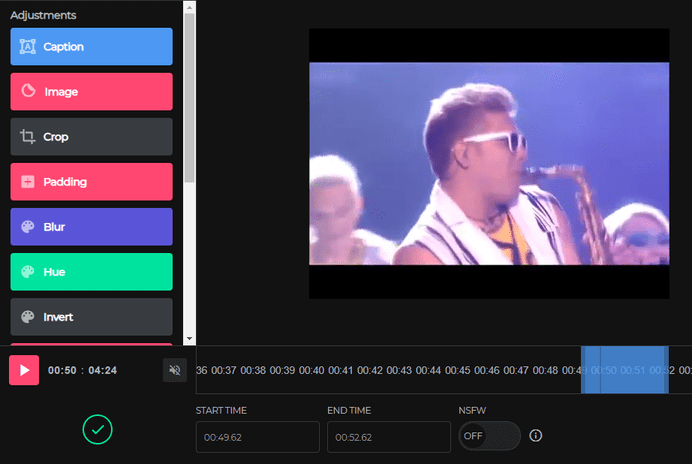
Want to turn an interesting moment on a YouTube video into an animated GIF? Simple, just change the URL as below.
Video you want to convert into GIF:
youtube.com/watch?v=gy1B3agGNxw
After changing the URL:
gifyoutube.com/watch?v=gy1B3agGNxw
You’ll be taken to gifs.com, where you can add multiple effects and crop the GIF to your liking. Once completed, share the GIF to social networks using the Link or download it for storage.
Note that particularly long videos will not work with this site.
9. Mix music from YouTube videos
Access YouTube DJ and you can add two YouTube URLs to mix their music together. Use the controls to set toggles for different parts of the song, and adjust fade and speed as you like. This is so fun to play, I swear :))
Above are some very interesting URL customization tricks that you can play with. If you have any other good games, please comment and let me know.
Frequently asked questions
How to share a specific part of a YouTube video?
You can add “&t=YmXXs” to the end of the video URL, replacing Y with minutes and XX with seconds. For example, youtube.com/watch?v=videoID&t=120 will start the video at minute 2 (120 seconds).
Can I loop YouTube videos without using third-party software?
Yes, you can replace `youtube.com` with `youtuberepeater.com` in the video URL. Or more simply, right-click on a YouTube video and select “Loop” for continuous playback.
How to bypass age restriction on YouTube?
Add “nsfw” before “youtube” in the URL. For example: nsfwyoutube.com/watch?v=videoID. If that doesn’t work, try another method suggested on the newly opened website.