• Home
  • News
  • Software
  • Knowledge
  • MMO
  • Tips
  • Security
  • Network
  • Office
AnonyViet - English Version
  • Home
  • News
  • Software
  • Knowledge
  • MMO
  • Tips
  • Security
  • Network
  • Office
No Result
View All Result
  • Home
  • News
  • Software
  • Knowledge
  • MMO
  • Tips
  • Security
  • Network
  • Office
No Result
View All Result
AnonyViet - English Version
No Result
View All Result

Instructions on how to create an aquarium on the iPhone screen

AnonyViet by AnonyViet
October 18, 2025
in Software
0

How to create an aquarium on iPhone is an extremely interesting customization trick, helping you bring the vivid ocean world right to your home screen. If you love aquarium fish but are busy, this is the perfect solution to “chill” every day. Let’s discover the secret to transforming your phone in just a few simple steps!

Join the channel Telegram belong to AnonyViet 👉 Link 👈

iScreen – App to create an aquarium on iPhone

To perform this great tip, the indispensable tool is the application “iScreen – Widgets & Wallpaperr”. This is a treasure trove of widgets on the App Store, allowing users to deeply customize the iOS interface, turning the most creative ideas into reality. With iScreenbringing a mini aquarium to your home screen is easier than ever.
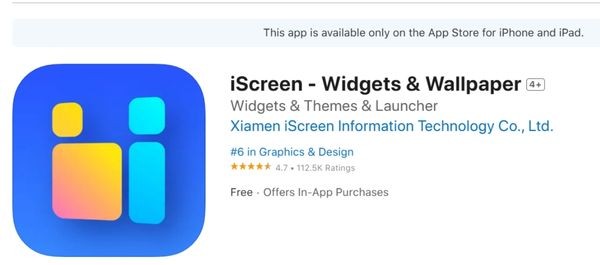
iScreen - App to create aquarium on iPhone
iScreen – App to create an aquarium on iPhone

Instructions on how to create an aquarium on the iPhone screen

Let’s start designing your own unique virtual aquarium by following these steps:

Step 1: First, open the App Store on iPhone, type “iScreen – Widgets & Wallpaper” into the search bar and download the application to your device.

Or you can download now HERE.

Step 2: After installation is complete, open iScreen. Here, you will find a widget with a very attractive name Desktop Aquarium and click select (choose any one).
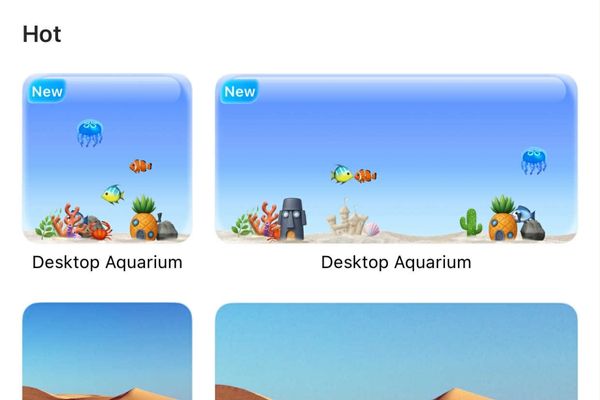
Select Desktop Aquarium

Step 3: The application will open a customized interface where you can freely add your favorite sea creatures such as clownfish, goldfish, jellyfish, crabs, etc.

  • You can completely change the background color of the aquarium, adjust the transparency (opacity) so that it blends perfectly with the phone wallpaper.
  • When you are satisfied with your “mini aquarium”, press the button Save to My Widgets to save the design.
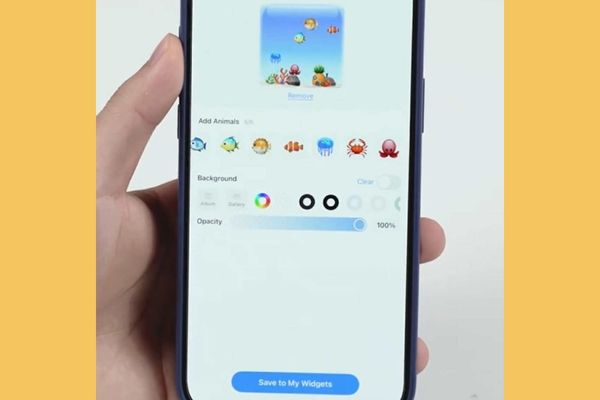
Click the Save to My Widgets button

Step 4: To be able to admire your achievements every day, you need to add the aquarium widget to your iPhone home screen, as follows:

  • Return to the home screen, then press and hold on an empty area until the icons start to vibrate > Select Fix > Select Add amenities.
  • In the list that appears, scroll down to find and select the iScreen application.
  • Scroll through the widget size options and then tap Add amenities and drag it to the position you want on the screen.

Click Add extension
Click Add extension

Step 5: Long press on the widget you just added > Select Edit widgets. In section Current Widgetsselect Desktop Aquarium that’s it.
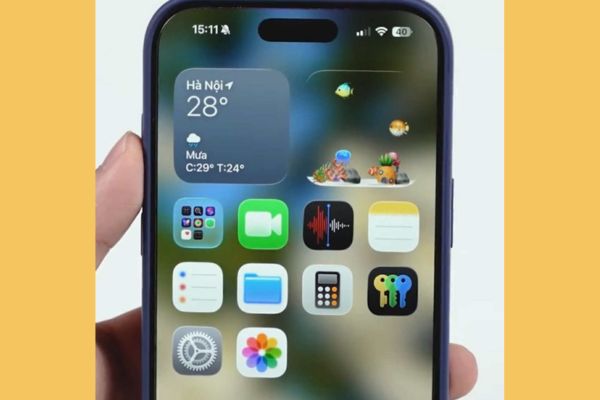
Instructions on how to create a very chill aquarium on iPhone

Conclusion

So, you have mastered it How to create an aquarium on the iPhone screen in just a few extremely intuitive steps. Now, your home screen is no longer monotonous but has become a colorful mini aquarium. Let’s start working now to bring a fresh and relaxing breeze to your phone!


Tags: aquariumcreateInstructionsiPhonescreen
Previous Post

Some experiences in making money from Facebook’s Ad Breaks

Next Post

Collection of 17+ prompts to create impressive Halloween photos with AI

AnonyViet

AnonyViet

Related Posts

Instructions for looking up prescriptions on VNeID instead of paper medical books
Software

Instructions for looking up prescriptions on VNeID instead of paper medical books

April 26, 2026
Compare Poco X8 Pro and Poco X7 Pro: A new step for the “king” of mid-range performance
Software

Compare Poco X8 Pro and Poco X7 Pro: A new step for the “king” of mid-range performance

April 24, 2026
Top 5 apps to view good days 2026 for free on iOS and Android
Software

Top 5 apps to view good days 2026 for free on iOS and Android

April 23, 2026
Top 5+ utilities to install for Gmail to speed up work processing
Software

Top 5+ utilities to install for Gmail to speed up work processing

April 22, 2026
Decoding the problem of 4GB RAM and processing performance
Software

Decoding the problem of 4GB RAM and processing performance

April 21, 2026
4K Video Downloader Plus – Tool to download YouTube videos on macOS
Software

4K Video Downloader Plus – Tool to download YouTube videos on macOS

April 20, 2026
Next Post
Collection of 17+ prompts to create impressive Halloween photos with AI

Collection of 17+ prompts to create impressive Halloween photos with AI

0 0 votes
Article Rating
Subscribe
Login
Notify of
guest

guest

0 Comments
Oldest
Newest Most Voted
Inline Feedbacks
View all comments

Recent News

How to turn off password suggestions on iPhone: Prevent Safari from auto-filling passwords

How to turn off password suggestions on iPhone: Prevent Safari from auto-filling passwords

April 27, 2026
Instructions for looking up prescriptions on VNeID instead of paper medical books

Instructions for looking up prescriptions on VNeID instead of paper medical books

April 26, 2026
Tips to completely turn off CAPTCHA codes on iPhone and Mac are super simple

Tips to completely turn off CAPTCHA codes on iPhone and Mac are super simple

April 25, 2026
Compare Poco X8 Pro and Poco X7 Pro: A new step for the “king” of mid-range performance

Compare Poco X8 Pro and Poco X7 Pro: A new step for the “king” of mid-range performance

April 24, 2026
How to turn off password suggestions on iPhone: Prevent Safari from auto-filling passwords

How to turn off password suggestions on iPhone: Prevent Safari from auto-filling passwords

April 27, 2026
Instructions for looking up prescriptions on VNeID instead of paper medical books

Instructions for looking up prescriptions on VNeID instead of paper medical books

April 26, 2026
Tips to completely turn off CAPTCHA codes on iPhone and Mac are super simple

Tips to completely turn off CAPTCHA codes on iPhone and Mac are super simple

April 25, 2026
AnonyViet - English Version

AnonyViet

AnonyViet is a website share knowledge that you have never learned in school!

We are ready to welcome your comments, as well as your articles sent to AnonyViet.

Follow Us

Contact:

Email: anonyviet.com[@]gmail.com

Main Website: https://anonyviet.com

Recent News

How to turn off password suggestions on iPhone: Prevent Safari from auto-filling passwords

How to turn off password suggestions on iPhone: Prevent Safari from auto-filling passwords

April 27, 2026
Instructions for looking up prescriptions on VNeID instead of paper medical books

Instructions for looking up prescriptions on VNeID instead of paper medical books

April 26, 2026
No Result
View All Result
  • Home
  • News
  • Software
  • Knowledge
  • MMO
  • Tips
  • Security
  • Network
  • Office

wpDiscuz
0
0
Would love your thoughts, please comment.x
()
x
| Reply