How to turn off app is ready A trick that many users use Ubuntu operating system and Linux distributions use Gnome Shell. Have you ever felt a bit redundant when you just started an application and immediately a pop-up appeared just to report that “the application is ready”? If the answer is yes, you have found the right place to solve this small but persistent annoyance.
| Join the channel Telegram belong to Anonyviet 👉 Link 👈 |
Why not announcing “App is ready” is not necessary?
In the technology world, the notice plays an extremely important role. They warn the error, update the status or ask us to act. However, the notice of “app is ready” falls into another case, it is almost useless for the following reasons:
- Of course the application is ready, because you are the one who just started it! This is an information that does not bring anything new.
- Not all applications display this notice. This creates an uneven and unpredictable experience.
- Sometimes, this notice only blinks for a moment and then disappears, making you startled and wonder if you miss something important. For those who regularly take screenshots, this pop-up is really a “uninvited guest”.
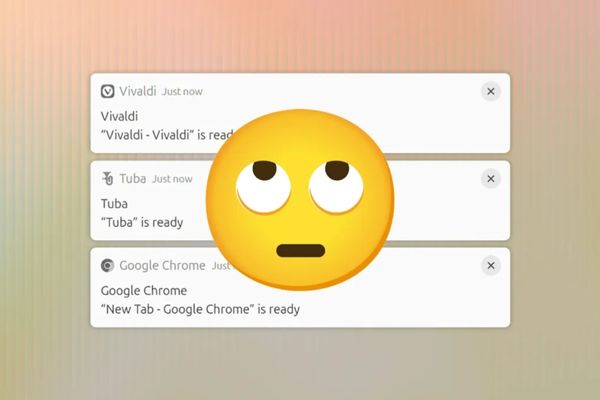
Many people may think of turning off the entire notification system or turning on the mode “Unwilling”(Do Not Disturb). However, this is not the optimal solution. Because you will miss all other important warnings from the system, email or job message.
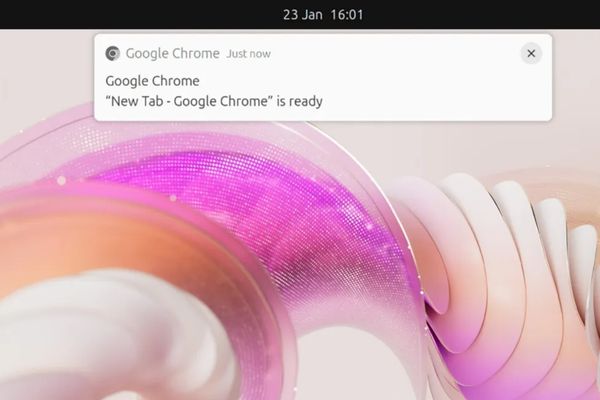
How to turn off app is ready with extension
The main solution is to install an extension for Gnome Shell called “Window is ready notification Remover“. This utility is created for a sole purpose: removing accurately and only announcing the” window is ready “(or” app is ready “). It works by disabling the” listening “department specializing in sending this notice, but absolutely does not affect other important notices.
Outstanding advantages:
- Only eliminate annoying notifications, retain useful warnings.
- No resource consumption, no complicated settings.
- Working well on many Gnome versions, from the old like 3.18 until the latest.
To install, you just need to visit the Gnome Extensions page, search for the utility name and wip the button to activate. With just a few clicks, your discomfort will completely disappear.
Or you can get talent HERE.

Conclusion
Hopefully with this detailed instructions, you have known How to turn off app is ready thoroughly. The elimination of small troubles will help experience the above work Ubuntu Your becomes smoother, seamless and much more focused. Now, you can completely control your workspace without being interrupted by unnecessary pop-ups.