• Home
  • News
  • Software
  • Knowledge
  • MMO
  • Tips
  • Security
  • Network
  • Office
AnonyViet - English Version
  • Home
  • News
  • Software
  • Knowledge
  • MMO
  • Tips
  • Security
  • Network
  • Office
No Result
View All Result
  • Home
  • News
  • Software
  • Knowledge
  • MMO
  • Tips
  • Security
  • Network
  • Office
No Result
View All Result
AnonyViet - English Version
No Result
View All Result

Display the Internet speed on Windows Taskbar with Du Metter

AnonyViet by AnonyViet
May 18, 2025
in Tips
0

Microsoft has introduced the Internet bandwidth management on Windows 10. The Internet bandwidth manager will tell you the amount of Internet data that this software uses. However, Windows 10 does not have an internet speed display tool. Although you can track the internet speed in real time through Resource Monitor, you need to open the task manager when you want to check.

Join the channel Telegram belong to Anonyviet 👉 Link 👈

The internet speed includes the download speed and upload will tell how Windows you use the Internet bandwidth. If you see the index is too high, you may be downloading a file, but if you do not do anything, the index is still high. The display of the Internet speed also helps you monitor your internet transmission line stable. Today Anonyviet will introduce you a compact Metter Du Metter software that helps display the Internet speed on Windows Taskbar.

Display the Internet speed on Windows Taskbar with Du Metter

Display the Internet speed on Windows Taskbar with Du Metter

To display the Internet speed clock on the Taskbar, we will use Du Meter. This is a compact and extremely light tool. However, the tool is downloaded for free and used during trial period is 30 days. We will now carry out the internet speed clock on the Taskbar in Windows 10.

Step 1. First of all, visit This link And download Du Meter on your PC.

Download du meter

Step 2. Now open the installation file and click Next To start installing

Step 3. Next, set the limit for your monthly use (optional). If it is over the limit, there will be notifications to you, I am exceeded

Display Internet speed on Taskbar with Du Metter

Step 4. Now it will ask you to link your computer to the dumeter.net account. Here you need to click ‘Skip’

license du meter

Step 5. After configuring the meter, you will receive a turn on and ask you to turn on the Meter on the Taskbar. This will help the clock display the network speed displayed on your Taskbar. Just click ‘Yes‘.

Display download speed upload taskbar

Step 6. Now you will see the download speed and download right on the Windows 10 taskbar.

Display the Internet speed on Windows Taskbar with Du Metter 7

Step 7. The floating bar will show you the network chart along with a few other information.

Display Internet speed on Windows Taskbar with Du Metter 8

Quite simple to know which computer you are using. This is how you can display the Internet speed clock on Taskbar on Windows 10.

Also you can use software Bwmeter To monitor bandwidth with more features.

So this is all about how to display the Internet speed clock on the Taskbar in Windows 10. Hopefully this article has helped you! Also share it with your friends. If you have any doubts related to this, let us know in the comment box below.


Previous Post

Interesting facts about Google that you don’t know

Next Post

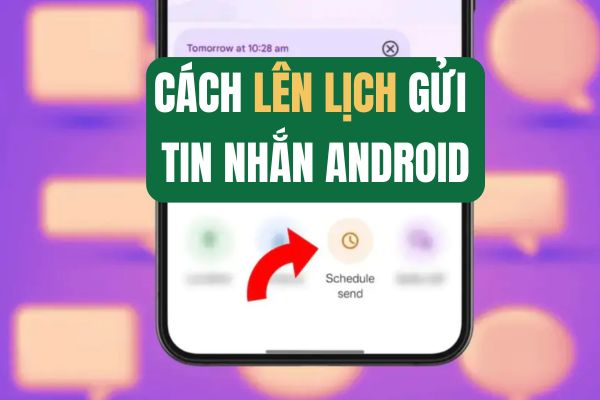
Instructions on how to send messages on Android

AnonyViet

AnonyViet

Related Posts

How to create a virtual Pet, a virtual character running around on the Desktop to relax
Tips

How to create a virtual Pet, a virtual character running around on the Desktop to relax

October 15, 2026
15 cách tăng tốc Windows 10 nhanh như gió
Tips

15 cách tăng tốc Windows 10 nhanh như gió

October 14, 2026
How to create Guest mode Shortcuts for Chrome and Edge
Tips

How to create Guest mode Shortcuts for Chrome and Edge

October 13, 2026
Test what breed of dog you are through 10 multiple choice questions
Tips

Test what breed of dog you are through 10 multiple choice questions

October 13, 2026
Fliqlo – Create digital clock screens on Windows and phones
Tips

Fliqlo – Create digital clock screens on Windows and phones

October 12, 2026
SynthID Detector: Genuine AI checking tool from Google
Tips

SynthID Detector: Genuine AI checking tool from Google

October 11, 2026
Next Post
Instructions on how to send messages on Android

Instructions on how to send messages on Android

0 0 votes
Article Rating
Subscribe
Login
Notify of
guest

guest

0 Comments
Oldest
Newest Most Voted

Recent News

Instructions for receiving pension through VNeID without going to the ward

Instructions for receiving pension through VNeID without going to the ward

October 16, 2026
MBTI, Big Five, DISC or Holland: which personality test should you choose?

MBTI, Big Five, DISC or Holland: which personality test should you choose?

October 15, 2026
How to create a virtual Pet, a virtual character running around on the Desktop to relax

How to create a virtual Pet, a virtual character running around on the Desktop to relax

October 15, 2026
Record first, choose focus later: how to use 4K 60 fps Cinema mode on iPhone 18 Pro

Record first, choose focus later: how to use 4K 60 fps Cinema mode on iPhone 18 Pro

October 15, 2026
Instructions for receiving pension through VNeID without going to the ward

Instructions for receiving pension through VNeID without going to the ward

October 16, 2026
MBTI, Big Five, DISC or Holland: which personality test should you choose?

MBTI, Big Five, DISC or Holland: which personality test should you choose?

October 15, 2026
How to create a virtual Pet, a virtual character running around on the Desktop to relax

How to create a virtual Pet, a virtual character running around on the Desktop to relax

October 15, 2026
AnonyViet - English Version

AnonyViet

AnonyViet is a website share knowledge that you have never learned in school!

We are ready to welcome your comments, as well as your articles sent to AnonyViet.

Follow Us

Contact:

Email: anonyviet.com[@]gmail.com

Main Website: https://anonyviet.com

Recent News

Instructions for receiving pension through VNeID without going to the ward

Instructions for receiving pension through VNeID without going to the ward

October 16, 2026
MBTI, Big Five, DISC or Holland: which personality test should you choose?

MBTI, Big Five, DISC or Holland: which personality test should you choose?

October 15, 2026
  • Home
  • Home 2
  • Home 3
  • Home 4
  • Home 5
  • Home 6
  • Next Dest Page
  • Sample Page

say88 tỷ lệ kèo nhà cái kèo nhà cái 5 febet

No Result
View All Result
  • Home
  • News
  • Software
  • Knowledge
  • MMO
  • Tips
  • Security
  • Network
  • Office

say88 tỷ lệ kèo nhà cái kèo nhà cái 5 febet

wpDiscuz
0
0
Would love your thoughts, please comment.x
()
x
| Reply