• Home
  • News
  • Software
  • Knowledge
  • MMO
  • Tips
  • Security
  • Network
  • Office
AnonyViet - English Version
  • Home
  • News
  • Software
  • Knowledge
  • MMO
  • Tips
  • Security
  • Network
  • Office
No Result
View All Result
  • Home
  • News
  • Software
  • Knowledge
  • MMO
  • Tips
  • Security
  • Network
  • Office
No Result
View All Result
AnonyViet - English Version
No Result
View All Result

Lesson 122: How to copy formulas in Excel

AnonyViet by AnonyViet
January 24, 2023
in Office
0

When you copy a formula, Excel will automatically adjust the cell references for each new cell the formula is copied to.

Join the channel Telegram of the AnonyViet 👉 Link 👈

How to copy formulas in Excel

Just use CTRL + c and CTRL + v to copy and paste a formula in Excel.

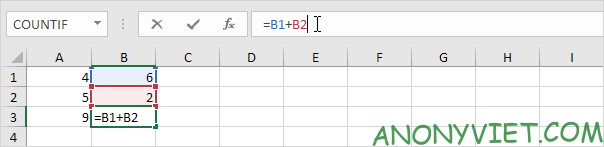
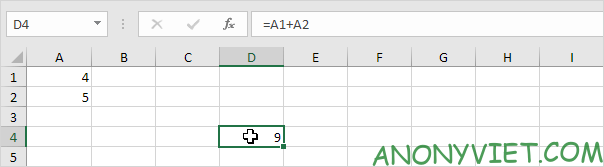
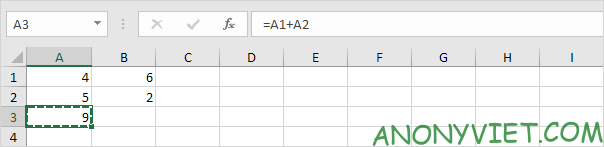
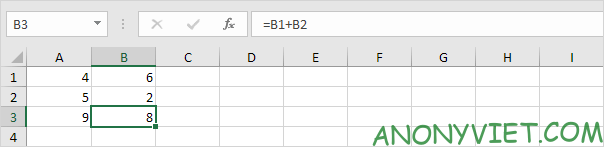
1. For example, to copy a formula, select cell A3 below and press CTRL+c.
Lesson 122: How to copy formulas in Excel

2. To paste this formula, select cell B3 and press CTRL + v.
Lesson 122: How to copy formulas in Excel 24

3. Click the formula bar to clearly see that the formula refers to the values ​​in column B.

Lesson 122: How to copy formulas in Excel 25

Autofill

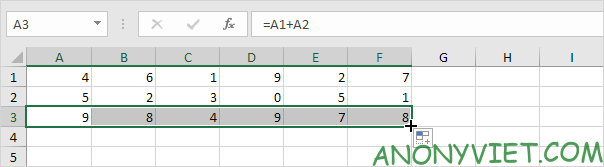
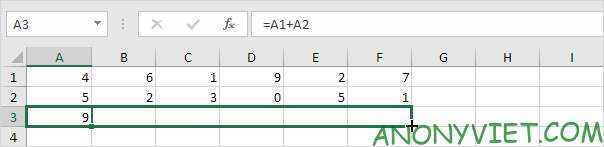
1. For example, select cell A3 below, click in the lower right corner of cell A3, and drag it to cell F3.
Lesson 122: How to copy formulas in Excel 26

Result:

Lesson 122: How to copy formulas in Excel 27

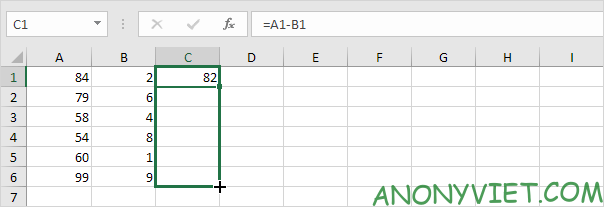
You can also use autofill to quickly copy formulas to columns.

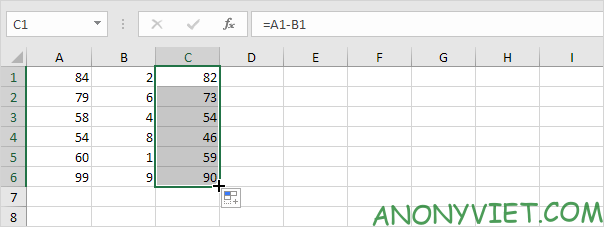
2. For example, select cell C1 below, click the lower right corner of cell C1 and drag it down to cell C6.
Lesson 122: How to copy formulas in Excel 28

Result:

Lesson 122: How to copy formulas in Excel 29

Absolute reference

Create an absolute reference to freeze a reference to a cell or range of cells. When you copy a formula, the absolute reference never changes.

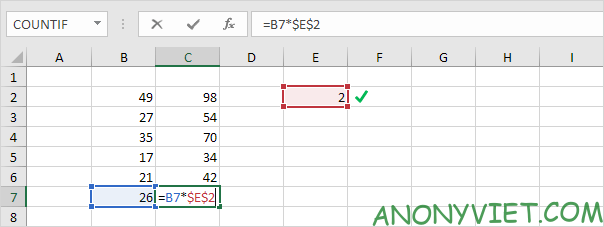
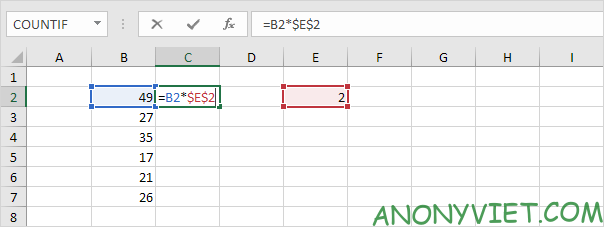
1. For example, fix the reference to cell E2 below by placing the $ symbol in front of the column letter and the row number.
Lesson 122: How to copy formulas in Excel 30

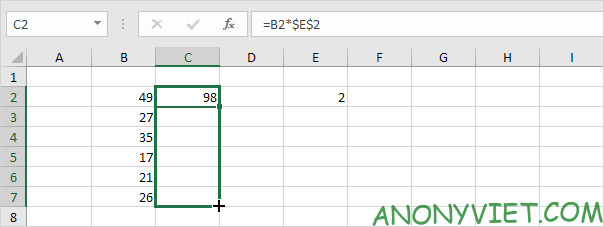
2. Select cell C2, click the lower right corner of cell C2 and drag it down to cell C7.
Lesson 122: How to copy formulas in Excel 31

Result:

Lesson 122: How to copy formulas in Excel 32

Explanation: the absolute reference ($E$2) stays the same, while the relative reference (B2) changes to B3, B4, B5, B6 and B7.

Move formula

To move a formula in Excel, simply use cut (CTRL + x) and paste (CTRL + v).

1. Select a cell with a formula.

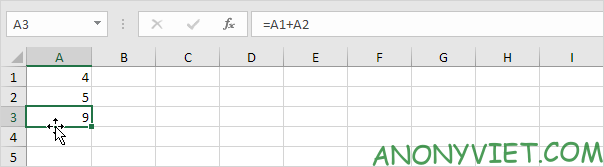
2. Hover the mouse over the border of the cell. A four-sided arrow appears.
Lesson 122: How to copy formulas in Excel 33

3. Click and hold the left mouse button.

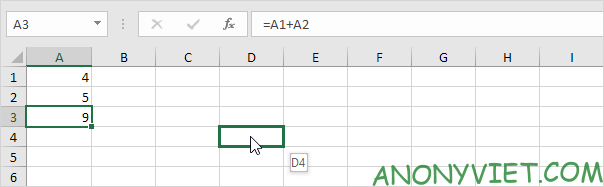
4. Move the formula to a new location.
Lesson 122: How to copy formulas in Excel 34

5. Release the left mouse button.

Lesson 122: How to copy formulas in Excel 35

Make a copy of the recipe

To create an exact copy of the formula without changing the cell references, perform these simple steps.

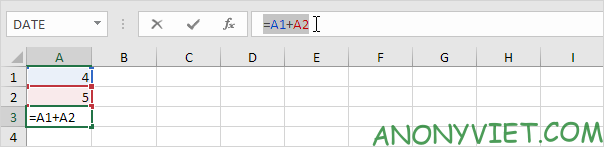
1. Click the formula bar and select the formula.
Lesson 122: How to copy formulas in Excel 36

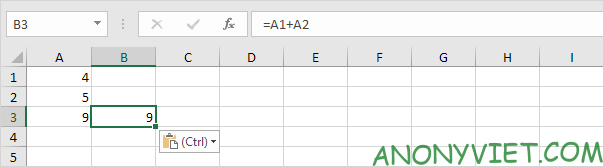
2. Press CTRL + c and press Enter.

3. Select another cell and press CTRL + v.

Result:
Lesson 122: How to copy formulas in Excel 37

Conclusion: cell A3 and cell B3 contain the same formula.

More about copying formulas

To copy multiple formulas, follow these steps.

1. Select multiple formulas.
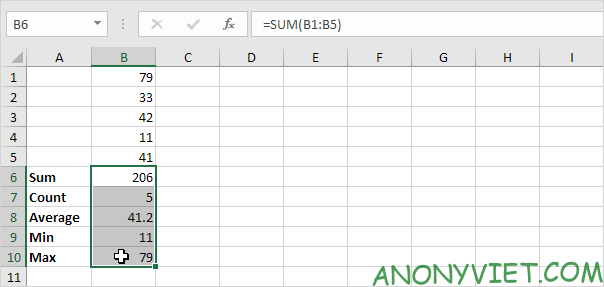
Lesson 122: How to copy formulas in Excel 38

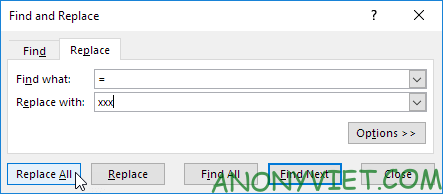
2. Enter “xxx” in the “Replace with” box and click “Replace All”.
Lesson 122: How to copy formulas in Excel 39

Result:

Lesson 122: How to copy formulas in Excel 40

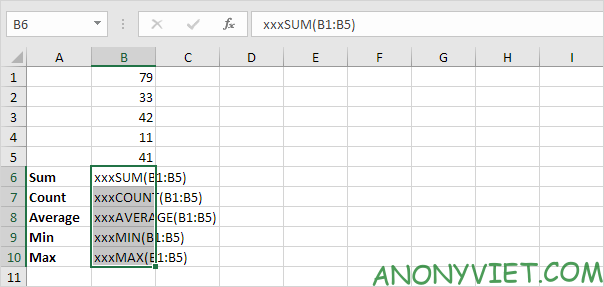
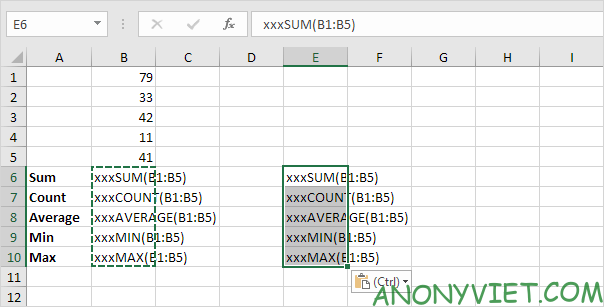
3. Use CTRL + c and CTRL + v to copy and paste text.
Lesson 122: How to copy formulas in Excel 41

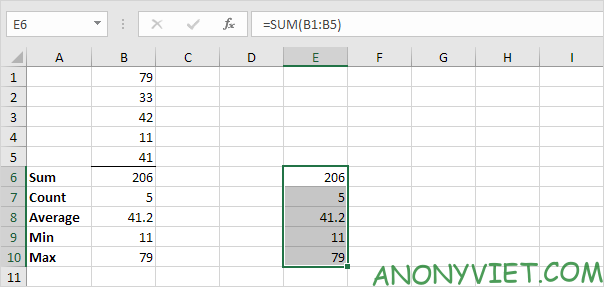
4. Select the range B6:B10, hold down the CTRL key, select the range E6:E10 and replace all occurrences of ‘xxx’ with equal signs (the exact opposite of step 2).

Result:
Lesson 122: How to copy formulas in Excel 42

Conclusion: cell B6 and cell E6 contain the same formula, cell B7 and cell E7 contain the same formula, etc.


In addition, you can also view many other excel articles here.

The article achieved: 5/5 – (100 votes)

Tags: copyExcelformulasLesson
Previous Post

Instructions to get 200,000 free courses of Udemy

Next Post

How to turn on VoLTE/VoWIFI on the phone after the carrier cuts off the 2G signal

AnonyViet

AnonyViet

Related Posts

Instructions on how to convert text into QR codes in Word
Office

Instructions on how to convert text into QR codes in Word

October 5, 2026
Tool to adjust the format of administrative documents according to Decree 30
Office

Tool to adjust the format of administrative documents according to Decree 30

October 1, 2026
How to add Watermark to Google Docs to protect copyright
Office

How to add Watermark to Google Docs to protect copyright

April 19, 2026
Instructions on how to hide formulas in Excel to secure data
Office

Instructions on how to hide formulas in Excel to secure data

February 6, 2026
Top who creates the most beautiful presentation slide today
Office

Top who creates the most beautiful presentation slide today

September 23, 2025
Automatically check and correct spelling errors on Google Docs
Office

Automatically check and correct spelling errors on Google Docs

February 23, 2025
Next Post
How to turn on VoLTE/VoWIFI on the phone after the carrier cuts off the 2G signal

How to turn on VoLTE/VoWIFI on the phone after the carrier cuts off the 2G signal

0 0 votes
Article Rating
Subscribe
Login
Notify of
guest

guest

0 Comments
Oldest
Newest Most Voted

Recent News

MBTI, Big Five, DISC or Holland: which personality test should you choose?

MBTI, Big Five, DISC or Holland: which personality test should you choose?

October 15, 2026
How to create a virtual Pet, a virtual character running around on the Desktop to relax

How to create a virtual Pet, a virtual character running around on the Desktop to relax

October 15, 2026
Record first, choose focus later: how to use 4K 60 fps Cinema mode on iPhone 18 Pro

Record first, choose focus later: how to use 4K 60 fps Cinema mode on iPhone 18 Pro

October 15, 2026
How to receive 22k from Viettel Tammi on the occasion of 22nd birthday

How to receive 22k from Viettel Tammi on the occasion of 22nd birthday

October 15, 2026
MBTI, Big Five, DISC or Holland: which personality test should you choose?

MBTI, Big Five, DISC or Holland: which personality test should you choose?

October 15, 2026
How to create a virtual Pet, a virtual character running around on the Desktop to relax

How to create a virtual Pet, a virtual character running around on the Desktop to relax

October 15, 2026
Record first, choose focus later: how to use 4K 60 fps Cinema mode on iPhone 18 Pro

Record first, choose focus later: how to use 4K 60 fps Cinema mode on iPhone 18 Pro

October 15, 2026
AnonyViet - English Version

AnonyViet

AnonyViet is a website share knowledge that you have never learned in school!

We are ready to welcome your comments, as well as your articles sent to AnonyViet.

Follow Us

Contact:

Email: anonyviet.com[@]gmail.com

Main Website: https://anonyviet.com

Recent News

MBTI, Big Five, DISC or Holland: which personality test should you choose?

MBTI, Big Five, DISC or Holland: which personality test should you choose?

October 15, 2026
How to create a virtual Pet, a virtual character running around on the Desktop to relax

How to create a virtual Pet, a virtual character running around on the Desktop to relax

October 15, 2026
  • Home
  • Home 2
  • Home 3
  • Home 4
  • Home 5
  • Home 6
  • Next Dest Page
  • Sample Page

say88 tỷ lệ kèo nhà cái kèo nhà cái 5 febet

No Result
View All Result
  • Home
  • News
  • Software
  • Knowledge
  • MMO
  • Tips
  • Security
  • Network
  • Office

say88 tỷ lệ kèo nhà cái kèo nhà cái 5 febet

wpDiscuz
0
0
Would love your thoughts, please comment.x
()
x
| Reply