• Home
  • News
  • Software
  • Knowledge
  • MMO
  • Tips
  • Security
  • Network
  • Office
AnonyViet - English Version
  • Home
  • News
  • Software
  • Knowledge
  • MMO
  • Tips
  • Security
  • Network
  • Office
No Result
View All Result
  • Home
  • News
  • Software
  • Knowledge
  • MMO
  • Tips
  • Security
  • Network
  • Office
No Result
View All Result
AnonyViet - English Version
No Result
View All Result

Instructions for adding Weather Widget to the Windows 11 Taskbar

AnonyViet by AnonyViet
January 22, 2025
in Tips
0

Add weather widget to the taskbar is a simple but extremely convenient way for you to monitor the temperature and current weather conditions without opening the app. With Windows 11, integrating this feature into the system helps you save time and easily update information before leaving the house.

Join the channel Telegram belong to AnonyViet 👉 Link 👈

The weather display feature on the taskbar not only helps you save time but also provides accurate weather information immediately. You'll know if you need to bring an umbrella or sunglasses before leaving home with just one glance.

Outstanding benefits:

  • Convenient: Instantly see temperature and weather conditions without opening the app.
  • Perfect integration: Weather widget is designed to fit the taskbar interface.
  • Easy customization: The position and information displayed can be adjusted according to needs.

See more: Beat boredom with How to create transparent widgets on iOS 18

Step 1: Right click on an empty space on the taskbar > Select Taskbar settings from the drop-down menu.
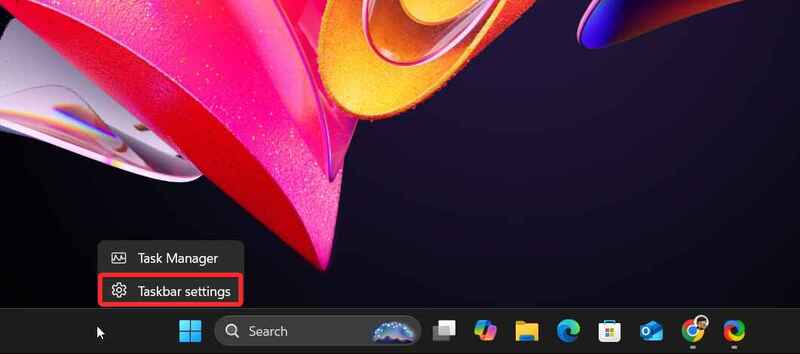
Instructions for adding Weather Widget to the Windows 11 Taskbar
Select Taskbar settings

Step 2: In the Taskbar settings window, scroll down and find the entry Widgets in the Taskbar items section.
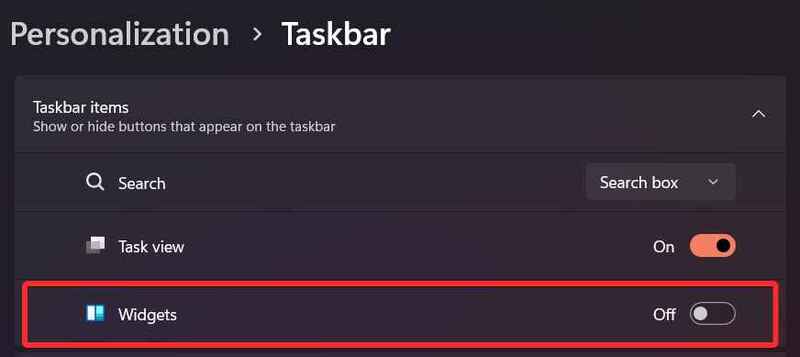
Find the Widgets section

Step 3: Change Widgets item status to On.
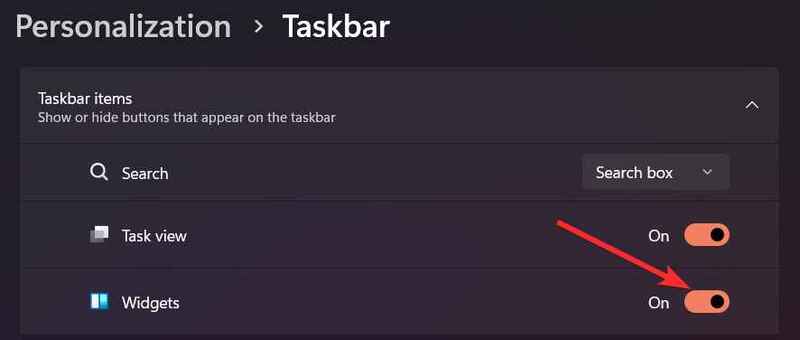
Click activate Widget

Step 4: Once enabled, you will see a small weather icon appear on the taskbar. This icon displays the current temperature and weather conditions at a glance.

  • If the taskbar icon is left-aligned, the weather widget will appear in the left corner.
  • With the taskbar centered, the icon will be on the right side.
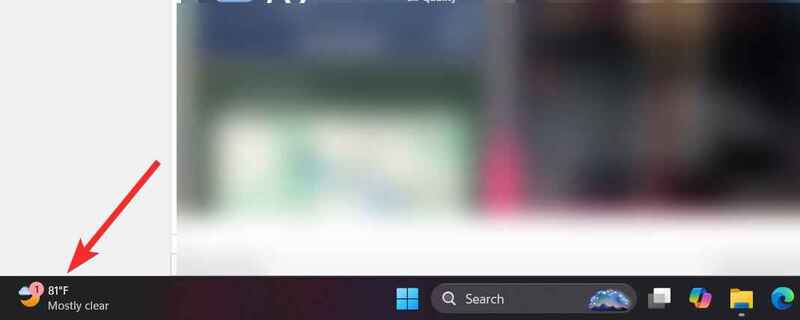
A small weather icon appears

Customizing the weather widget is easy to ensure the information displayed is most relevant to you. Here are the steps to do it:

Step 1: Click weather icon to open the full Widgets panel.
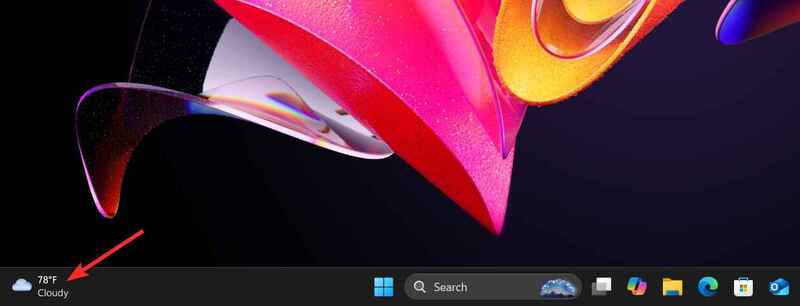
Click the weather icon

Step 2: Find and click the icon three dots (…) in the upper corner of the weather widget.
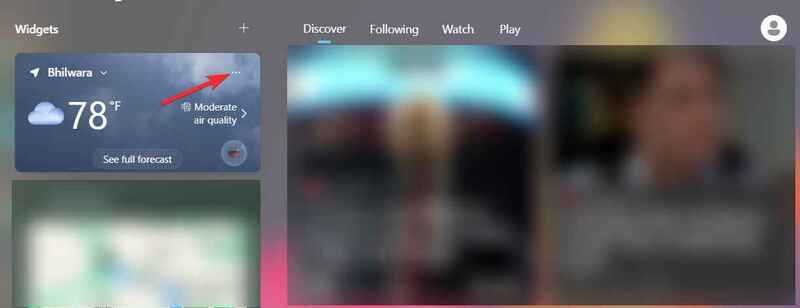
Click on the three dots icon

Step 3: Select Customize widgets to enter the settings section.
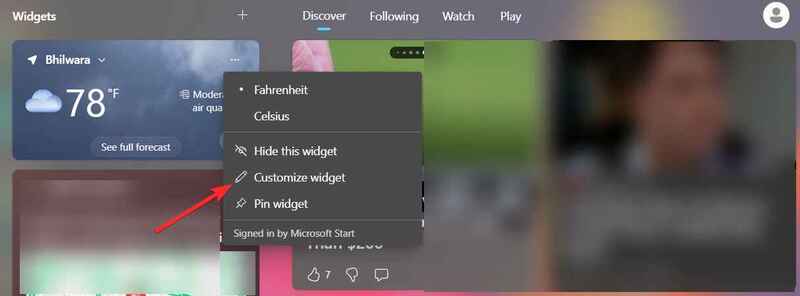
Select Customize widgets

Step 4: Reposition or fine-tune the weather information displayed.
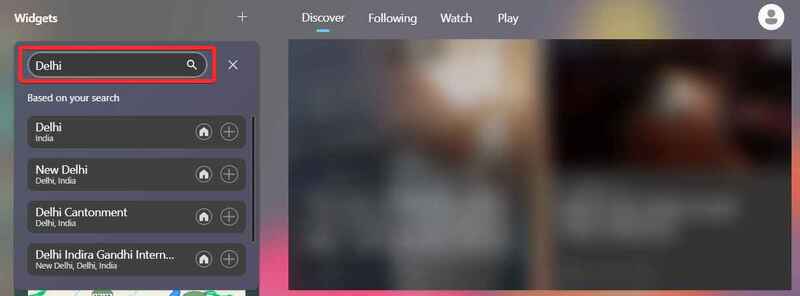
Reposition
Reposition

If you've followed the steps above but still don't see the weather widget appear, try the following:

Step 1: Click “+” symbol in the Widgets panel.
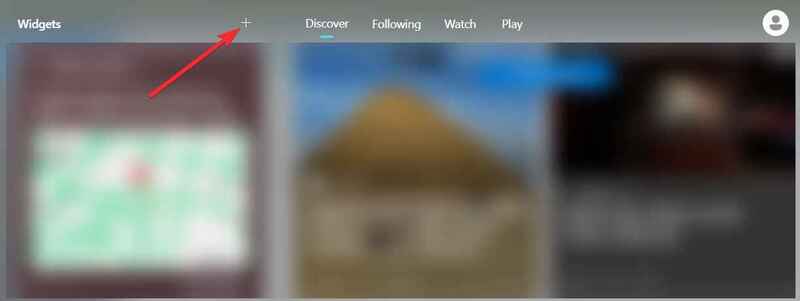
Click the “+” icon
Click the “+” icon

Step 2: Select item Weather in the list.
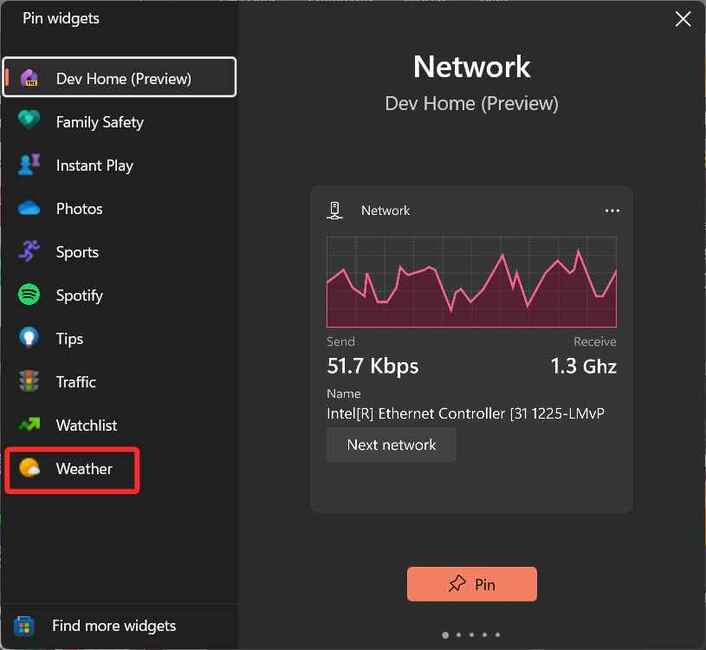
Select Weather
Select Weather

Step 3: Click Battery to pin the weather widget to the Widgets panel.
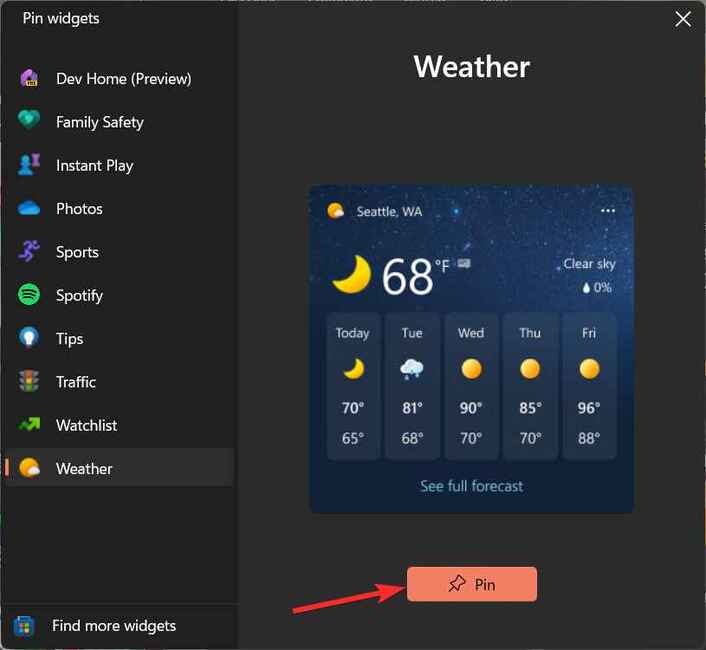
Click Pin
Click Pin

Note:

  • Make sure your operating system has been updated to the latest version of Windows 11 > Restart your computer if necessary to apply the changes.
  • Weather widget requires an Internet connection to update information. Make sure your computer is connected to a stable network.

See more: Instructions Remove weather widget from Windows 11/10 Taskbar

Conclusion

With the detailed instructions above, you can Add weather widget to taskbar Windows 11 in just a few steps. This is a great way to always get quick and accurate weather information, making your life more convenient every day. Wishing you a successful application!
Tags: AddingInstructionsTaskbarWeatherWidgetWindows
Previous Post

Link to download free Tet 2025 graphic warehouse

Next Post

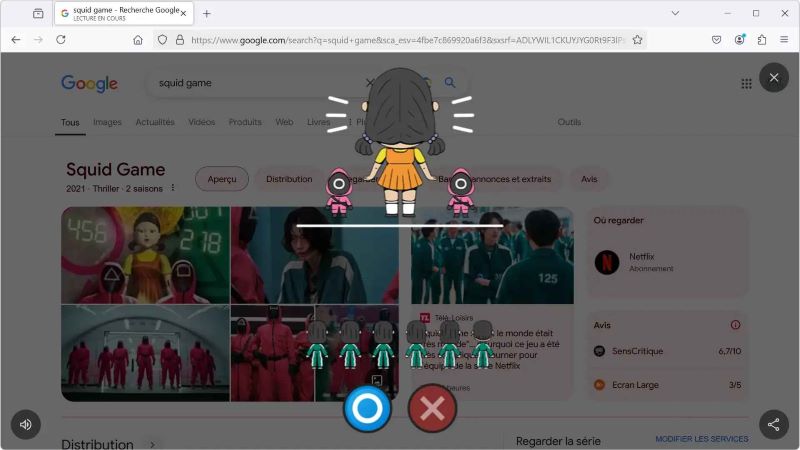
Discover the hidden game Squid Game on Google

AnonyViet

AnonyViet

Related Posts

How to add sliders to Facebook Stories to easily rewind videos
Tips

How to add sliders to Facebook Stories to easily rewind videos

April 21, 2026
How to change the default font on Windows 10
Tips

How to change the default font on Windows 10

April 13, 2026
5 tips for using a Browser to replace an App (helps save RAM, time and money)
Tips

5 tips for using a Browser to replace an App (helps save RAM, time and money)

April 13, 2026
How to make funny MeMe photos without Photoshop within 10 seconds
Tips

How to make funny MeMe photos without Photoshop within 10 seconds

April 11, 2026
How to quickly design your own Logo without Photoshop
Tips

How to quickly design your own Logo without Photoshop

April 10, 2026
How to convert Website into App on Windows
Tips

How to convert Website into App on Windows

April 9, 2026
Next Post
Discover the hidden game Squid Game on Google

Discover the hidden game Squid Game on Google

0 0 votes
Article Rating
Subscribe
Login
Notify of
guest

guest

0 Comments
Oldest
Newest Most Voted
Inline Feedbacks
View all comments

Recent News

Tips to completely turn off CAPTCHA codes on iPhone and Mac are super simple

Tips to completely turn off CAPTCHA codes on iPhone and Mac are super simple

April 25, 2026
Compare Poco X8 Pro and Poco X7 Pro: A new step for the “king” of mid-range performance

Compare Poco X8 Pro and Poco X7 Pro: A new step for the “king” of mid-range performance

April 24, 2026
How to compress online videos for free without losing quality

How to compress online videos for free without losing quality

April 24, 2026
Top 5 apps to view good days 2026 for free on iOS and Android

Top 5 apps to view good days 2026 for free on iOS and Android

April 23, 2026
Tips to completely turn off CAPTCHA codes on iPhone and Mac are super simple

Tips to completely turn off CAPTCHA codes on iPhone and Mac are super simple

April 25, 2026
Compare Poco X8 Pro and Poco X7 Pro: A new step for the “king” of mid-range performance

Compare Poco X8 Pro and Poco X7 Pro: A new step for the “king” of mid-range performance

April 24, 2026
How to compress online videos for free without losing quality

How to compress online videos for free without losing quality

April 24, 2026
AnonyViet - English Version

AnonyViet

AnonyViet is a website share knowledge that you have never learned in school!

We are ready to welcome your comments, as well as your articles sent to AnonyViet.

Follow Us

Contact:

Email: anonyviet.com[@]gmail.com

Main Website: https://anonyviet.com

Recent News

Tips to completely turn off CAPTCHA codes on iPhone and Mac are super simple

Tips to completely turn off CAPTCHA codes on iPhone and Mac are super simple

April 25, 2026
Compare Poco X8 Pro and Poco X7 Pro: A new step for the “king” of mid-range performance

Compare Poco X8 Pro and Poco X7 Pro: A new step for the “king” of mid-range performance

April 24, 2026
No Result
View All Result
  • Home
  • News
  • Software
  • Knowledge
  • MMO
  • Tips
  • Security
  • Network
  • Office

wpDiscuz
0
0
Would love your thoughts, please comment.x
()
x
| Reply