AI photo enlargement tool is becoming an important trend in design and content creation. These tools help you easily expand photos without losing quality, supporting many powerful features such as changing aspect ratio, increasing resolution or creating new details. This article AnonyViet will introduce to you the top tools, from free to paid, to help you optimize your creative work.
| Join the channel Telegram belong to AnonyViet 👉 Link 👈 |
Free AI photo enlarger
1. Pixelcut.ai
Pixelcut.ai is one of the leading tools for enlarging photos without losing quality. With an easy-to-use interface and powerful AI processing, Pixelcut.ai is ideal for beginners.
Furthermore, Pixelcut.ai also allows you to choose the direction of image enlargement as desired and supports many file formats, including JPG, PNG and HEIC.
Usage:
Step 1: Access Pixelcut.ai via browser.
Step 2: Press the button Upload Image and upload the photo that needs to be expanded.
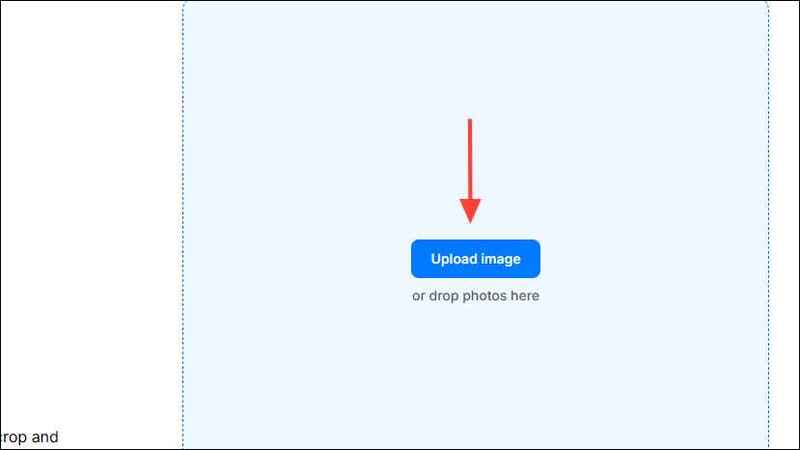
Step 3: Choose the direction of expansion by dragging and dropping the photo from the edges.
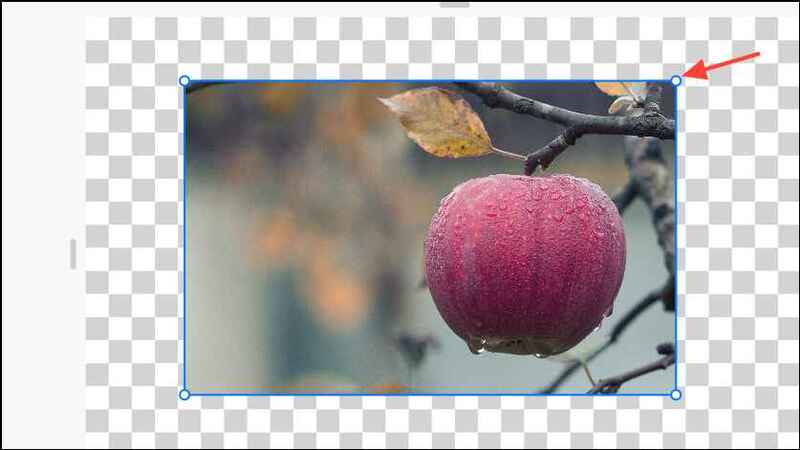
Step 4: Select the aspect ratio in the left column, then press the button Generate.
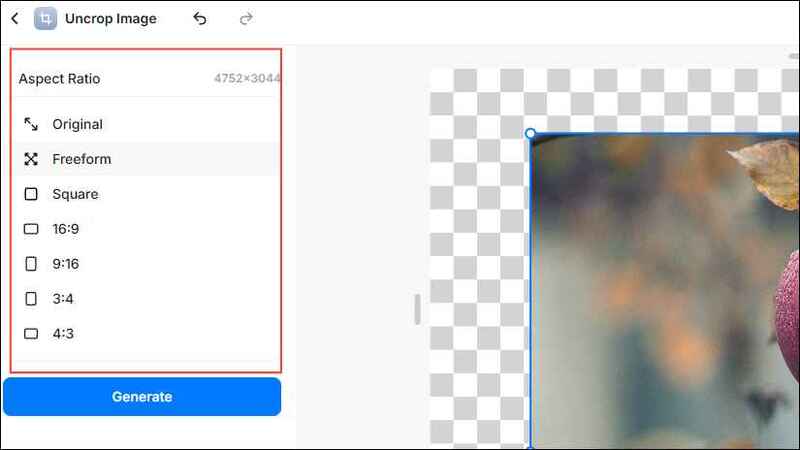
Step 5: Download the expanded image by clicking Download.
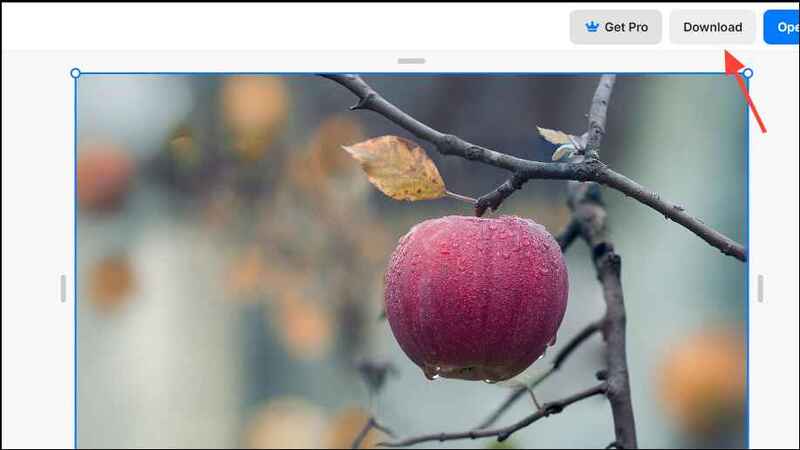
Note: While you can use Pixelcut.ai to enlarge photos for free, advanced features require a Pixelcut Pro subscription. With the Pro plan, you also get access to over 100 premium fonts and designs, plus the ability to use Pixelcut Pro on Android and iOS devices.
2. Picsart
Picsart is an online design platform that integrates many powerful tools, including AI photo enlargement. Although it's free, you need to register an account to use this feature.
Usage:
Step 1: Access Picsart Image Extender via browser.
Step 2: Press Browse files to upload photos.

Step 3: Log in or create an account.
Note: Unlike Pixelcut.ai, you need to create an account to expand photos on Picsart. You can also log in with your Google or Facebook account. After logging in, you will see your uploaded photos on your screen.
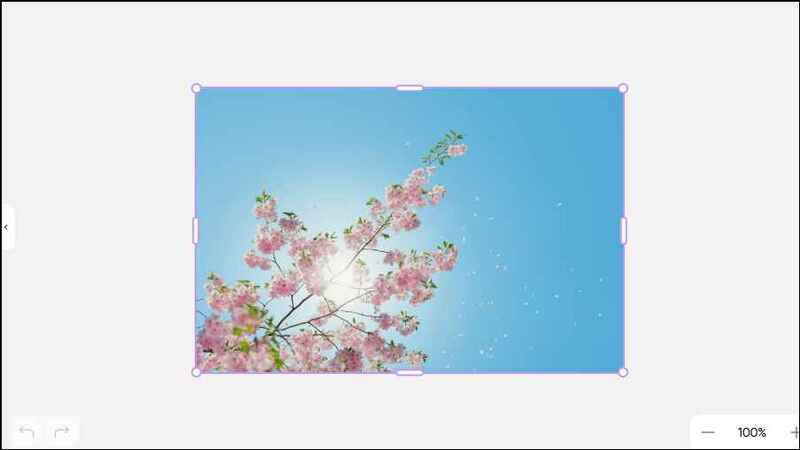
Step 4: Choose frame templates like Instagram Story, YouTube Thumbnail,… from the list on the left.
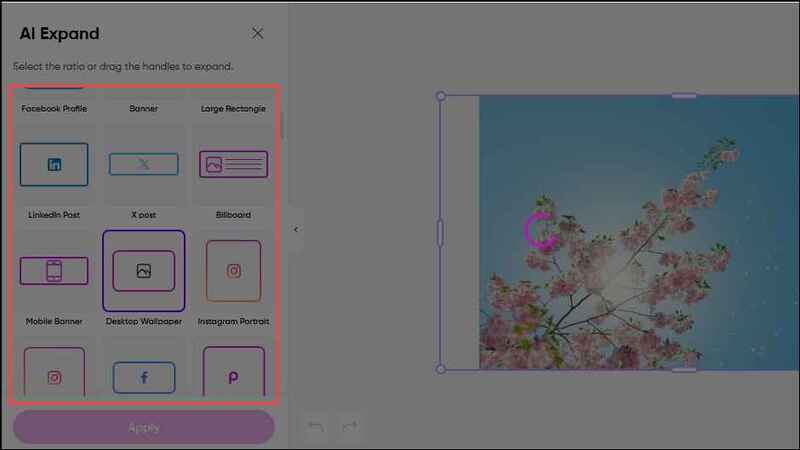
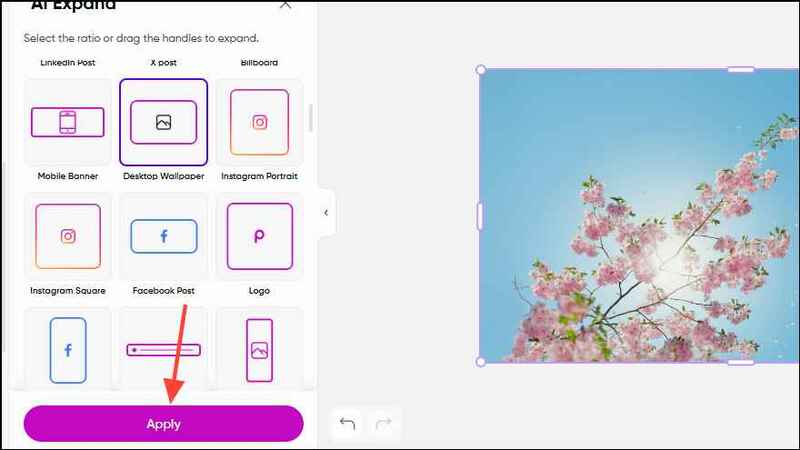
Step 5: After a few seconds, you will see the image has been expanded. Press Apply in the lower left corner to confirm.
Step 6: Once done, you can tap the button Export in the upper right corner to save and download the photo.
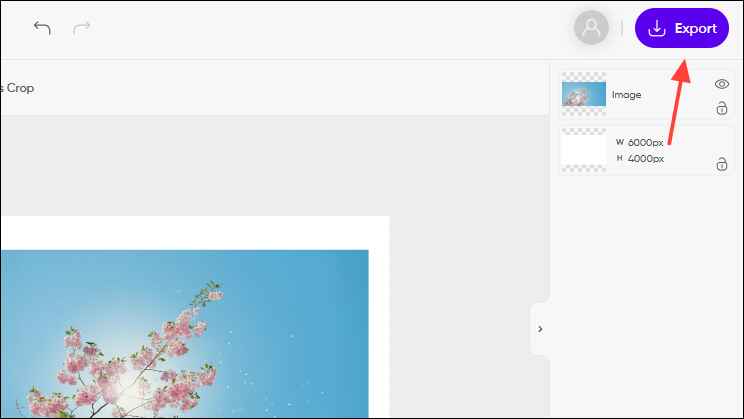
When exporting photos, you'll have several options like naming the project, choosing the file type to save, and even upgrading the image quality. However, some of these features require you to have the Picsart Plus plan.
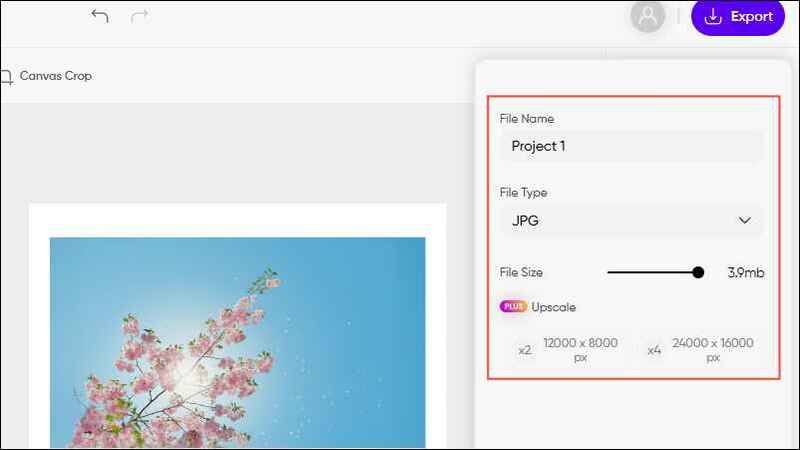
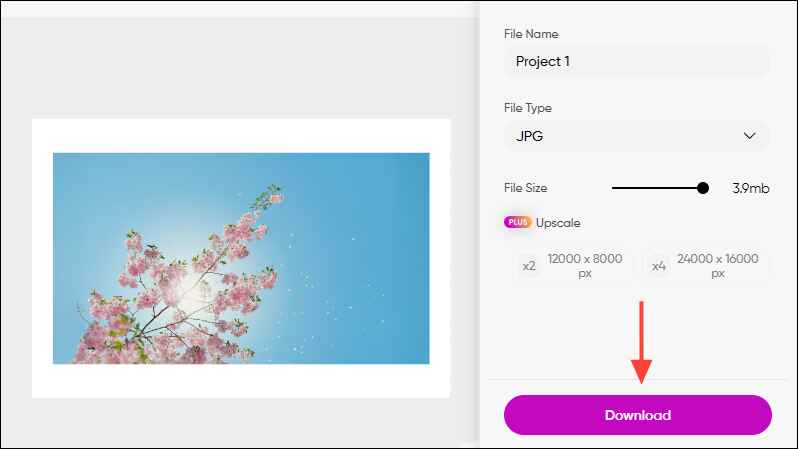
Step 7: To download the expanded image, click the button Download.
See more: OFGB – Comprehensive ad blocking tool on Windows 11
Paid AI photo enlarger
1. Canva
Canva is one of the most popular design tools today, offering a ton of features for free. With a huge library of design templates and an easy-to-use interface, Canva has become the choice of many users.
However, Canva's photo expansion tool is not available in the free plan and you need to subscribe to a paid plan to use the AI-powered Magic Expand feature. Magic Expand allows you to expand photos in any direction.
Usage:
Step 1: Visit Canva and log in to your account.
Step 2: Create a new project or choose an existing design.
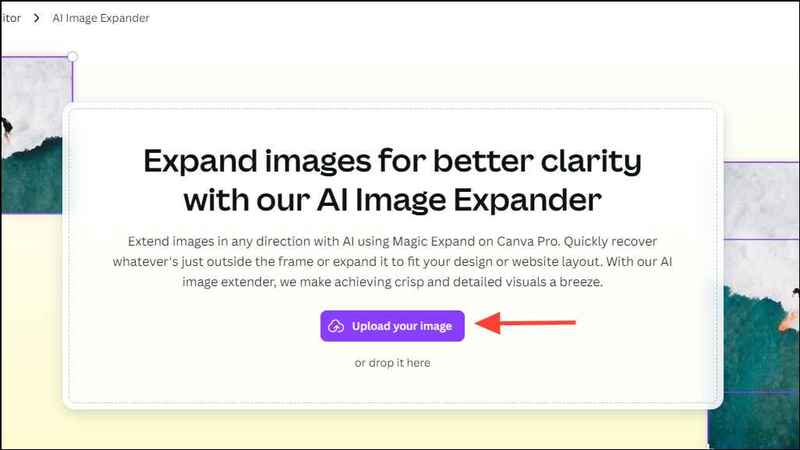
Step 3: Upload photos by tapping UploadCanva supports many image formats such as SVG, WEBP, PNG, JPG,…
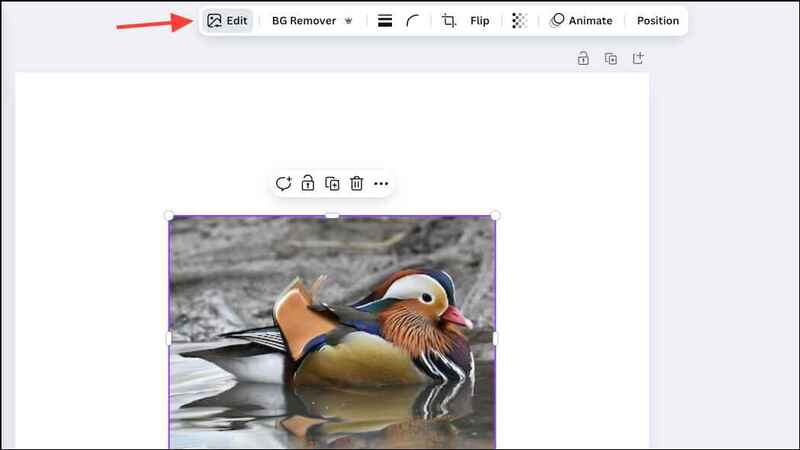
Step 4: Once the photo is uploaded, tap the photo to select and choose Edit images from the toolbar.
Step 5: Select Magic Expand from Magic Studio options.
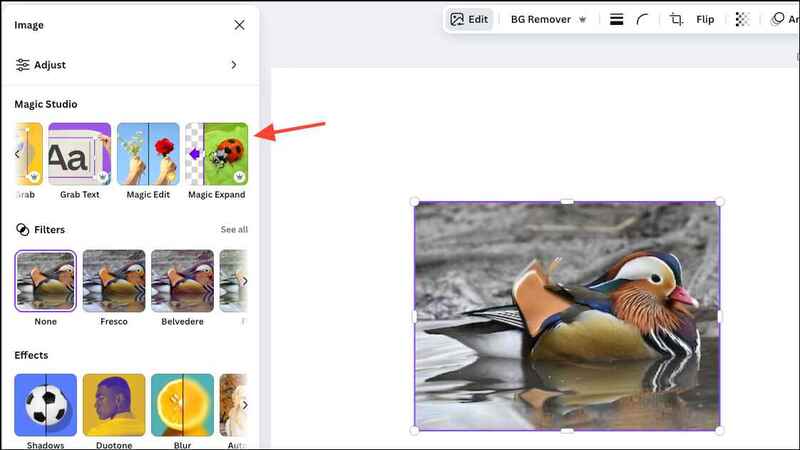
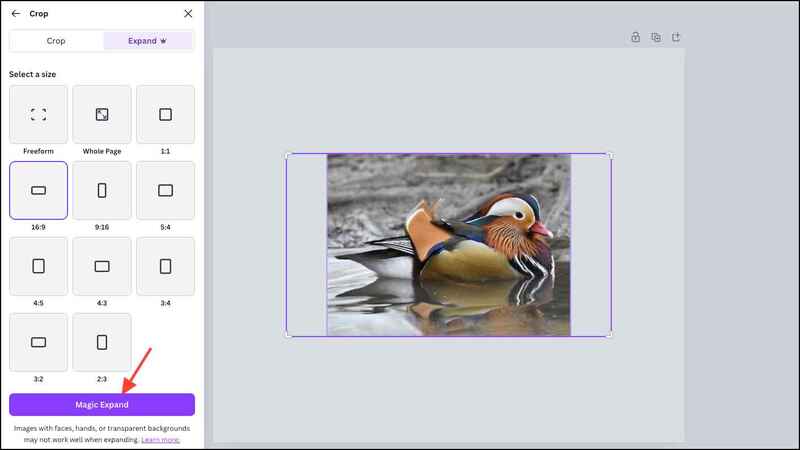
Step 6: Select the aspect ratio or free extension area, then press Magic Expand.
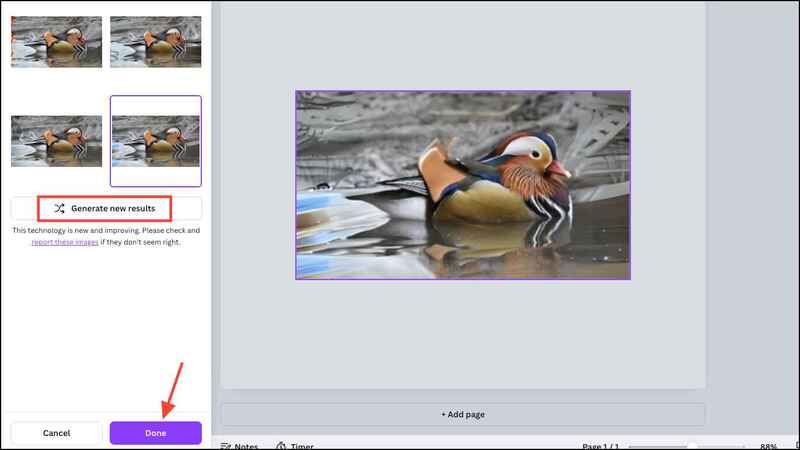
Step 7: Canva will give you 4 design options. Choose a design you like and press Done. If you are not satisfied, you can press Generate new results to try again.
After expanding the photo, you can share it directly to social media platforms like Instagram and Facebook, create a sharing link, or download the photo to your device.
2. Adobe Photoshop
Photoshop is a famous photo editing and graphic design tool, now integrating AI to expand photos through the Generative Expand feature. This feature uses Adobe's Firefly AI model, allowing you to easily expand photos in any direction you want, expand the background, add details to empty spaces, etc.
Usage:
Step 1: Open Photoshop and download the image to be edited.
Step 2: Select tools Crop and drag the edges to select the extended area.
Step 3: When the taskbar appears, select Generative Expand.
Step 4: Enter a description (if needed) to guide the expanded AI.
Step 5: Press Generate and Photoshop will display 4 variations for you to choose from.
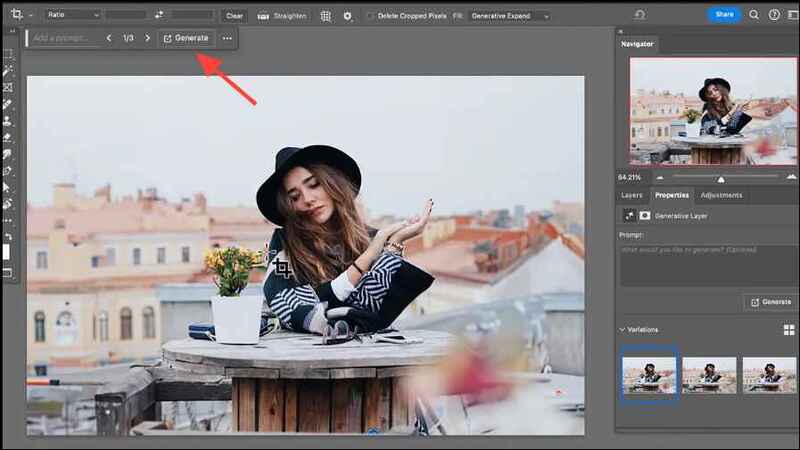
Step 6: You can create additional variations by changing the description and tap Generate again.
Things to keep in mind when expanding photos
- Use high quality photos: High-resolution photos help the AI produce more accurate and more natural enlargement results.
- Be careful with details: When enlarging a photo, the AI can sometimes not be completely accurate, especially in complex scenes, leading to uneven lighting, wrong proportions, or poor subject placement.
- Using copyrighted photos legally: If you use a photo enlarger on copyrighted photos, make sure you have permission to edit those photos.
See more: Pulsedive: A tool to enhance network security for computers
Conclusion
With 4 AI photo enlargement tool that AnonyViet just introduced, you can easily expand images without worrying about losing quality. Whether it's a free or paid tool, each option has its own advantages, suitable for different needs. Experiment and choose the most suitable tool to improve the quality of your creative work!