• Home
  • News
  • Software
  • Knowledge
  • MMO
  • Tips
  • Security
  • Network
  • Office
AnonyViet - English Version
  • Home
  • News
  • Software
  • Knowledge
  • MMO
  • Tips
  • Security
  • Network
  • Office
No Result
View All Result
  • Home
  • News
  • Software
  • Knowledge
  • MMO
  • Tips
  • Security
  • Network
  • Office
No Result
View All Result
AnonyViet - English Version
No Result
View All Result

How to Copy files from one Google Drive to another Google Drive super fast

AnonyViet by AnonyViet
January 8, 2025
in Tips
0

Copy files from Google Drive to another Google Drive is a common need when you need to manage data across multiple accounts or share files with others. However, downloading and re-uploading not only takes time but also affects network speed and device performance. In this article, AnonyViet will introduce a simple, effective way to help you transfer files and folders between Google Drive accounts quickly without having to download files to your computer (This tutorial is based on Hoang's sharing). Vu in the J2Team group)

Join the channel Telegram belong to AnonyViet 👉 Link 👈

Why should you use Google Colab to copy files?

Normally, to copy files from another Google Drive, you need to download the file and then re-upload it to your Drive. This method is both time consuming and depends on network speed. With an average Internet speed of about 1Gbps (100MB/s), you will only reach about 50MB/s if you download and upload at the same time.

Meanwhile, the trick below takes advantage of Google Drive's transfer speed of up to 2GB/s, which is 40 times faster! For example, instead of taking 80 seconds to transfer a 4GB file, now you only need 2 seconds with this method. In addition to saving time, this method also reduces the load on your computer, helping other tasks run more smoothly.

Why should you use Google Colab to copy files?

See more: How to add Google Drive to File Explorer on Windows 11

Instructions for transferring files from one Google Drive to another Google Drive

Step 1: First, let's create a new folder in your Google Drive to receive the file (can name it “Receive Folder” or whatever name you like) and share that folder with Editor rights.

Step 2: Access the link HERE > Log in to the account you want to store files.

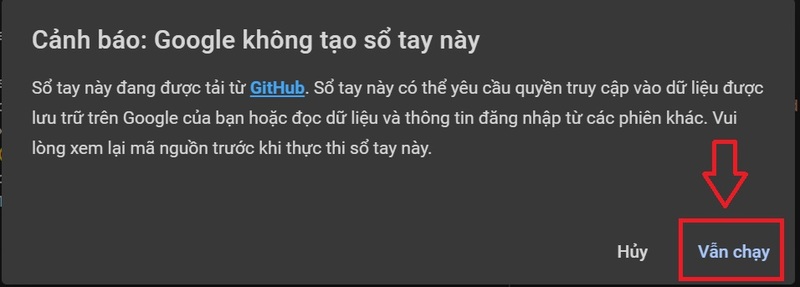
Step 3: Press the button Play In the Input section, if a message appears, select it Still running (Run Anyway).
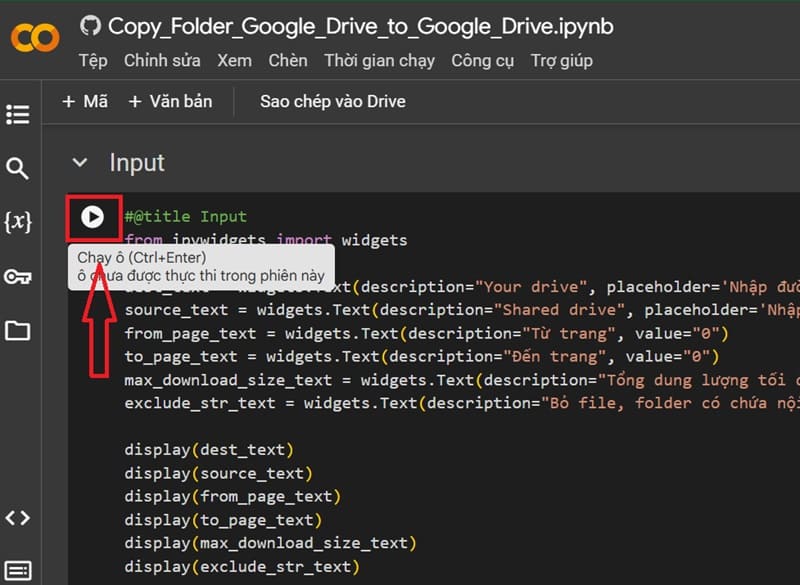
Click the Play button in the Input section
Select Still Running

Step 4: Enter the following information:

  • Your drive: Paste the “Get Folder” file link just created above.
  • Shared drives: Paste the file link you want to copy here.
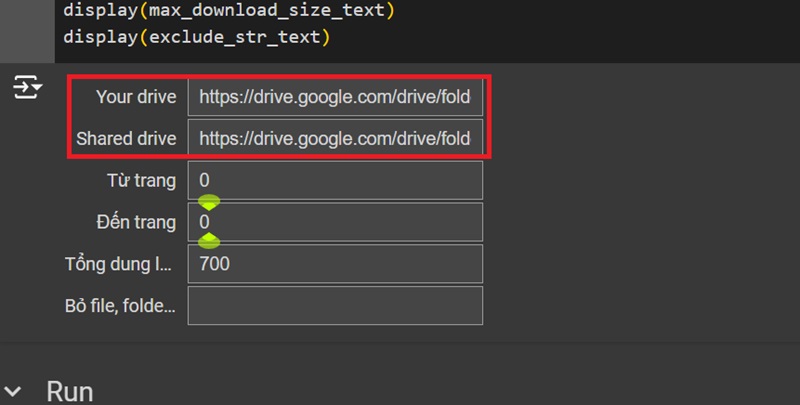
Enter the information

Step 5: Scroll down and press the button Play in RUN > Press Allow (Allow) to grant permissions if required.
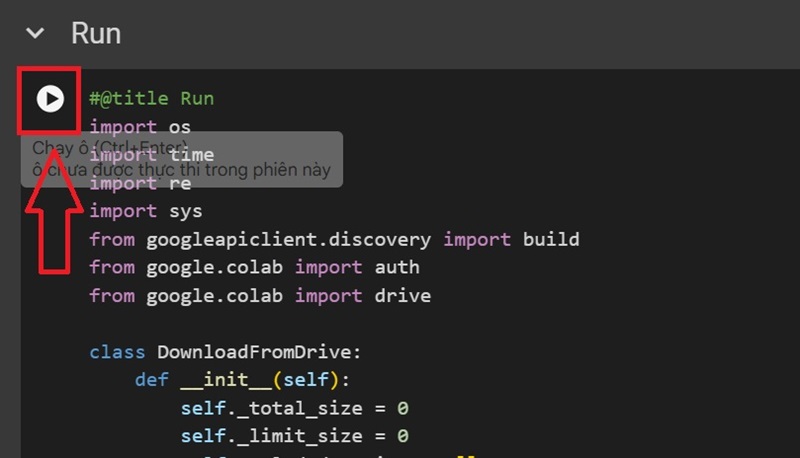
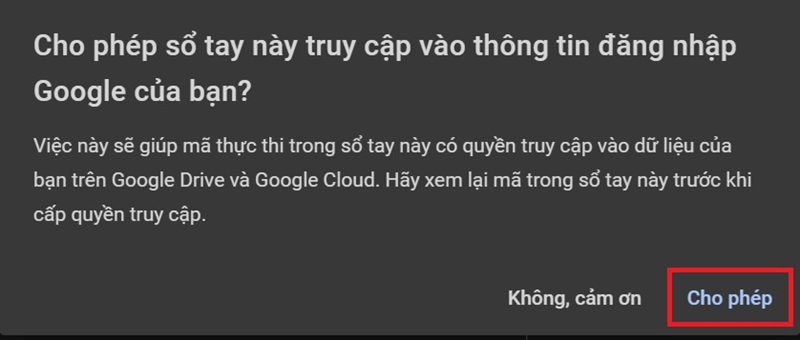
Click the Play button
Click Allow
Click Allow

In just 29 seconds, I transferred more than 36GB from another Drive to my account!

With this trick, copying files from another Google Drive to your account becomes quick, saves time and does not affect computer performance.
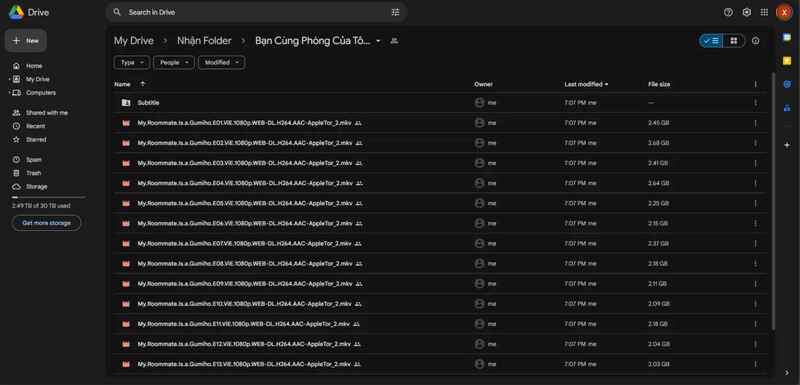
Copy files easily and super quickly with Google Colab

See more: De digger: Tool to find other people's files on Google Drive

Conclusion

Job Transfer files from Google Drive one Google Drive to another has never been so easy and fast. Thanks to this trick, you can save time and optimize your work without worrying about interruption or data loss. Apply now to experience the convenience this method brings, and don't forget to share with your friends if you find it useful!


Tags: copydriveFastfilesGooglesuper
Previous Post

[Lập Trình Game] Lesson 10: Creating Enemies in Godot programming – Part 1

Next Post

Instructions for installing wget on Windows to Download Files like Linux

AnonyViet

AnonyViet

Related Posts

How to add sliders to Facebook Stories to easily rewind videos
Tips

How to add sliders to Facebook Stories to easily rewind videos

April 21, 2026
How to change the default font on Windows 10
Tips

How to change the default font on Windows 10

April 13, 2026
5 tips for using a Browser to replace an App (helps save RAM, time and money)
Tips

5 tips for using a Browser to replace an App (helps save RAM, time and money)

April 13, 2026
How to make funny MeMe photos without Photoshop within 10 seconds
Tips

How to make funny MeMe photos without Photoshop within 10 seconds

April 11, 2026
How to quickly design your own Logo without Photoshop
Tips

How to quickly design your own Logo without Photoshop

April 10, 2026
How to convert Website into App on Windows
Tips

How to convert Website into App on Windows

April 9, 2026
Next Post
Instructions for installing wget on Windows to Download Files like Linux

Instructions for installing wget on Windows to Download Files like Linux

0 0 votes
Article Rating
Subscribe
Login
Notify of
guest

guest

0 Comments
Oldest
Newest Most Voted
Inline Feedbacks
View all comments

Recent News

Create an avatar to celebrate April 30 with a beautiful red flag shirt with yellow stars

Create an avatar to celebrate April 30 with a beautiful red flag shirt with yellow stars

April 30, 2026
How to get 2 months of Super Duolingo for free worth 300k

How to get 2 months of Super Duolingo for free worth 300k

April 30, 2026
How to create a Face Sticker Collection using ChatGPT

How to create a Face Sticker Collection using ChatGPT

April 29, 2026
How to install the cute Bongo Cat mouse pointer for Windows

How to install the cute Bongo Cat mouse pointer for Windows

April 29, 2026
Create an avatar to celebrate April 30 with a beautiful red flag shirt with yellow stars

Create an avatar to celebrate April 30 with a beautiful red flag shirt with yellow stars

April 30, 2026
How to get 2 months of Super Duolingo for free worth 300k

How to get 2 months of Super Duolingo for free worth 300k

April 30, 2026
How to create a Face Sticker Collection using ChatGPT

How to create a Face Sticker Collection using ChatGPT

April 29, 2026
AnonyViet - English Version

AnonyViet

AnonyViet is a website share knowledge that you have never learned in school!

We are ready to welcome your comments, as well as your articles sent to AnonyViet.

Follow Us

Contact:

Email: anonyviet.com[@]gmail.com

Main Website: https://anonyviet.com

Recent News

Create an avatar to celebrate April 30 with a beautiful red flag shirt with yellow stars

Create an avatar to celebrate April 30 with a beautiful red flag shirt with yellow stars

April 30, 2026
How to get 2 months of Super Duolingo for free worth 300k

How to get 2 months of Super Duolingo for free worth 300k

April 30, 2026
No Result
View All Result
  • Home
  • News
  • Software
  • Knowledge
  • MMO
  • Tips
  • Security
  • Network
  • Office

wpDiscuz
0
0
Would love your thoughts, please comment.x
()
x
| Reply