Netflix is the world's most popular subscription streaming service for movies, anime, TV shows, and documentaries. Sometimes, while watching, you want to share a beautiful landscape, a dialogue or a touching scene with your friends. The best option now is to take a screenshot. But due to copyright issues, the application will display a black screen. AnonyViet will guide you how Netflix screenshot on all devices (PC, Android, MacBook, iPhone,…) without any problems.
| Join the channel Telegram belong to AnonyViet 👉 Link 👈 |
Is it possible to screenshot Netflix?
Netflix officially does not allow screenshots of their content or screen recording. If you try to take a picture the normal way, it will show a black screen or the message “Couldn't Capture Screenshot”. The reason is simple: copyright issues.
Because without a copyright policy, users can record Netflix content and create their own copies to make money. The content is the intellectual property of Netflix; No one is allowed to misuse it for profit. But is there any way to screenshot Netflix for entertainment purposes? The answer is Yes.
See more: How to check if your computer is being monitored
4 ways to take Netflix screenshots
There are many third-party apps and built-in programs that can take screenshots of Netflix without getting a black screen. However, based on quality and availability, I have selected these 4 methods for you.
Comparison table of methods:
| Method | Effective | Difficulty Level |
| EaseUS Rec Experts | High | Very Easy |
| Turn off Hardware Acceleration | Medium | Reasonable |
| Disable Display Converter | Short | Easy |
| Install Fireshot Extension | High | Easy |
Method 1: Use EaseUS RecExperts
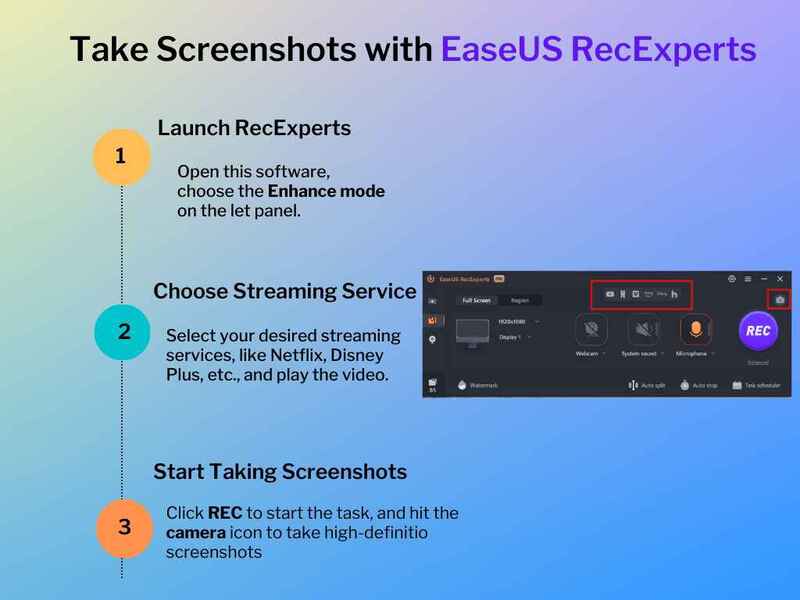
The first method to take screenshots of Netflix content is to use professional capture software, EaseUS RecExperts.
This award-winning screen recorder can capture full, half, or partial Netflix screens. Photos after taking can be saved in Jpeg or GIF format. You can use keyboard shortcuts to quickly take screenshots. All captured images can be automatically saved in the recording list.
Besides screen capture, this software can also record audio and video. It offers 4K/8K media player and AI-powered noise cancellation for the highest quality.
Method 2: Turn off hardware acceleration
Hardware acceleration helps improve overall computer performance by loading videos and landing pages quickly. In most systems, this feature is On by default. However, sometimes it will notice copyright violations and prevent you from taking screenshots.
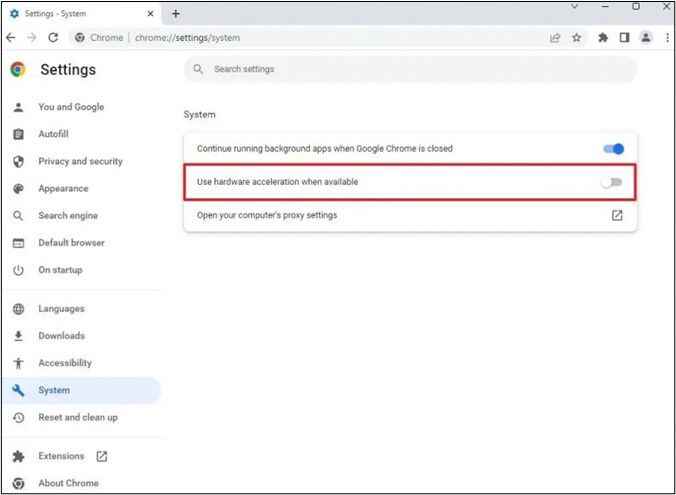
To take a screenshot of Netflix, you first need to turn off hardware acceleration. Here are step-by-step instructions for that:
Step 1: Locate the three-dot icon at the top right of the Google Chrome screen > Right-click on it and select Settings.
Step 2: Then go to the System section.
Step 3: Turn off 'Use Hardware Acceleration when available' option
Step 4: Now click Relaunch to restart the browser
Step 5: Now open Netflix and take a screenshot.
Method 3: Disable display adapter
Netflix may block content using your computer's graphics card. With some videos, you can overcome the black screen problem by disabling the Display Adapter.
Step 1: Click the Start icon on your computer's home page and select Device Manager.
Step 2: From device manager, open the Display Adapter list
Step 3: Search for your graphics card and right-click on it to see options
Step 4: Select 'Disable Device'
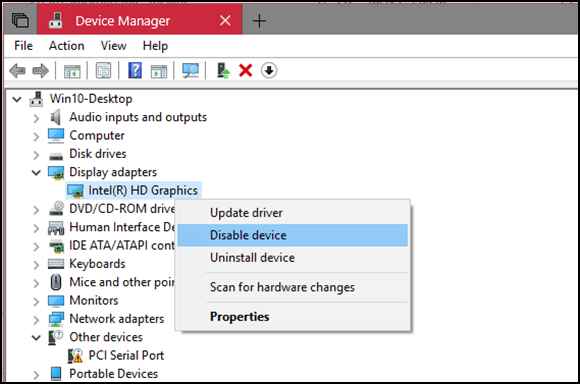
Step 5: Click 'Yes' to confirm. Then try taking a screenshot of Netflix to see if the problem is resolved.
Note: You should not disable the adapter for long periods of time. After you take a screenshot, remember to turn it back on. Otherwise, it will prevent videos and high graphics games from running on your system.
Method 4: Install the Fireshot extension
This solution may only work for Google Chrome users. FireShot is an extension that can take screenshots from all streaming apps, including Netflix.
The Fireshot installation process is as follows:
Step 1: Visit the Chrome web store.
Step 2: Search for “Fireshot”. Once you find it, select “Add to Chrome”.
Or you can visit the direct link HERE
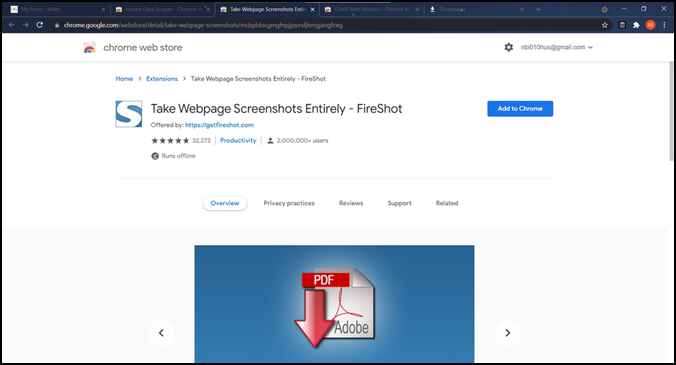
Step 3: The application will be installed.
Step 4: Now open Netflix and choose any location to take a screenshot.
See more: Extremely useful way to check fines for cars and motorbikes online
Conclusion
With 4 ways Netflix screenshot shared in the article, hope you have found the method that best suits your needs and devices. Capturing memorable moments on Netflix is now easier than ever. Feel free to share beautiful images, good dialogues and touching movie scenes with your friends!