• Home
  • News
  • Software
  • Knowledge
  • MMO
  • Tips
  • Security
  • Network
  • Office
AnonyViet - English Version
  • Home
  • News
  • Software
  • Knowledge
  • MMO
  • Tips
  • Security
  • Network
  • Office
No Result
View All Result
  • Home
  • News
  • Software
  • Knowledge
  • MMO
  • Tips
  • Security
  • Network
  • Office
No Result
View All Result
AnonyViet - English Version
No Result
View All Result

How to use virtual Desktop on Windows 10 to create multiple Desktop screens

AnonyViet by AnonyViet
December 7, 2024
in Tips
0

If you are working on a lot of software at the same time, opening multiple windows will make the Desktop cluttered. Every time Alt+Tab or searching for software on the taskbar is a torture. Don't worry, it's on Windows 10 There is a Virtual Desktop function that helps you create more desktop screens. With Virtual Desktop, you can expand your workspace infinitely without having to buy a new, larger monitor, organize groups of related tasks together, and easily switch between them. When you want, you just need to press a few shortcuts and you're done.

Join the channel Telegram belong to AnonyViet 👉 Link 👈

How to open virtual Desktop – Virtual Desktop Windows 10

Virtual Desktop Also known as Virtual Desktops, are secondary Desktop screens to contain working windows. Creating a Virtual Desktop will help you manage programs more scientifically. For example, Desktop 1 you will save the working windows, Desktop 2 will save the entertainment windows.

First, check to see if there is a Task View icon on the Taskbar? If not, right-click on the Taskbar and select it Show Task View button

show task view button

On the taskbar, select the icon Task View next to Windows Search.
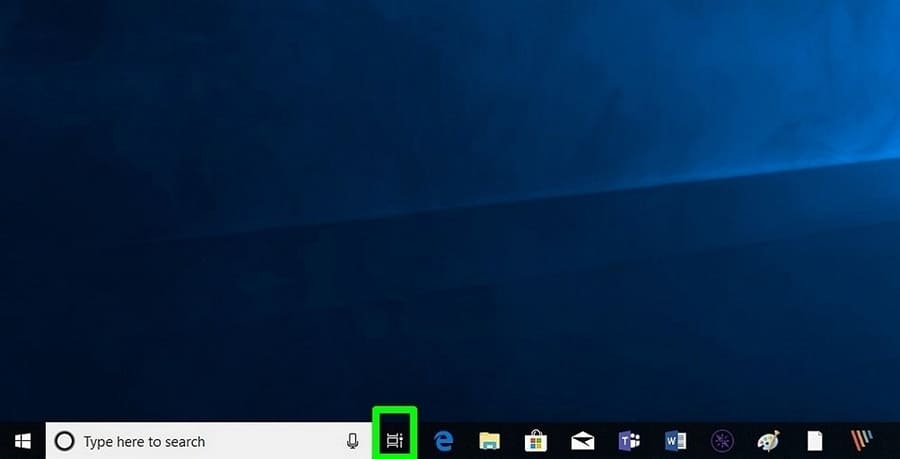
create virtual desktop windows 10

New Desktop will appear in the upper left corner of the screen.How to use virtual Desktop on Windows 10 to create multiple Desktop screens
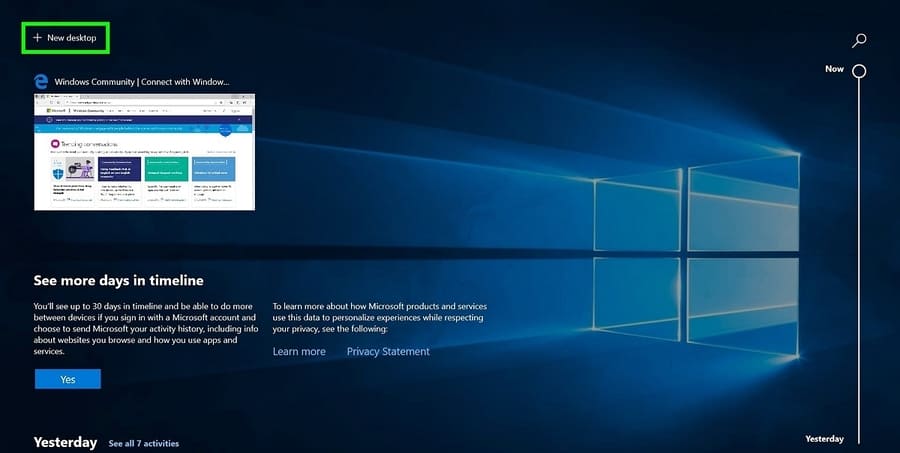
Below section New Desktop, You will see all the applications or windows you have open as well as your Timeline (history of recently opened files and projects).
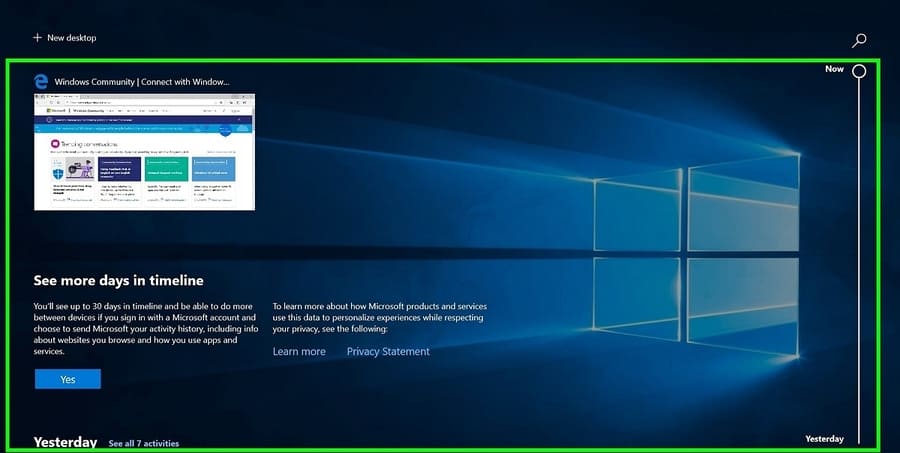
create virtual desktop windows 10

Create virtual Desktop – Virtual Desktop

Windows 10 allows you to create unlimited virtual desktops, but make sure you have enough RAM to open multiple Desktops at the same time. Each time you create a new virtual desktop, you will see a minimized version of it in Task View. Select any virtual desktop to open or use the shortcuts that I will guide below.Instructions for creating virtual desktop Windows 10
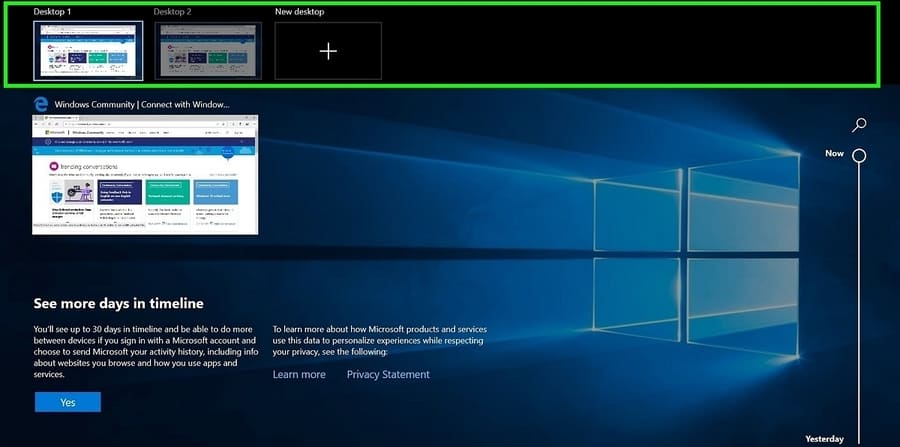
Add or remove virtual Desktops

Select Task View on the taskbar then press + New Desktop to create a new virtual desktop. See which apps are open with Timeline by scrolling down. Click on the mark X at the top of each virtual desktop to delete it when you're done using it. Any applications you have open on the virtual desktop will move to the main screen if you delete that desktop. To avoid this, make sure you close all those windows before deleting that desktop.
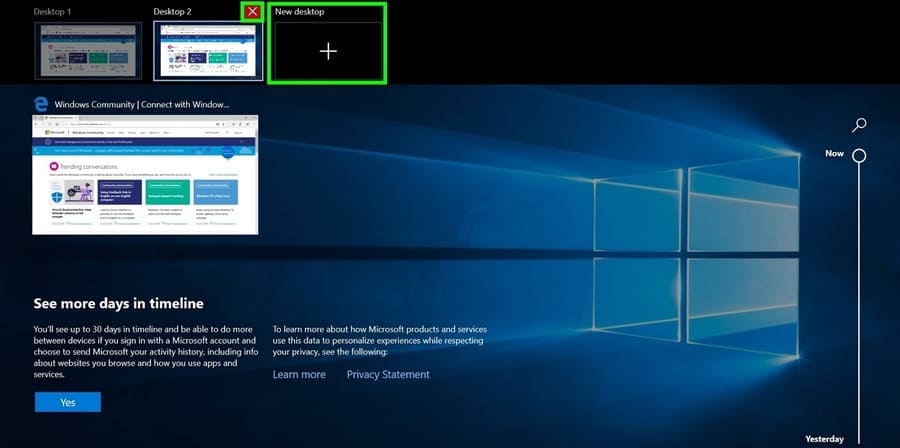
How to use virtual Desktop on Windows 10 to create multiple Desktop screens Customize Virtual Desktop

Right-click any open window to manage the view on your virtual desktop.
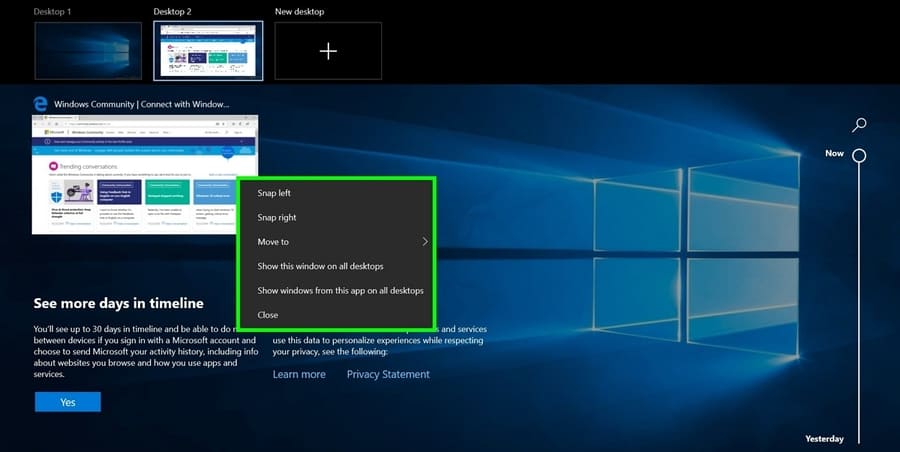
How to use virtual Desktop on Windows 10 to create multiple Desktop screens

Use keyboard shortcuts snap to split your window on the screen.

Explore other options on this menu:

  • Move to: Move the selected application to the desktop in the menu
  • Show this windows on all desktops: Show this application on all desktops
  • Show windows from this app on all desktops: Show windows of this application on all your desktops.
  • Close: Close the current Desktop software.

Shortcuts in virtual desktop

Open Task View and move back and forth between virtual desktops using the keyboard shortcuts below:

  • Windows + Tabs: Open Task View
  • Alt + Tab: Show all open applications. Press Tab while holding Alt allows you to move between them (this is too familiar, comrades)
  • Windows + Ctrl + Left/Right Arrow: Allows you to move quickly between virtual desktops
  • Windows + Ctrl + D: To create a new virtual desktop without Task View.
  • Windows + Tabs: To turn on Task View.

Multitasking

There are two settings for virtual desktops on Windows 10. Click Windows + I to open Settings. Select Systems – > Multitasking, then scroll down to the section Virtual Desktops.How to use virtual Desktop on Windows 10 to create multiple Desktop screens
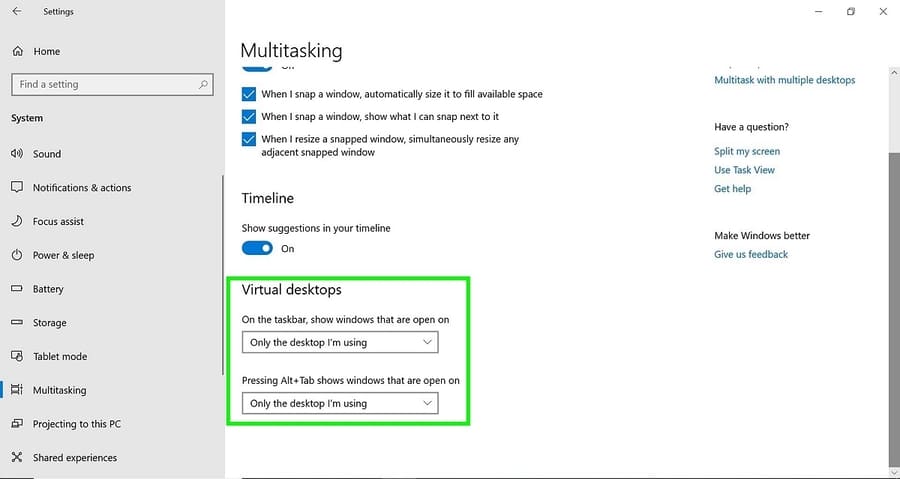
Default is Only the desktop I'm using, but depending on your preference, you can set it to All Desktops.

Now you can create multiple Desktop screens, each Desktop screen will contain its own working window. For example, virtual Desktop 1 will contain programming windows, virtual Desktop 2 will contain entertainment windows. That way you won't be distracted at work.


Previous Post

StylerGPT: Change the “boring” interface of ChatGPT

Next Post

Guide to hunting for Jagat treasure worth nearly 3 billion VND

AnonyViet

AnonyViet

Related Posts

How to create beautiful studio-like preschool graduation photos for your child
Tips

How to create beautiful studio-like preschool graduation photos for your child

May 21, 2026
Instructions on how to change iPhone fonts beautifully with Lara
Tips

Instructions on how to change iPhone fonts beautifully with Lara

May 20, 2026
Create images of guardian mascots using AI according to year of birth
Tips

Create images of guardian mascots using AI according to year of birth

May 20, 2026
Try the Shopee Profit Calculator now, avoid the risk of selling at a loss
Tips

Try the Shopee Profit Calculator now, avoid the risk of selling at a loss

May 19, 2026
Prompt converts photos into extremely impressive children’s drawings
Tips

Prompt converts photos into extremely impressive children’s drawings

May 17, 2026
Instructions for receiving 1 month of ChatGPT Plus for free
Tips

Instructions for receiving 1 month of ChatGPT Plus for free

May 12, 2026
Next Post
Guide to hunting for Jagat treasure worth nearly 3 billion VND

Guide to hunting for Jagat treasure worth nearly 3 billion VND

0 0 votes
Article Rating
Subscribe
Login
Notify of
guest

guest

0 Comments
Oldest
Newest Most Voted
Inline Feedbacks
View all comments

Recent News

How to create amazing flash effects for photos on Instagram

How to create amazing flash effects for photos on Instagram

May 21, 2026
How to create beautiful studio-like preschool graduation photos for your child

How to create beautiful studio-like preschool graduation photos for your child

May 21, 2026
Instructions on how to change iPhone fonts beautifully with Lara

Instructions on how to change iPhone fonts beautifully with Lara

May 20, 2026
Don’t rush to buy a new MacBook if you don’t know these differences

Don’t rush to buy a new MacBook if you don’t know these differences

May 20, 2026
How to create amazing flash effects for photos on Instagram

How to create amazing flash effects for photos on Instagram

May 21, 2026
How to create beautiful studio-like preschool graduation photos for your child

How to create beautiful studio-like preschool graduation photos for your child

May 21, 2026
Instructions on how to change iPhone fonts beautifully with Lara

Instructions on how to change iPhone fonts beautifully with Lara

May 20, 2026
AnonyViet - English Version

AnonyViet

AnonyViet is a website share knowledge that you have never learned in school!

We are ready to welcome your comments, as well as your articles sent to AnonyViet.

Follow Us

Contact:

Email: anonyviet.com[@]gmail.com

Main Website: https://anonyviet.com

Recent News

How to create amazing flash effects for photos on Instagram

How to create amazing flash effects for photos on Instagram

May 21, 2026
How to create beautiful studio-like preschool graduation photos for your child

How to create beautiful studio-like preschool graduation photos for your child

May 21, 2026
No Result
View All Result
  • Home
  • News
  • Software
  • Knowledge
  • MMO
  • Tips
  • Security
  • Network
  • Office

wpDiscuz
0
0
Would love your thoughts, please comment.x
()
x
| Reply