• Home
  • News
  • Software
  • Knowledge
  • MMO
  • Tips
  • Security
  • Network
  • Office
AnonyViet - English Version
  • Home
  • News
  • Software
  • Knowledge
  • MMO
  • Tips
  • Security
  • Network
  • Office
No Result
View All Result
  • Home
  • News
  • Software
  • Knowledge
  • MMO
  • Tips
  • Security
  • Network
  • Office
No Result
View All Result
AnonyViet - English Version
No Result
View All Result

How to display calls full screen on iPhone

AnonyViet by AnonyViet
November 30, 2024
in Software
0

Have you ever felt that the incoming call interface on iPhone is a bit small and difficult to operate? If you want a more intuitive screen experience with large, easy-to-see buttons, try changing the interface Display calls in full screen. AnonyViet will show you how to do it and explain the benefits of using this interface.

Join the channel Telegram belong to AnonyViet 👉 Link 👈

Benefits of Full screen call interface

The full-screen incoming call interface offers many benefits:

  • Easier to operate: With larger Accept and Decline buttons, you can easily answer or decline calls with one hand, especially useful for people with small hands or using iPhone Pro Max.
  • Suitable for older people: Older people sometimes have difficulty seeing small text and buttons on the screen. The full-screen interface makes it easy for them to read and act on incoming calls.
  • Better for the visually impaired: The full-screen interface helps distinguish the Accept and Decline buttons more clearly, eliminating confusion for the visually impaired.
  • See the caller's photo more clearly: When using the full screen interface, the caller's photo will be displayed larger, making it easier for you to recognize them.
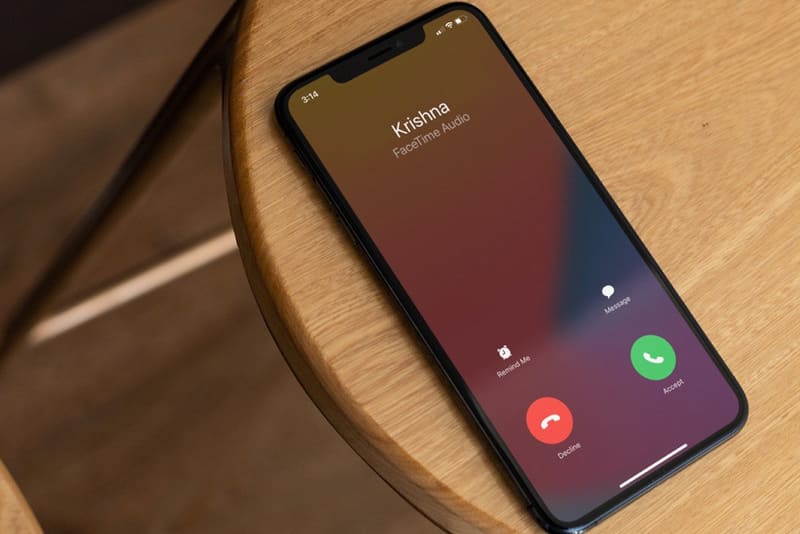
Benefits of Full screen call interface

See more: How to use Airplay to project iPhone screen to Windows PC

Instructions for displaying calls in full screen

When you receive a cellular or FaceTime call while your iPhone is unlocked, the call appears as a small notification at the top of the screen.

However, if you want incoming calls to appear full screen with a green Accept button and a red Reject button, it's simple to change this setting. I will show you how to do it below.
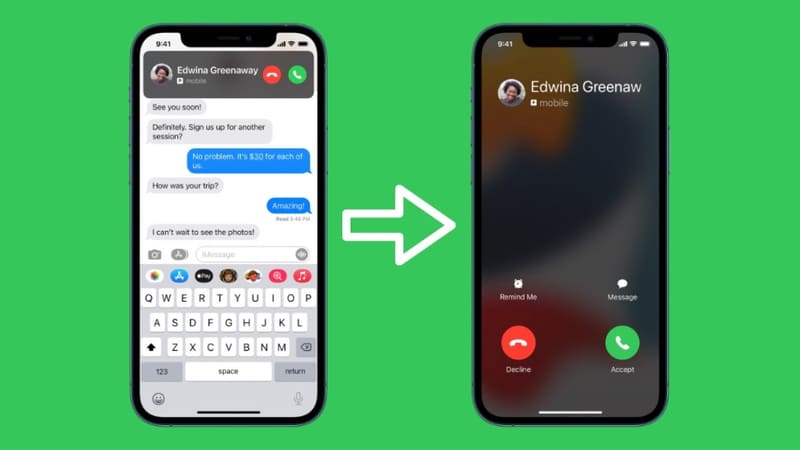
Instructions for displaying calls in full screen

Instructions for displaying incoming calls in full screen:

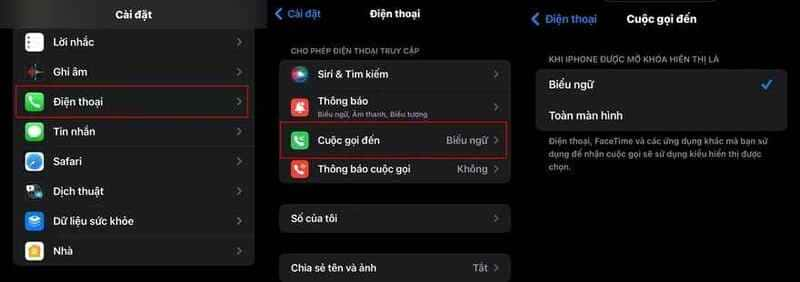
  1. Access the Settings application.
  2. Select Phone – Incoming Calls.
  3. Then, click Full Screen.
Click to select Full screen

From now on, every time you receive a call with your iPhone unlocked, the call interface will take up the entire screen, displaying a large green Accept button and a red Decline button.

Note:

  • Even if you choose the “Banner” view, you can still pull down the call notification to display it full screen.
  • This change only applies to the call interface when the iPhone is unlocked. On the lock screen, the call interface will still be “slide to answer” regardless of which option you choose in Settings.
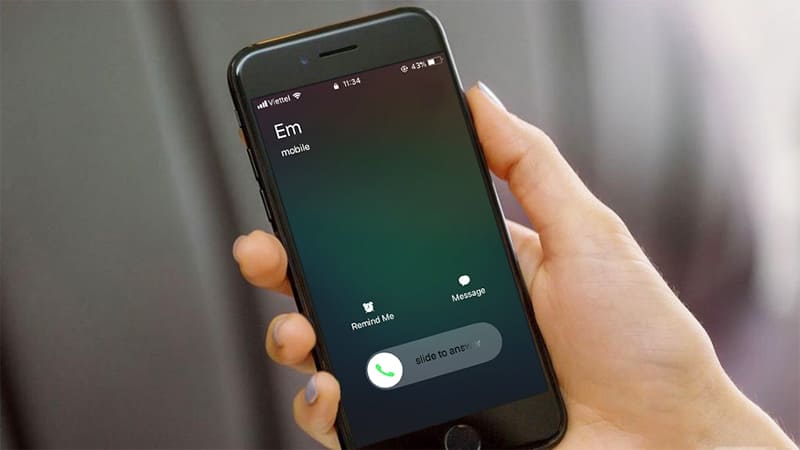
The interface will be "Slide to answer" if not unlocked
The interface will be “slide to answer” if not unlocked

Does this setting change how calls are displayed on your Mac?

Are not. On devices signed in with your Apple ID, like your Mac, calls will appear as small notifications in the top right corner, similar to other notifications. You can't make calls appear full screen on your Mac.
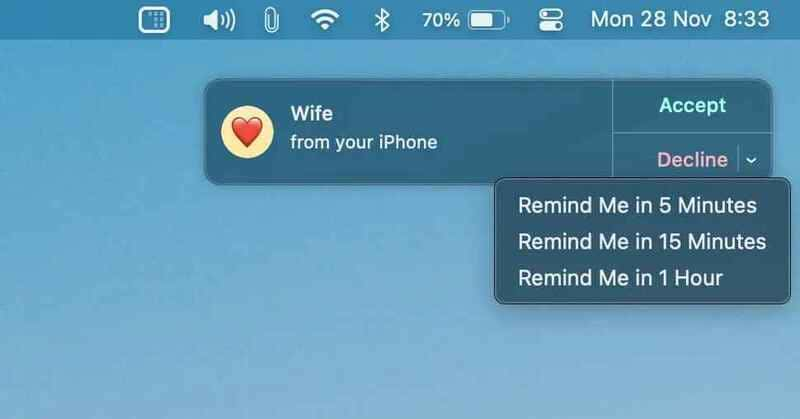
The call will appear as a small notification

See more: How to adjust iPhone flashlight beam width in iOS 18

Conclusion

Change interface Display calls in full screen is a simple way to enhance your iPhone using experience. With a larger and easier-to-see interface, you can easily answer or decline calls, especially when you're busy. Try applying it today and enjoy the convenience it brings!


Tags: callsdisplayFulliPhonescreen
Previous Post

How to add QR Code to iPhone home screen

Next Post

Instructions for displaying a ruler on the computer screen

AnonyViet

AnonyViet

Related Posts

Compact design, durable battery, excellent camera: Review of OPPO Reno 16 Pro 5G
Software

Compact design, durable battery, excellent camera: Review of OPPO Reno 16 Pro 5G

July 12, 2026
Download the free 3D Pinball Space Cadet game on the App Store now
Software

Download the free 3D Pinball Space Cadet game on the App Store now

July 12, 2026
Learn new skills with iPad 11 (A16) 128GB: when is enough, when should you upgrade to a higher level?
Software

Learn new skills with iPad 11 (A16) 128GB: when is enough, when should you upgrade to a higher level?

July 10, 2026
Instructions for taking free buses in Ho Chi Minh City from July 2026
Software

Instructions for taking free buses in Ho Chi Minh City from July 2026

July 9, 2026
3 steps to change Zalo number when sim is revoked
Software

3 steps to change Zalo number when sim is revoked

July 8, 2026
The simplest way to log out of Gmail on Huawei phones
Software

The simplest way to log out of Gmail on Huawei phones

July 5, 2026
Next Post
Instructions for displaying a ruler on the computer screen

Instructions for displaying a ruler on the computer screen

0 0 votes
Article Rating
Subscribe
Login
Notify of
guest

guest

0 Comments
Oldest
Newest Most Voted

Recent News

Instructions on how to create POV product review videos using Flow

Instructions on how to create POV product review videos using Flow

July 13, 2026
How to fix “This PC can’t run Windows 11” error This PC doesn’t meet the minimum system requirements

How to fix “This PC can’t run Windows 11” error This PC doesn’t meet the minimum system requirements

July 13, 2026
Compact design, durable battery, excellent camera: Review of OPPO Reno 16 Pro 5G

Compact design, durable battery, excellent camera: Review of OPPO Reno 16 Pro 5G

July 12, 2026
Download the free 3D Pinball Space Cadet game on the App Store now

Download the free 3D Pinball Space Cadet game on the App Store now

July 12, 2026
Instructions on how to create POV product review videos using Flow

Instructions on how to create POV product review videos using Flow

July 13, 2026
How to fix “This PC can’t run Windows 11” error This PC doesn’t meet the minimum system requirements

How to fix “This PC can’t run Windows 11” error This PC doesn’t meet the minimum system requirements

July 13, 2026
Compact design, durable battery, excellent camera: Review of OPPO Reno 16 Pro 5G

Compact design, durable battery, excellent camera: Review of OPPO Reno 16 Pro 5G

July 12, 2026
AnonyViet - English Version

AnonyViet

AnonyViet is a website share knowledge that you have never learned in school!

We are ready to welcome your comments, as well as your articles sent to AnonyViet.

Follow Us

Contact:

Email: anonyviet.com[@]gmail.com

Main Website: https://anonyviet.com

Recent News

Instructions on how to create POV product review videos using Flow

Instructions on how to create POV product review videos using Flow

July 13, 2026
How to fix “This PC can’t run Windows 11” error This PC doesn’t meet the minimum system requirements

How to fix “This PC can’t run Windows 11” error This PC doesn’t meet the minimum system requirements

July 13, 2026
  • Home
  • Home 2
  • Home 3
  • Home 4
  • Home 5
  • Home 6
  • Next Dest Page
  • Sample Page

say88 tỷ lệ kèo nhà cái kèo nhà cái 5 febet

No Result
View All Result
  • Home
  • News
  • Software
  • Knowledge
  • MMO
  • Tips
  • Security
  • Network
  • Office

say88 tỷ lệ kèo nhà cái kèo nhà cái 5 febet

wpDiscuz
0
0
Would love your thoughts, please comment.x
()
x
| Reply