WordPress is one of the most popular content management systems (CMS) today, allowing users to easily create and manage websites without needing deep programming knowledge. Installing WordPress on cPanel, a powerful hosting management tool, makes the process simpler and more efficient. In this article, we will guide you step by step Install WordPress on cPanel easily, helping you quickly own a professional website.
| Join the channel Telegram belong to AnonyViet 👉 Link 👈 |
What is WordPress?
WordPress is an open source content management system (CMS), written in the PHP programming language and using MySQL or MariaDB databases. Initially, WordPress was developed as a tool for publishing personal blogs, but has since expanded and become a popular platform for building many different types of websites, including news and e-commerce sites. , forums and more.

WordPress was first launched on May 27, 2003 by developers Matt Mullenweg and Mike Little, based on b2/cafelog. Since then, WordPress has gone through many improved versions and become one of the most popular CMS in the world.
What is cPanel?
cPanel is a popular web hosting control panel that helps users easily manage web hosting services on their servers. This is an intuitive and user-friendly graphical interface, often used by hosting service providers to help users control their website, email, database, and many other features without having to use the Internet. use the command line or have in-depth knowledge of the server.
WP Toolkit is a convenient and powerful built-in tool cPanelhelps you manage and install WordPress quickly and effectively. Below are the detailed steps to install WordPress using WP Toolkit:
Step 1: Access WP Toolkit
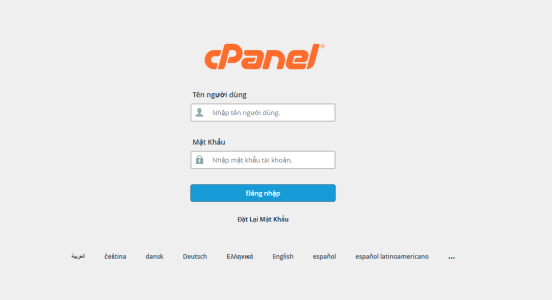
Login to cPanel: Open cPanel from your Portal account.
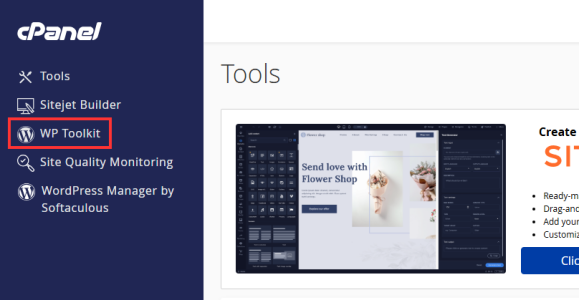
Search for WP Toolkit: On the cPanel interface, you will see the “WP Toolkit” section. Click on it to open the tool.
Step 2: Initialize WordPress installation
Select installation options: In the WP Toolkit interface, click the “Install WordPress” button to begin the installation process.
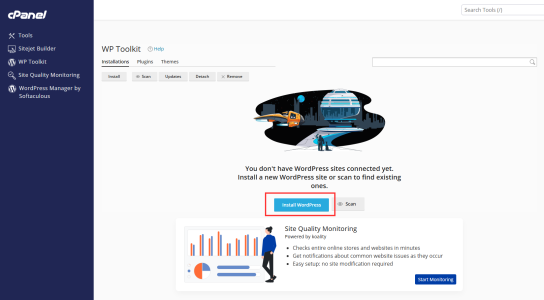
Configure domain name and parameters:
- Select the domain where you want to install WordPress (applicable if you own multiple domains).
- Set up basic parameters like database name, username, and the WordPress version you want to use.
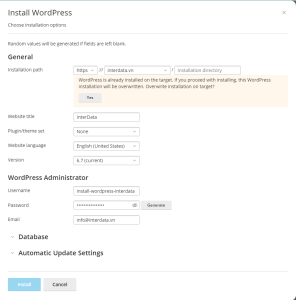
Step 3: Customize configuration
- Automatic or manual configuration:
- WPToolkit will automatically apply the basic settings.
- You can further customize parameters such as choosing a default theme, adding necessary plugins, and enabling security options.
- Complete configuration: Click the “Install” button to start the WordPress installation process.
Step 4: Complete and manage the website
- Manage WordPress from WP Toolkit: Once installation is complete, you can use WP Toolkit to:
- Install additional plugins and themes.
- Backup and restore website data.
- Update WordPress version.
- Check and enhance security options.
- Ready to use: Now you are ready to develop and manage your WordPress site.
Install WordPress using WordPress Manager by Softaculous on cPanel
WordPress Manager by Softaculous is an automatic WordPress installation tool, highly appreciated for its simplicity and convenience. This is a popular choice for cPanel users for quick WordPress deployment. Below are the detailed steps to do it.
Step 1: Open WordPress Manager by Softaculous
- Login to cPanel: Access your cPanel through your provider's Portal account.
- Find tools: In the “Software” section, you will see the “WordPress Manager by Softaculous” option. Click to open the installer.
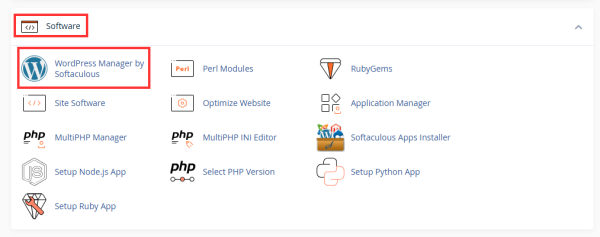
Step 2: Start installing WordPress
- Click “Install”: At the main interface of WordPress Manager, click the “Install” button to start the installation.

- Basic configuration:
- Choose WordPress version: Choose the most suitable version.
- Choose domain name: Determine the domain name and installation directory (leave blank if you want to install at the root directory).
- Enter website information: Fill in the website name, description, username, admin password, and email.
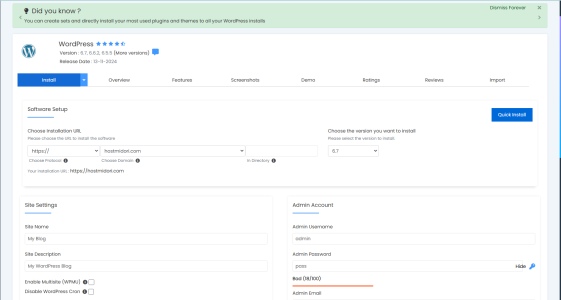
Step 3: Choose themes and plugins
- Interface selection: Softaculous allows you to pre-install themes during this process.
- Install plugins: Select the necessary plugins or skip if you want to do it later.
Step 4: Set up advanced customizations (optional)
- Database customization: If needed, you can set up separate database information.
- Select protocol: Decide whether to use HTTP or HTTPS.
- Enhanced security: Enable suggested plugins or security options.
Once you have completed the customizations, click the “Install” button to launch the installation process.
Step 5: Complete installation and log in
- Receive completion notification: After installation, you will see a notification and a login link to the admin page.
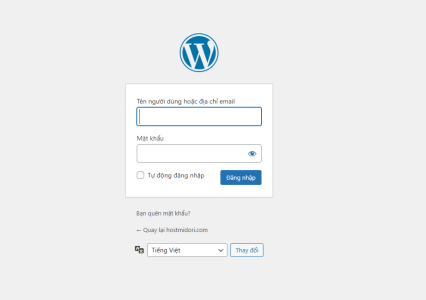
- WordPress Login: Normally, the link will be in the form https://domain.vn/wp-admin. From here, you can access your dashboard to manage content and customize your website.
Optimize WordPress website with Hosting at InterData
If you are in need of one Cheap WordPress Hosting servicequality for WordPress websites, InterData is a choice worth considering. As a current user of InterData, I find this service very well optimized for WordPress with fast access speed thanks to the NVMe U.2 SSD hard drive and AMD EPYC™ Gen 3 processor.
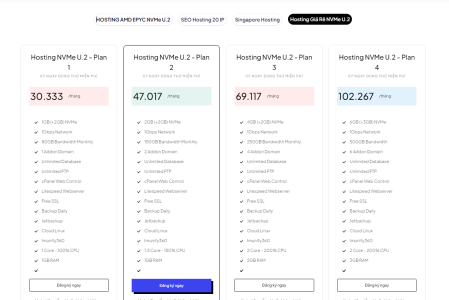
Highly secure system, 24/7 technical support and automatic WordPress installation tools via cPanel such as WPToolkit or 1 Click WordPress Installation help me set up a website easily and operate stably. In addition, InterData also provides Cheap VPS rental servicephysical servers, and high-performance cloud servers at reasonable prices, meeting many different needs. Dedicated support team, I always feel secure when using!
InterData
- Website: Interdata.vn
- Hotline: 1900-636822
- E-mail: [email protected]
- VPDD: 240 Nguyen Dinh Chinh, Ward 11. Phu Nhuan District, City. Ho Chi Minh
- Office of Education: No. 211, Street 5, Lakeview City Urban Area, An Phu Ward, City. Thu Duc, City. Ho Chi Minh