• Home
  • News
  • Software
  • Knowledge
  • MMO
  • Tips
  • Security
  • Network
  • Office
AnonyViet - English Version
  • Home
  • News
  • Software
  • Knowledge
  • MMO
  • Tips
  • Security
  • Network
  • Office
No Result
View All Result
  • Home
  • News
  • Software
  • Knowledge
  • MMO
  • Tips
  • Security
  • Network
  • Office
No Result
View All Result
AnonyViet - English Version
No Result
View All Result

How to Hide Gaming Activity on Discord

AnonyViet by AnonyViet
August 30, 2024
in Tips
0

Way hide gaming activity on discord – A problem that many online gamers have had a headache looking for a solution. Discord often automatically shares information about the game you are playing with your friends. This can create a strong sense of community, but sometimes you may want to keep this information to yourself. Don’t worry, AnonyViet will guide you how to do that in this article.

Join the channel Telegram belong to AnonyViet 👉 Link 👈

Benefits of hiding Game information on Discord

Discord, an online voice and text chat platform, allows you to communicate with other gamers. Anyone can create a server on Discord to discuss any topic they want. There are several benefits to hiding your gaming activity on Discord:

Privacy

Hiding your gaming activity gives you control over what information you share. If you don't want others to know what games you're playing, or where you are in the game, this is a good solution.

Do Not Disturb

When you're playing a game that requires a lot of concentration, it can be annoying to be constantly texted or invited to play by friends. Hiding your gaming activity can help you avoid this situation.
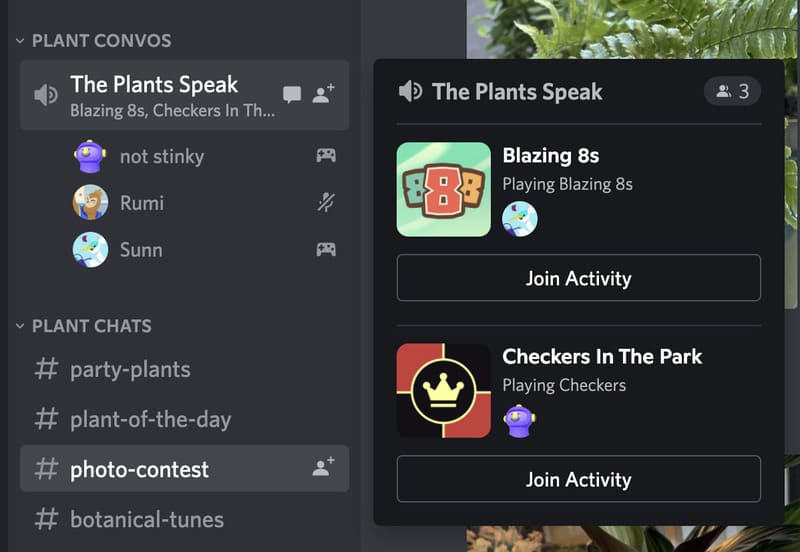
Benefits of hiding game information

See also: Instructions How to Create QR Art Using Discord Bot super fast

Limitations of Hiding Gaming Activity on Discord

Reduced interactivity

Discord is a platform focused on community and interaction. When you hide your gaming activity, you may be less able to interact with your friends and community.

Some features cannot be used

Some Discord features like Rich Presence allow your friends to see where you are in a game, or even join your game instantly. When you go invisible, you won't be able to use these features either.
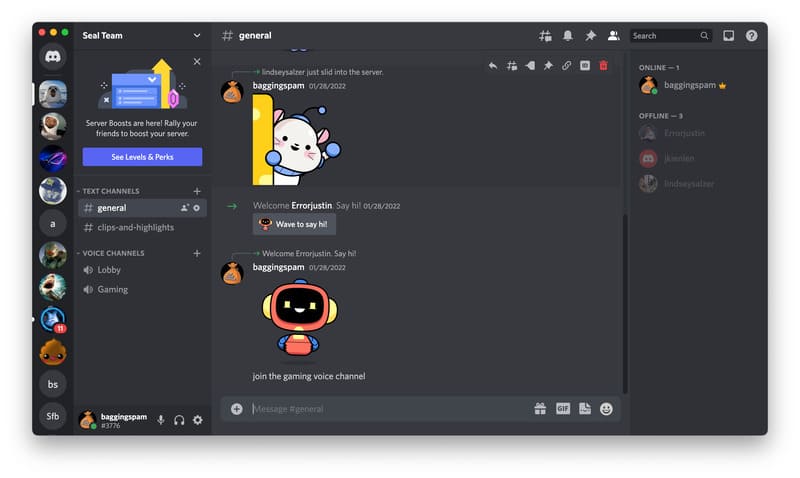
Limitations of hiding game information

How to Hide Gaming Activity on Discord

If you want to keep the information about the game you're playing on Discord private, follow these instructions.

Step 1: First, open the Settings menu in Discord by clicking the gear icon located in the bottom left corner, next to your name and avatar.
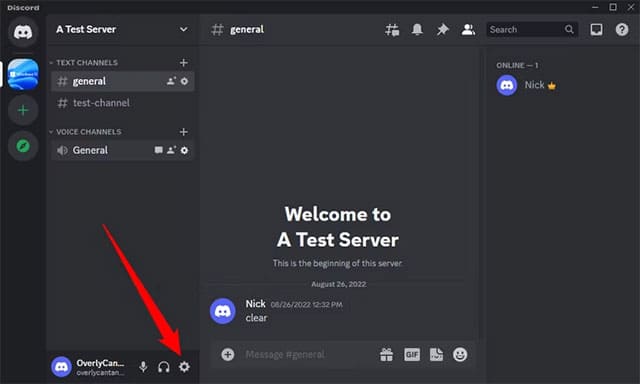
Open the Settings menu

Step 2: Then, navigate to the “Activity Privacy” tab on the left and turn off the toggle labeled “Display Current Activity As A Status Message”.
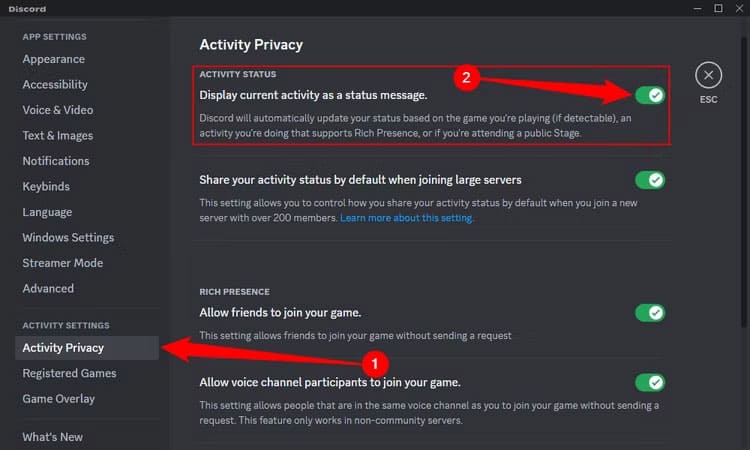
Turn off the titled toggle "Display Current Activity As A Status Message"
Turn off the toggle titled “Display Current Activity As A Status Message”

Instantly, Discord will hide information about the Game you are playing. Finally, you can close the Settings screen.

That’s it. If you want, you can turn this feature back on by following the steps above again. Discord will then continue to share information about the game you’re playing, your game status, or even the songs you’re listening to on Spotify.

See also: How to Get Someone's IP Address in Discord

Conclusion

With the above instructions, we hope you have a clear understanding of how to hide gaming activity on discordBy turning off the game activity sharing feature, you can completely control the information you want to share on Discord. Enjoy your favorite games without worrying about others knowing.


Tags: activityDiscordgaminghide
Previous Post

Hunt for free CGV movie tickets at the K FESTA 2024 CJ event

Next Post

Instructions for watching Apple September event live

AnonyViet

AnonyViet

Related Posts

How to record reaction videos with Android phones, no app needed
Tips

How to record reaction videos with Android phones, no app needed

June 1, 2026
Instructions on how to get Google AI Pro 1 year for free for new accounts
Tips

Instructions on how to get Google AI Pro 1 year for free for new accounts

June 1, 2026
Top free AI tools to help write, test and optimize content
Tips

Top free AI tools to help write, test and optimize content

June 1, 2026
Instructions for receiving Lovable Pro 12 months for free
Tips

Instructions for receiving Lovable Pro 12 months for free

May 29, 2026
Instructions for receiving 1 month of ElevenLabs Creator for free worth
Tips

Instructions for receiving 1 month of ElevenLabs Creator for free worth $22

May 25, 2026
How to create beautiful studio-like preschool graduation photos for your child
Tips

How to create beautiful studio-like preschool graduation photos for your child

May 21, 2026
Next Post
Instructions for watching Apple September event live

Instructions for watching Apple September event live

0 0 votes
Article Rating
Subscribe
Login
Notify of
guest

guest

0 Comments
Oldest
Newest Most Voted
Inline Feedbacks
View all comments

Recent News

How to check network speed on Apple TV when the image is jerky or lagging

How to check network speed on Apple TV when the image is jerky or lagging

June 3, 2026
Instructions on how to prevent acquaintances from seeing your Tiktok

Instructions on how to prevent acquaintances from seeing your Tiktok

June 2, 2026
How to record reaction videos with Android phones, no app needed

How to record reaction videos with Android phones, no app needed

June 1, 2026
Instructions on how to get Google AI Pro 1 year for free for new accounts

Instructions on how to get Google AI Pro 1 year for free for new accounts

June 1, 2026
How to check network speed on Apple TV when the image is jerky or lagging

How to check network speed on Apple TV when the image is jerky or lagging

June 3, 2026
Instructions on how to prevent acquaintances from seeing your Tiktok

Instructions on how to prevent acquaintances from seeing your Tiktok

June 2, 2026
How to record reaction videos with Android phones, no app needed

How to record reaction videos with Android phones, no app needed

June 1, 2026
AnonyViet - English Version

AnonyViet

AnonyViet is a website share knowledge that you have never learned in school!

We are ready to welcome your comments, as well as your articles sent to AnonyViet.

Follow Us

Contact:

Email: anonyviet.com[@]gmail.com

Main Website: https://anonyviet.com

Recent News

How to check network speed on Apple TV when the image is jerky or lagging

How to check network speed on Apple TV when the image is jerky or lagging

June 3, 2026
Instructions on how to prevent acquaintances from seeing your Tiktok

Instructions on how to prevent acquaintances from seeing your Tiktok

June 2, 2026
No Result
View All Result
  • Home
  • News
  • Software
  • Knowledge
  • MMO
  • Tips
  • Security
  • Network
  • Office

wpDiscuz
0
0
Would love your thoughts, please comment.x
()
x
| Reply