• Home
  • News
  • Software
  • Knowledge
  • MMO
  • Tips
  • Security
  • Network
  • Office
AnonyViet - English Version
  • Home
  • News
  • Software
  • Knowledge
  • MMO
  • Tips
  • Security
  • Network
  • Office
No Result
View All Result
  • Home
  • News
  • Software
  • Knowledge
  • MMO
  • Tips
  • Security
  • Network
  • Office
No Result
View All Result
AnonyViet - English Version
No Result
View All Result

How to change mouse pointer direction for left-handed people to use easily

AnonyViet by AnonyViet
July 22, 2024
in Tips
0

Are you left-handed and often have difficulty using a computer mouse? You want to know how to change mouse pointer direction from left to right to suit your operations? This article will guide you through the steps to do that very simply and quickly.

Join the channel Telegram belong to AnonyViet 👉 Link 👈

Why do left-handed people need to change the mouse pointer direction?

The mouse is an indispensable device when working with a computer. However, computer mice are often designed according to the standard for right-handed people, that is, the left button is the main button, the right button is the secondary button. This can cause difficulties for left-handed people when using the mouse, because they have to change their habits and operations.
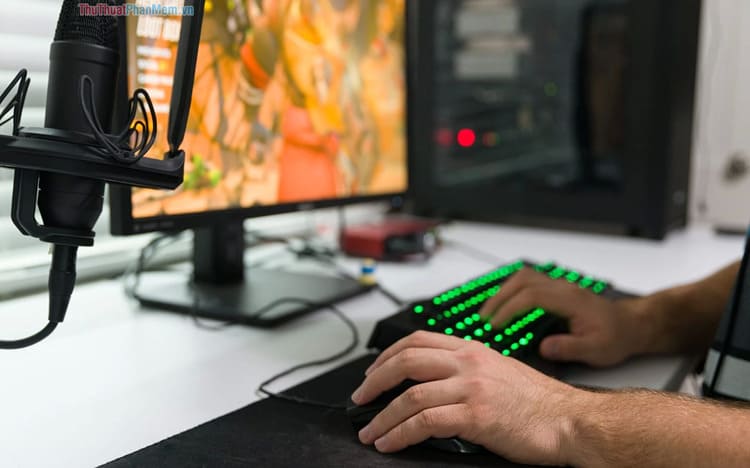
How to change mouse pointer direction
Need to change mouse pointer direction for left handed people

To solve this problem, Windows 11 allows you to switch the mouse from left to right, which means changing the function of the two mouse buttons. Then the right button will be the main button, the left button will be the secondary button. This will help left-handed people interact with the computer more easily, without having to adapt to the way right-handed people operate.

How to change mouse pointer direction on Windows 11

To change left mouse to right on Windows 11you just need to follow these steps:

Step 1: Press Windows + I key combination to quickly open the Settings application.

Step 2: Go to Bluetooth & devices > Mouse.
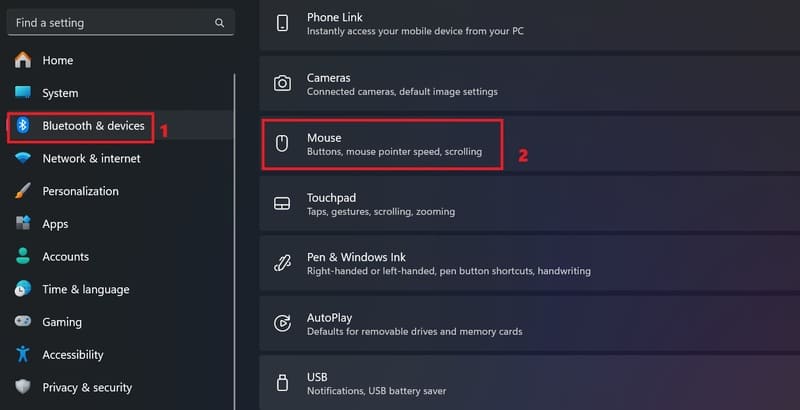
How to change mouse pointer direction
Go to Bluetooth & devices > Mouse.

Step 3: You change the selection in the Primary mouse button section to Right to change the mouse direction to right.
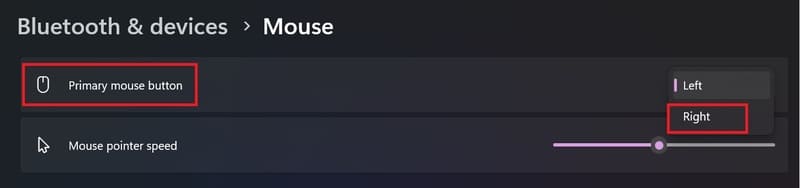
How to change mouse pointer direction
Select Primary mouse button to Right

Once done, you can use the mouse with your left hand easily without fear of mistakenly clicking the mouse.

Benefits of switching left to right mouse for left handed people

Switching from left to right mouse for left-handed people has many benefits, such as:

  • Helps left-handed people use the mouse more naturally and comfortably, without having to twist their hand or use their right hand.
  • Increase work efficiency, reduce time and errors when performing operations on the computer.
  • Avoid health problems, such as wrist pain, finger joint pain, or hand fatigue.

Epilogue

That is how to change mouse pointer direction from left to right on Windows 11 for left-handed people that you can do easily. Hopefully this article will help you improve your computer experience. If you have any questions or suggestions, please leave a comment below. Good luck!


Tags: changedirectioneasilylefthandedmousepeoplepointer
Previous Post

Instructions for creating photos outside the phone frame are a hot trend

Next Post

How to Use the Prophetic Music Feature on Spotify

AnonyViet

AnonyViet

Related Posts

How to record reaction videos with Android phones, no app needed
Tips

How to record reaction videos with Android phones, no app needed

June 1, 2026
Instructions on how to get Google AI Pro 1 year for free for new accounts
Tips

Instructions on how to get Google AI Pro 1 year for free for new accounts

June 1, 2026
Top free AI tools to help write, test and optimize content
Tips

Top free AI tools to help write, test and optimize content

June 1, 2026
Instructions for receiving Lovable Pro 12 months for free
Tips

Instructions for receiving Lovable Pro 12 months for free

May 29, 2026
Instructions for receiving 1 month of ElevenLabs Creator for free worth
Tips

Instructions for receiving 1 month of ElevenLabs Creator for free worth $22

May 25, 2026
How to create beautiful studio-like preschool graduation photos for your child
Tips

How to create beautiful studio-like preschool graduation photos for your child

May 21, 2026
Next Post
How to Use the Prophetic Music Feature on Spotify

How to Use the Prophetic Music Feature on Spotify

0 0 votes
Article Rating
Subscribe
Login
Notify of
guest

guest

0 Comments
Oldest
Newest Most Voted
Inline Feedbacks
View all comments

Recent News

Instructions on how to prevent acquaintances from seeing your Tiktok

Instructions on how to prevent acquaintances from seeing your Tiktok

June 2, 2026
How to record reaction videos with Android phones, no app needed

How to record reaction videos with Android phones, no app needed

June 1, 2026
Instructions on how to get Google AI Pro 1 year for free for new accounts

Instructions on how to get Google AI Pro 1 year for free for new accounts

June 1, 2026
Top free AI tools to help write, test and optimize content

Top free AI tools to help write, test and optimize content

June 1, 2026
Instructions on how to prevent acquaintances from seeing your Tiktok

Instructions on how to prevent acquaintances from seeing your Tiktok

June 2, 2026
How to record reaction videos with Android phones, no app needed

How to record reaction videos with Android phones, no app needed

June 1, 2026
Instructions on how to get Google AI Pro 1 year for free for new accounts

Instructions on how to get Google AI Pro 1 year for free for new accounts

June 1, 2026
AnonyViet - English Version

AnonyViet

AnonyViet is a website share knowledge that you have never learned in school!

We are ready to welcome your comments, as well as your articles sent to AnonyViet.

Follow Us

Contact:

Email: anonyviet.com[@]gmail.com

Main Website: https://anonyviet.com

Recent News

Instructions on how to prevent acquaintances from seeing your Tiktok

Instructions on how to prevent acquaintances from seeing your Tiktok

June 2, 2026
How to record reaction videos with Android phones, no app needed

How to record reaction videos with Android phones, no app needed

June 1, 2026
No Result
View All Result
  • Home
  • News
  • Software
  • Knowledge
  • MMO
  • Tips
  • Security
  • Network
  • Office

wpDiscuz
0
0
Would love your thoughts, please comment.x
()
x
| Reply