• Home
  • News
  • Software
  • Knowledge
  • MMO
  • Tips
  • Security
  • Network
  • Office
AnonyViet - English Version
  • Home
  • News
  • Software
  • Knowledge
  • MMO
  • Tips
  • Security
  • Network
  • Office
No Result
View All Result
  • Home
  • News
  • Software
  • Knowledge
  • MMO
  • Tips
  • Security
  • Network
  • Office
No Result
View All Result
AnonyViet - English Version
No Result
View All Result

How to recover deleted notes on iPhone and iPad

AnonyViet by AnonyViet
May 30, 2024
in Tips
0

In the process of cleaning up messy junk files to optimize the storage capacity of your iPhone and iPad, if you have accidentally deleted some important files, including personal notes, this article is for you. . AnonyViet will guide you how restore notes deleted on iPhone quickly and easily.

Join the channel Telegram belong to AnonyViet 👉 Link 👈

Introducing the Notes note-taking application

The Notes app is a utility available on the iPhone, often used to jot down thoughts, make plans, or even create to-do lists. Using iCloud, users can synchronize note content between different devices. To get the most out of Notes, make sure you have your notes installed and stored through iCloud or directly on your device.
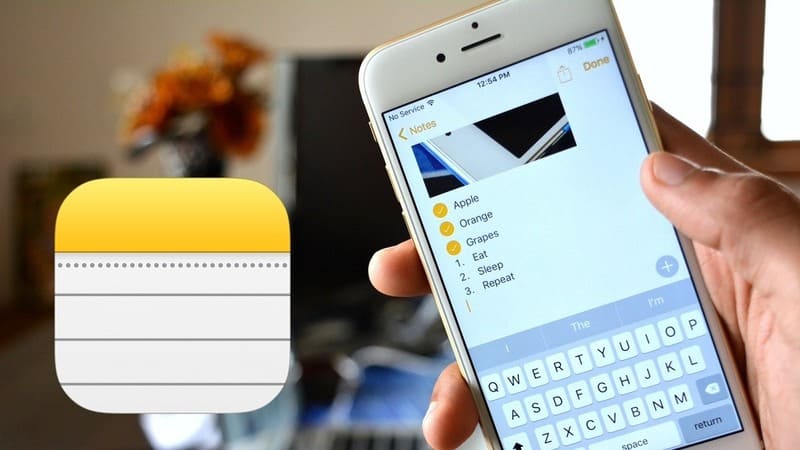
Introducing the Notes note-taking application

Instructions for recovering deleted notes on iPhone and iPad

If the note has been deleted within 30 days

Apple has integrated a smart storage feature into it Iphone, allows temporary retention of data such as videos, photos, audio, documents and even deleted notes for 30 days before they are completely removed from memory. If you deleted your notes and it's not been more than 30 days, you still have a chance to recover them on your iPhone with the following steps:

Step 1: Open the Notes app on your iPhone or iPad.
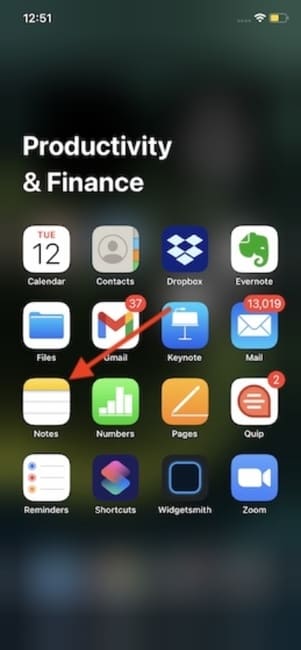
Open the Notes app
Open the Notes app

Step 2: Search for and open the “Recently Deleted” folder.
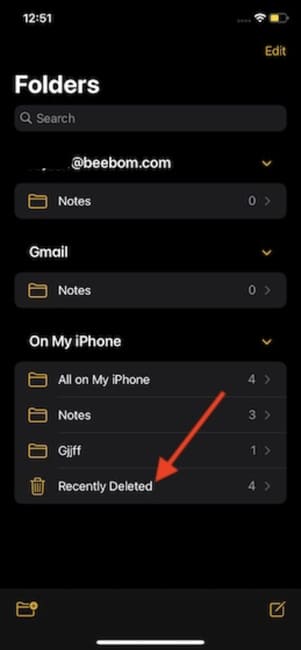
Search for and open the “Recently Deleted” folder.

Step 3: Use the search bar to find the note you want to restore, then select “Edit”.
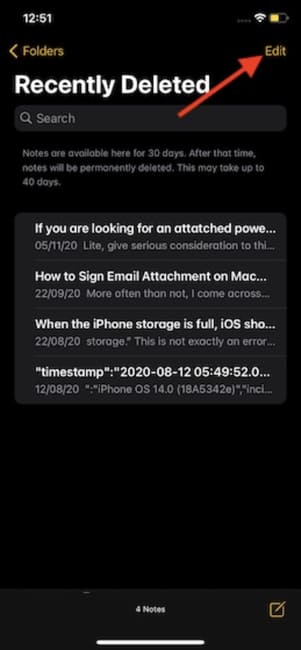
Select “Edit” (Edit)

Step 4: Select the notes you want to recover.
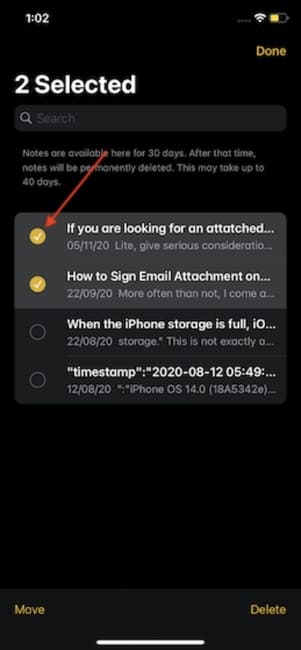
Select the notes you want to restore

Step 5: Click “Move” to move the note to the desired folder.
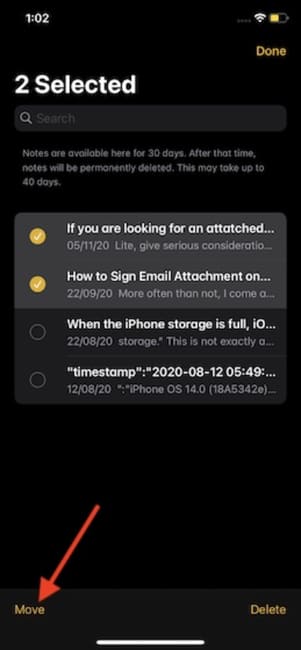
Click “Move”
Click “Move”

Note: You can choose to restore all notes at once by selecting “Move All”.
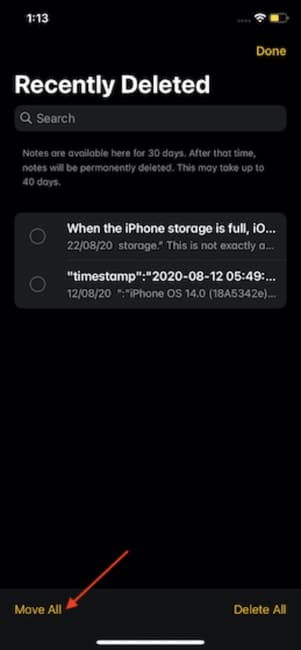
Click Move All to restore all notes

Step 6: Select an existing folder or create a new one to store recovered notes.
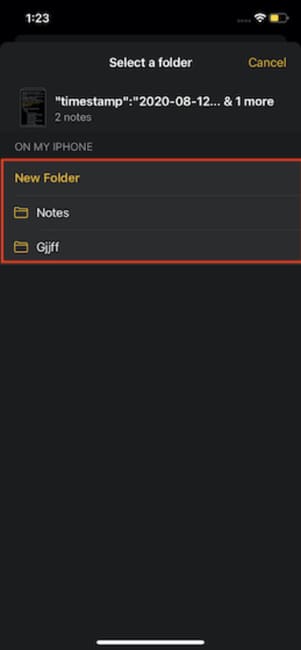
Select an existing folder or create a new one

If the note has been permanently deleted on iOS

Method 1: Use iTunes

If you regularly back up your iPhone via iTunes, check the backup for note recovery.

Method 2: Use Gmail

Besides using iTunes, you can also quickly get your deleted notes back through your synced Gmail account:

  • Open Gmail > Access the menu by selecting the three dashes icon > Find the Notes section to proceed with recovery.

Method 3: Use support software to restore

Besides, using third-party software is also a viable option to recover important notes that are no longer in your memory.

Method 4: Use iCloud

Apple offers another method to restore notes via iCloud home page. You just need to log in and navigate to the Notes section, then select the “Recently Deleted” folder and proceed with recovery.

Epilogue

Steps restore notes on iOS devices is quite simple, helping you get back your notes easily. If you have any questions during the process, you can comment to AnonyViet right below the article!


Tags: deletediPadiPhoneNotesrecover
Previous Post

Instructions to remove weather widget from Windows 11/10 Taskbar

Next Post

How to add Euro 2024 match schedule to iPhone calendar

AnonyViet

AnonyViet

Related Posts

How to record reaction videos with Android phones, no app needed
Tips

How to record reaction videos with Android phones, no app needed

June 1, 2026
Instructions on how to get Google AI Pro 1 year for free for new accounts
Tips

Instructions on how to get Google AI Pro 1 year for free for new accounts

June 1, 2026
Top free AI tools to help write, test and optimize content
Tips

Top free AI tools to help write, test and optimize content

June 1, 2026
Instructions for receiving Lovable Pro 12 months for free
Tips

Instructions for receiving Lovable Pro 12 months for free

May 29, 2026
Instructions for receiving 1 month of ElevenLabs Creator for free worth
Tips

Instructions for receiving 1 month of ElevenLabs Creator for free worth $22

May 25, 2026
How to create beautiful studio-like preschool graduation photos for your child
Tips

How to create beautiful studio-like preschool graduation photos for your child

May 21, 2026
Next Post
How to add Euro 2024 match schedule to iPhone calendar

How to add Euro 2024 match schedule to iPhone calendar

0 0 votes
Article Rating
Subscribe
Login
Notify of
guest

guest

0 Comments
Oldest
Newest Most Voted
Inline Feedbacks
View all comments

Recent News

Instructions on how to prevent acquaintances from seeing your Tiktok

Instructions on how to prevent acquaintances from seeing your Tiktok

June 2, 2026
How to record reaction videos with Android phones, no app needed

How to record reaction videos with Android phones, no app needed

June 1, 2026
Instructions on how to get Google AI Pro 1 year for free for new accounts

Instructions on how to get Google AI Pro 1 year for free for new accounts

June 1, 2026
Top free AI tools to help write, test and optimize content

Top free AI tools to help write, test and optimize content

June 1, 2026
Instructions on how to prevent acquaintances from seeing your Tiktok

Instructions on how to prevent acquaintances from seeing your Tiktok

June 2, 2026
How to record reaction videos with Android phones, no app needed

How to record reaction videos with Android phones, no app needed

June 1, 2026
Instructions on how to get Google AI Pro 1 year for free for new accounts

Instructions on how to get Google AI Pro 1 year for free for new accounts

June 1, 2026
AnonyViet - English Version

AnonyViet

AnonyViet is a website share knowledge that you have never learned in school!

We are ready to welcome your comments, as well as your articles sent to AnonyViet.

Follow Us

Contact:

Email: anonyviet.com[@]gmail.com

Main Website: https://anonyviet.com

Recent News

Instructions on how to prevent acquaintances from seeing your Tiktok

Instructions on how to prevent acquaintances from seeing your Tiktok

June 2, 2026
How to record reaction videos with Android phones, no app needed

How to record reaction videos with Android phones, no app needed

June 1, 2026
No Result
View All Result
  • Home
  • News
  • Software
  • Knowledge
  • MMO
  • Tips
  • Security
  • Network
  • Office

wpDiscuz
0
0
Would love your thoughts, please comment.x
()
x
| Reply