• Home
  • News
  • Software
  • Knowledge
  • MMO
  • Tips
  • Security
  • Network
  • Office
AnonyViet - English Version
  • Home
  • News
  • Software
  • Knowledge
  • MMO
  • Tips
  • Security
  • Network
  • Office
No Result
View All Result
  • Home
  • News
  • Software
  • Knowledge
  • MMO
  • Tips
  • Security
  • Network
  • Office
No Result
View All Result
AnonyViet - English Version
No Result
View All Result

How to change DNS to access Steam when blocked

AnonyViet by AnonyViet
May 13, 2024
in Tips
0

How to change DNS is a simple but effective solution if you encounter the situation of not being able to access Steam, due to major networks such as FPT and Viettel suddenly applying blocking measures.

Join the channel Telegram belong to AnonyViet 👉 Link 👈

How do network operators block Steam?

Reports from the Vietnamese gaming community have recently indicated that they are inaccessible Steam via the networks of FPT, Viettel, VNPT since the afternoon of May 7. Some people believe that this may be part of a campaign to fight counterfeit goods and collect taxes from digital products. This causes great inconvenience for gamers when they cannot access their accounts and game libraries.
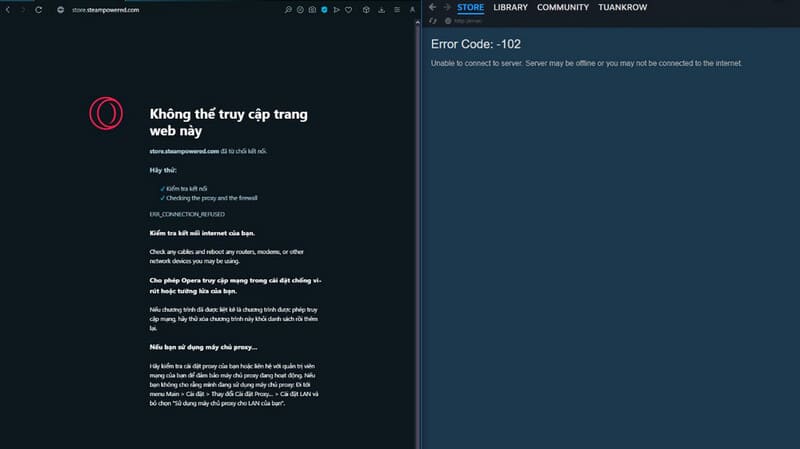
Steam is currently inaccessible

A member of the J2TEAM Community discovered that when trying to connect to the Steam Store, the IP address was redirected to localhost (127.0.0.1), preventing access. It is assumed that carriers have set up rules on the server or router to resolve the Steam Store domain name to a localhost IP address, similar to editing the Hosts file on Windows.
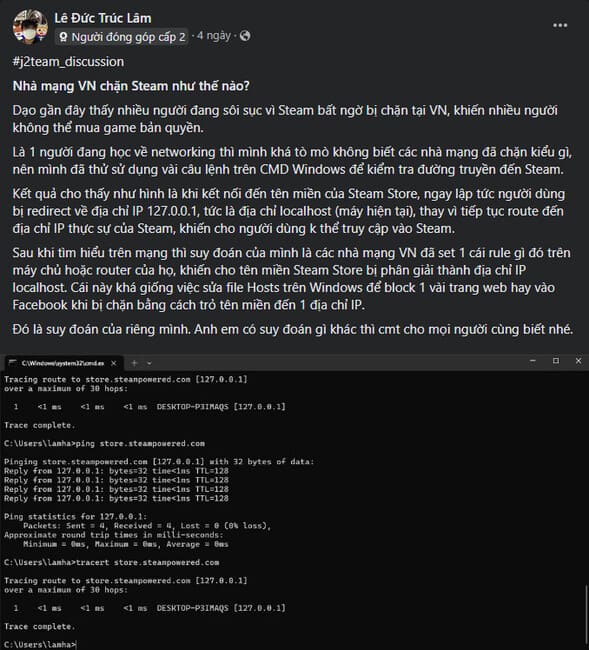
How do network operators block Steam?

However, there has been no official announcement from the network service provider or from Steam, so the real reason behind it is still a mystery.

How to access blocked Steam using DNS

Instructions for changing DNS on Windows

Step 1: Open Control Panel by entering “control panel” into the Windows search box and selecting the appropriate result.
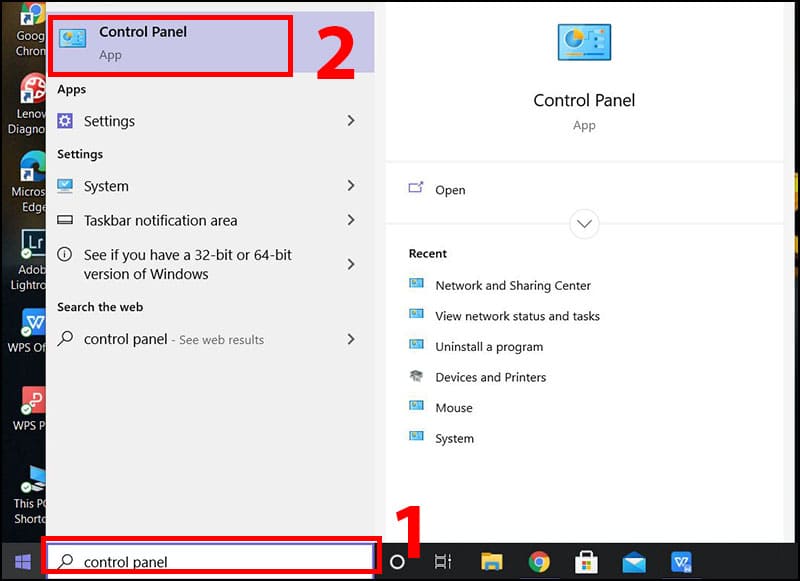
How to change DNS on Windows

Step 2: In the Control Panel window, set the view mode to Category and continue selecting 'View network status and tasks'.
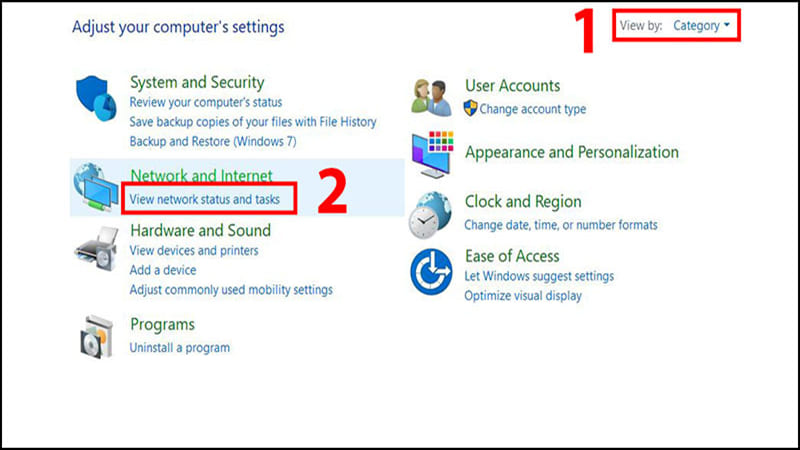
Select 'View network status and tasks'.

Step 3: In the Connections section, click on Wi-Fi to open the Wi-Fi Status window, then select 'Properties'.
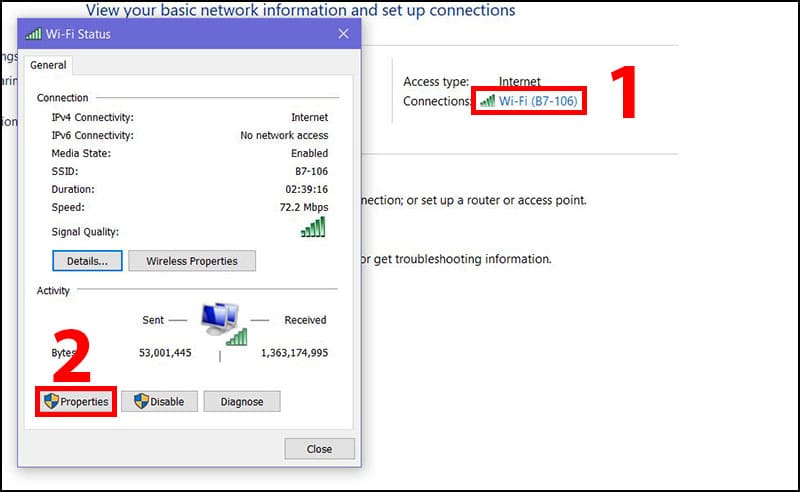
Select 'Properties'
Select 'Properties'

Step 4: In the list of options, find and select Internet Protocol Version 4 (TCP/IPv4) and press 'Properties'.
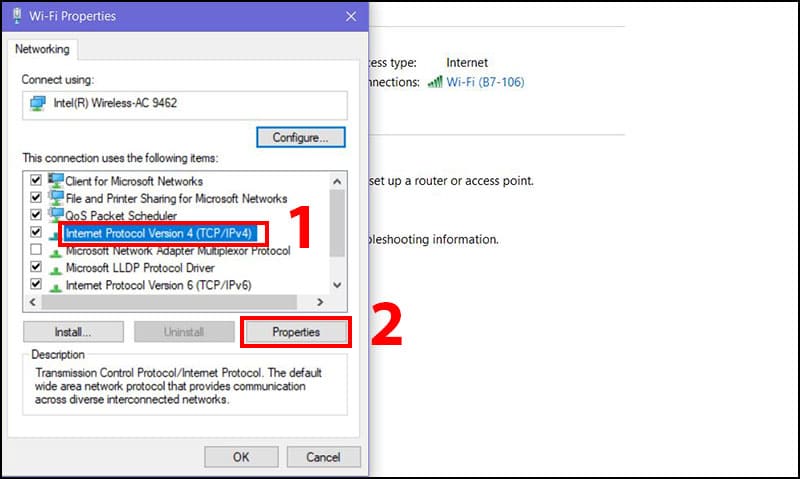
Select Internet Protocol Version 4 (TCP/IPv4) then click 'Properties' to change DNS
Select Internet Protocol Version 4 (TCP/IPv4) then press 'Properties'.

Step 5: Check 'Use the following DNS server addresses'. Fill in the desired DNS information in the Preferred DNS and Alternate DNS sections.
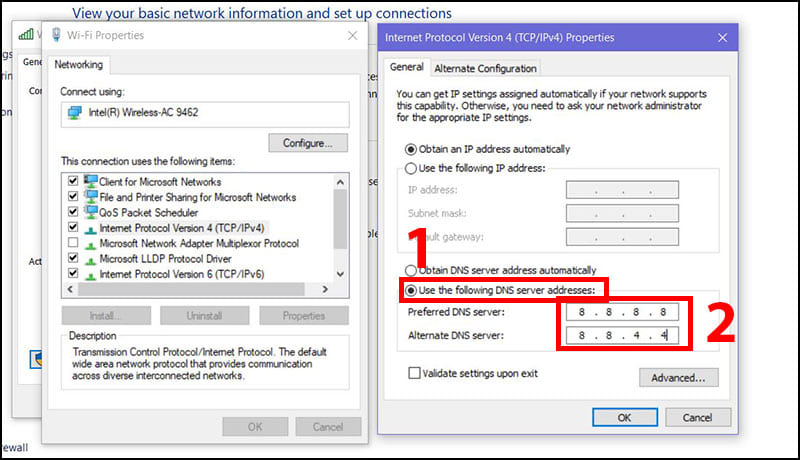
Fill in DNS information

Step 6: Perform a restart of the computer system to update the changes made.

Instructions for changing DNS on MacOS

Step 1: To perform How to change DNS On your Mac, click the Apple icon in the upper left corner of the screen to open the Apple menu > Then select System Preferences.

When the System Preferences window appears, go to the Network section.
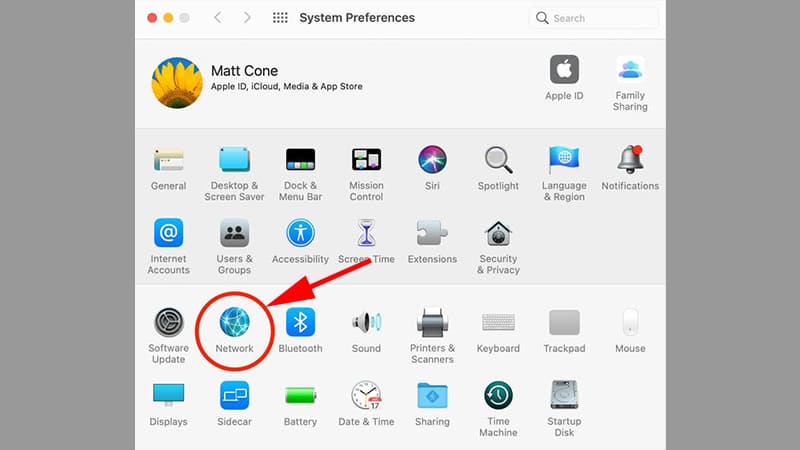
How to change DNS on MacOS

Step 2: To edit network settings, click on the 'Advanced' button
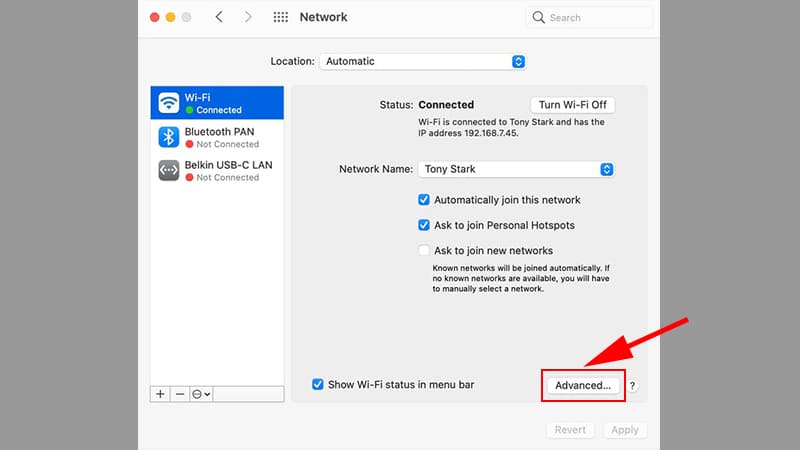
Click on the 'Advanced' button to change DNS
Click on the 'Advanced' button

Step 3: In the DNS tab, click the plus “+” icon to enter the Preferred DNS address.
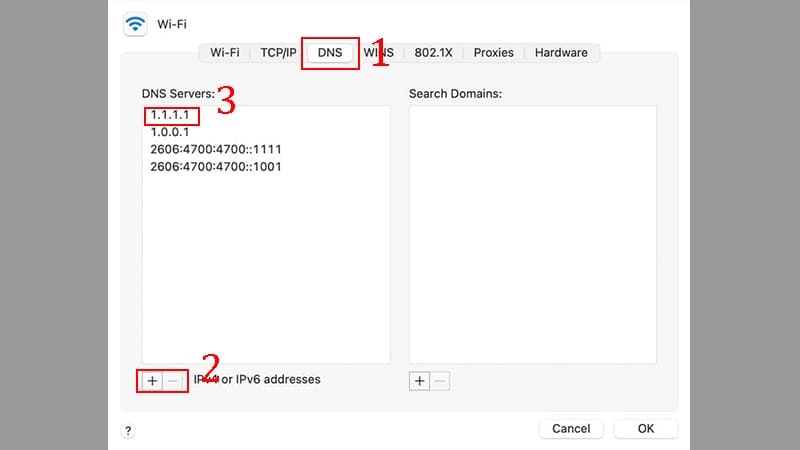
Click the plus “+” icon to enter the Preferred DNS address

Step 4: Click the plus “+” icon again to add the Alternate DNS address. Then, click OK and Apply to apply the changes.
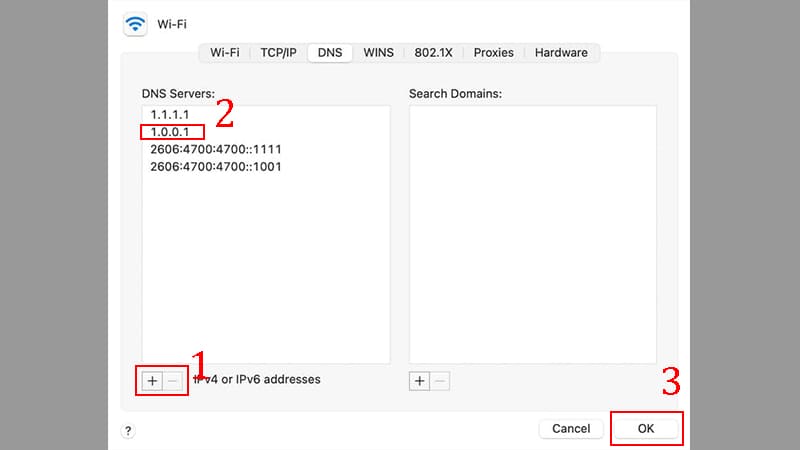
Click the plus “+” icon to add an Alternate DNS address

Free DNS addresses you can try

  • Cloudflare: 1.1.1.1 and 1.0.0.1
  • Google Public DNS: 8.8.8.8 and 8.8.4.4
  • OpenDNS: 208.67.222.222 and 208.67.220.220
  • NordVPN: 103.86.96.100 and 103.86.99.100

Note: Using VPN is not recommended as it may violate the terms of service Steam and resulted in the account being banned.

Epilogue

So, equal How to change DNS Following the instructions above, you can confidently access Steam without being affected by blocking from network operators. Wishing you success and great hours of entertainment on Steam!


Tags: accessblockedchangeDNSSteam
Previous Post

How to Download Videos From Facebook Effectively With Online Tools

Next Post

How to broadcast WiFi on Laptop without using software – Adhoc

AnonyViet

AnonyViet

Related Posts

How to create a virtual Pet, a virtual character running around on the Desktop to relax
Tips

How to create a virtual Pet, a virtual character running around on the Desktop to relax

October 15, 2026
15 cách tăng tốc Windows 10 nhanh như gió
Tips

15 cách tăng tốc Windows 10 nhanh như gió

October 14, 2026
How to create Guest mode Shortcuts for Chrome and Edge
Tips

How to create Guest mode Shortcuts for Chrome and Edge

October 13, 2026
Test what breed of dog you are through 10 multiple choice questions
Tips

Test what breed of dog you are through 10 multiple choice questions

October 13, 2026
Fliqlo – Create digital clock screens on Windows and phones
Tips

Fliqlo – Create digital clock screens on Windows and phones

October 12, 2026
SynthID Detector: Genuine AI checking tool from Google
Tips

SynthID Detector: Genuine AI checking tool from Google

October 11, 2026
Next Post
How to broadcast WiFi on Laptop without using software – Adhoc

How to broadcast WiFi on Laptop without using software - Adhoc

0 0 votes
Article Rating
Subscribe
Login
Notify of
guest

guest

0 Comments
Oldest
Newest Most Voted

Recent News

Instructions for receiving pension through VNeID without going to the ward

Instructions for receiving pension through VNeID without going to the ward

October 16, 2026
MBTI, Big Five, DISC or Holland: which personality test should you choose?

MBTI, Big Five, DISC or Holland: which personality test should you choose?

October 15, 2026
How to create a virtual Pet, a virtual character running around on the Desktop to relax

How to create a virtual Pet, a virtual character running around on the Desktop to relax

October 15, 2026
Record first, choose focus later: how to use 4K 60 fps Cinema mode on iPhone 18 Pro

Record first, choose focus later: how to use 4K 60 fps Cinema mode on iPhone 18 Pro

October 15, 2026
Instructions for receiving pension through VNeID without going to the ward

Instructions for receiving pension through VNeID without going to the ward

October 16, 2026
MBTI, Big Five, DISC or Holland: which personality test should you choose?

MBTI, Big Five, DISC or Holland: which personality test should you choose?

October 15, 2026
How to create a virtual Pet, a virtual character running around on the Desktop to relax

How to create a virtual Pet, a virtual character running around on the Desktop to relax

October 15, 2026
AnonyViet - English Version

AnonyViet

AnonyViet is a website share knowledge that you have never learned in school!

We are ready to welcome your comments, as well as your articles sent to AnonyViet.

Follow Us

Contact:

Email: anonyviet.com[@]gmail.com

Main Website: https://anonyviet.com

Recent News

Instructions for receiving pension through VNeID without going to the ward

Instructions for receiving pension through VNeID without going to the ward

October 16, 2026
MBTI, Big Five, DISC or Holland: which personality test should you choose?

MBTI, Big Five, DISC or Holland: which personality test should you choose?

October 15, 2026
  • Home
  • Home 2
  • Home 3
  • Home 4
  • Home 5
  • Home 6
  • Next Dest Page
  • Sample Page

say88 tỷ lệ kèo nhà cái kèo nhà cái 5 febet

No Result
View All Result
  • Home
  • News
  • Software
  • Knowledge
  • MMO
  • Tips
  • Security
  • Network
  • Office

say88 tỷ lệ kèo nhà cái kèo nhà cái 5 febet

wpDiscuz
0
0
Would love your thoughts, please comment.x
()
x
| Reply