• Home
  • News
  • Software
  • Knowledge
  • MMO
  • Tips
  • Security
  • Network
  • Office
AnonyViet - English Version
  • Home
  • News
  • Software
  • Knowledge
  • MMO
  • Tips
  • Security
  • Network
  • Office
No Result
View All Result
  • Home
  • News
  • Software
  • Knowledge
  • MMO
  • Tips
  • Security
  • Network
  • Office
No Result
View All Result
AnonyViet - English Version
No Result
View All Result

How to display seconds in Windows 11 clock

AnonyViet by AnonyViet
March 23, 2024
in Tips
0

Windows 11 is the latest version of the Windows operating system, bringing many new features and a beautiful interface. Among them, a small but useful feature is that allows you to Show seconds on Windows 11 clock on the taskbar (taskbar). You can see the time more accurately and keep track of every second of the day.

Join the channel Telegram belong to AnonyViet 👉 Link 👈

Conditions for displaying seconds in Windows 11 clock

To be able to display seconds in the Windows 11 clock, you need to make sure that your computer is running the latest version of Windows 11. You can check the version by going to Settings > System > About and looking at the Windows specifications.

If you are running an older version of Windows 11, you need to update to the latest version by going to Settings > Windows Update and selecting Check for updates.

Steps to display seconds in Windows 11 clock

After updating Windows 11 to the latest version, you can do the following steps to display seconds in the clock:

Step 1: Open Settings by pressing the Windows + I key combination or clicking the Settings icon on the taskbar.

Step 2: Select Personalization > Taskbar to navigate to taskbar-related options.
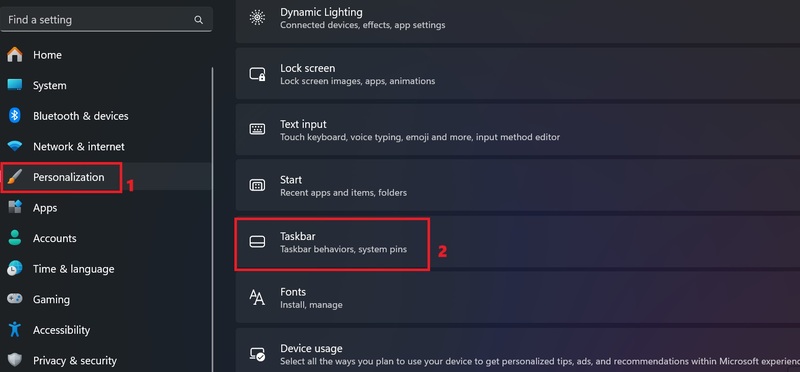
shows number of seconds in Windows 11 clock
Select Personalization > Taskbar

Step 3: Scroll down and select 'Taskbar behaviors'
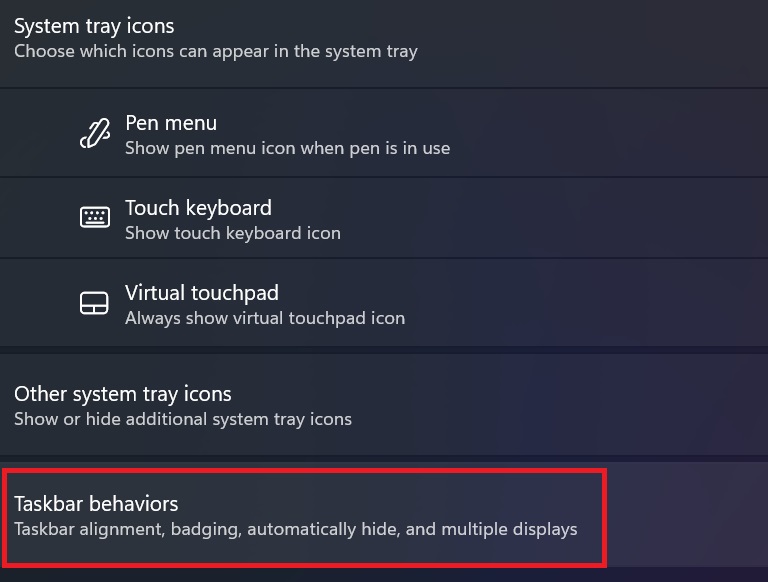
shows number of seconds in Windows 11 clock
Select 'Taskbar behaviors'

Step 4: Enable the 'Show seconds in the system tray clock' option so that the Windows 11 taskbar clock displays seconds next to the default hours and minutes.
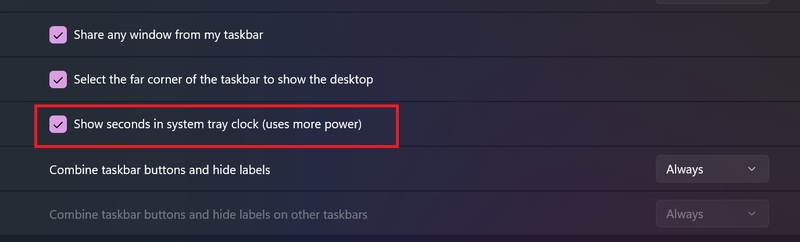

shows number of seconds in Windows 11 clock
Enable the 'Show seconds in the system tray clock' option
shows number of seconds in Windows 11 clock
How to display seconds in Windows 11 clock

Epilogue

So you know how shows number of seconds in Windows 11 clock Already. This is a small feature but can help you manage your time better and work more efficiently. You can turn it on or off at will quickly and simply. Wishing you a successful application!


The article scored: 5/5 – (100 votes)

Tags: ClockdisplaysecondsWindows
Previous Post

Full instructions for learning Hacking on Kali Linux

Next Post

How to activate hidden mode of ChatGPT Developer Mode

AnonyViet

AnonyViet

Related Posts

Instructions for receiving Lovable Pro 12 months for free
Tips

Instructions for receiving Lovable Pro 12 months for free

May 29, 2026
Instructions for receiving 1 month of ElevenLabs Creator for free worth
Tips

Instructions for receiving 1 month of ElevenLabs Creator for free worth $22

May 25, 2026
How to create beautiful studio-like preschool graduation photos for your child
Tips

How to create beautiful studio-like preschool graduation photos for your child

May 21, 2026
Instructions on how to change iPhone fonts beautifully with Lara
Tips

Instructions on how to change iPhone fonts beautifully with Lara

May 20, 2026
Create images of guardian mascots using AI according to year of birth
Tips

Create images of guardian mascots using AI according to year of birth

May 20, 2026
Try the Shopee Profit Calculator now, avoid the risk of selling at a loss
Tips

Try the Shopee Profit Calculator now, avoid the risk of selling at a loss

May 19, 2026
Next Post
How to activate hidden mode of ChatGPT Developer Mode

How to activate hidden mode of ChatGPT Developer Mode

0 0 votes
Article Rating
Subscribe
Login
Notify of
guest

guest

0 Comments
Oldest
Newest Most Voted
Inline Feedbacks
View all comments

Recent News

Instructions for receiving Lovable Pro 12 months for free

Instructions for receiving Lovable Pro 12 months for free

May 29, 2026
How to extract text from photos using Zalo is super simple

How to extract text from photos using Zalo is super simple

May 29, 2026
HONOR 600 in hand – High-end design, 200MP camera, not cheap price

HONOR 600 in hand – High-end design, 200MP camera, not cheap price

May 28, 2026
Instructions for getting 4 months of Adobe copyright for free

Instructions for getting 4 months of Adobe copyright for free

May 28, 2026
Instructions for receiving Lovable Pro 12 months for free

Instructions for receiving Lovable Pro 12 months for free

May 29, 2026
How to extract text from photos using Zalo is super simple

How to extract text from photos using Zalo is super simple

May 29, 2026
HONOR 600 in hand – High-end design, 200MP camera, not cheap price

HONOR 600 in hand – High-end design, 200MP camera, not cheap price

May 28, 2026
AnonyViet - English Version

AnonyViet

AnonyViet is a website share knowledge that you have never learned in school!

We are ready to welcome your comments, as well as your articles sent to AnonyViet.

Follow Us

Contact:

Email: anonyviet.com[@]gmail.com

Main Website: https://anonyviet.com

Recent News

Instructions for receiving Lovable Pro 12 months for free

Instructions for receiving Lovable Pro 12 months for free

May 29, 2026
How to extract text from photos using Zalo is super simple

How to extract text from photos using Zalo is super simple

May 29, 2026
No Result
View All Result
  • Home
  • News
  • Software
  • Knowledge
  • MMO
  • Tips
  • Security
  • Network
  • Office

wpDiscuz
0
0
Would love your thoughts, please comment.x
()
x
| Reply