• Home
  • News
  • Software
  • Knowledge
  • MMO
  • Tips
  • Security
  • Network
  • Office
AnonyViet - English Version
  • Home
  • News
  • Software
  • Knowledge
  • MMO
  • Tips
  • Security
  • Network
  • Office
No Result
View All Result
  • Home
  • News
  • Software
  • Knowledge
  • MMO
  • Tips
  • Security
  • Network
  • Office
No Result
View All Result
AnonyViet - English Version
No Result
View All Result

Merge one person’s face onto another person’s face in Photoshop

AnonyViet by AnonyViet
November 24, 2023
in Tips
0

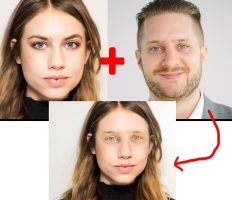
Photoshop is a great tool for editing images on your computer. If you are a person with a sense of humor and like to troll your friends with misleading photos, then check out this guide. AnonyViet will guide you how to combine one person’s face with another person’s face in Photoshop in a very funny way.

Join the channel Telegram belong to AnonyViet 👉 Link 👈

Merge one person’s face onto another person’s face in Photoshop

If you haven’t downloaded Photoshop, you can refer to the tutorial article Download PhotoShop CC 2018 19.1 Full with many new features. Or you can refer Photoshop course free of charge shared at AnonyViet.

How to merge one person’s face onto another person’s face in Photoshop

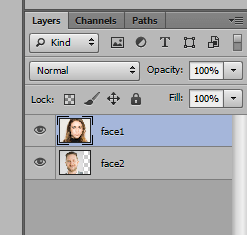
First, I will add 2 layers of 2 faces of 2 different people and name them face1 and face2. (You can name it differently if you find it more suitable).
Merge one person's face onto another person's face in Photoshop 18

Step 2: I will match your mouth face2 into your face face1.

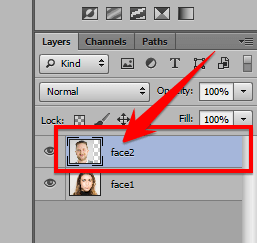
  • So now let’s choose face2 on the layers tab.
Merge one person's face onto another person's face in Photoshop 19

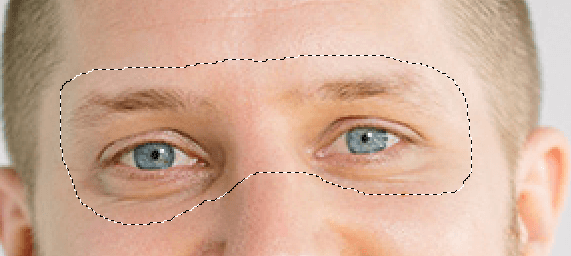
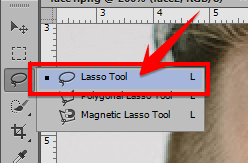
  • Use the Lasso Tool to define the area that needs to be merged face2.
Merge one person's face onto another person's face in Photoshop 20

Merge one person's face onto another person's face in Photoshop 21

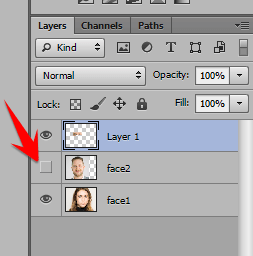
Step 3: Now, press Ctrl + C and Ctrl + V to create a new layer that is the previous selection.

  • Hide face2 Go by clicking the eye icon in the layers tab
Merge one person's face onto another person's face in Photoshop 22

  • Now, you choose Layer 1reduce its Opacity down about 50%.
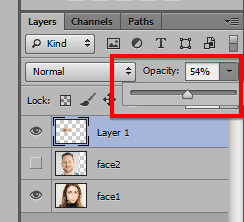
Merge one person's face onto another person's face in Photoshop 23

  • Press Ctrl + T and adjust Layer 1 to match the face frame of the face face1. Then adjust again Opacity to 100% and press the tick mark on the top right of the screen.

Merge one person's face onto another person's face in Photoshop 24

Step 5: You hold down the key Ctrl then click Layer 1 to select the entire selection.

  • Select Select => Modify => Contract… and enter parameters from 1 => 10 depending on the size of your image.
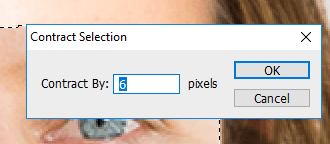
Merge one person's face onto another person's face in Photoshop 25

  • Now, you choose face1 in the layers tab and press Delete.
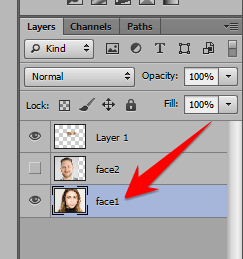
Merge one person's face onto another person's face in Photoshop 26

  • Then press Ctrl + D to deselect the selection.

Step 6: You select 2 layers at the same time by holding Ctrl and clicking on each layer in turn.
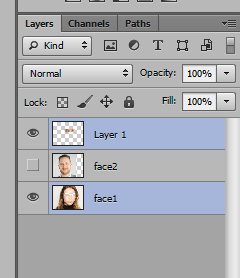
Merge one person's face onto another person's face in Photoshop 27

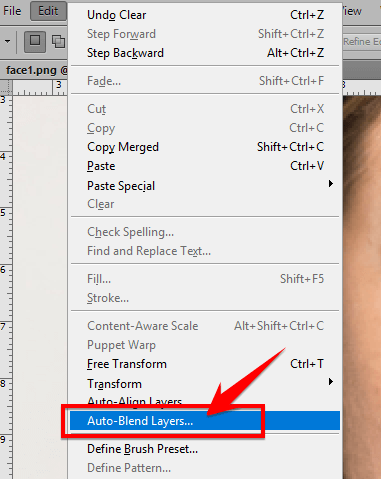
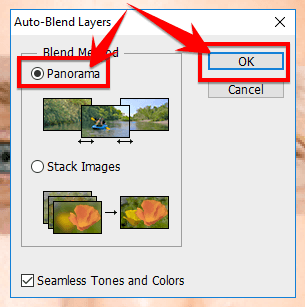
  • Select Edit => Auto-Blend Layers…

Merge one person's face onto another person's face in Photoshop 28

  • When the Auto-Blend Layers… window appears, select Blend Method as Panorama and press OK.
Merge one person's face onto another person's face in Photoshop 29

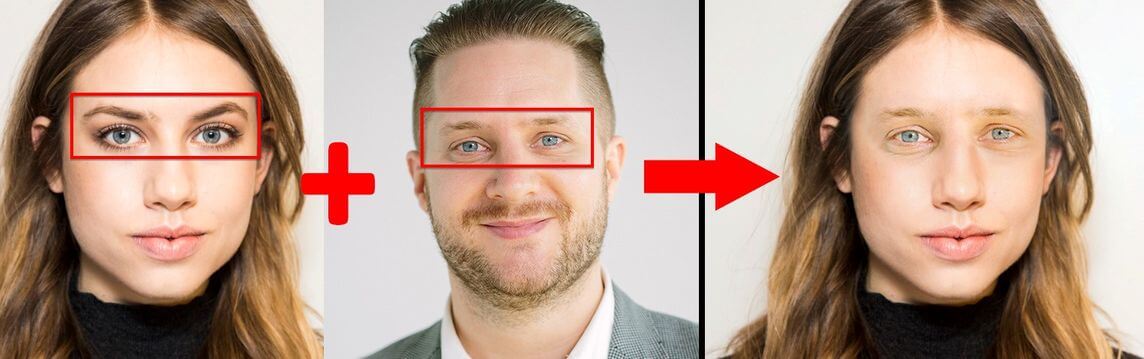
I will put the final result together like this for you to easily compare:
Merge one person's face onto another person's face in Photoshop 30

Epilogue

Through today’s article, AnonyViet has given you detailed instructions on how to put one person’s face on another person’s face, which is quite funny. Please use this method to create troll photos for your friends!

N1412.

The article scored: 5/5 – (100 votes)

Previous Post

How to create brush effects in PowerPoint for more lively presentations

Next Post

Singlebox: Solution to log in to multiple Zalo accounts on the computer

AnonyViet

AnonyViet

Related Posts

Windows 7/8.1/10 users will be upgraded to Windows 11 for free
Tips

Windows 7/8.1/10 users will be upgraded to Windows 11 for free

July 30, 2026
Instructions for receiving ChatGPT Plus for 1 month for free in 2026
Tips

Instructions for receiving ChatGPT Plus for 1 month for free in 2026

July 28, 2026
Some reasons I don’t like Windows 11
Tips

Some reasons I don’t like Windows 11

July 27, 2026
Instructions on how to get free Facebook white ticks
Tips

Instructions on how to get free Facebook white ticks

July 27, 2026
Collection of Windows 11 wallpapers for computers and phones
Tips

Collection of Windows 11 wallpapers for computers and phones

July 26, 2026
Don’t install leaked Windows 11
Tips

Don’t install leaked Windows 11

July 25, 2026
Next Post
Singlebox: Solution to log in to multiple Zalo accounts on the computer

Singlebox: Solution to log in to multiple Zalo accounts on the computer

0 0 votes
Article Rating
Subscribe
Login
Notify of
guest

guest

0 Comments
Oldest
Newest Most Voted

Recent News

Windows 7/8.1/10 users will be upgraded to Windows 11 for free

Windows 7/8.1/10 users will be upgraded to Windows 11 for free

July 30, 2026
Instructions for receiving the free Certified LLM Security Expert certificate

Instructions for receiving the free Certified LLM Security Expert certificate

July 30, 2026
MSI laptops are not just for gamers: Which line is suitable for students, office workers and creative people?

MSI laptops are not just for gamers: Which line is suitable for students, office workers and creative people?

July 29, 2026
What is quantum resistant cryptography? Why must the Internet change?

What is quantum resistant cryptography? Why must the Internet change?

July 29, 2026
Windows 7/8.1/10 users will be upgraded to Windows 11 for free

Windows 7/8.1/10 users will be upgraded to Windows 11 for free

July 30, 2026
Instructions for receiving the free Certified LLM Security Expert certificate

Instructions for receiving the free Certified LLM Security Expert certificate

July 30, 2026
MSI laptops are not just for gamers: Which line is suitable for students, office workers and creative people?

MSI laptops are not just for gamers: Which line is suitable for students, office workers and creative people?

July 29, 2026
AnonyViet - English Version

AnonyViet

AnonyViet is a website share knowledge that you have never learned in school!

We are ready to welcome your comments, as well as your articles sent to AnonyViet.

Follow Us

Contact:

Email: anonyviet.com[@]gmail.com

Main Website: https://anonyviet.com

Recent News

Windows 7/8.1/10 users will be upgraded to Windows 11 for free

Windows 7/8.1/10 users will be upgraded to Windows 11 for free

July 30, 2026
Instructions for receiving the free Certified LLM Security Expert certificate

Instructions for receiving the free Certified LLM Security Expert certificate

July 30, 2026
  • Home
  • Home 2
  • Home 3
  • Home 4
  • Home 5
  • Home 6
  • Next Dest Page
  • Sample Page

say88 tỷ lệ kèo nhà cái kèo nhà cái 5 febet

No Result
View All Result
  • Home
  • News
  • Software
  • Knowledge
  • MMO
  • Tips
  • Security
  • Network
  • Office

say88 tỷ lệ kèo nhà cái kèo nhà cái 5 febet

wpDiscuz
0
0
Would love your thoughts, please comment.x
()
x
| Reply