
• Home
  • News
  • Software
  • Knowledge
  • MMO
  • Tips
  • Security
  • Network
  • Office
AnonyViet - English Version
  • Home
  • News
  • Software
  • Knowledge
  • MMO
  • Tips
  • Security
  • Network
  • Office
No Result
View All Result
  • Home
  • News
  • Software
  • Knowledge
  • MMO
  • Tips
  • Security
  • Network
  • Office
No Result
View All Result
AnonyViet - English Version
No Result
View All Result

How to use multiple Zalo accounts on the same computer, without software

AnonyViet by AnonyViet
November 4, 2023
in Tips
0

How to use multiple Zalo accounts on the same computer is a matter of concern to many people, because Zalo is the most popular messaging, calling, and video calling application today. If you have many different accounts for work, family, friends, or other groups, using multiple Zalo accounts on the same computer will save you time and effort by not having to log in. log in and out continuously.

Join the channel Telegram belong to AnonyViet 👉 Link 👈

How to use multiple Zalo accounts on the same computer

This method allows you to log in to more than two accounts Zalo on the computer. You will create different users and use the Zalo application for each user. The steps are as follows:

Step 1: Right click on the Windows icon > select Computer Management
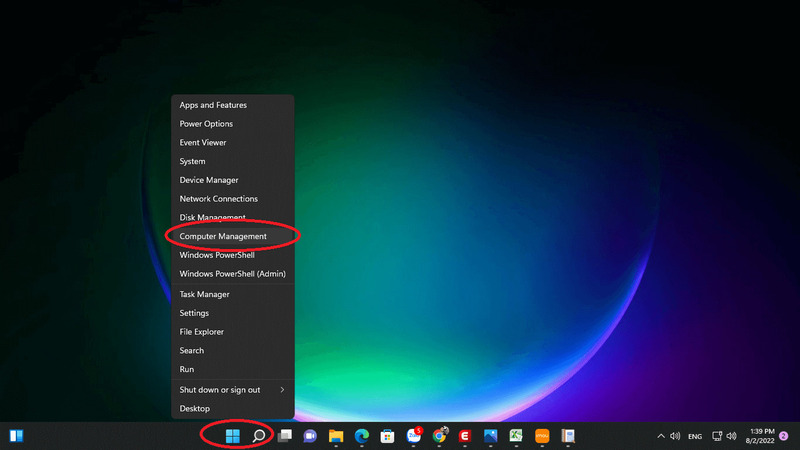
How to use multiple Zalo accounts
Select Computer Management

Step 2: Select ‘Local Users and Groups’ > select ‘User’ > right click on the white space and select ‘New User’.
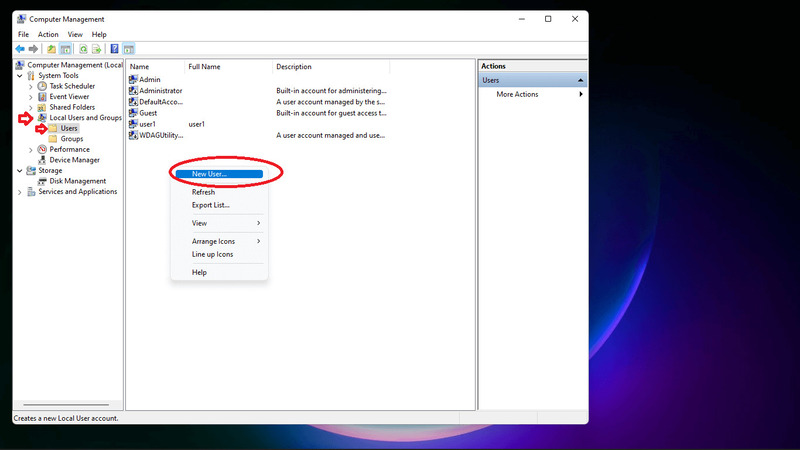
How to use multiple Zalo accounts
Select ‘Local Users and Groups’ > select ‘User’ > right click on the white space and select ‘New User’.

Step 3: Enter username, password and check the ‘password never expire’ box then click Create.

Note: Remember to uncheck the first option.
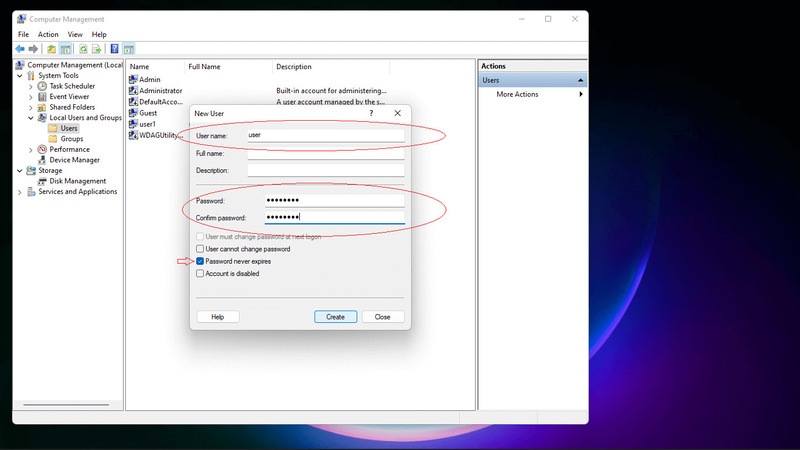
How to use multiple Zalo accounts
Enter username, password and check the box ‘password never expire’

Step 4: Go back to the desktop, right-click on the Zalo icon > select Properties > select Open file location > select Programs > Copy the original Zalo folder.
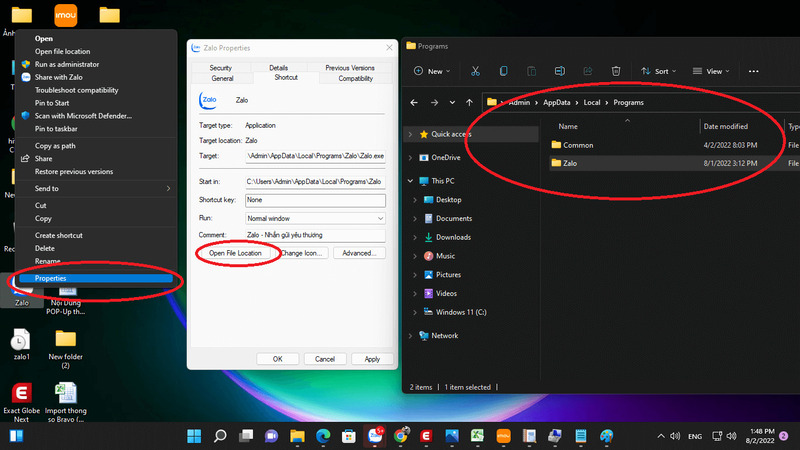
How to use multiple Zalo accounts
Copy the original zalo folder

Step 5: Then you paste that zalo folder to any location in drive C or D and then rename the zalo folder to an easy-to-remember name (such as Zalo1, Zalo2,…). You want to create as many users as you want, copy and paste into as many folders.
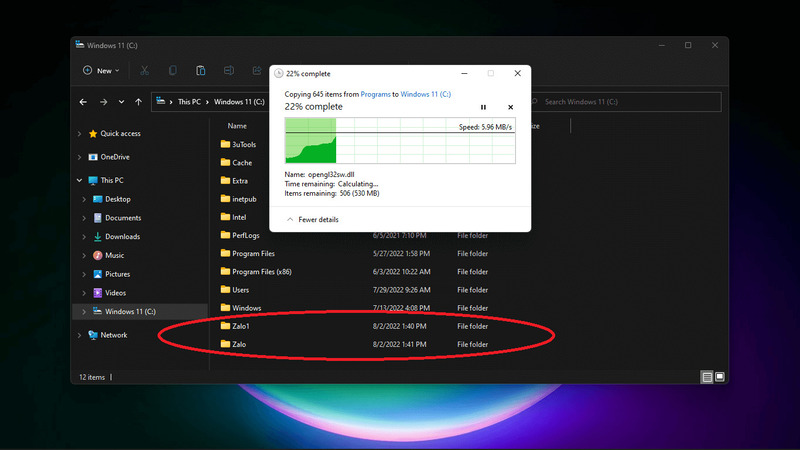
How to use multiple Zalo accounts
Paste that zalo folder into any location

Step 6: Open the renamed Zalo folder, right-click on the Zalo icon and select Send to > Desktop.
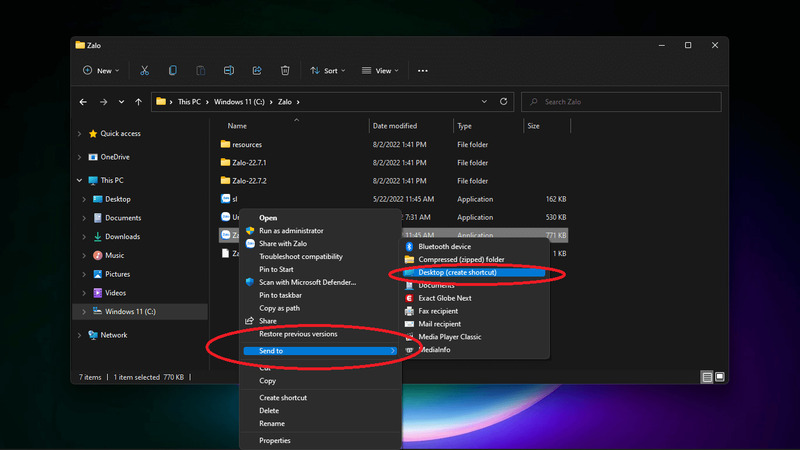
How to use multiple Zalo accounts
Right-click on the Zalo icon and select Send to > Desktop.

Step 7: Next go to the Desktop screen > click on the Zalo icon > select Properties > in the Target box copy the command line: C:\Windows\System32\runas.exe /savecred /user:[tên máy tính của bạn]\[user]

In there:

  • [tên máy tính cá»§a bạn]: To know what the computer name is, right-click on the Windows icon > Select System > Where Device name is your computer name.
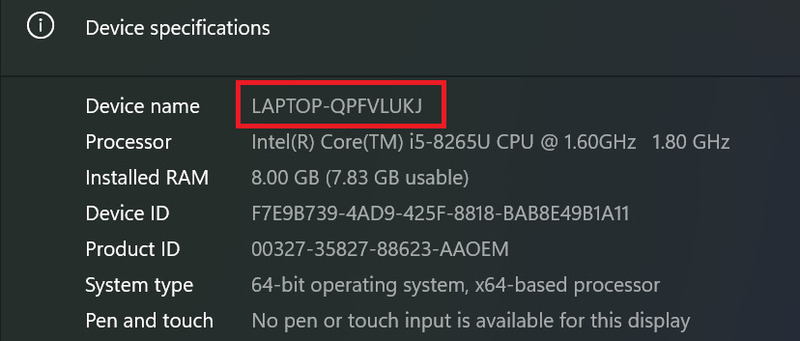
How to use multiple Zalo accounts
Where Device name is the computer name
  • [user]: Zalo user name you created earlier

For example, C:\windows\System32\runas.exe \savecred \user:anonyviet\Zalo1

Remember to add a space between the above address and C:\Zalo\Zalo.exe!
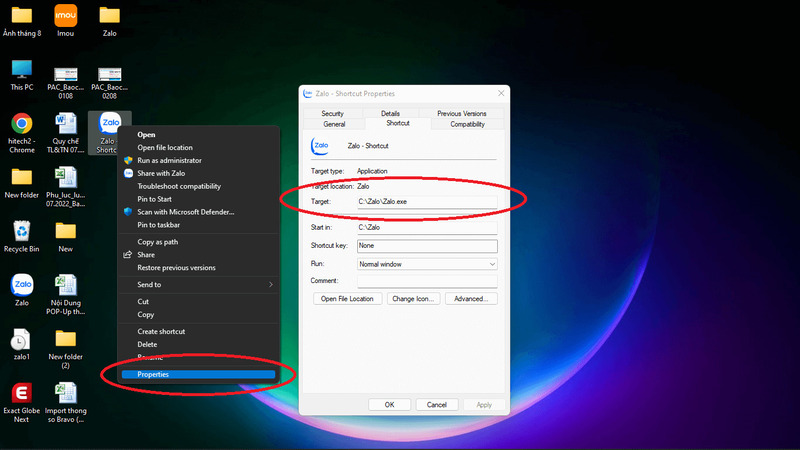
How to use multiple Zalo accounts
Copy the command line into the Target box

To finish, click Apply.

Then you do the same with Zalo2, Zalo3,…

Now click on zalo then enter the user password you just created and press Enter

Note:

  • There are some cases where entering the password will not appear on the screen, you can just enter it normally and press Enter.
  • Just enter the password the first time, no need to enter it again next time.
  • With this method, you do not need to download any other third-party software, and can be applied not only to Zalo but also to Skype, Telegram, Viber,…

Epilogue

How to use multiple Zalo accounts on the same computer is not too difficult if you follow the steps I have instructed above. This way, you will be able to communicate and manage your work more conveniently and effectively. Hope you are succesful.


Rate this post

Tags: accountscomputerMultiplesoftwareZalo
Previous Post

How to stay anonymous on Facebook from other people’s searches

Next Post

Shutterstock launches Creative AI – Photo editing with artificial intelligence

AnonyViet

AnonyViet

Related Posts

How to add sliders to Facebook Stories to easily rewind videos
Tips

How to add sliders to Facebook Stories to easily rewind videos

April 21, 2026
How to change the default font on Windows 10
Tips

How to change the default font on Windows 10

April 13, 2026
5 tips for using a Browser to replace an App (helps save RAM, time and money)
Tips

5 tips for using a Browser to replace an App (helps save RAM, time and money)

April 13, 2026
How to make funny MeMe photos without Photoshop within 10 seconds
Tips

How to make funny MeMe photos without Photoshop within 10 seconds

April 11, 2026
How to quickly design your own Logo without Photoshop
Tips

How to quickly design your own Logo without Photoshop

April 10, 2026
How to convert Website into App on Windows
Tips

How to convert Website into App on Windows

April 9, 2026
Next Post
Shutterstock launches Creative AI – Photo editing with artificial intelligence

Shutterstock launches Creative AI - Photo editing with artificial intelligence

0 0 votes
Article Rating
Subscribe
Login
Notify of
guest

guest

0 Comments
Oldest
Newest Most Voted
Inline Feedbacks
View all comments

Recent News

Create an avatar to celebrate April 30 with a beautiful red flag shirt with yellow stars

Create an avatar to celebrate April 30 with a beautiful red flag shirt with yellow stars

April 30, 2026
How to get 2 months of Super Duolingo for free worth 300k

How to get 2 months of Super Duolingo for free worth 300k

April 30, 2026
How to create a Face Sticker Collection using ChatGPT

How to create a Face Sticker Collection using ChatGPT

April 29, 2026
How to install the cute Bongo Cat mouse pointer for Windows

How to install the cute Bongo Cat mouse pointer for Windows

April 29, 2026
Create an avatar to celebrate April 30 with a beautiful red flag shirt with yellow stars

Create an avatar to celebrate April 30 with a beautiful red flag shirt with yellow stars

April 30, 2026
How to get 2 months of Super Duolingo for free worth 300k

How to get 2 months of Super Duolingo for free worth 300k

April 30, 2026
How to create a Face Sticker Collection using ChatGPT

How to create a Face Sticker Collection using ChatGPT

April 29, 2026
AnonyViet - English Version

AnonyViet

AnonyViet is a website share knowledge that you have never learned in school!

We are ready to welcome your comments, as well as your articles sent to AnonyViet.

Follow Us

Contact:

Email: anonyviet.com[@]gmail.com

Main Website: https://anonyviet.com

Recent News

Create an avatar to celebrate April 30 with a beautiful red flag shirt with yellow stars

Create an avatar to celebrate April 30 with a beautiful red flag shirt with yellow stars

April 30, 2026
How to get 2 months of Super Duolingo for free worth 300k

How to get 2 months of Super Duolingo for free worth 300k

April 30, 2026
No Result
View All Result
  • Home
  • News
  • Software
  • Knowledge
  • MMO
  • Tips
  • Security
  • Network
  • Office

wpDiscuz
0
0
Would love your thoughts, please comment.x
()
x
| Reply






