• Home
  • News
  • Software
  • Knowledge
  • MMO
  • Tips
  • Security
  • Network
  • Office
AnonyViet - English Version
  • Home
  • News
  • Software
  • Knowledge
  • MMO
  • Tips
  • Security
  • Network
  • Office
No Result
View All Result
  • Home
  • News
  • Software
  • Knowledge
  • MMO
  • Tips
  • Security
  • Network
  • Office
No Result
View All Result
AnonyViet - English Version
No Result
View All Result

Turn photos/text into videos easily with Runway Gen 2

AnonyViet by AnonyViet
October 18, 2023
in Tips
0

Runway Gen 2 is an advanced AI tool that allows you to create fresh and unique videos just by entering a text or an image. From there, you can turn your ideas into reality in just a few seconds. Runway Gen 2 is a new step forward in the field of biological AI, opening up new possibilities for art and entertainment. Let’s learn more about Runway Gen 2 and how to use it in this article with AnonyViet!

Join the channel Telegram belong to AnonyViet 👉 Link 👈

Introducing Runway Gen 2

Runway Gen 2 is an AI tool that allows users to create videos from text and images. Simply enter a text describing a scene, or upload a reference image, or a combination of both, and Runway Gen 2 will automatically generate a video that matches your request.

Runway Gen 2 is a step up from Runway Gen 1, improving customization options and video fidelity. You can adjust the duration, sound, effects and other parameters of the video as you like. You can also choose a variety of genres and styles for your videos, from animation to drama.

Runway Gen 2 is a Generative AI solution that harnesses the power of artificial intelligence to create new and more creative content, using advanced AI models like GPT-3, StyleGAN and DALL-E to understand meaning of text and images, and generate high-quality video.

How to use Runway Gen 2 to create videos from prompts/images

Step 1: Visit the page Runway > Select “Sign in to Runway” to register an account

Runway Gen 2
Select “Sign in to Runway”

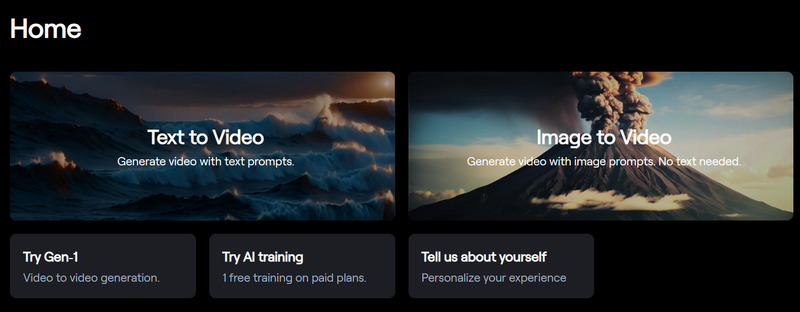
Step 2: Here, you can choose “Text to Video” (Create video from description) or “Image to Video” (Create video from image). You can choose whichever one you choose because it all leads to the same landing page.
Runway Gen 2
Choose “Text to Video” or “Image to Video”.
  • To use Text to Video

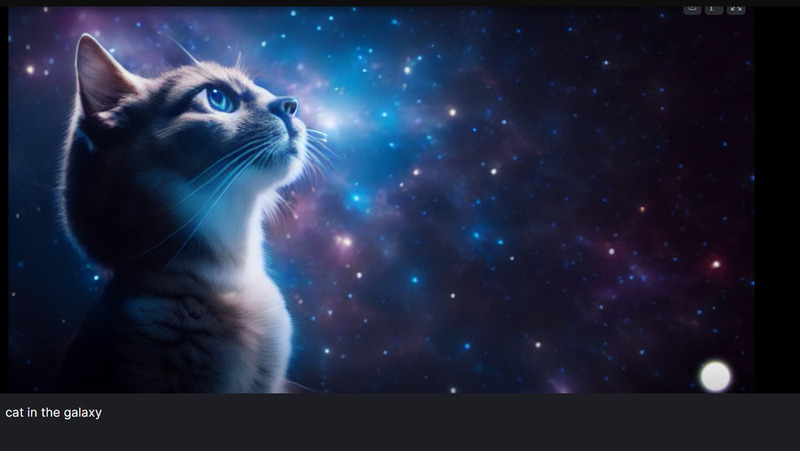
You just need to type the desired description into the blank box and click “Generate”

For example: Cat in the galaxy
Runway Gen 2
Cat in the galaxy

Wait a few minutes to export the video

  • To use “Image to Video”

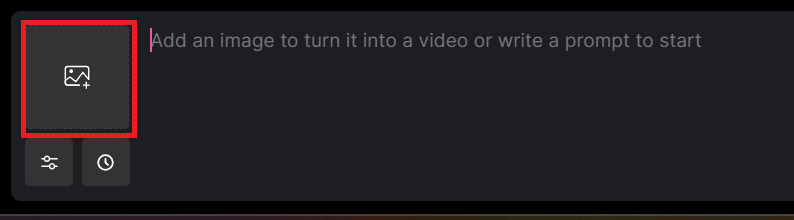
You just need to click on the image icon > Select the image face up > Select “Generate” and you’re done
Runway Gen 2
Use “Image to Video”

We will have the following result:

Epilogue

Runway Gen 2 is an AI tool that creates videos from text and images that is extremely simple and easy to use. The tool brings many benefits to users, such as saving time and money, expressing creativity, and exploring AI. Try experiencing Runway today!


Rate this post

Tags: easilyGenphotostextRunwayturnvideos
Previous Post

The way to expand the frame is similar to Photoshop’s Generative Fill, but free

Next Post

Launching AI photo creation feature on Google search engine

AnonyViet

AnonyViet

Related Posts

How to add sliders to Facebook Stories to easily rewind videos
Tips

How to add sliders to Facebook Stories to easily rewind videos

April 21, 2026
How to change the default font on Windows 10
Tips

How to change the default font on Windows 10

April 13, 2026
5 tips for using a Browser to replace an App (helps save RAM, time and money)
Tips

5 tips for using a Browser to replace an App (helps save RAM, time and money)

April 13, 2026
How to make funny MeMe photos without Photoshop within 10 seconds
Tips

How to make funny MeMe photos without Photoshop within 10 seconds

April 11, 2026
How to quickly design your own Logo without Photoshop
Tips

How to quickly design your own Logo without Photoshop

April 10, 2026
How to convert Website into App on Windows
Tips

How to convert Website into App on Windows

April 9, 2026
Next Post
Launching AI photo creation feature on Google search engine

Launching AI photo creation feature on Google search engine

0 0 votes
Article Rating
Subscribe
Login
Notify of
guest

guest

0 Comments
Oldest
Newest Most Voted
Inline Feedbacks
View all comments

Recent News

Instructions for looking up prescriptions on VNeID instead of paper medical books

Instructions for looking up prescriptions on VNeID instead of paper medical books

April 26, 2026
Tips to completely turn off CAPTCHA codes on iPhone and Mac are super simple

Tips to completely turn off CAPTCHA codes on iPhone and Mac are super simple

April 25, 2026
Compare Poco X8 Pro and Poco X7 Pro: A new step for the “king” of mid-range performance

Compare Poco X8 Pro and Poco X7 Pro: A new step for the “king” of mid-range performance

April 24, 2026
How to compress online videos for free without losing quality

How to compress online videos for free without losing quality

April 24, 2026
Instructions for looking up prescriptions on VNeID instead of paper medical books

Instructions for looking up prescriptions on VNeID instead of paper medical books

April 26, 2026
Tips to completely turn off CAPTCHA codes on iPhone and Mac are super simple

Tips to completely turn off CAPTCHA codes on iPhone and Mac are super simple

April 25, 2026
Compare Poco X8 Pro and Poco X7 Pro: A new step for the “king” of mid-range performance

Compare Poco X8 Pro and Poco X7 Pro: A new step for the “king” of mid-range performance

April 24, 2026
AnonyViet - English Version

AnonyViet

AnonyViet is a website share knowledge that you have never learned in school!

We are ready to welcome your comments, as well as your articles sent to AnonyViet.

Follow Us

Contact:

Email: anonyviet.com[@]gmail.com

Main Website: https://anonyviet.com

Recent News

Instructions for looking up prescriptions on VNeID instead of paper medical books

Instructions for looking up prescriptions on VNeID instead of paper medical books

April 26, 2026
Tips to completely turn off CAPTCHA codes on iPhone and Mac are super simple

Tips to completely turn off CAPTCHA codes on iPhone and Mac are super simple

April 25, 2026
No Result
View All Result
  • Home
  • News
  • Software
  • Knowledge
  • MMO
  • Tips
  • Security
  • Network
  • Office

wpDiscuz
0
0
Would love your thoughts, please comment.x
()
x
| Reply