• Home
  • News
  • Software
  • Knowledge
  • MMO
  • Tips
  • Security
  • Network
  • Office
AnonyViet - English Version
  • Home
  • News
  • Software
  • Knowledge
  • MMO
  • Tips
  • Security
  • Network
  • Office
No Result
View All Result
  • Home
  • News
  • Software
  • Knowledge
  • MMO
  • Tips
  • Security
  • Network
  • Office
No Result
View All Result
AnonyViet - English Version
No Result
View All Result

Instructions to separate the background from the image using Word, Excel, PowerPoint

AnonyViet by AnonyViet
February 15, 2023
in Tips
0

Separating the background of a photo requires ingenuity and the use of specialized graphics software. If you are not familiar with Photoshop, AI … then this may be a bit difficult. However, you can easily separate the background from the image using Word.

Join the channel Telegram belong to AnonyViet 👉 Link 👈

In Word you can remove the background from an image to highlight the subject or to remove unnecessary detail. Background removal is not available for vector graphics files. For example: SVG, AI, WMF, DRW.

To separate the image background with Word, you can use a tool called Remove Background. You can use the automatic background removal feature or you can draw lines to mark which areas of the image background to keep and which to remove.

Instructions to separate the background from the image using Word, Excel, PowerPoint 7 Instructions to separate the background from the image using Word, Excel, PowerPoint 8
The original image The image is separated from the background
remove background from image with Word
Original image showing background removal lines

Instructions to separate the background from the image with Word

Important: Compressing an image to reduce its size changes the quality of the source image. This means that after compression, the image may be different from before compression. Before you remove the background from the photo, you should compress the image to retain the details in the original image.

  1. Insert an image to remove the background into Word. Click on the image where you want to remove the background.
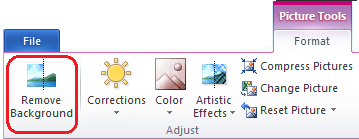
  2. Under Picture Toolsabove tab Format, select Remove Background.remove background from image with WordIf you don’t see Remove Background or tab Picture Tools, make sure you click on the photo. You can double click on the image to open the tab Format. (This feature is not available in PowerPoint 2007.)
  3. Click on one of the circle buttons on the line and drag the line so that it contains the part of the image you want to keep and excludes the areas you want to remove.
    Flowers with leaves in the background
    Image showing removal lines and background treatment

    If the selection automatically selects the correct background separation, you don’t need to do anything else.

  4. If necessary, do one or both of the following:
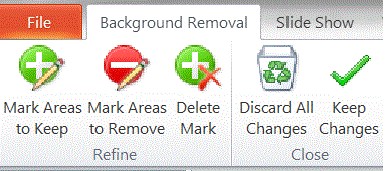
    • To indicate which part of the photo you don’t want to be automatically deleted, click Mark Areas to Keep.
    • To indicate which part of the image you want to remove other than those automatically marked, click Mark Areas to Remove.

      Tip: If you change your mind about an area you marked with a line. To keep or delete it, click Delete Mark and then click on the line to change.
      Background removal group
      remove background from image with Word
  5. Click Keep Changes to complete.

    Note: To cancel automatic background removal, select Discard All Changes.

Save Word image to Desktop

To save images from Word, you right click on the picture, select Save as Picture. You should save the format png to have a transparent background.
Instructions to separate the background from the image using Word, Excel, PowerPoint 9

The background removal function can be used on Word, PowerPoint, Excel 2010 and later.

The article achieved: 5/5 – (100 votes)

Previous Post

Instructions to recover deleted data on the drive after Format

Next Post

Tool to increase traffic for HTTP/HTTPS websites

AnonyViet

AnonyViet

Related Posts

Instructions on how to change iPhone fonts beautifully with Lara
Tips

Instructions on how to change iPhone fonts beautifully with Lara

May 20, 2026
Create images of guardian mascots using AI according to year of birth
Tips

Create images of guardian mascots using AI according to year of birth

May 20, 2026
Try the Shopee Profit Calculator now, avoid the risk of selling at a loss
Tips

Try the Shopee Profit Calculator now, avoid the risk of selling at a loss

May 19, 2026
Prompt converts photos into extremely impressive children’s drawings
Tips

Prompt converts photos into extremely impressive children’s drawings

May 17, 2026
Instructions for receiving 1 month of ChatGPT Plus for free
Tips

Instructions for receiving 1 month of ChatGPT Plus for free

May 12, 2026
How to get ChatGPT Business 48 months discount from only 0 VND
Tips

How to get ChatGPT Business 48 months discount from only 0 VND

May 9, 2026
Next Post
Tool to increase traffic for HTTP/HTTPS websites

Tool to increase traffic for HTTP/HTTPS websites

0 0 votes
Article Rating
Subscribe
Login
Notify of
guest

guest

0 Comments
Oldest
Newest Most Voted
Inline Feedbacks
View all comments

Recent News

Instructions on how to change iPhone fonts beautifully with Lara

Instructions on how to change iPhone fonts beautifully with Lara

May 20, 2026
Don’t rush to buy a new MacBook if you don’t know these differences

Don’t rush to buy a new MacBook if you don’t know these differences

May 20, 2026
Create images of guardian mascots using AI according to year of birth

Create images of guardian mascots using AI according to year of birth

May 20, 2026
Try the Shopee Profit Calculator now, avoid the risk of selling at a loss

Try the Shopee Profit Calculator now, avoid the risk of selling at a loss

May 19, 2026
Instructions on how to change iPhone fonts beautifully with Lara

Instructions on how to change iPhone fonts beautifully with Lara

May 20, 2026
Don’t rush to buy a new MacBook if you don’t know these differences

Don’t rush to buy a new MacBook if you don’t know these differences

May 20, 2026
Create images of guardian mascots using AI according to year of birth

Create images of guardian mascots using AI according to year of birth

May 20, 2026
AnonyViet - English Version

AnonyViet

AnonyViet is a website share knowledge that you have never learned in school!

We are ready to welcome your comments, as well as your articles sent to AnonyViet.

Follow Us

Contact:

Email: anonyviet.com[@]gmail.com

Main Website: https://anonyviet.com

Recent News

Instructions on how to change iPhone fonts beautifully with Lara

Instructions on how to change iPhone fonts beautifully with Lara

May 20, 2026
Don’t rush to buy a new MacBook if you don’t know these differences

Don’t rush to buy a new MacBook if you don’t know these differences

May 20, 2026
No Result
View All Result
  • Home
  • News
  • Software
  • Knowledge
  • MMO
  • Tips
  • Security
  • Network
  • Office

wpDiscuz
0
0
Would love your thoughts, please comment.x
()
x
| Reply