nc or netcat is a command used to listen and transfer files in the command line environment. Command Line on Linux and Windows allows you to access data by listening to the socket or connecting to the socket using netcat. Data can be recorded in a text file. In this article, I will guide you to do just that.
| Join the channel Telegram of the AnonyViet 👉 Link 👈 |

Socket Client and Server
Sockets allow networked software to communicate with each other. They were first implemented in the 4.2BSD Unix operating system, created at the University of California, Berkeley, in 1983. They were quickly adopted by System V Unix and Microsoft Windows.
A socket is an endpoint of a software network connection, abstracted so that it can be thought of as a file handler. That means it conforms to the common Unix and Linux design principle of “everything is a file”.
If a program connects to a Socket in another software, it is considered a client of that other software. Software that allows other software to request a connection is called a server. These terms are used independently of the different uses of clients and servers in the IT world. To avoid confusion, they are sometimes referred to as socket clients and socket servers. We will call them client and server.
Sockets are implemented as an application programming interface (API), allowing software developers to call socket functionality from within their code. That’s fine if you’re a programmer, but what if you’re not? Linux provides command line tools that allow you to use socket clients and socket servers, according to your needs, to retrieve or receive data from different socket processes.
Relationship between nc and ncat
The programs I will use are nc (netcat) and ncat. These two utilities have an odd relationship. The nc program is a rewrite of ncat, much older than nc. But ncat has also been rewritten, and now it allows us to do some things that nc can’t. And there are many implementations of ncat, itself a derivative of a tool called netcat. On most distributions, nc is a symbolic link to ncat and not a separate program.
I checked the Arch, Manjaro, Fedora and recently Ubuntu distributions. The only distribution that requires the above tools to be installed is Manjaro. On Manjaro you need to install netcat package to get nc, but you don’t get ncat, but netcat. And on Manjaro, nc is a symlink to netcat.
sudo pacman -S netcat

The bottom line is, on Manjaro, use netcat as you see ncat in the examples in this article.
Use netcat to listen on Socket
If the software listens for incoming socket connections, it will act as a server. Any data coming to the socket connection is recorded by the server. We can reproduce this behavior very easily using nc. All received data is displayed in the terminal.
We need to tell nc to listen for connections, using the -l (listen) option and we need to specify the port on which we will listen for connections. Any client program or process that tries to connect to this nc instance must use the same port. We tell nc which port to listen on using the -p (port) option.
This command starts nc as a socket server, listening for connections on port 6566:
nc -l -p 6566

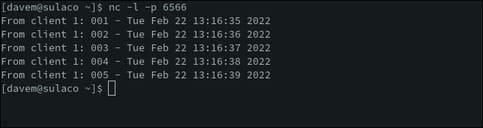
While it waits for an incoming connection, nc produces no output. After the connection is made, all access information is displayed in the terminal. Here, a connection has been made by a client program that identifies itself as “client 1”.
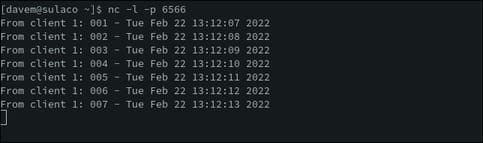
Everything displayed by nc is received from the client. This client application accidentally sends its name and a numbered message containing the date and time.
When the client application disconnects, nc will end and you will be returned to the terminal.
Send data using netcat
To collect data from the client in a file, we can send the output from nc to a file using the redirect command. This command saves the received data to a file named “logfile.txt”.
nc -l -p 6566 > logfile.txt

You won’t see any output because it’s writing data to the file — and you won’t know if a connection has occurred until nc has finished. Being returned to the command prompt indicates a connection has occurred and has been disconnected by the client.
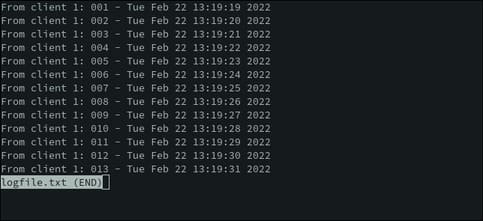
You can use less to review the contents of the file “logfile.txt”.
less logile.txt

You can then go through the data and search using less’s built-in functions. Press “:q” to exit less.
Send data to a file and a Terminal window
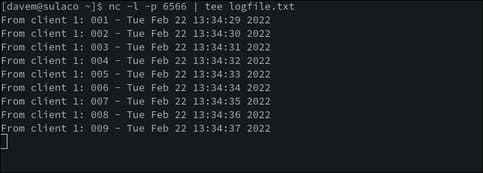
If you want to view the data in a Terminal window and send it to a file at the same time, convert the output from nc to tee.
nc -l -p 6566 | tee logfile.txt
Accept multiple connections
But it still has limitations. We can only accept one connection. We are limited to receiving data from a client. Also, when that client disconnects, our socket server will terminate.
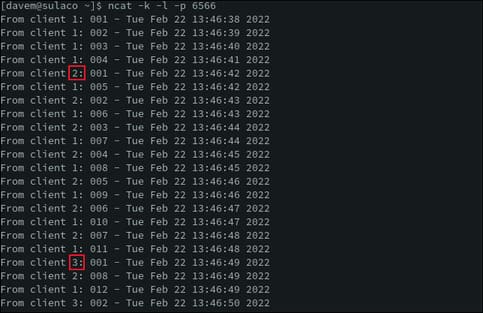
If you need to accept multiple connections, we need to use ncat. We will need to tell ncat to listen and use a specific port, just like nc. But we’ll also use the -k (keep listening) option. This option tells ncat to keep running and accept connections from the client even if the connection is interrupted.
This means that ncat will run until we end it with “Ctrl-C”. New connections will be accepted whether ncat is currently connected to any clients or not.
ncat -k -l -p 6566

We can see data from different clients appear in the output of ncat.
Connect to the server
We can also use nc as a client socket and connect to another program that is accepting connections and acting as a server. In this case, nc is the client socket. To do this, we need to tell nc where the server software is on the network.
We will provide IP address and port. If the server is on the same computer on which we are running nc, we can use the IP address of 127.0.0.1.
To connect to the server on the same PC and use port 6566, we can use the command:
nc 127.0.0.1 6566

The data that nc retrieves from the server will appear in the terminal window.
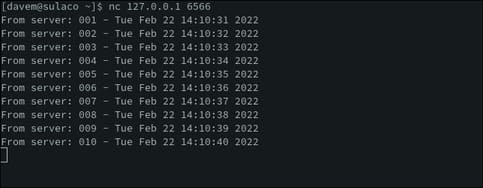
If you know the network name of the computer running the server software, you can use that network name instead of the IP address.
nc sulaco 6566
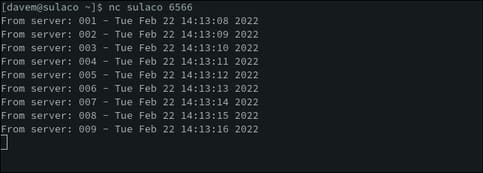
Use “Ctrl + C” to disconnect.
Quick and easy
nc and ncat are more budget-friendly when you don’t want to write a socket handler, but you need to collect data from some source that supports sockets. Redirecting output to a file allows you to review the output using less and parse the file with utilities like grep.
Alternatively, you can also write a port scanner in python here.