Learn about How to turn on Edge search bar on Desktop Is a great tip for you to access information faster than ever. Instead of having to open the browser manually, this compact toolbar will always be on the main screen and ready to serve. Let’s explore the steps to activate and make the most of this convenient but little known feature of Microsoft Edge!
| Join the channel Telegram belong to Anonyviet 👉 Link 👈 |
Why should you try the edge search bar on the Desktop?
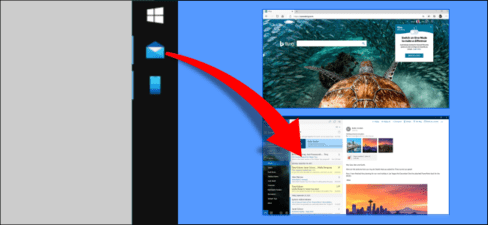
This is a “hidden” feature Microsoft Built -in, bringing incredible convenience. When activated, a floating bar will appear right on your screen. It acts as a quick access port in the web world. You only need to type keywords or website addresses, click Enter, and Edge browser will automatically open with the corresponding results.
This saves time and manipulation, especially useful for those who often need to look up information quickly.
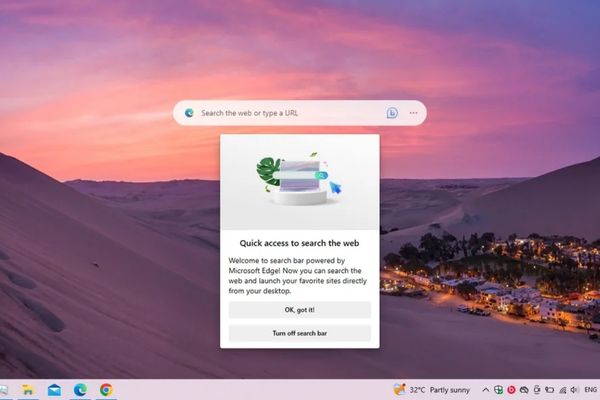
Instructions on how to turn on the edge search bar on the desktop
To enable this feature, you only need to perform a few simple steps below:
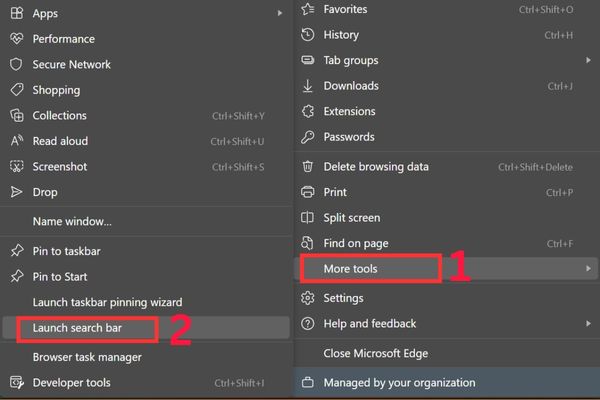
- The first step, please visit Microsoft Edge From the computer.
- Next, click on the menu icon with pictures three horizontal dots (…) Located in the top right corner of the browser window.
- In the menu just appeared, you cover the line More tools.
- Finally, a secondary menu will appear, you just need to choose Launch search bar.
Immediately, the search bar will appear on your screen. You can use mice to pull and move it to any position you feel most convenient.
The customs you should know
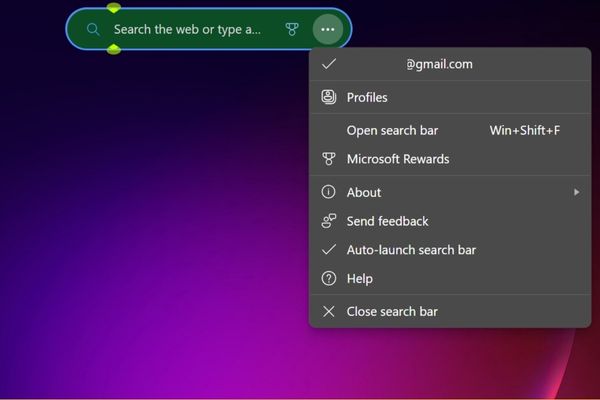
To personalize the experience, you can click the three -dot icon on the right side of the search bar. A small menu will give you a few useful options:
- Quick access to your Microsoft profile to manage your account, synchronize data and passwords conveniently.
- Check Microsoft Rewards to track the number of reward points you have accumulated through activities.
- Activate the option to automatically boot so that the search bar is always open every time you turn on the computer, helping you always in a state of ready.
- Close the search bar when you no longer need to use to free the space on the screen.
Conclusion
Now you know How to turn on Edge search bar on Desktop Easy way. This is a small feature but can significantly improve daily performance, especially if Edge is your main browser. Try activating and experience the convenience that it brings, you can completely turn it off at any time if you don’t like it anymore.