• Home
  • News
  • Software
  • Knowledge
  • MMO
  • Tips
  • Security
  • Network
  • Office
AnonyViet - English Version
  • Home
  • News
  • Software
  • Knowledge
  • MMO
  • Tips
  • Security
  • Network
  • Office
No Result
View All Result
  • Home
  • News
  • Software
  • Knowledge
  • MMO
  • Tips
  • Security
  • Network
  • Office
No Result
View All Result
AnonyViet - English Version
No Result
View All Result

How to SSH into Raspberry Pi to use without a screen

AnonyViet by AnonyViet
January 25, 2023
in Network
0

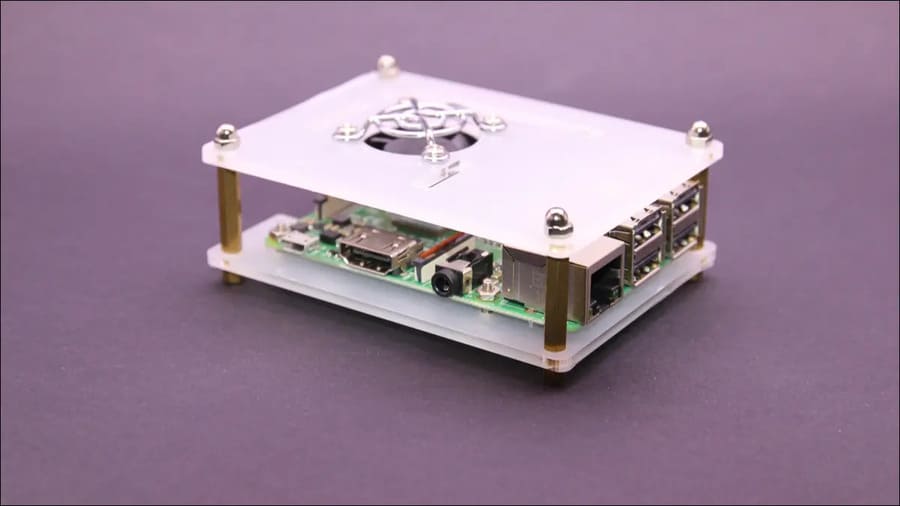
After setting up the Raspberry Pi, you may not need to attach additional monitors to it. When maintenance tasks are needed, such as upgrades and reboots, you can use Secure Shell (SSH) instead of plugging in your computer. So in this article, I will show you how to SSH into Raspberry Pi.

Join the channel Telegram of the AnonyViet 👉 Link 👈

How to SSH into Raspberry Pi to use without a screen

What is SSH?

SSH stands for Secure Shell. It allows you to remotely connect to a server or system from another device using encrypted communications.

The main benefit of SSH is data encryption. With less secure remote login protocols, such as FTP, everything is sent in plain text. A hacker could uncover those communications and record things like usernames and passwords. Since SSH is encrypted, hackers won’t be able to do so anymore.

Security issues before enabling SSH

Enabling SSH is easy, but you should also take care of a few issues. First, make sure that your Raspberry Pi is secure. By setting a password for the user account.

When you first set up your Raspberry Pi, you should change the user account password. If you haven’t changed your password, you need to do it now. Open terminal, then enter passwd command.

passwd

You will be prompted to enter your current password, then choose a new password.

View the IP address or hostname of the Raspberry Pi

You will also need to know the hostname or IP address of the Pi. Enter the following command in the terminal:

hostname -i

This command will provide the IP address for your Raspberry Pi. That address will usually start with 192.168. Record the address or hostname.

Next, we will enable SSH.

Method 1: Enable SSH via GUI

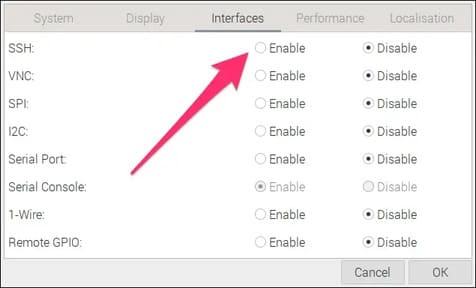
One way to enable SSH is through the Raspberry Pi graphical interface. Just click the Raspberry icon in the top left corner of the screen, then click “Preferences” and select “Raspberry Pi Configuration”.
How to SSH into Raspberry Pi to use without a 7 . screen

In this app, click on the “Interfaces” tab and look for “SSH”. Click “Enable”, then click “OK” to close the application.

Method 2: Enable SSH from Terminal

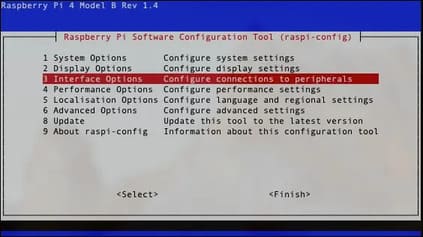
Another method to enable SSH is from the terminal. Enter this command to enable the configuration tool for your Raspberry Pi:

sudo raspi-config

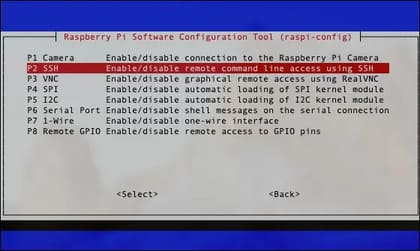
Use the arrow keys on your keyboard to select “Interfacing Options”, then press the Enter key.
How to SSH into Raspberry Pi to use without 8 . screen

Select “P2 SSH” and press Enter.

How to SSH into Raspberry Pi to use without a 9 . screen

When asked, “Would you like the SSH server enabled”, select “Yes”. Press Enter again at the confirmation box, “The SSH server is enabled”, select “Finish”.

Disable SSH Root login

After you’ve enabled SSH, there’s another optional thing you should do. Letting the root user SSH into your Raspberry Pi is a security risk, so I recommend disabling root login via SSH. Remember that you can always issue administrative commands from your regular user with sudo.

In your Terminal window, enter this command:

nano /etc/ssh/sshd_config

Now look for this line:

#PermitRootLogin prohibit-password

Edit this line to:

PermitRootLogin no

Save and close the file by pressing Ctrl + X, then Y. Now you should restart the SSH server with this command:

/etc/init.d/sshd restart

There are other steps you can take to SSH server security more, so make sure your Raspberry Pi can take the risk.

Login to your Raspberry Pi from another computer

Once those steps are complete, you’re ready to log into your Raspberry Pi from any computer on the local network. With the IP address or hostname you wrote down earlier, you can ssh into your Pi with the following command

ssh pi@[address]

For example, if your Raspberry Pi’s address is 192.168.0.200, the command would be:

ssh [email protected]

The first time you access your Pi, you will be asked to accept the encryption key. Just press Y, you’ll connect and be prompted for your password. Once done, you will be logged into the Raspberry Pi and can perform any task you need.

In addition to giving remote commands, you can also use SSH for other purposes, such as tunneling traffic, transferring files, connecting remote file systems, etc. In addition, you can also block ads with Raspberry Pi here.


The article achieved: 5/5 – (100 votes)

Tags: RaspberryscreenSSH
Previous Post

Lesson 144: Splitting content into separate columns in Excel

Next Post

How to become a Backend Developer

AnonyViet

AnonyViet

Related Posts

Is Renting a Cheap VPS to Run Docker Really Effective?
Network

Is Renting a Cheap VPS to Run Docker Really Effective?

July 2, 2026
How to get a free domain for 1 year from Gravatar
Network

How to get a free domain for 1 year from Gravatar

June 23, 2026
Cloud Infrastructure Resilience: Mitigating Advanced Layer 7 Vulnerabilities and Securing High-Throughput Database Handshakes
Network

Cloud Infrastructure Resilience: Mitigating Advanced Layer 7 Vulnerabilities and Securing High-Throughput Database Handshakes

June 20, 2026
Save image as Type contains malicious code: Remove immediately before losing money unfairly!
Network

Save image as Type contains malicious code: Remove immediately before losing money unfairly!

March 19, 2026
Instructions on how to register a .co.uk domain name for free for 1 year
Network

Instructions on how to register a .co.uk domain name for free for 1 year

March 12, 2026
How to Setup Paperclip AI: Create a Company for AI Agent
Network

How to Setup Paperclip AI: Create a Company for AI Agent

March 12, 2026
Next Post
How to become a Backend Developer

How to become a Backend Developer

0 0 votes
Article Rating
Subscribe
Login
Notify of
guest

guest

0 Comments
Oldest
Newest Most Voted

Recent News

Windows 7/8.1/10 users will be upgraded to Windows 11 for free

Windows 7/8.1/10 users will be upgraded to Windows 11 for free

July 30, 2026
Instructions for receiving the free Certified LLM Security Expert certificate

Instructions for receiving the free Certified LLM Security Expert certificate

July 30, 2026
MSI laptops are not just for gamers: Which line is suitable for students, office workers and creative people?

MSI laptops are not just for gamers: Which line is suitable for students, office workers and creative people?

July 29, 2026
What is quantum resistant cryptography? Why must the Internet change?

What is quantum resistant cryptography? Why must the Internet change?

July 29, 2026
Windows 7/8.1/10 users will be upgraded to Windows 11 for free

Windows 7/8.1/10 users will be upgraded to Windows 11 for free

July 30, 2026
Instructions for receiving the free Certified LLM Security Expert certificate

Instructions for receiving the free Certified LLM Security Expert certificate

July 30, 2026
MSI laptops are not just for gamers: Which line is suitable for students, office workers and creative people?

MSI laptops are not just for gamers: Which line is suitable for students, office workers and creative people?

July 29, 2026
AnonyViet - English Version

AnonyViet

AnonyViet is a website share knowledge that you have never learned in school!

We are ready to welcome your comments, as well as your articles sent to AnonyViet.

Follow Us

Contact:

Email: anonyviet.com[@]gmail.com

Main Website: https://anonyviet.com

Recent News

Windows 7/8.1/10 users will be upgraded to Windows 11 for free

Windows 7/8.1/10 users will be upgraded to Windows 11 for free

July 30, 2026
Instructions for receiving the free Certified LLM Security Expert certificate

Instructions for receiving the free Certified LLM Security Expert certificate

July 30, 2026
  • Home
  • Home 2
  • Home 3
  • Home 4
  • Home 5
  • Home 6
  • Next Dest Page
  • Sample Page

say88 tỷ lệ kèo nhà cái kèo nhà cái 5 febet

No Result
View All Result
  • Home
  • News
  • Software
  • Knowledge
  • MMO
  • Tips
  • Security
  • Network
  • Office

say88 tỷ lệ kèo nhà cái kèo nhà cái 5 febet

wpDiscuz
0
0
Would love your thoughts, please comment.x
()
x
| Reply