

My friend asked me to deploy an app written in NodeJS and then asked me to check and write more features for it, but I don’t like to install NodeJS on my computer. Plus you have to install a bunch of other libraries with the same version as the app. Surely everyone has had a similar situation? All in all, it’s torturous and very time consuming. To solve this problem, Docker was born, in this article I will introduce you to what docker is and show you how to install docker on Windows and Linux.
| Join the channel Telegram belong to AnonyViet ???? Link ???? |

This article will not go into technical analysis of how docker works and compare docker with Virtual Machines. I will make a separate post to analyze these two issues later.
What is Docker?
Docker is an open source platform that allows developers to build, deploy, and run their applications in a container. All dependencies are pre-installed in the container so that your project can be easily deployed on any environment.
Docker is the most popular application in container virtualization platforms because it is reliable, efficient, and highly scalable. The application runs on the Docker engine, a DevOps technology that provides a clean and lightweight environment for testing and deployment. Again, Docker is not a machine but a container, it only virtualizes the operating system, not the hardware at the underlying layer.
How to install Docker on Windows 11
To install Docker on Windows 11, you need turn on WSL2, you can still use Docker without WSL2 enabled. At this point Docker will use HyperV for virtualization, but the performance will be worse than using WSL2, so you should just turn on WSL2 to optimize the best hardware.
How to enable WSL2
Step 1: Open “Windows Features” in the Start Menu.
Step 2: Enable the following features: Virtual Machine Platform, Windows Hypervisor Platform and Windows Subsystem for Linux.
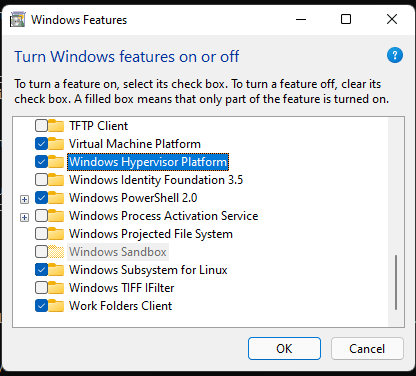
After turning on those features, please restart the device.
Step 3: Open CMD with Admin rights and enter the following command to update WSL:
wsl --update
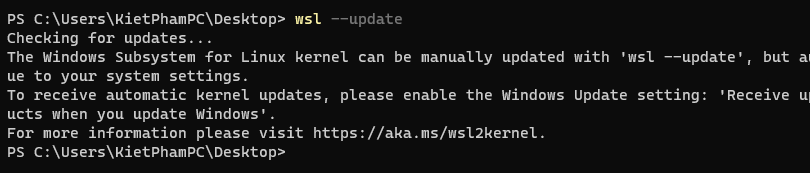
Step 4: Enter the following command to see the distros you can install on WSL2
wsl --list --online
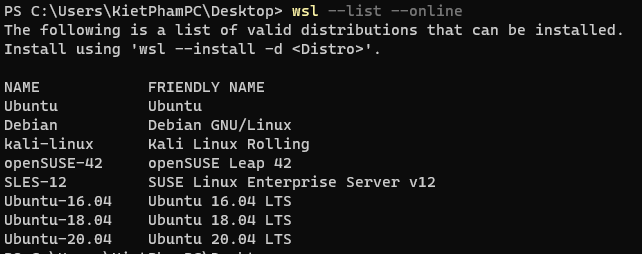
Step 5: Enter the following command to proceed with the installation of the distro you want. If you don’t enter any distro it will default to Ubuntu:
wsl -- install -d <Distribution>
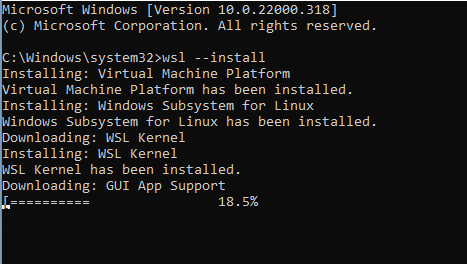
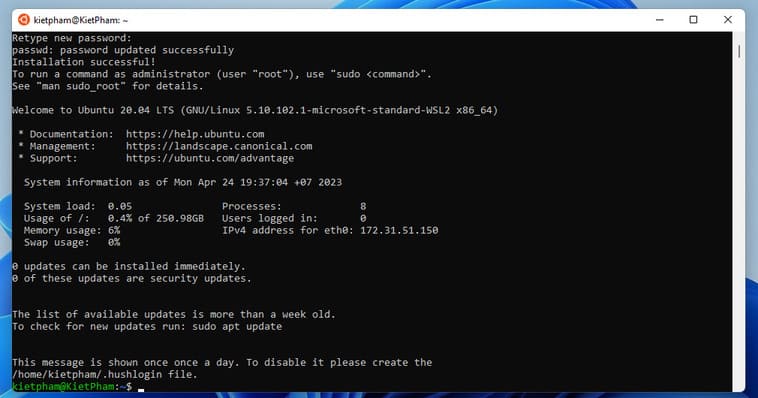
After installing the distro, you can restart your computer again and it will be successful. After rebooting, you open WSL2 and proceed to set up user and password.
How to install Docker
After you have successfully installed WSL2, follow these steps to install Docker.
Step 1: Download the Docker file by visiting the Docker homepage here.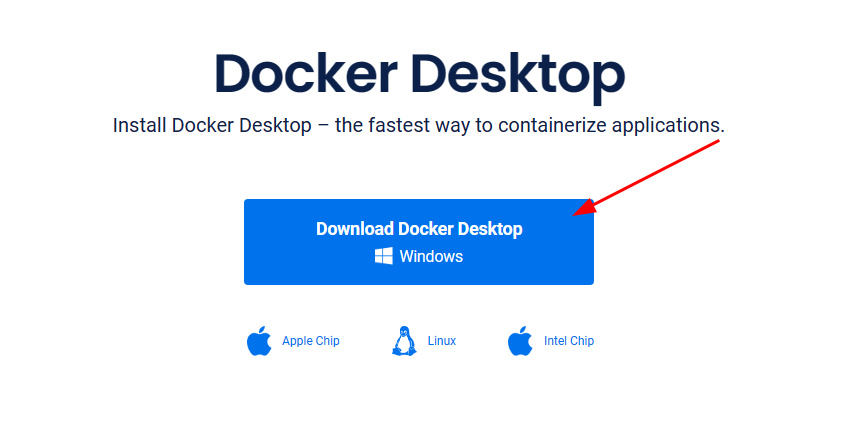
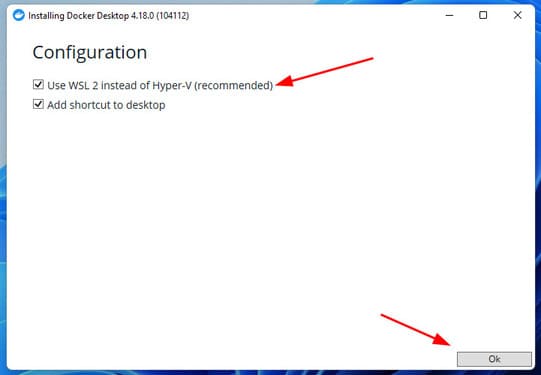
Step 2: Remember to choose “Use WSL 2 instead of Hyper-V” and press OK.
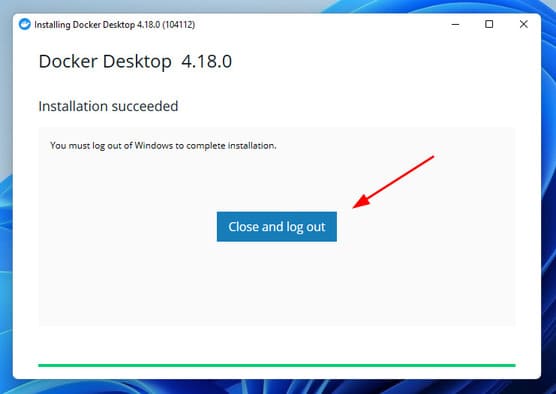
Step 3: After the installation is complete, press “Close and log out”Remember to save the work you are doing again.
Step 4: Press “Accept”.

If nothing happens, you should be able to get into Docker. If the software displays as below, then it is successful.
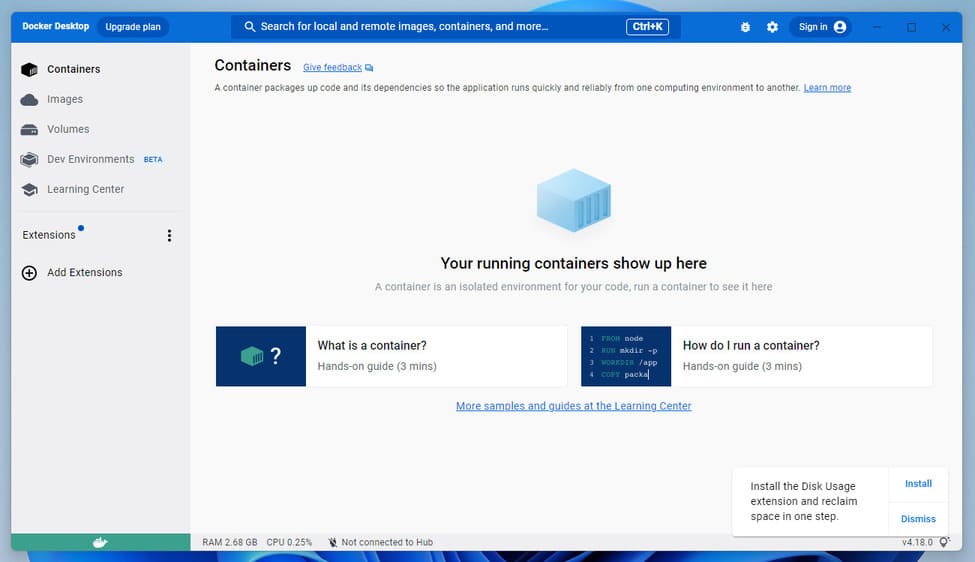
Note: Docker Desktop has quite a lot of errors during the installation process, I also encountered some errors when installing and took a long time to fix. If you encounter an error, you can inbox Anonyviet fanpage or post in Anonyviet’s group.
How to Install Docker on Linux
Installing Docker on Linux is much easier than on Windows, you just need to run the command without having to do anything.
Note: The distro I use to install Docker is Ubuntu 22.04. For other Distro versions like Debian or Arch, it will still be installed normally with the commands below.
Step 1: Update the list of packages with the command below:
sudo apt update
Step 2: Install the necessary packages for apt to use packages over HTTPS:
sudo apt install apt-transport-https ca-certificates curl software-properties-common
Step 3: Add the GPG key for the Docker repository to your system:
curl -fsSL https://download.docker.com/linux/ubuntu/gpg | sudo gpg --dearmor -o /usr/share/keyrings/docker-archive-keyring.gpg
Step 4: Add Docker to the APT source:
echo "deb [arch=$(dpkg --print-architecture) signed-by=/usr/share/keyrings/docker-archive-keyring.gpg] https://download.docker.com/linux/ubuntu $(lsb_release -cs) stable" | sudo tee /etc/apt/sources.list.d/docker.list > /dev/null
Step 5: Update the added packages:
sudo apt update
Step 6: Check that the package installation source is from the Docker repo instead of Ubuntu’s default repo:
apt-cache policy docker-ce
Step 7: Install Docker-ce:
sudo apt install docker-ce
Step 8: Verify Docker has started or not:
sudo systemctl status docker
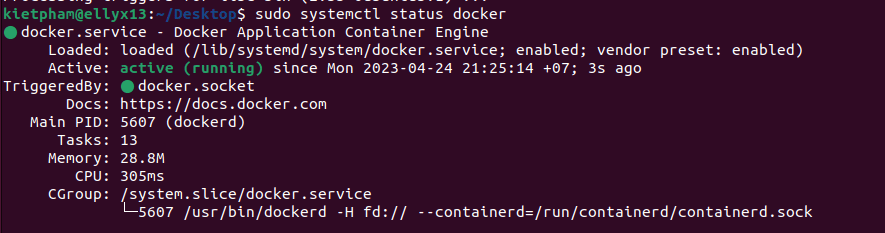
Step 9: Visit Docker’s download page here. Scroll down and select the Distro you are using, I choose Ubuntu.
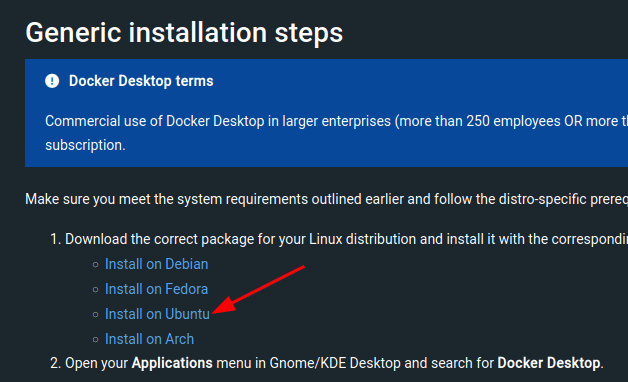
Step 10: Download the DEB file to your computer.
Step 11: Open Terminal at the directory where you downloaded the deb file and run the following command:
sudo apt install ./docker-desktop-*-amd64.deb
By default, the docker command can only be executed by root or a user in the docker group. So you need to add your user to the docker group to avoid typing sudo or getting an error.
Step 12: Add your user to the Docker group:
sudo usermod -aG docker $USER
Step 13: Enable Docker bucket:
newgrp docker
Step 14: Start Docker Desktop:
systemctl --user start docker-desktop
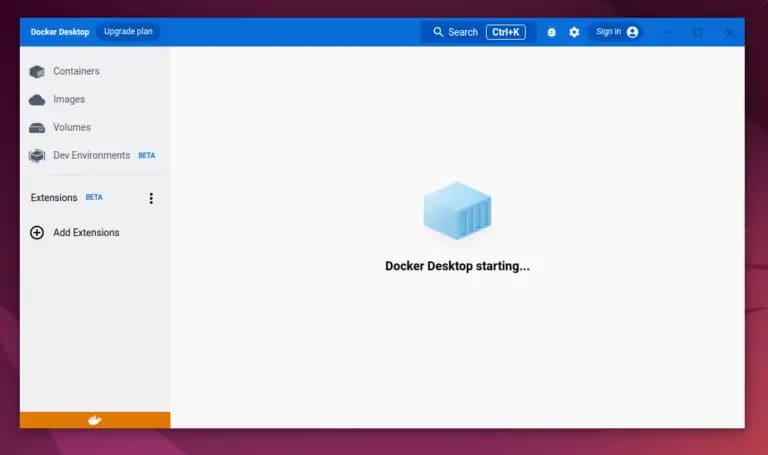
That’s it, good luck.






![[Facebook] Report Guide ver. Türkiye](https://anonyviet.com/wp-content/uploads/2015/12/tai-khoan-facebook-bi-hack.png "[Facebook] Report Guide ver. Türkiye")



