How to add Settings to Control Center Take advantage of the power of features Shortcuts to create a smart shortcut. If you often have to change social network or browser settings, this is the necessary “savior”. The operation is very simple and safe.
📢 Join the channel Telegram belong to AnonyViet
Update new articles, cool tools and IT tips fastest
Why should you use the Settings shortcut?
Using this shortcut brings significant efficiency in terms of time and user experience (UX):
- Speed: Reduce access time from 10 seconds to 1 second.
- Exactly: No need to remember the location of an application in a long list of settings.
- Convenient: Can be activated while using the application without needing to exit to the main screen.
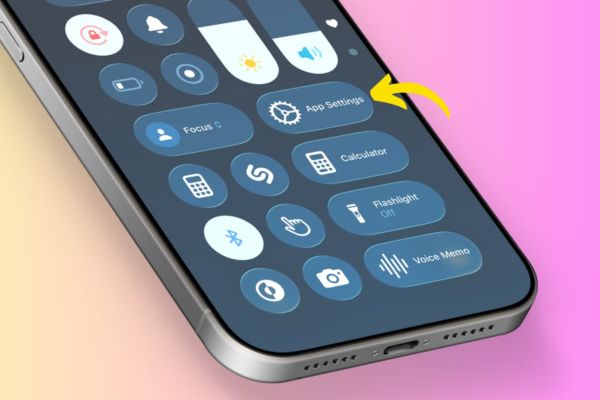
How to add Settings to Control Center
To do this, we need to set up a shortcut and put it in the most convenient location, Control Center. Below are detailed steps for you to set up this system.
Instructions for installing Settings shortcuts
Step 1: Access the iCloud link containing the App Settings shortcut HERE (shared by the reputable Shortcuts community).
Step 2: Click select Add Shortcuts to save to your library.
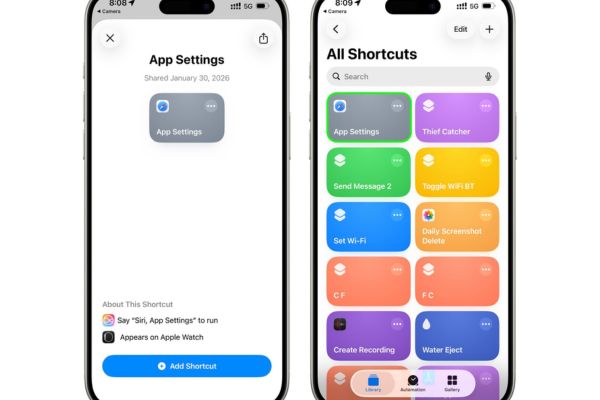
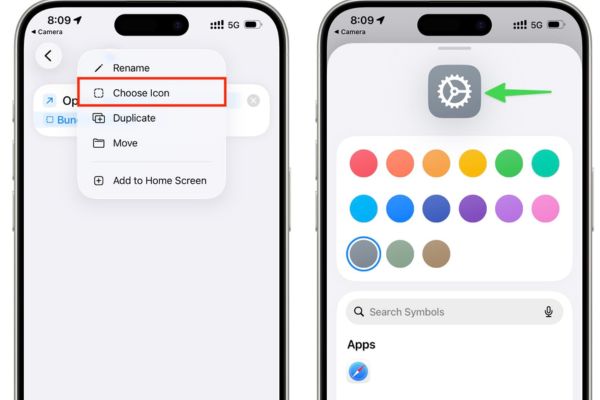
Step 3: In the application Shortcutsclick on the three dots on the downloaded shortcut, select Choose icon to change the icon to a gear image for easy identification.
Instructions for bringing shortcuts to Control Center
Once you have the shortcut, follow this procedure to assign it to Control Center:
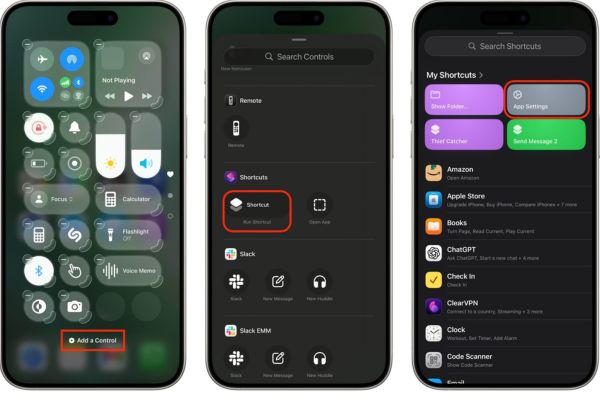
Step 1: Swipe down from the top right corner of the screen to open Control Center.
Step 2: Click on the icon plus (+) in the top left corner, then select Add Control (Add a Control).
Step 3: Search and select items Run Shortcuts.
Step 4: The system will ask you to choose a shortcut, click Choose and find the name App Settings in the My Shortcuts list.
Step 5: Click outside the space to save the settings.
Now, every time you’re surfing the web or viewing photos and want to edit settings, just swipe Control Center and tap this button.
Instructions for assigning keyboard shortcuts to Action Button
If you are using iPhone models with Action Button (For iPhone 15 Pro and above), the experience will be even faster.
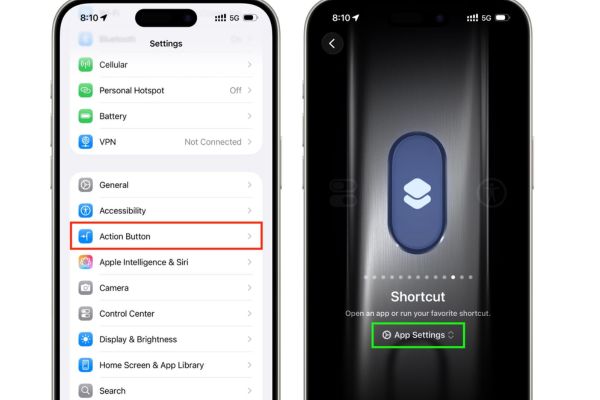
Step 1: Open the Settings app and select the item Action Button.
Step 2: Swipe horizontally to find the item Shortcuts.
Step 3: Click Select shortcut… and choose App Settings from the list. From now on, you just need to press and hold the Action Button next to the side of the device, iPhone will automatically redirect you to the settings page of the open application on the screen.
Frequently Asked Questions (Q&A)
1. Is this shortcut safe?
Have. This is a shortcut that uses the official URL Scheme of the iOS system, does not interfere with personal data or require unauthorized access.
2. Does it work with all apps?
Shortcuts work well with most system apps (Safari, Messages, Photos) and popular third-party apps. Some rare applications may not support URL Scheme to jump directly.
3. Can I do this using an iPad?
Absolutely. iPadOS has a similar operating mechanism to iOS, you can add it to iPad’s Control Center according to the steps above.
Conclusion
Hopefully with the above instructions, you have a clear understanding How to add Settings to Control Center to optimize iPhone usage. This is a small trick but helps save a significant amount of daily operation time. Try it out and share it with your friends!



![[Godot RPG]#5: Autotile](https://anonyviet.com/wp-content/uploads/2021/04/05-04-2021-12-09-36.png "[Godot RPG]#5: Autotile")