• Home
  • News
  • Software
  • Knowledge
  • MMO
  • Tips
  • Security
  • Network
  • Office
AnonyViet - English Version
  • Home
  • News
  • Software
  • Knowledge
  • MMO
  • Tips
  • Security
  • Network
  • Office
No Result
View All Result
  • Home
  • News
  • Software
  • Knowledge
  • MMO
  • Tips
  • Security
  • Network
  • Office
No Result
View All Result
AnonyViet - English Version
No Result
View All Result

How to open MBOX files with Mozilla Thunderbird

AnonyViet by AnonyViet
January 30, 2023
in Tips
0

The MBOX file contains the archive of the emails. For example, when you Download Backup Gmail with Google Takeout, you will receive an MBOX file containing all your emails. So, in this article, I will guide you to view the content of the MBOX file containing email using Mozilla Thunderbird.

Join the channel Telegram of the AnonyViet 👉 Link 👈

How to open MBOX files with Mozilla Thunderbird

Download Mozilla Thunderbird

My favorite app to open MBOX files is an open source app Mozilla Thunderbird. I use Mozilla Thunderbird version 78, the current version as of January 15, 2021.

Load Mozilla Thunderbird and install it. It is available for Windows, macOS and Linux.

Launch Thunderbird and set up an account

If you haven’t used Mozilla Thunderbird before, you’ll see the “Set Up Your Existing Email Address” dialog the first time you open it. Click “Cancel” to continue.
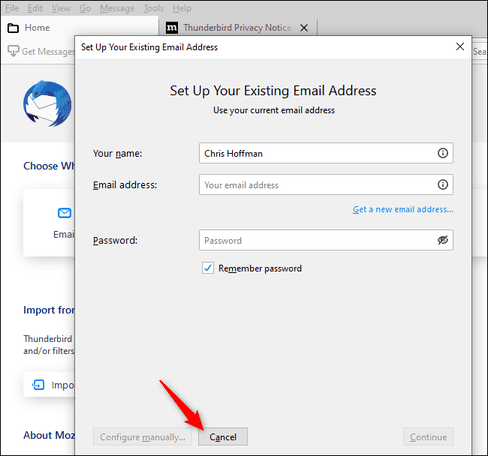
Launch Thunderbird and set up an account

Thunderbird wants to be your default email client. Uncheck “Always perform this check when starting Thunderbird” and click “Skip Integration” to remove this option.
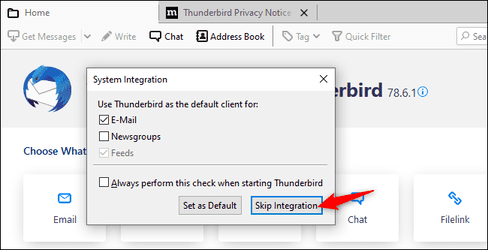
Skip Integration

Mozilla Thunderbird is a bit weird and it needs you to set up a local “account” before you can continue viewing MBOX content.

To create a blank local account, click “Feeds” under Choose What to Set Up. You can also click menu > New > Feed Account.
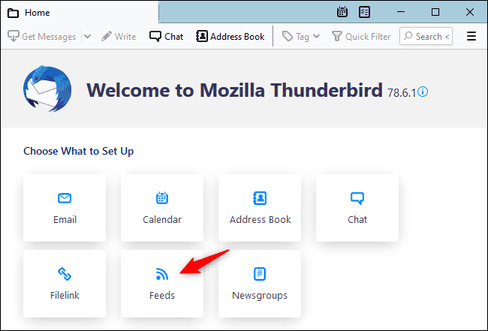
Feeds

Click the “Next” button and click “Finish” to create an account.
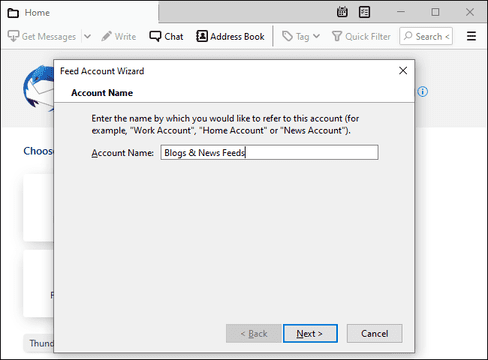
How to open MBOX files with Mozilla Thunderbird 5

Point Thunderbird at the MBOX file

You can now open Thunderbird and view the contents of your MBOX file.

To get started, click menu > Account Settings.
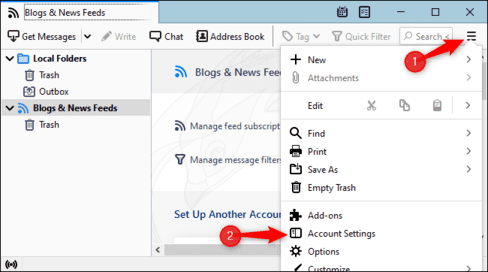
Point Thunderbird at the MBOX file

On the Account Settings screen, click “Local Folders”.

In Message Storage, click the “Browse” button to the right of Local Directory.
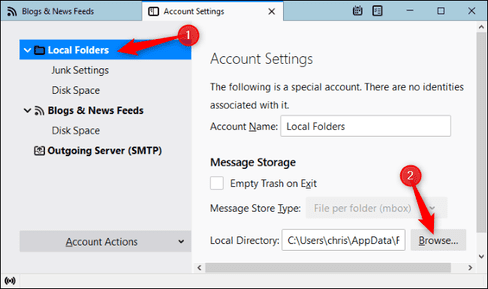
Local Directory

Browse to the folder containing your MBOX file and click “Select Folder.”. For example, if your MBOX file is located in C:\Users\[Name]\Downloads\Takeout\Mail, browse to that “Mail” folder and click “Select Folder”.

Thunderbird will ask you to restart the software Click “Restart”.
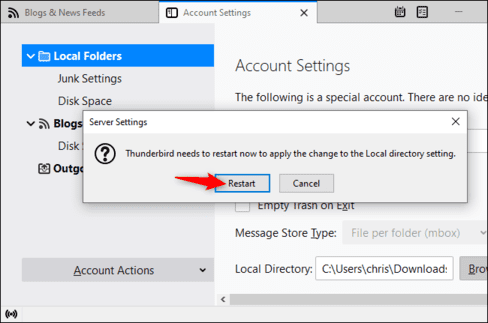
Restart

View the contents of the MBOX file

You can now view the contents of your MBOX file in Thunderbird. You will see the name of the MBOX file in “Local Folders”. Click on it and you can see the contents of the MBOX file.

View the contents of the MBOX file

Delete Feeds Account

By the way, you can now delete the empty “Blogs & News Feeds” account you created earlier.

To do so, click menu > Account Settings. Select “Blogs & News Feeds”. At the bottom of the window, click the “Account Actions” box and click “Remove Accounts”.

Click “Remove” and then “OK” to confirm your changes.
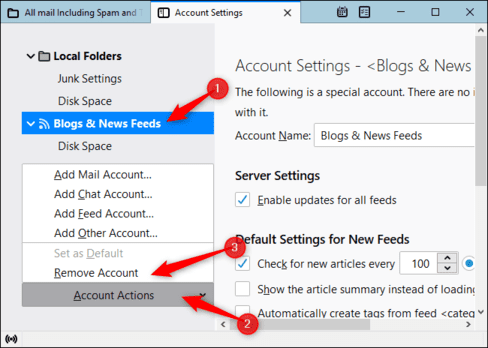
Delete Feeds Account

Now you can open Thunderbird whenever you want to view the contents of the MBOX file. Remember that Thunderbird is pointed at your MBOX file on the computer. So if you move the MBOX file to another folder, you’ll need to go back to Thunderbird’s account settings and point it to the new location of the MBOX file.


The article achieved: 5/5 – (100 votes)

Tags: filesMBOXMozillaopenThunderbird
Previous Post

Download Smart Game Booster Full Key – Game acceleration software

Next Post

Download GTA 5 Mod: COVID-19 Invasion – Iron Man against COVID-19

AnonyViet

AnonyViet

Related Posts

How to change the default font on Windows 10
Tips

How to change the default font on Windows 10

April 13, 2026
5 tips for using a Browser to replace an App (helps save RAM, time and money)
Tips

5 tips for using a Browser to replace an App (helps save RAM, time and money)

April 13, 2026
How to make funny MeMe photos without Photoshop within 10 seconds
Tips

How to make funny MeMe photos without Photoshop within 10 seconds

April 11, 2026
How to quickly design your own Logo without Photoshop
Tips

How to quickly design your own Logo without Photoshop

April 10, 2026
How to convert Website into App on Windows
Tips

How to convert Website into App on Windows

April 9, 2026
Instructions for getting 3 months of Adobe Express Pro for free
Tips

Instructions for getting 3 months of Adobe Express Pro for free

April 9, 2026
Next Post
Download GTA 5 Mod: COVID-19 Invasion – Iron Man against COVID-19

Download GTA 5 Mod: COVID-19 Invasion - Iron Man against COVID-19

0 0 votes
Article Rating
Subscribe
Login
Notify of
guest

guest

0 Comments
Oldest
Newest Most Voted
Inline Feedbacks
View all comments

Recent News

How to add Watermark to Google Docs to protect copyright

How to add Watermark to Google Docs to protect copyright

April 19, 2026
How to intercept traffic using Burp Suite to analyze HTTP/HTTPS

How to intercept traffic using Burp Suite to analyze HTTP/HTTPS

April 18, 2026
How to avoid Adblock detection on Youtube with 4 good tips

How to avoid Adblock detection on Youtube with 4 good tips

April 17, 2026
How to transfer ChatGPT data to Claude is extremely simple

How to transfer ChatGPT data to Claude is extremely simple

April 16, 2026
How to add Watermark to Google Docs to protect copyright

How to add Watermark to Google Docs to protect copyright

April 19, 2026
How to intercept traffic using Burp Suite to analyze HTTP/HTTPS

How to intercept traffic using Burp Suite to analyze HTTP/HTTPS

April 18, 2026
How to avoid Adblock detection on Youtube with 4 good tips

How to avoid Adblock detection on Youtube with 4 good tips

April 17, 2026
AnonyViet - English Version

AnonyViet

AnonyViet is a website share knowledge that you have never learned in school!

We are ready to welcome your comments, as well as your articles sent to AnonyViet.

Follow Us

Contact:

Email: anonyviet.com[@]gmail.com

Main Website: https://anonyviet.com

Recent News

How to add Watermark to Google Docs to protect copyright

How to add Watermark to Google Docs to protect copyright

April 19, 2026
How to intercept traffic using Burp Suite to analyze HTTP/HTTPS

How to intercept traffic using Burp Suite to analyze HTTP/HTTPS

April 18, 2026
No Result
View All Result
  • Home
  • News
  • Software
  • Knowledge
  • MMO
  • Tips
  • Security
  • Network
  • Office

wpDiscuz
0
0
Would love your thoughts, please comment.x
()
x
| Reply