• Home
  • News
  • Software
  • Knowledge
  • MMO
  • Tips
  • Security
  • Network
  • Office
AnonyViet - English Version
  • Home
  • News
  • Software
  • Knowledge
  • MMO
  • Tips
  • Security
  • Network
  • Office
No Result
View All Result
  • Home
  • News
  • Software
  • Knowledge
  • MMO
  • Tips
  • Security
  • Network
  • Office
No Result
View All Result
AnonyViet - English Version
No Result
View All Result

How to downgrade Windows 11 to Windows 10

AnonyViet by AnonyViet
January 28, 2023
in Tips
0

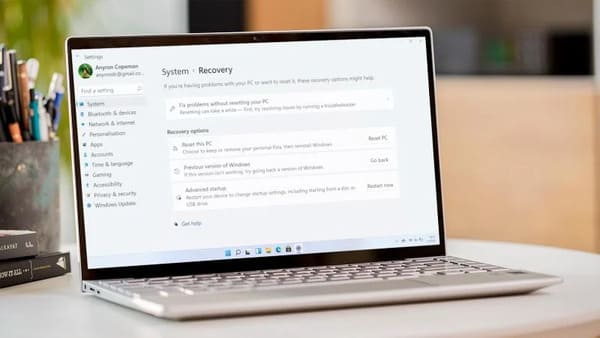
Users were initially excited when Microsoft announced Windows 11 at the end of June, but it also brought many disappointments. So many people want to downgrade Windows 11 to Windows 10.

Join the channel Telegram of the AnonyViet 👉 Link 👈

How to downgrade Windows 11 to Windows 10

Anyone with a compatible device can update Windows 11 in a variety of ways. You can refer more here.

If you are not satisfied with Windows 11, then you can still revert to Windows 10 by the following ways.

How to downgrade Windows 11 to Windows 10 within the first 10 days

If you upgraded to Windows 11 in a few days but want to go back to Windows 10, you’re in luck. Microsoft allows you to restore Windows 10 to previous versions within 10 days of installing the upgrade and article FAQ article from laptop manufacturer MSI proved it with Windows 11.

Here is the simplest method to downgrade Windows 11 to Windows 10:

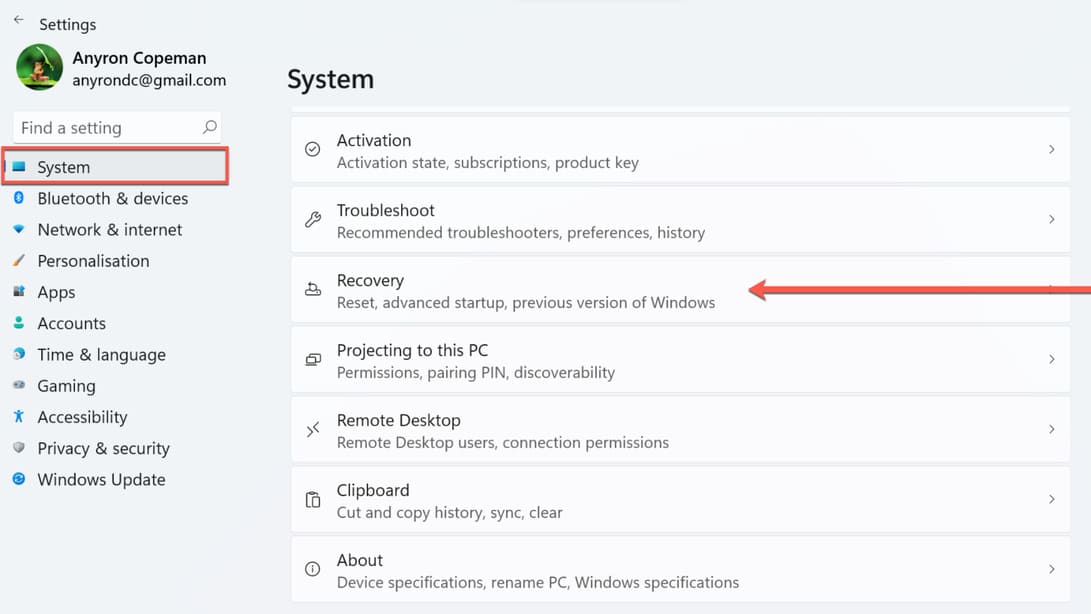
Step 1: Open Settings and select tab System.

Step 2: Scroll down and select Recovery.
How to downgrade Windows 11 to Windows 10 7

Step 3: In “Recovery options“, you will see the “Previous version of Windows“. Click “Go back”.
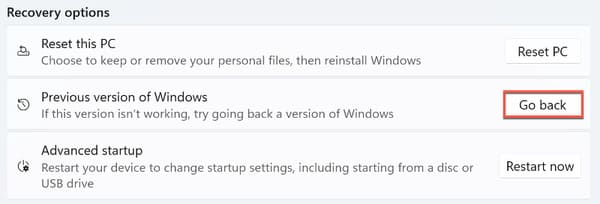
How to downgrade Windows 11 to Windows 10 8Step 4: Next, choose any option and click “Next”.

Step 5: When prompted to check for updates, click “No, thanks”.

Step 6: Click next from the following two screens and then click “Go back to earlier build” to start the process.

All your existing settings and files will not be affected, but you should back up your PC first just to be sure.

In the meantime, you can read the article Some reasons I don’t like Windows 11 to reinforce your decision :v.

How to downgrade Windows 11 to Windows 10 in 10 days

If you can’t roll back to Windows 10 using the above method, you can try this.

It’s a full reinstall of Windows 10 :v, although it’s a bit complicated, this is the most effective way to solve any problem you have :)). First you need to back up the data of the system, note that we are about to do a clean install of Windows 10.

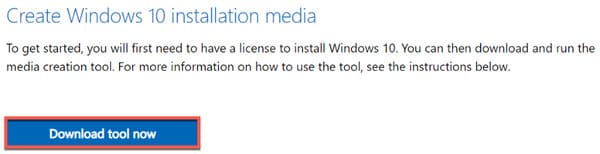
Step 1: Access Microsoft’s Windows 10 website.

Step 2: Under ‘Create Windows 10 installation media’, click ‘Download tool now’.
How to downgrade Windows 11 to Windows 10 9

Step 3: Once done, click on the downloaded file to open it

Step 4: From the “Do you want to allow this app to make changes to your device?” pop-up, select “Yes”

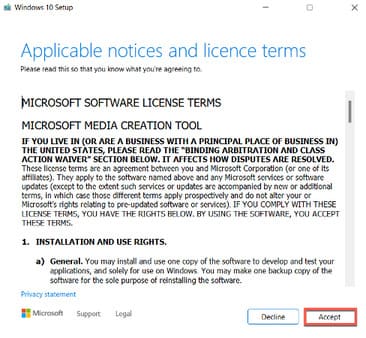
Step 5: The Windows 10 Setup window will appear. Next click ‘Accept’ to agree to Microsoft’s terms.
How to downgrade Windows 11 to Windows 10 10

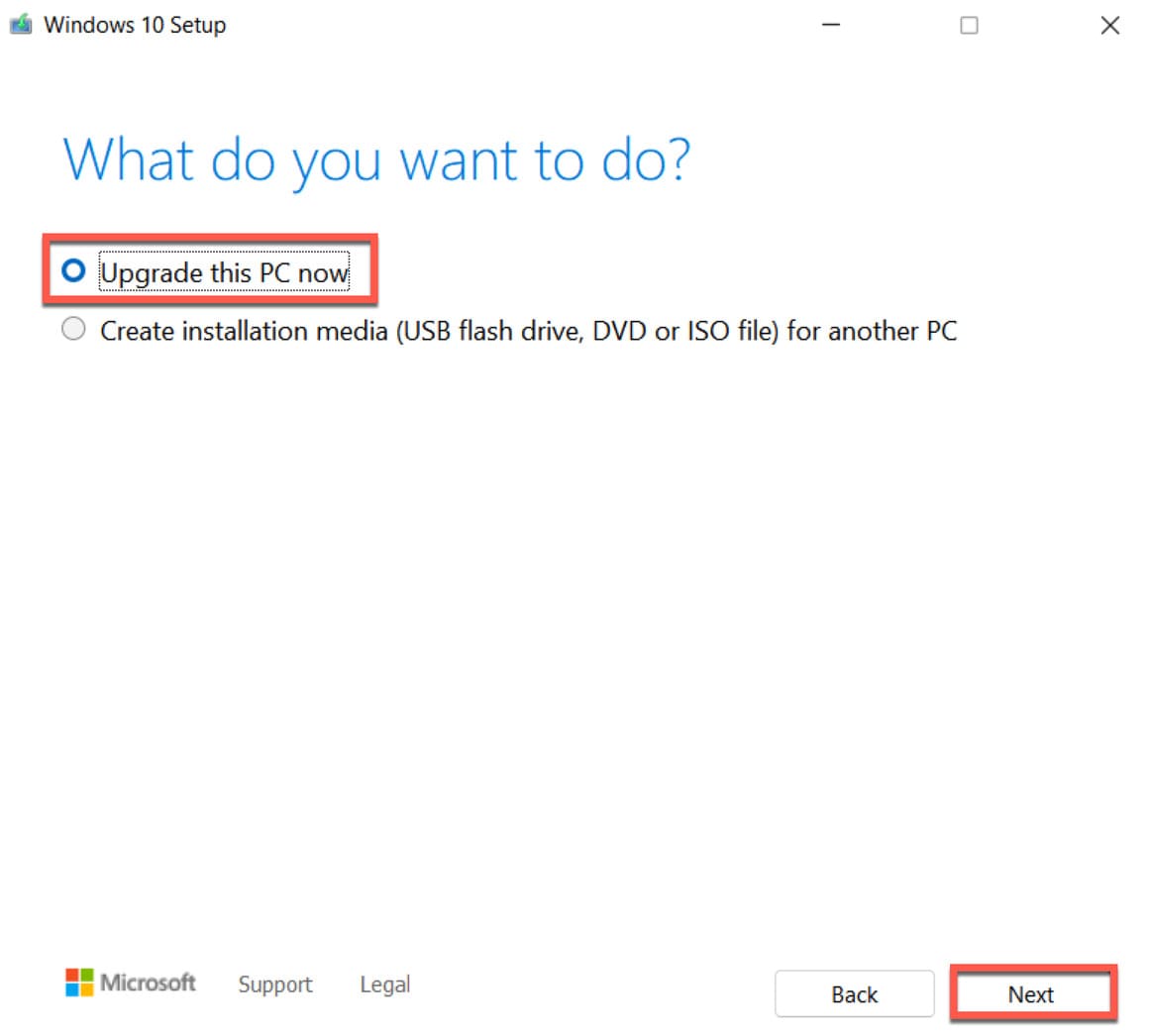
Step 6: Screen “Getting a few things ready” will be displayed for a few seconds, select “Upgrade this PC now” and click “Upgrade this PC now”.
How to downgrade Windows 11 to Windows 10 11

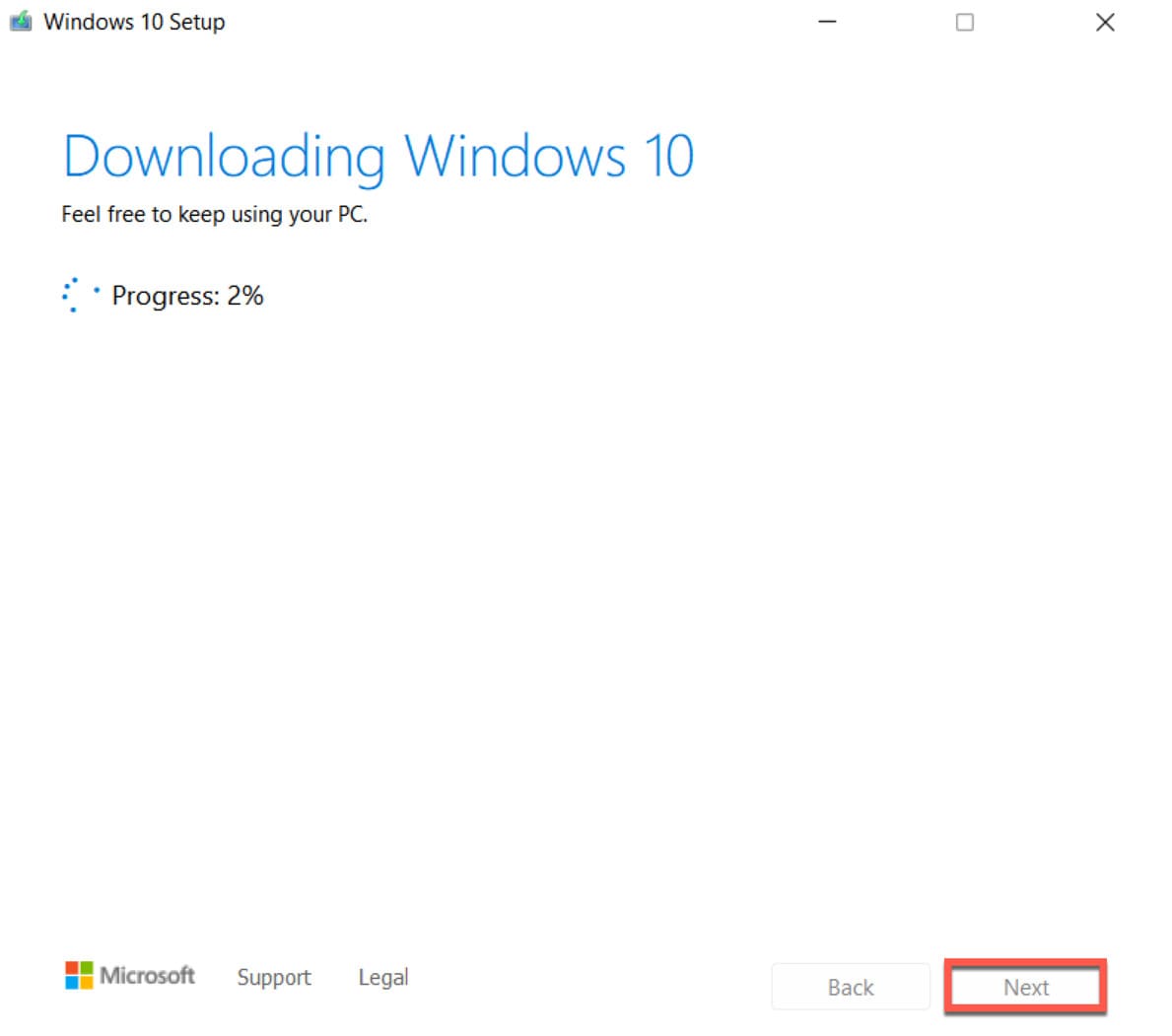
The latest version of Windows 10 will be downloaded. You can still use your PC during this time.
How to downgrade Windows 11 to Windows 10 12

Step 8: Once the download is complete, click “Next” and then select “Accept”.

Step 9: From the screen “Choose what to keep”select “Nothing”then select “Next” once again

Step 10: You will now be on the page “Ready to install”. Click “Install” to start the installation.

Once the installation is complete, you’ll need to set up Windows 10 as it was the first time. This process will not take too long.

Alternatively, you can also install Windows from USB here.

The article achieved: 5/5 – (100 votes)

Tags: downgradeWindows
Previous Post

Scams on the Internet and what you need to know

Next Post

Advanced SystemCare 14 Pro Full Key – Best Windows Optimization

AnonyViet

AnonyViet

Related Posts

How to add sliders to Facebook Stories to easily rewind videos
Tips

How to add sliders to Facebook Stories to easily rewind videos

April 21, 2026
How to change the default font on Windows 10
Tips

How to change the default font on Windows 10

April 13, 2026
5 tips for using a Browser to replace an App (helps save RAM, time and money)
Tips

5 tips for using a Browser to replace an App (helps save RAM, time and money)

April 13, 2026
How to make funny MeMe photos without Photoshop within 10 seconds
Tips

How to make funny MeMe photos without Photoshop within 10 seconds

April 11, 2026
How to quickly design your own Logo without Photoshop
Tips

How to quickly design your own Logo without Photoshop

April 10, 2026
How to convert Website into App on Windows
Tips

How to convert Website into App on Windows

April 9, 2026
Next Post
Advanced SystemCare 14 Pro Full Key – Best Windows Optimization

Advanced SystemCare 14 Pro Full Key - Best Windows Optimization

0 0 votes
Article Rating
Subscribe
Login
Notify of
guest

guest

0 Comments
Oldest
Newest Most Voted
Inline Feedbacks
View all comments

Recent News

How to create a Face Sticker Collection using ChatGPT

How to create a Face Sticker Collection using ChatGPT

April 29, 2026
How to install the cute Bongo Cat mouse pointer for Windows

How to install the cute Bongo Cat mouse pointer for Windows

April 29, 2026
Tips for pinning the step counter to the iPhone screen to monitor your health

Tips for pinning the step counter to the iPhone screen to monitor your health

April 28, 2026
How to turn off password suggestions on iPhone: Prevent Safari from auto-filling passwords

How to turn off password suggestions on iPhone: Prevent Safari from auto-filling passwords

April 27, 2026
How to create a Face Sticker Collection using ChatGPT

How to create a Face Sticker Collection using ChatGPT

April 29, 2026
How to install the cute Bongo Cat mouse pointer for Windows

How to install the cute Bongo Cat mouse pointer for Windows

April 29, 2026
Tips for pinning the step counter to the iPhone screen to monitor your health

Tips for pinning the step counter to the iPhone screen to monitor your health

April 28, 2026
AnonyViet - English Version

AnonyViet

AnonyViet is a website share knowledge that you have never learned in school!

We are ready to welcome your comments, as well as your articles sent to AnonyViet.

Follow Us

Contact:

Email: anonyviet.com[@]gmail.com

Main Website: https://anonyviet.com

Recent News

How to create a Face Sticker Collection using ChatGPT

How to create a Face Sticker Collection using ChatGPT

April 29, 2026
How to install the cute Bongo Cat mouse pointer for Windows

How to install the cute Bongo Cat mouse pointer for Windows

April 29, 2026
No Result
View All Result
  • Home
  • News
  • Software
  • Knowledge
  • MMO
  • Tips
  • Security
  • Network
  • Office

wpDiscuz
0
0
Would love your thoughts, please comment.x
()
x
| Reply