• Home
  • News
  • Software
  • Knowledge
  • MMO
  • Tips
  • Security
  • Network
  • Office
AnonyViet - English Version
  • Home
  • News
  • Software
  • Knowledge
  • MMO
  • Tips
  • Security
  • Network
  • Office
No Result
View All Result
  • Home
  • News
  • Software
  • Knowledge
  • MMO
  • Tips
  • Security
  • Network
  • Office
No Result
View All Result
AnonyViet - English Version
No Result
View All Result

How to Install Docker on Ubuntu 20.04 LTS

AnonyViet by AnonyViet
January 26, 2023
in Network
0

Docker It’s like a virtual machine for product development on its own, and it’s easy to switch environments between real machines using containers. How to install Docker on Ubuntu is also very simple, let’s find out.

Join the channel Telegram of the AnonyViet 👉 Link 👈

Containers contain everything an application, tool or service needs to run, including all libraries, dependencies, and configuration files. Containers are also isolated from each other (and the real machine), but can communicate through predefined channels.

Since Docker is open source software, not only is it free to use, but you can also tweak, extend, hack, or build new features. In this article, I will guide you to install Docker on Ubuntu 20.04 LTS (Focal Fossa), the same steps may also work on older versions of Ubuntu, including Ubuntu 18.04 LTS.

How to Install Docker on Ubuntu 20.04 LTS

More specifically, you’ll learn how to install Docker from the regular Ubuntu repositories, how to let Docker start automatically when you log into your system, and how to install Docker images and run them.

But this is not a deep dive. This article only helps you quickly install Docker to start learning.

Install Docker from Ubuntu Repository

To install Docker on Ubuntu, you need to meet the following 2 requirements:

  • You must have access to sudo
  • You must have an internet connection

If you’re managing or setting up an Ubuntu server, you’ve (probably) met both of these requirements, but check them out before you start.

Step 1: Install docker from Ubuntu’s repositories. The repository I use here is apt and the installation package name is docker.io:

sudo apt install docker.io - y

Ubuntu will download the latest Docker version from the apt repository, then extract and install it on your system.

Step 2: Allow Docker to start automatically when you log on to the system:

sudo systemctl enable --now docker

Step 3: Docker test

Now that Docker is installed and running on your system, you should verify that everything is working properly. What you need to do is run a new image named hello world:

sudo docker run hello-world

When you run this command, you will see a long message saying “installation appears to be working correctly”.

Like this:How to Install Docker on Ubuntu 20.04 LTS 5
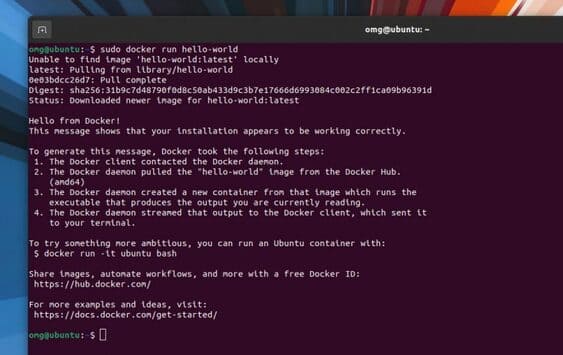
Notice the first line, you will see the words Docker “cannot find” image “hello-world”. But instead of exiting, it searched and downloaded from Docker Hub.

So we have…

Step 4: Find and install Docker images.

You are now setting up the world or rather the Docker ecosystem, and Docker Hub is your home. Docker Hub is billed as “the world’s largest library and community of container images”. Any images available on Docker Hub can also be installed on your system.

Let’s see if the ad is correct.

To search for images on Docker Hub, simply use the command search in docker:

sudo docker search term-goes-here

For example, I want to search for Alpine Linux on Docker Hub, so I run the command docker search alpine. A list of matching images (matching the term alpine) will appear. The official alpine image will have the text OK on column “OFFICIAL“.
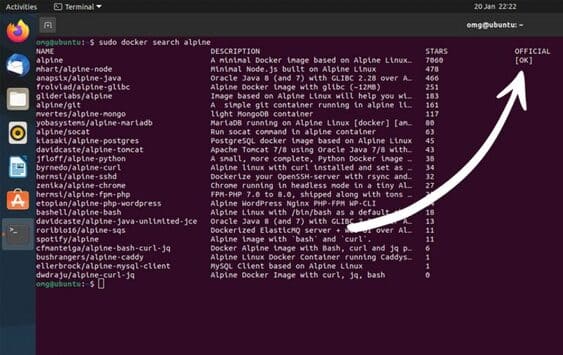
How to Install Docker on Ubuntu 20.04 LTS 6

Once you find the image you want to use, you can download it using the command pullFor example, to install Alpine Linux, I run the command: sudo docker pull alpine

To run a downloaded image, simply run this command and include the image name: sudo docker run alpine

If you want to run an image as a container and get shell access immediately, add the -it flag. Example: I run sudo docker run -it alpine and Docker throws itself straight into the Alpine container:
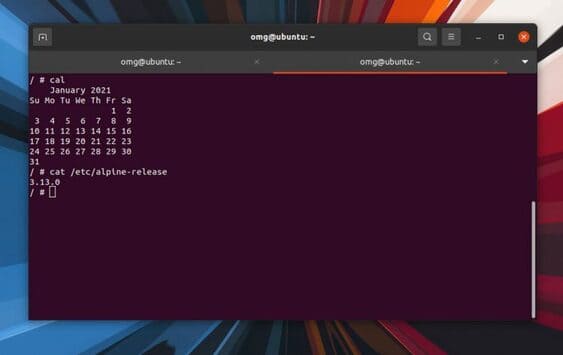
How to Install Docker on Ubuntu 20.04 LTS 7

To exit, simply type exit and press enter:

Some useful commands you need to know:

  • docker ps -a: List all the images you have used (and see their container IDs/names)
  • docker stop {container id}: To close the image
  • docker rm ID/name-container: To delete containers

The article achieved: 5/5 – (100 votes)

Tags: DockerinstallLTSUbuntu
Previous Post

Lesson 98: How to convert Excel files to XML

Next Post

Top 3 Tool Copy the best competitor’s Facebook ad campaign

AnonyViet

AnonyViet

Related Posts

Save image as Type contains malicious code: Remove immediately before losing money unfairly!
Network

Save image as Type contains malicious code: Remove immediately before losing money unfairly!

March 19, 2026
Instructions on how to register a .co.uk domain name for free for 1 year
Network

Instructions on how to register a .co.uk domain name for free for 1 year

March 12, 2026
How to Setup Paperclip AI: Create a Company for AI Agent
Network

How to Setup Paperclip AI: Create a Company for AI Agent

March 12, 2026
Compilation of free and cheap APIs to run OpenClaw stably
Network

Compilation of free and cheap APIs to run OpenClaw stably

March 10, 2026
3 Services to Determine IP Location for Website (IP Geolocation API)
Network

3 Services to Determine IP Location for Website (IP Geolocation API)

March 10, 2026
How to buy a .STORE domain name for 1 USD (2026): Detailed instructions from A–Z
Network

How to buy a .STORE domain name for 1 USD (2026): Detailed instructions from A–Z

March 3, 2026
Next Post
Top 3 Tool Copy the best competitor’s Facebook ad campaign

Top 3 Tool Copy the best competitor's Facebook ad campaign

0 0 votes
Article Rating
Subscribe
Login
Notify of
guest

guest

0 Comments
Oldest
Newest Most Voted
Inline Feedbacks
View all comments

Recent News

Create an avatar to celebrate April 30 with a beautiful red flag shirt with yellow stars

Create an avatar to celebrate April 30 with a beautiful red flag shirt with yellow stars

April 30, 2026
How to get 2 months of Super Duolingo for free worth 300k

How to get 2 months of Super Duolingo for free worth 300k

April 30, 2026
How to create a Face Sticker Collection using ChatGPT

How to create a Face Sticker Collection using ChatGPT

April 29, 2026
How to install the cute Bongo Cat mouse pointer for Windows

How to install the cute Bongo Cat mouse pointer for Windows

April 29, 2026
Create an avatar to celebrate April 30 with a beautiful red flag shirt with yellow stars

Create an avatar to celebrate April 30 with a beautiful red flag shirt with yellow stars

April 30, 2026
How to get 2 months of Super Duolingo for free worth 300k

How to get 2 months of Super Duolingo for free worth 300k

April 30, 2026
How to create a Face Sticker Collection using ChatGPT

How to create a Face Sticker Collection using ChatGPT

April 29, 2026
AnonyViet - English Version

AnonyViet

AnonyViet is a website share knowledge that you have never learned in school!

We are ready to welcome your comments, as well as your articles sent to AnonyViet.

Follow Us

Contact:

Email: anonyviet.com[@]gmail.com

Main Website: https://anonyviet.com

Recent News

Create an avatar to celebrate April 30 with a beautiful red flag shirt with yellow stars

Create an avatar to celebrate April 30 with a beautiful red flag shirt with yellow stars

April 30, 2026
How to get 2 months of Super Duolingo for free worth 300k

How to get 2 months of Super Duolingo for free worth 300k

April 30, 2026
No Result
View All Result
  • Home
  • News
  • Software
  • Knowledge
  • MMO
  • Tips
  • Security
  • Network
  • Office

wpDiscuz
0
0
Would love your thoughts, please comment.x
()
x
| Reply