• Home
  • News
  • Software
  • Knowledge
  • MMO
  • Tips
  • Security
  • Network
  • Office
AnonyViet - English Version
  • Home
  • News
  • Software
  • Knowledge
  • MMO
  • Tips
  • Security
  • Network
  • Office
No Result
View All Result
  • Home
  • News
  • Software
  • Knowledge
  • MMO
  • Tips
  • Security
  • Network
  • Office
No Result
View All Result
AnonyViet - English Version
No Result
View All Result

Raspberry Pi Installation Guide for Beginners

AnonyViet by AnonyViet
January 25, 2023
in Network
0

In the post: What’s in Hacker Backpack? Hacker’s toys you don’t know, I introduced one of the indispensable items of Hacker: Raspberry Pi. And today, I will show you how to Set Up for Raspberry Pi

Join the channel Telegram of the AnonyViet 👉 Link 👈

What is Raspberry Pi?

The Raspberry Pi is a single board about the size of a credit card, developed in the UK by the Raspberry Pi Foundation with the original purpose of promoting the teaching of basic computer science in schools and universities. the developing countries.

Currently, the Hacker community uses Raspberry Pi as a mini computer, very easy to carry and use very easily. With its nimble processor and usability, you can build yourself a mini computer with just a simple circuit board.

Operating systems that Raspberry can use

  • Raspberry Pi OS
  • FreeBSD
  • Linux
  • NetBSD
  • OpenBSD
  • Plan 9
  • RISC OS
  • Windows 10 ARM64
  • Windows 10 IoT Core[5]
  • OS-less Embedded RTL’s.

Prepare

  • The source
  • MicroSD memory card (at least 8GB or more)
  • Mouse
  • Keyboard
  • HDMI cable (For some versions, you need to use Micro HDMI to convert)
  • Screen
  • Raspberry Pi (available for purchase here)
  • USB SD memory card reader

Instructions for Setting Up Raspberry Pi

Install Raspberry Pi OS

Step 1: Insert the SD memory card into the SD card reader USB

Step 2: Download Raspberry Pi OS here.

Step 3: Click on Choose Os and choose Raspberry Pi OS (32bit). You can choose another operating system but Raspberry Pi recommends everyone to use

Raspberry Pi OS 32bit

Step 4: Select Choose SD card and select the SD card you are using

choose sd card

Step 5: Click on Write

write

That’s it, you just need to plug the SD card back into the Raspberry Pi

Changing the configuration of Raspberry Pi OS

For newcomers that require a password or SSH connection, the Username will be “pi” and the Password will be “raspberry”. When you first enter, it will display a dialog box: Welcome to Raspberry Pi

Step 1: Select date, time and Language to use
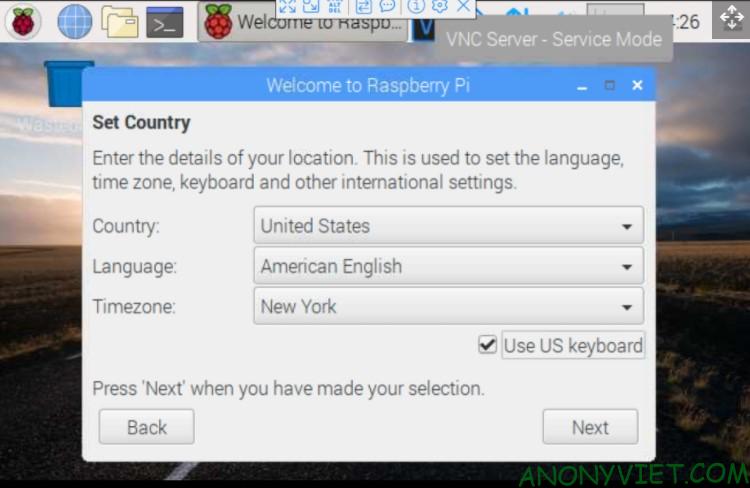
Select the language to use

Step 2: Change password. Otherwise, the password will default to: raspberry
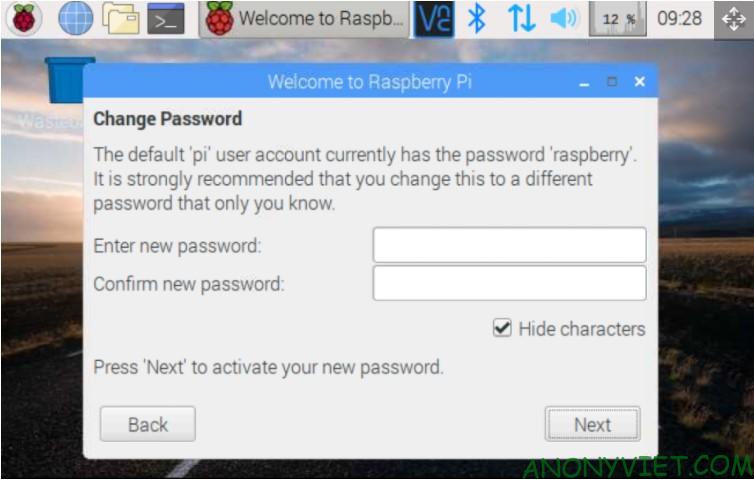
Change Password Raspberry Pi

Step 3: Select connect to Wifi. For those of you who are using a cable to connect, you can skip this step by pressing skip
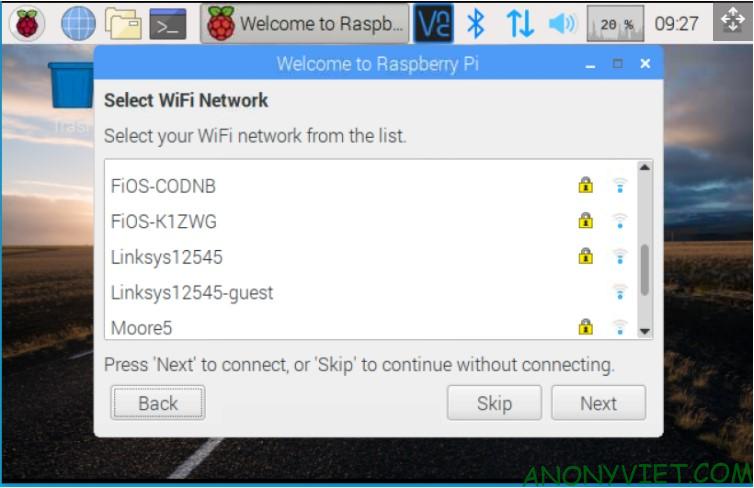
Wifi Settings

Step 4: After entering wifi, they will ask for software update
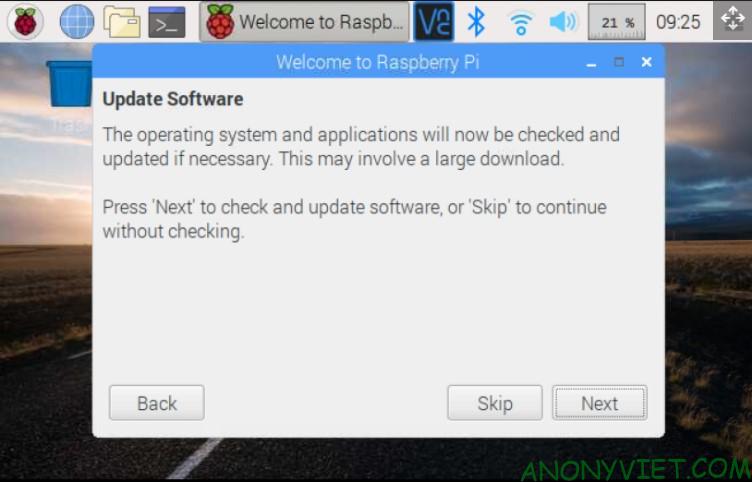
Check system update

Step 5: If a window pops up saying that you need to reboot, please click Reboot
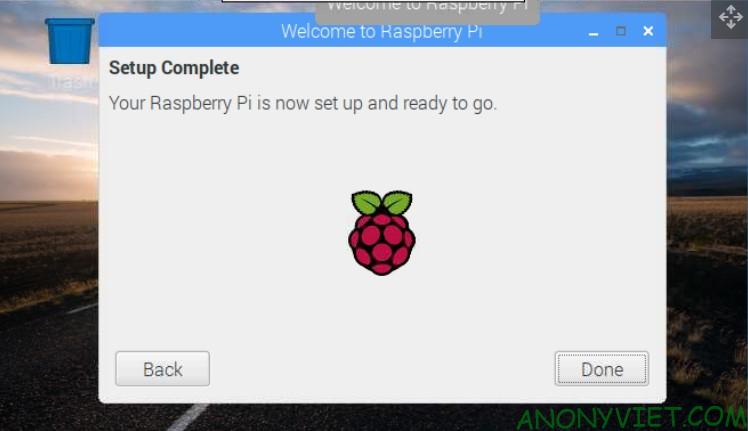
Setup Complete

Change screen resolution

Step 1: Click on the logo of Raspberry Pi -> Preference -> Screen Configuration
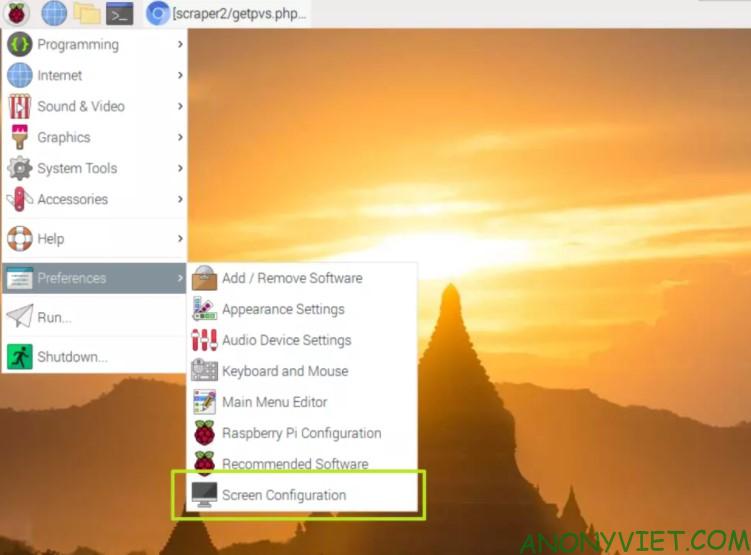
Select Screen Configuration

Step 2: Right click and select Resolution and select the desired screen resolution
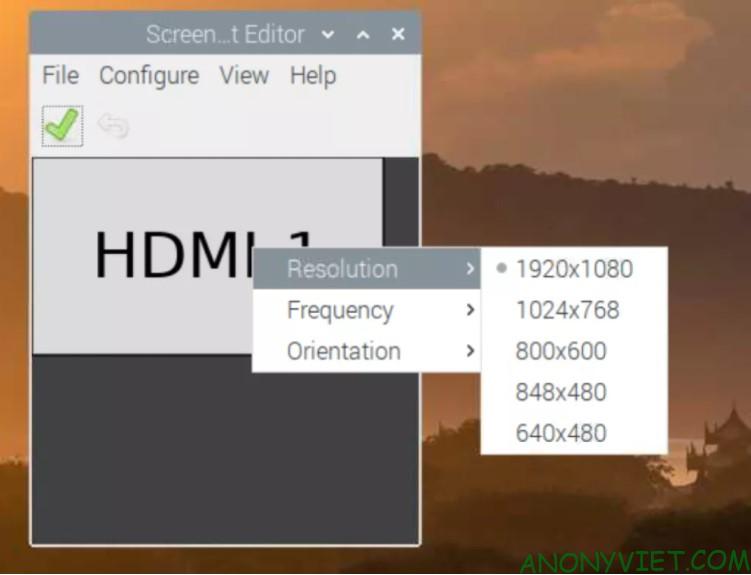
Choose a resolution

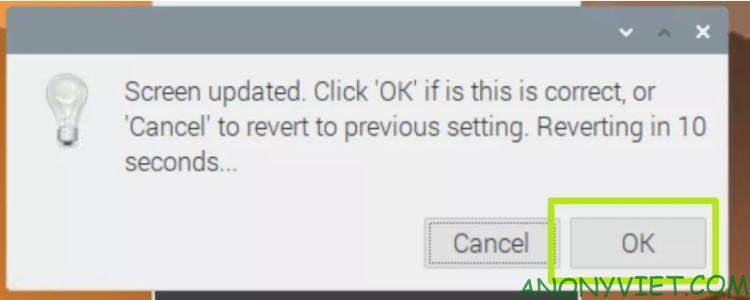
Step 3: Click on the check box to apply the change
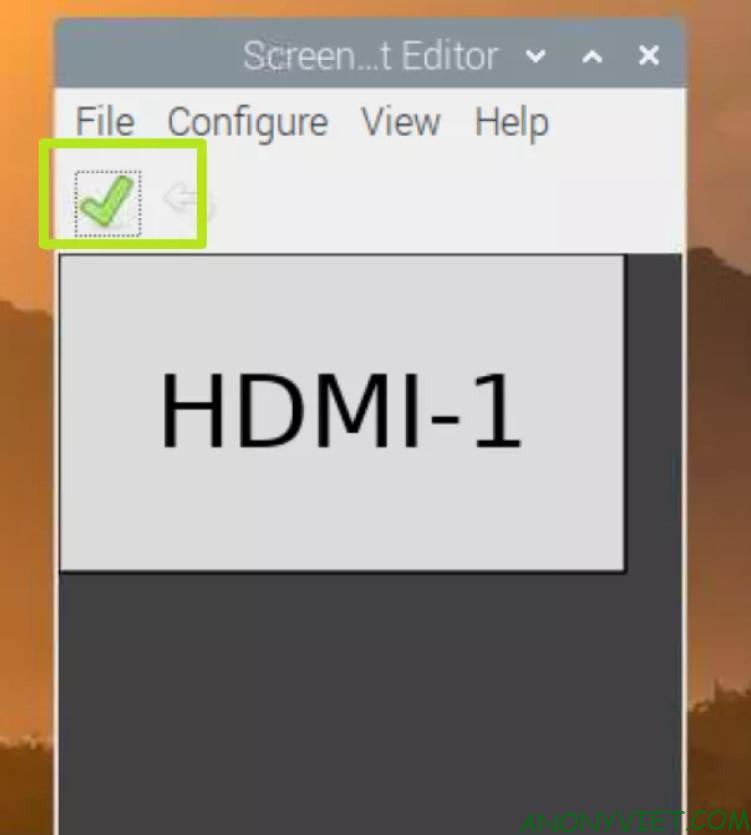
Select the top check mark

Step 4: Select OK

Choose ok

So through the last post, you can install and set up your Raspberry Pi yourself. How do you feel? Leave a comment to let me know what you need help with!


The article achieved: 5/5 – (100 votes)

Tags: beginnersGuideinstallationRaspberry
Previous Post

Lesson 257: GetPivotData function in Excel

Next Post

What happened to the iPhone 9?

AnonyViet

AnonyViet

Related Posts

Save image as Type contains malicious code: Remove immediately before losing money unfairly!
Network

Save image as Type contains malicious code: Remove immediately before losing money unfairly!

March 19, 2026
Instructions on how to register a .co.uk domain name for free for 1 year
Network

Instructions on how to register a .co.uk domain name for free for 1 year

March 12, 2026
How to Setup Paperclip AI: Create a Company for AI Agent
Network

How to Setup Paperclip AI: Create a Company for AI Agent

March 12, 2026
Compilation of free and cheap APIs to run OpenClaw stably
Network

Compilation of free and cheap APIs to run OpenClaw stably

March 10, 2026
3 Services to Determine IP Location for Website (IP Geolocation API)
Network

3 Services to Determine IP Location for Website (IP Geolocation API)

March 10, 2026
How to buy a .STORE domain name for 1 USD (2026): Detailed instructions from A–Z
Network

How to buy a .STORE domain name for 1 USD (2026): Detailed instructions from A–Z

March 3, 2026
Next Post
What happened to the iPhone 9?

What happened to the iPhone 9?

0 0 votes
Article Rating
Subscribe
Login
Notify of
guest

guest

0 Comments
Oldest
Newest Most Voted
Inline Feedbacks
View all comments

Recent News

How to turn off Gemini Nano on Chrome to free up 4GB of memory

How to turn off Gemini Nano on Chrome to free up 4GB of memory

May 30, 2026
Instructions for receiving Lovable Pro 12 months for free

Instructions for receiving Lovable Pro 12 months for free

May 29, 2026
How to extract text from photos using Zalo is super simple

How to extract text from photos using Zalo is super simple

May 29, 2026
HONOR 600 in hand – High-end design, 200MP camera, not cheap price

HONOR 600 in hand – High-end design, 200MP camera, not cheap price

May 28, 2026
How to turn off Gemini Nano on Chrome to free up 4GB of memory

How to turn off Gemini Nano on Chrome to free up 4GB of memory

May 30, 2026
Instructions for receiving Lovable Pro 12 months for free

Instructions for receiving Lovable Pro 12 months for free

May 29, 2026
How to extract text from photos using Zalo is super simple

How to extract text from photos using Zalo is super simple

May 29, 2026
AnonyViet - English Version

AnonyViet

AnonyViet is a website share knowledge that you have never learned in school!

We are ready to welcome your comments, as well as your articles sent to AnonyViet.

Follow Us

Contact:

Email: anonyviet.com[@]gmail.com

Main Website: https://anonyviet.com

Recent News

How to turn off Gemini Nano on Chrome to free up 4GB of memory

How to turn off Gemini Nano on Chrome to free up 4GB of memory

May 30, 2026
Instructions for receiving Lovable Pro 12 months for free

Instructions for receiving Lovable Pro 12 months for free

May 29, 2026
No Result
View All Result
  • Home
  • News
  • Software
  • Knowledge
  • MMO
  • Tips
  • Security
  • Network
  • Office

wpDiscuz
0
0
Would love your thoughts, please comment.x
()
x
| Reply