
How to recover Word files that were accidentally turned off without being saved is the first thing you think of when you accidentally press the exit button. At that time, I felt really confused because all the effort I had put into typing just now seemed like it had gone down the drain. Instead of sitting around in regret, you can completely get your data back with just a few simple mouse clicks. Let’s go together AnonyViet Discover this extremely useful lifesaving trick.
📢 Join the channel Telegram belong to AnonyViet
Update new articles, cool tools and IT tips fastest
Obsession called forgetting to save Word files
Have you ever fallen into this ironic situation? I sat and worked hard all morning typing a long page of text when something suddenly happened. Your hand reflexively moves the mouse to the right corner of the screen and clicks on the red X.
At this point, the software displays a notice asking if you want to save these changes. It gives you three options: save, don’t save, and cancel. I don’t understand why your finger pressed directly on the save button. Finished movie. The window went out, the screen went blank. It takes a few seconds for your brain to load to see what stupid thing you just did. It’s really gone. All that effort has gone down the drain.
But wait, don’t rush to scratch your head or bang the table or chairs. It’s not over like you think. In fact, computer systems are much smarter than we think. It knows that users often have absent-mindedness, so it has secretly kept a draft for you. The problem now is just how to get that draft out. And that’s when you need a way to recover files Word accidentally turned it off without saving. I bet that after knowing this tip, you will breathe a sigh of relief as if a burden has been lifted.

Instructions on how to restore Word files that were accidentally turned off without being saved
Applying this method of recovering Word files that were accidentally turned off without being saved actually only takes you less than a minute.
Step 1: First, just open that Word file. Click File.
Step 2: In the vertical list on the left, find and select the item Info.
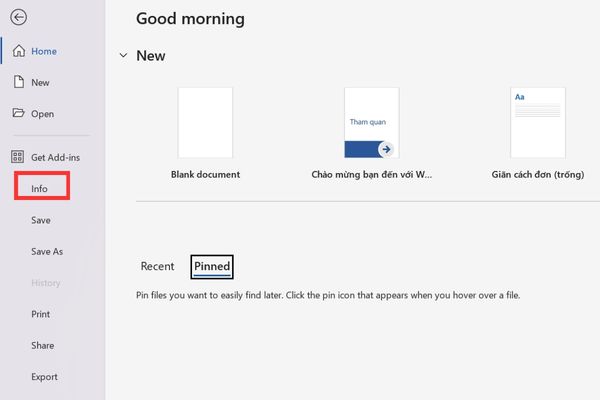
Step 3: Click directly on the button Manage Documents. It will drop down a tiny menu. You choose right into the line Recover Unsaved Documents. Roughly translated into Vietnamese, it means recovering unsaved documents.
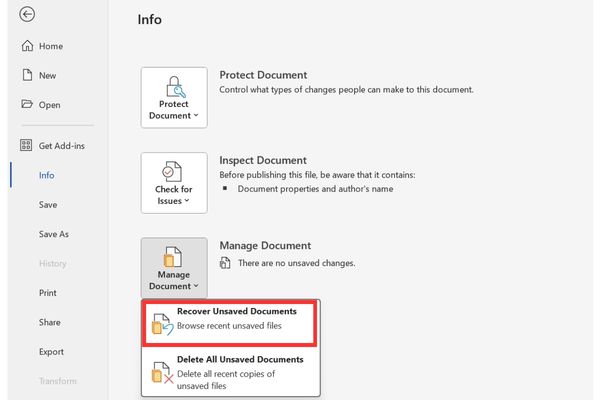
Step 4: Immediately a folder window will pop up. Not surprised yet. This contains files that you accidentally turned off and forgot to save. The file name will usually be automatically set by the system with the first words you typed in the document.
Your job now is so simple. Just double click on that file to open it and you’re done.
A few small notes after getting the file back
See, your document has returned intact without missing a single comma. The feeling right now must be very happy, right? But don’t be so excited that you forget the most important thing.
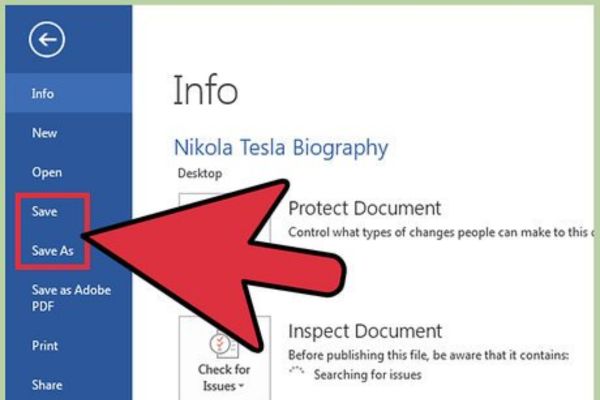
As soon as the file opens, you must immediately click to save it properly to a hard drive on your computer. Don’t leave it as a temporary file anymore. This time, if you forget to save and turn it off, God cannot save you. Thanks to that, you can be sure to keep the results of your labor.
Conclusion
Hopefully through this article you have understood clearly How to recover Word files that were accidentally turned off without being saved to save yourself in cumbersome handling phases. Don’t let a minute of mistake ruin a whole day of hard work. Instead, calmly apply the steps I just instructed. Wishing you success and never having to cry over lost files again.
Frequently Asked Questions (Q&A)
1. Does the retrieved file have complete content?
It’s usually enough if you just finished typing and turn it off immediately, because the system has automatically saved the most recent version for you.
2. Is this feature difficult to find?
It’s not difficult at all. You just need to go to File then select Info and you will immediately see the document management section to restore.
3. After opening the file, what do you do next?
Remember to immediately click save to a fixed folder on your computer to avoid losing data again.