
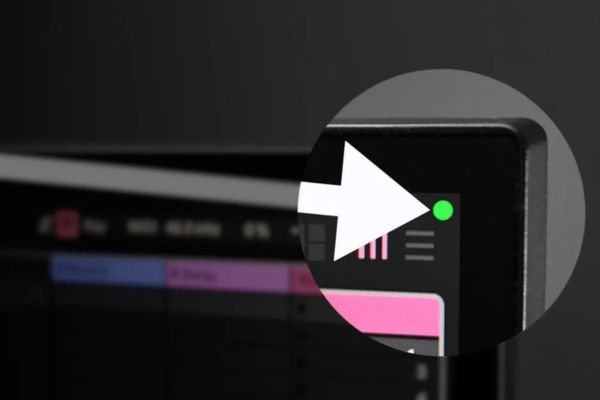
How to turn off the blue dot on the MacBook screen Definitely a savior for those who livestream or share screens via Zoom. The dots keep shining brightly and are terribly distracting. Let’s go together AnonyViet Find out each specific step to clean up this annoying spot.
📢 Join the channel Telegram belong to AnonyViet
Update new articles, cool tools and IT tips fastest
Why did Apple create this green and orange dot?
If you use it Mac If you’ve been around long enough, you’ll definitely get used to the tiny dots in the upper right corner of the screen. Orange means your microphone is in use. Green means the camera is on. Even if both are active, the device will prioritize showing green because the camera is the more sensitive hardware.
They want you to always know when your computer is eavesdropping or spying on you. This feature helps us be wary of shady applications. I appreciate this security but sometimes it makes me crazy. Just imagine you’re recording an extremely enthusiastic instructional video or taking a screenshot for documentation and the blue dot keeps glowing. Very unaesthetic.
Luckily it’s from the version macOS Sonoma 14.4 Apple has listened to users. They allow us to intervene to hide it. But pay careful attention. You can only apply the method to turn off the blue dot on the separate screen MacBook only. On the Mac’s main screen, these dots will always be present to ensure minimum safety.
Instructions on how to turn off the blue dot on the MacBook screen
To do this, you can’t just go to the regular settings section and click once and you’re done. We will have to borrow the device’s recovery mode to activate a hidden switch. It sounds dangerous but it’s actually very easy. Just do it slowly as you please.
Stage 1: Enable hidden features using Terminal
Step 1: You need to turn off your Mac completely. Wait for the device to turn off completely before continuing.
Step 2: Press and hold the power button. You keep holding like that until the words “Loading startup options…” appear on the screen, then let go.
Step 3: Select the item Options There is a gear image and click Continue Let the device run into macOS Recovery mode.
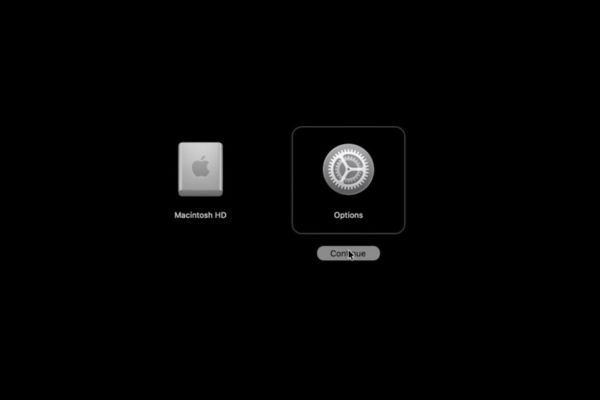
Step 4: The machine will ask you to select a user account. Click on your account name and then click Next. Then enter the password to open the device normally and click Continue.
Step 5: Click on the item Utilities then select Terminal.
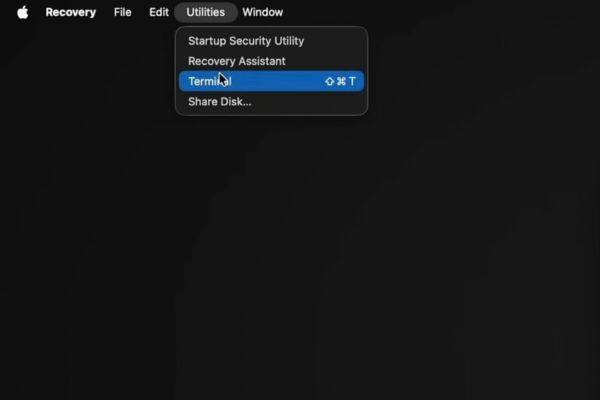
Step 6: Paste this command line into the Terminal window and press the Return key.
system-override suppress-sw-camera-indication-on-external-displays=on
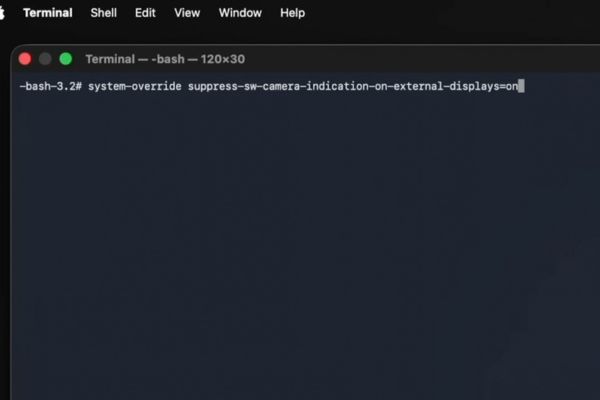
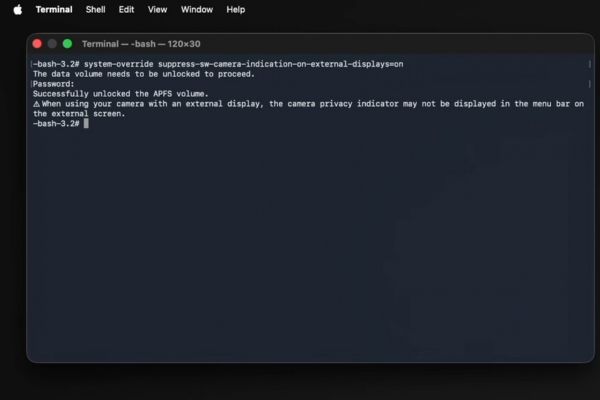
Step 7: If your Mac has FileVault hard drive encryption enabled, the system will ask you to unlock it. Just enter your computer password into Terminal then type Return and you’re done. When you see the success screen, you are already halfway there.
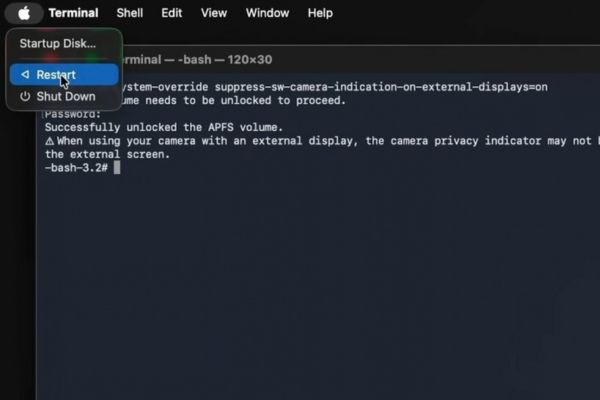
Step 8: Click on the bitten apple icon in the top left corner. Select Restart Let the device turn on as usual.
Stage 2: Turn off the switch in System Settings
Step 1: Open Settings of the machine up.
Step 2: Scroll down and find the item Privacy & Security. Then you click on the section Camera or Microphone all ok.
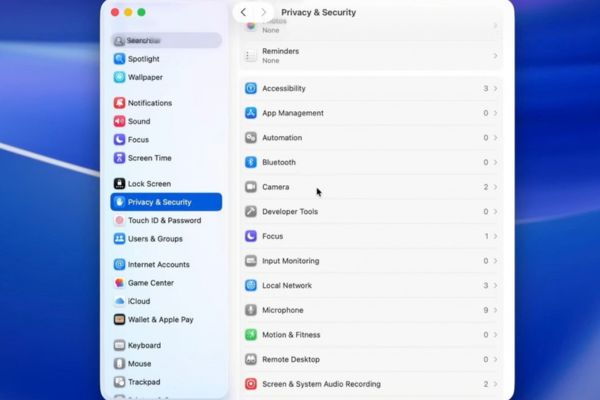
Step 3: Look at the bottom of the settings page. You will see a new switch called Privacy Indicators. You just need to turn it to off. The device will ask you to authenticate with Touch ID fingerprint or password to confirm.
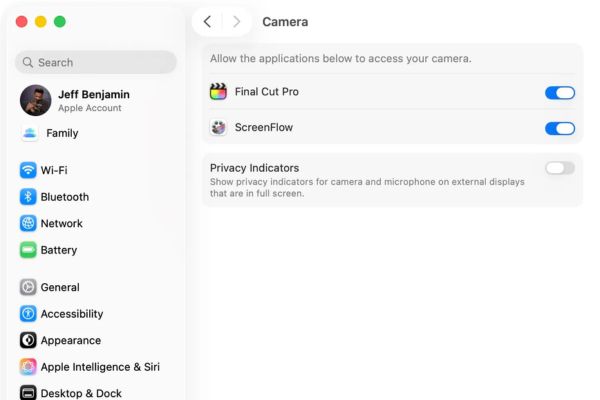
So that’s it. From now on when you plug in an external monitor, your workspace will be completely clean. What if you change your mind later and want those dots back? It’s very simple, you just need to go back to the Camera settings and turn on that switch and everything returns to the way it was.
Conclusion
Application How to turn off the blue dot on the MacBook screen It’s really the right decision if you work as a content creator. Apple has been very thoughtful in allowing us to customize this feature instead of forcing it like before. Therefore, you can rest assured to follow the instructions without worrying about affecting general security.
Frequently Asked Questions (Q&A)
1. Is this feature supported on older versions of macOS?
Nope. You must update your Mac to macOS Sonoma 14.4 or later to use this Terminal command line.
2. When turning off the green dot on the camera, will the orange dot on the microphone also be turned off?
Yes. When you turn off the indicator switch in the Camera settings, the system will automatically turn off the warning on the Microphone section and vice versa.
3. Can I completely turn off the blue dot on the MacBook’s home screen?
Currently, Apple does not allow this. The blue and orange dots will always be visible on your Mac’s built-in screen to ensure you’re not being secretly spied on.