Unlike what Microsoft claimed in 2015, Windows 10 is not the “final version of Windows.” Windows 11 is coming, and in addition to a collection of new features, it will also have a heavily refined interface. Today I will guide you to change the Windows 10 interface to Windows 11 without having to install Windows 11.
📢 Join the channel Telegram belong to AnonyViet
Update new articles, cool tools and IT tips fastest

I know that many people have downloaded Windows 11 to experience the new windows interface. However, you don’t have to download the leaked, unstable, and unsupported version of Windows 11 to enjoy the new look. Instead, I will guide you to turn Windows 10 into Windows 11 in this article.
How to change Windows 10 interface to Windows 11
Create a new interface
Windows 11 includes a bunch of new interface-related tweaks. They make Microsoft’s next operating system look neater and more beautiful than Windows 10. You can also change the wallpaper to windows 11 but it only changes the wallpaper.
Although it is impossible to completely turn Windows 10 into Windows 11, tweaking some interface elements can also give us a more realistic experience.
Those factors are:
- Window themes.
- Icons.
- Taskbar.
Notes on compatibility: The tools I am using will be compatible with Windows 10 Builds 1903-21H1. Therefore, you should avoid trying these tools on other versions of Windows 10, as they may damage your operating system.
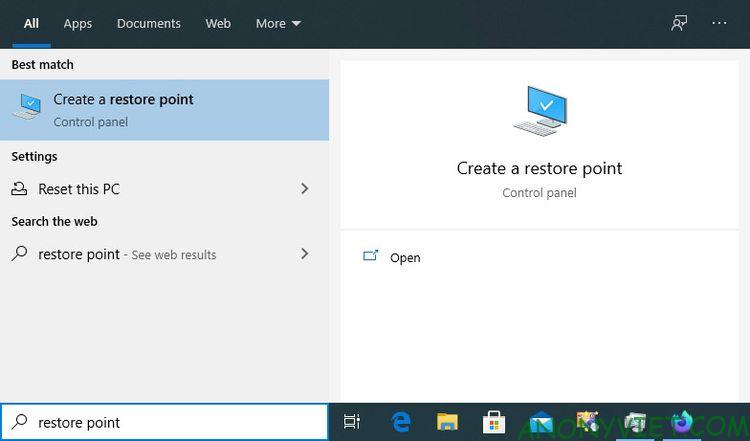
I recommend that you back up your operating system before using the tools below, even if you are using a compatible version. Take a full backup, or at the very least, create a system restore point before starting.
Change Windows 10 theme and icon to Windows 11
By default, Windows 10 only has a few themes, with light and dark variations for two of them. You can download more themes from the Microsoft Store, but they often aren’t as good as themes on sites like DeviantArt. However, Windows 10 does not allow you to install such themes unless you use 3rd party software.
The two software UltraUXThemePatcher and SecureUxTheme will help you do that. In this article, I will use SecureUxTheme because it is newer and more secure.
Access SecureUxThemes GitHub pagescroll down to the Download section and download the copy Latest release.

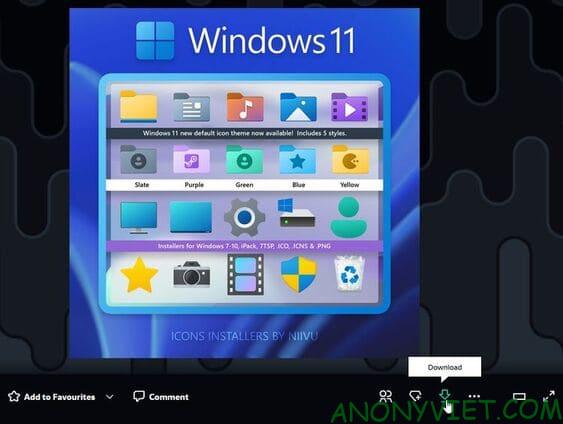
Create an account at DeviantArt’s website to download the theme. Then, download the theme Windows 11 for Windows 10 by niivu. For ease of use, create a new folder with a name like “Win11_theme” and save all the files we will use there.
Go to DeviantArt and download it iivu’s Windows 11 Icon Theme and save it to the “Win11_theme” folder.
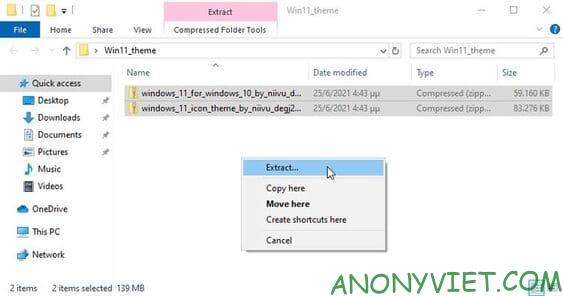
Unzip both files into the newly created folder.
Unfortunately, SecureUxTheme only supports windows themes, not icons. So you will need another tool to do that, and one of the most popular tools is 7TSP (short for Seven Theme Source Patcher). You will too find it at DeviantArt.
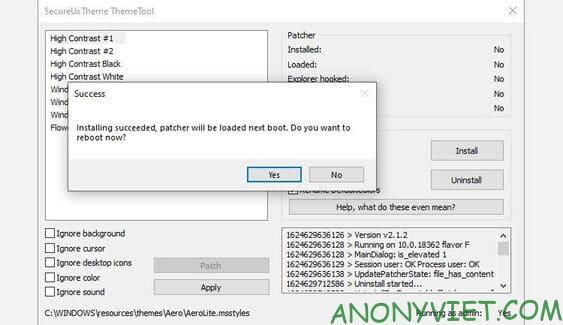
Open the “Win11_theme” folder. Next, right-click on the SecureUxTheme file and select it Run as Administrator. Leave everything as it is and click Install on the right.
Next choose “Yes” to restart your PC.
After rebooting, go back to the “Win11_theme” folder. Inside the theme’s folder, you will find the folder Windows 10 Themeswhich includes 2 folders which are 2 different theme versions.
One version comes with a regular taskbar and the other version has a thick taskbar. Copy every file inside the version you like (press CTRL + A and CTRL + C).
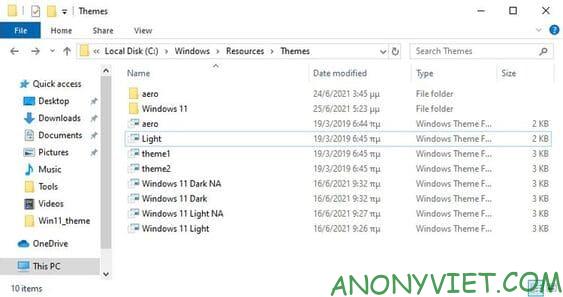
Next, paste all those files into the path C:\Windows\Resources\Themes.
Run SecureUxTheme again as admin and this time you will see the new theme you added. Choose the variant you like (dark or light, with or without address bar).
Select Patch and apply to use the selected theme.
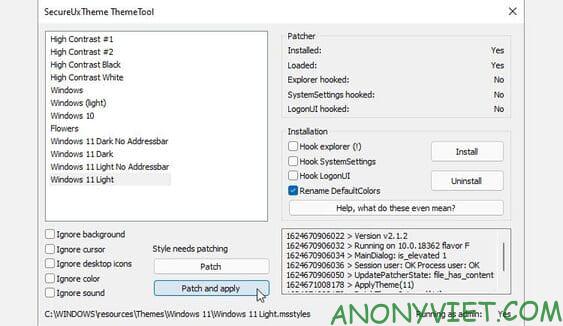
Your screen will lock for a few seconds and Windows will prompt you to wait while the new theme is applied. When completed, the new theme will be used on all windows. You can now close SecureUxTheme.
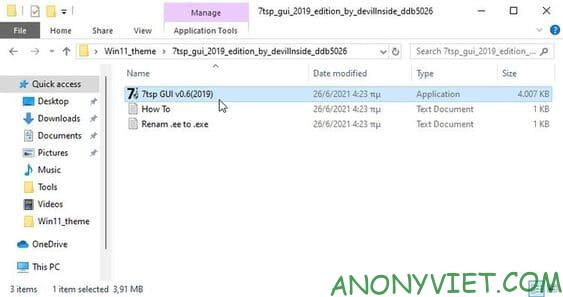
Unzip 7TSP and select the file with the extension “ee”, press F2 to rename and add an “x” between “ee” to change the file extension to “exe” and open the renamed file.
Access folder “7TSP Themes for Windows 10 1903 and higher“.
There are many different variations of icon themes. But to use it, you need to remove the “.remove” extension, including the period.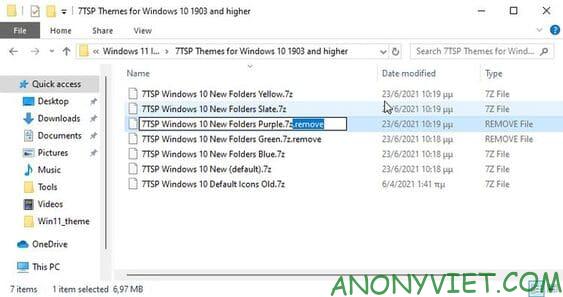
Go back to 7TSP and click Add a Custom Pack. Select the icon theme you want to install and click Start Patching (at bottom right).
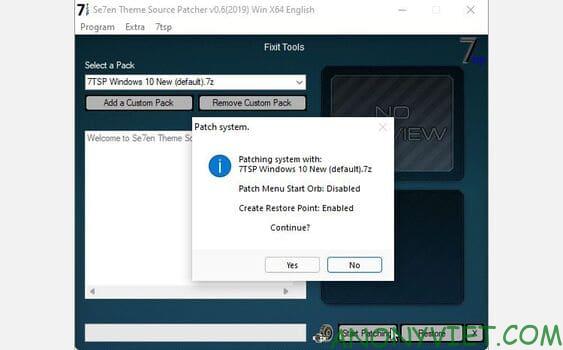
Finally, restart the computer to apply the changes.
A basic hybrid between Windows 10 and Windows 11 has appeared. But we can do better.
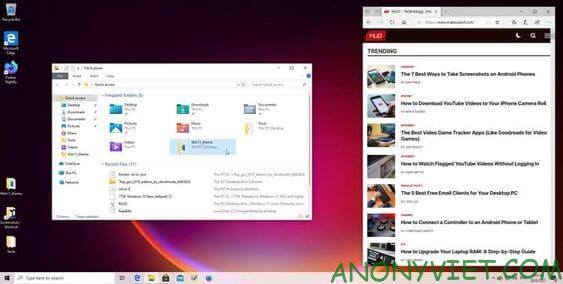
Center the icon on the taskbar
To center the icon on the taskbar, I will use TaskbarX software.
Download the “portable” version of TaskbarX. The software will not need to be installed, so you can unzip the downloaded folder and create a TaskbarX Configurator shortcut on the Desktop.
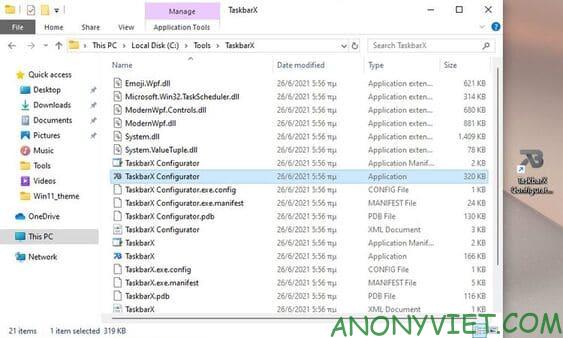
Run TaskbarX Configurator and click Apply to use software default values. The icons will be centered on the Taskbar. However, unlike on Windows 11, the Start button and system tray will still be located at the outside of the taskbar.
If you want, you can change TaskbarX’s options to your liking. For example: change taskbar color, align icons left or right,…
Note: The latest version of TaskbarX, 1.7.0.0 at the time of writing, does not work as expected. The icons on the Windows 10 taskbar remain in the same position. Version 1.6.9.0 works better so I recommend you use this version.
Customize the new interface for Windows 10
The above tweaks will make Windows 10 more like Windows 11. It’s not exactly like Windows 11, but it also gives you a more novel feeling. You also decorate the new interface with Rainmeter.
Frequently asked questions
Do I need to install Windows 11 to get the same interface?
Unnecessary! This article guides you to change the Windows 10 interface to look like Windows 11 without installing a new operating system.
Are the tools mentioned safe for my computer?
The article recommends backing up the operating system before using the tools. However, the tools mentioned are considered safe if used on a compatible version of Windows 10 (Builds 1903-21H1).
If I have a problem, what can I do?
The article recommends that you create a system restore point before starting. If you encounter problems, you can restore the system to the state before the changes were made.