• Home
  • News
  • Software
  • Knowledge
  • MMO
  • Tips
  • Security
  • Network
  • Office
AnonyViet - English Version
  • Home
  • News
  • Software
  • Knowledge
  • MMO
  • Tips
  • Security
  • Network
  • Office
No Result
View All Result
  • Home
  • News
  • Software
  • Knowledge
  • MMO
  • Tips
  • Security
  • Network
  • Office
No Result
View All Result
AnonyViet - English Version
No Result
View All Result

How to quickly compare the content of 2 Excel files

AnonyViet by AnonyViet
June 24, 2026
in Tips
0

There are many reasons you need to compare 2 Excel files. This can be a time-consuming task and requires great concentration, but you can still make it easier.

📢 Join the channel Telegram belong to AnonyViet


👉 Go to Telegram AnonyViet

Update new articles, cool tools and IT tips fastest
How to quickly compare the content of 2 Excel files

How to Compare the Content of 2 Excel Files

Excel helps users easily compare 2 Excel files by following the steps below:

  1. First, open the file you need to compare.
  2. Next enter View > Window > View Side by Side.

Compare 2 Excel files manually

Open Excel and select any file you want to compare. We can use the same technique to compare sheets in the same document or compare 2 different Excel files.

If there are multiple worksheets in the same workbook (workbook), you need to separate it first. To do so, navigate to View > Window > New Window.
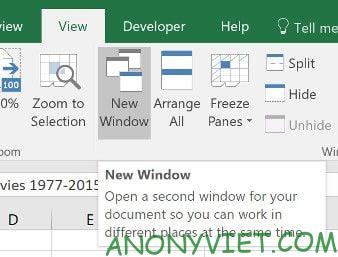
Compare 2 Excel files manually

This won’t separate your worksheets permanently, it will simply open a new session of the document.

Next, go to tabs View and find View Side by Side in section Window.
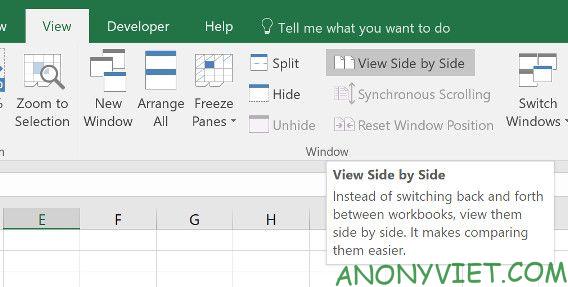
View Side by Side

This menu will list all currently open spreadsheets. If you only have 2 copies, they will be selected automatically.
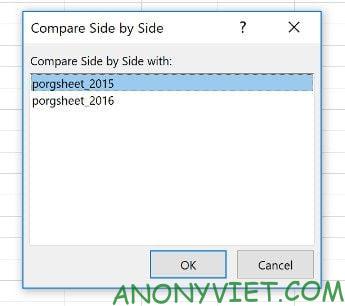
Compare the content of 2 spreadsheets

After selecting, click OK. You will see both spreadsheets appear on the screen.
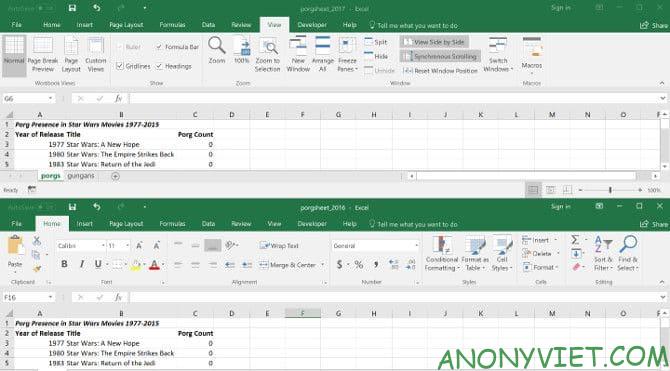
Compare different 2 excel files

For greater convenience, you can use the button Arrange All to switch between portrait and landscape.
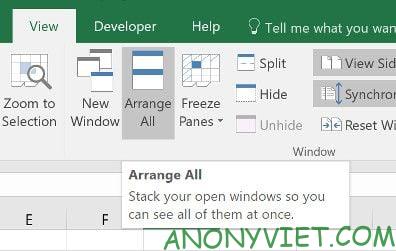
Arrange All

An important option to note is Synchronous Scrolling.
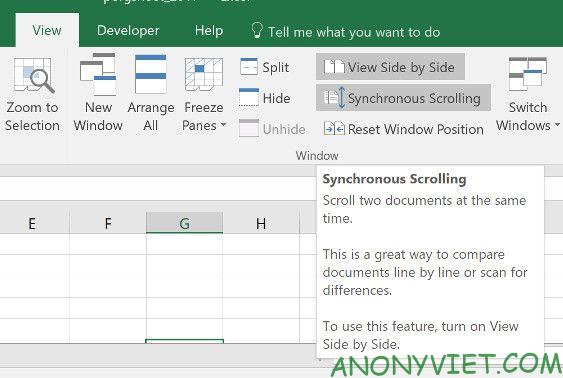
Synchronous Scrolling

Enabling this feature will ensure that when you scroll one window, the other window scrolls as well. This feature is essential if you are working with a large spreadsheet and always checking two spreadsheets against each other. If the two sheets are not aligned, just click Reset Window Position.

Compare 2 Excel files using conditional formatting

Using conditional formatting helps you check for any differences between two worksheets. This can save a lot of time if all you need to do is find the difference between two worksheets.

For this method, you need to make sure the 2 worksheets are in the same workbook. To do so, right-click the name of the sheet you want and select Move or Copy.
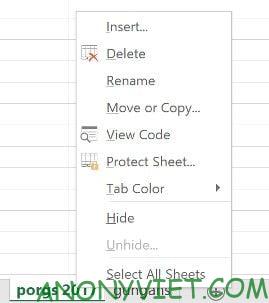
Compare 2 Excel files using conditional formatting

Here, you can use the drop-down menu to decide which workbook the worksheet will be added to.
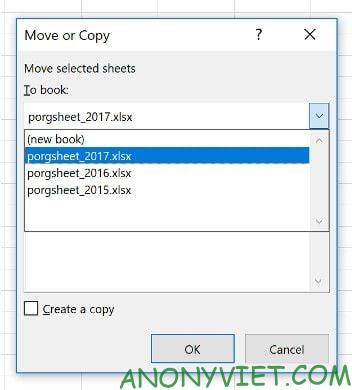
compare workbooks

Select all the data you want to compare in the worksheet. Click the cell in the top left corner to quickly select data, then use the keyboard shortcut Ctrl + Shift + End.

Next enter Home > Styles > Conditional Formatting > New Rule.
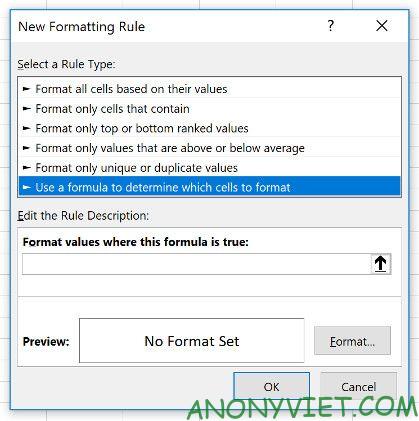
New Rule

Select Use a formula to determine which cells to format and enter the following formula: =A1<>sheet_name!A1

Change “sheet_name” to the name of the sheet you want to compare. This formula will check the data in 2 worksheets and highlight the cell the way you want.

Next, click Format and choose how you want to highlight cell data. I will highlight cells with different data in red. Next, click OK.
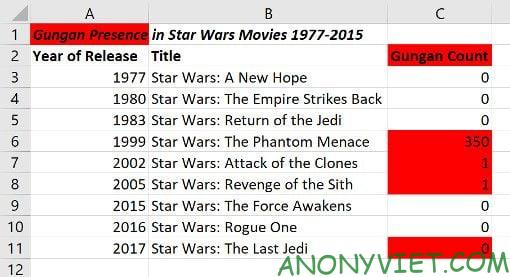
Format

You can see the results as shown above. Any cells with data differences are highlighted in red, making comparing two Excel files faster and easier.

Additionally, you can also become Learn Excel quickly with these 8 tips.

Frequently asked questions

How can I compare two different Excel files?

You can use the “View > Window > View Side by Side” feature in Excel to display two files side by side for visual comparison. Or you can copy the data into the same workbook and use conditional formatting to highlight different cells.

If two Excel files are very large, how to compare effectively?

The “Synchronous Scrolling” feature in “View Side by Side” mode helps you scroll both files at the same time, ensuring you don’t miss any differences. Conditional formatting is also very useful in this case to quickly identify different cells.

Is there any way to automatically compare the entire contents of two Excel files?

There is no fully automated cross-comparison feature in Excel. However, combining “View Side by Side” and conditional formatting will help you compare much faster and more effectively.


Previous Post

How to get a free domain for 1 year from Gravatar

Next Post

How to create luxurious portrait photos using the Dola app

AnonyViet

AnonyViet

Related Posts

How to create funny selfies with pets for your pets
Tips

How to create funny selfies with pets for your pets

June 19, 2026
Chrome extension not working error and the fastest way to fix it
Tips

Chrome extension not working error and the fastest way to fix it

June 19, 2026
Instructions to receive Claude Fable 5 for free for 30 days
Tips

Instructions to receive Claude Fable 5 for free for 30 days

June 15, 2026
Delete all Event Logs on Windows to remove traces of activity
Tips

Delete all Event Logs on Windows to remove traces of activity

June 15, 2026
Instructions for creating Minecraft-style food photos
Tips

Instructions for creating Minecraft-style food photos

June 9, 2026
Get free Cambridge courses to prepare for IELTS, Starters, Movers
Tips

Get free Cambridge courses to prepare for IELTS, Starters, Movers

June 4, 2026
Next Post
How to create luxurious portrait photos using the Dola app

How to create luxurious portrait photos using the Dola app

0 0 votes
Article Rating
Subscribe
Login
Notify of
guest

guest

0 Comments
Oldest
Newest Most Voted
Inline Feedbacks
View all comments

Recent News

How to create luxurious portrait photos using the Dola app

How to create luxurious portrait photos using the Dola app

June 24, 2026
How to quickly compare the content of 2 Excel files

How to quickly compare the content of 2 Excel files

June 24, 2026
How to get a free domain for 1 year from Gravatar

How to get a free domain for 1 year from Gravatar

June 23, 2026
Instructions on how to use Gemini Omni to create realistic videos

Instructions on how to use Gemini Omni to create realistic videos

June 23, 2026
How to create luxurious portrait photos using the Dola app

How to create luxurious portrait photos using the Dola app

June 24, 2026
How to quickly compare the content of 2 Excel files

How to quickly compare the content of 2 Excel files

June 24, 2026
How to get a free domain for 1 year from Gravatar

How to get a free domain for 1 year from Gravatar

June 23, 2026
AnonyViet - English Version

AnonyViet

AnonyViet is a website share knowledge that you have never learned in school!

We are ready to welcome your comments, as well as your articles sent to AnonyViet.

Follow Us

Contact:

Email: anonyviet.com[@]gmail.com

Main Website: https://anonyviet.com

Recent News

How to create luxurious portrait photos using the Dola app

How to create luxurious portrait photos using the Dola app

June 24, 2026
How to quickly compare the content of 2 Excel files

How to quickly compare the content of 2 Excel files

June 24, 2026
  • Home
  • Home 2
  • Home 3
  • Home 4
  • Home 5
  • Home 6
  • Next Dest Page
  • Sample Page

6789 kv999

No Result
View All Result
  • Home
  • News
  • Software
  • Knowledge
  • MMO
  • Tips
  • Security
  • Network
  • Office

6789 kv999

wpDiscuz
0
0
Would love your thoughts, please comment.x
()
x
| Reply