If you are looking How to create Polaroid photo frames brings a nostalgic feel right on the phone, Samsung just brought a pleasant surprise. Through the newly launched Gallery Assistant application in Korea, users can “transform” photos into artistic instant film photos.
| Join the channel Telegram belong to AnonyViet 👉 Link 👈 |
Gallery Assistant and interesting hidden features
Samsung always knows how to please users with seemingly simple but very useful complementary applications. Gallery Assistant At first glance, it just looks like a default photo library cleaning or management tool with basic keyboard shortcuts. However, hidden deep inside is an extremely attractive feature for those who love retro photography: the ability to frame Vintage style photos.
Instead of the usual borderless photos, this feature helps recreate the emotions of old instant films. For those who love nostalgia, this is definitely a tool not to be missed to create a personal touch for each moment.
Activate Labs mode to unlock features
Since this is a “hidden” feature (similar to Good Lock), users will not see it immediately but need to perform a few manual activation operations. To create this Polaroid photo frame, the device first needs to install or update the Gallery Assistant application version 2.0.00.26 or higher.
The process to activate developer mode (Labs) is as follows:
- Users open the application, find the three-dot icon in the upper right corner and select “Introducing Gallery Assistant“.

- At the information screen, quickly touching the version number line is an important step for the system to display a notification that the Labs feature has been enabled.

- When returning to the main menu, one item Labs will appear, here just flip the switch to enable the option Watermark is to complete the preparation step.

Instructions on how to create Polaroid photo frames on Samsung
Once successfully activated, applying photo frames becomes extremely easy right in the photo library. Specific steps:
- Select any photo you want to edit in the gallery and click on the option Add watermark (Add watermark).
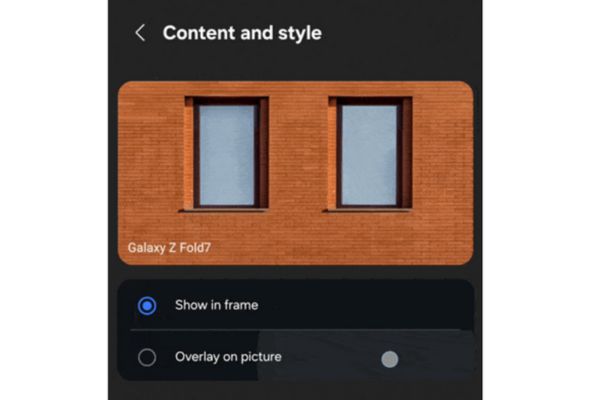
- Select next mode Show in frame (Display in frame) so that the frame editing interface appears.
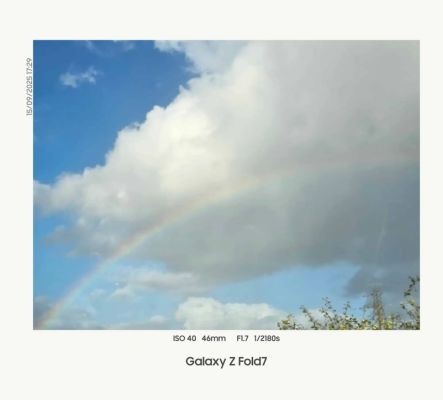
- Users can get creative with two available frame styles: a modern style with thin borders and horizontal text, or a classic style with thick borders and small text in the middle typical of Polaroid photos.
The color of the frame can also be flexibly changed between white and black depending on the color tone of the original photo to create the best visual effect.
The future of photo frames on One UI
Samsung’s integration of experimental features into auxiliary apps like Gallery Assistant is often a stepping stone to bringing them into the official operating system. The technology community is highly hopeful that this way of creating Polaroid photo frames will soon be integrated directly into the default Camera application.
Most likely in the upcoming One UI 8.5 update, this feature will become part of the standard photography experience, helping Galaxy users easily access retro photography style without complicated activation operations.
Conclusion
The mastery How to create Polaroid photo frames Through Gallery Assistant will help your photo collection become much richer and more stylish. Hopefully in the near future, this interesting feature will be more widely available on all Galaxy devices to improve the user experience.