How to close all applications in just 1 second Not only is it a cool tech tip, but it’s also a tool to protect privacy and increase work productivity. Imagine being able to clear your entire desktop of clutter with just one keyboard shortcut. Join AnonyViet to discover how to do that right below.
| Join the channel Telegram belong to AnonyViet 👉 Link 👈 |
Why should you know how to close every application in just 1 second?
Instant privacy protection
This is the most obvious benefit. In an open work environment or even at home, it is difficult to avoid having other people suddenly looking at the screen. Instead of frantically using the mouse to close each window, closing all applications in just 1 second will help you hide all sensitive information immediately, protecting your privacy absolutely.

Instantly improve concentration
A cluttered screen with countless open apps is the number one enemy of concentration. With a single shortcut, you can “sweep away” all distractions such as social networks, messages, emails,… and immediately enter a state of deep work without interruption.
Maintain a professional demeanor
In an online meeting, sharing a clean, tidy desktop always makes a good impression. The ability to clean everything up in a snap shows that you’re organized, tech-savvy, and always ready for work.

2 ways to close all applications in just 1 second
Method 1: Use batch file
Batch files (.bat) is a classic method but still extremely powerful and easy to implement. It’s like you create a short script for the computer to automatically execute.
Step 1: First, open the app Notepad available on Windows. You can press the Windows + S key combination, type “Notepad” and open it.
Next, copy and paste the code below into the Notepad window:
@echo off
taskkill /f /im chrome.exe
taskkill /f /im firefox.exe
taskkill /f /im notepad.exe
taskkill /f /im wordpad.exe
taskkill /f /im explorer.exe
timeout /t 2
start explorer.exe
Quick explanation: The taskkill /f /im name_ung_dung.exe command will command Windows to force close the application process you specify.
Step 2: For the script to work correctly, you need the correct provisioning process name (Process Name) of the application. The search is very simple:
- Right click on the Taskbar at the bottom of the screen and select Task Manager.
- Switch tabs Details.
- Column Name is a list of process names of all running applications. For example, Coc Coc browser is coccoc.exe, Microsoft Teams is Teams.exe.
- Update the list in your Notepad file with the applications you want to close.
Step 3:
- In Notepad, go to File > Save As.
- In the Save as type line, change it to All Files (*.*).
- In the File name line, put any name but must have an extension .bat. For example: DongTatCa.bat.
- Save the file to the Desktop for easy access.
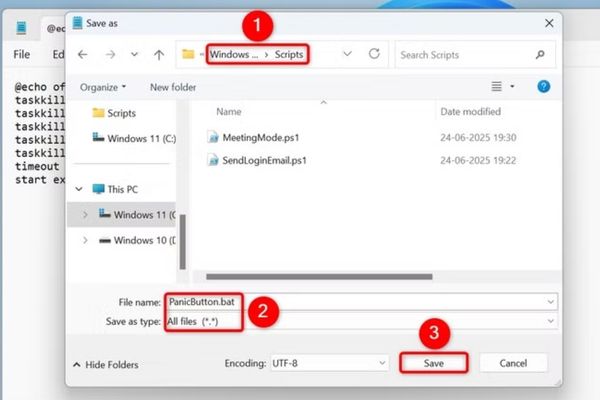
Now, every time you Double click on the file DongTatCa.bata miracle will happen: all the applications in the list will disappear in the blink of an eye.
- To add a batch file shortcut to your desktop, right-click the file and select Show More Options > Send To > Desktop (Create Shortcut).
- To assign it a shortcut, right-click and select Properties. Go to the Shortcut tab, click on the cell Shortcut Keyand press the key combination you want to use (for example, Ctrl + Alt + X). Finally, remember to click Apply then OK to save the changes.
Method 2: Use PowerShell
PowerShell is a more modern and powerful command line tool that provides an alternative to Batch files.
Step 1: Similarly, open Notepad and paste the following code:
Stop-Process -Name "chrome" -Force
Stop-Process -Name "firefox" -Force
Stop-Process -Name "notepad" -Force
Stop-Process -Name "wordpad" -Force
Stop-Process -Name "teams" -Force
Note: With PowerShell, you only need to enter the process name, no need for the .exe extension.
Step 2:
- In Notepad, select File > Save As.
- In the Save as type section, select All Files (*.*).
- At File name, name the file with the extension .ps1. For example: DongNhanh.ps1.
- Save the file to Desktop.
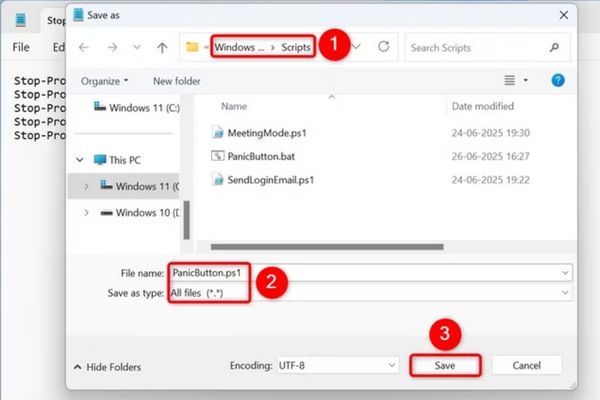
To use, you just need to right-click on the file DongNhanh.ps1, then click Run with PowerShell.
To create shortcuts and shortcuts to open files, do the same as method 1!
Automate with Task Scheduler
If you want to automatically close selected applications at a specific time or when you lock your device, integrate a batch file or PowerShell script with Task Scheduler.
- To get started, open Windows Search (press Windows key + S), type Task Schedulerand launch this utility.
- In the right pane, click Create Task > Enter a name for your task.
Access the Triggers tab
- Click New and choose when you want to close the applications.
For example:
- To close applications when you lock your computer, click the Begin the Task menu and select On Workstation Lock.
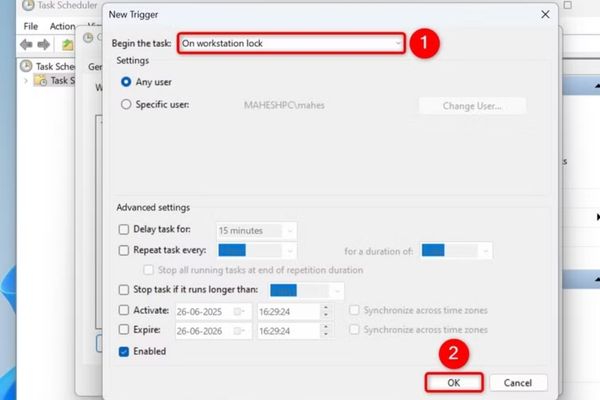
- If you want to close applications at a specific time, select On a Schedule and determine the time.
- In either case, save your changes by clicking OK.
Open the Actions tab:
- Select New. If you want to use a batch file, click Browse and select the file.
- If you want to use PowerShell, click the Program/Script field and type powershell.exe.
- Click Add Arguments (Optional) and type the following (replace the script path with your actual path): -ExecutionPolicy Bypass -File “C:\Scripts\PanicButton.ps1”
- Click OK and select OK again to save the task.
Conclusion
How to close all applications in just 1 second Not only does it save time, but it also provides a solid layer of protection for your privacy. Hopefully with this trick, you will always feel more confident and professional in every situation!