

Even if you used Windows 10 It’s been a while, but there may be many features you haven’t tried before. We’ve picked out 10 pretty cool hidden features, and each of these will help you get the most out of your PC.
| Join the channel Telegram of the AnonyViet 👉 Link 👈 |
10 hidden features of Windows 10
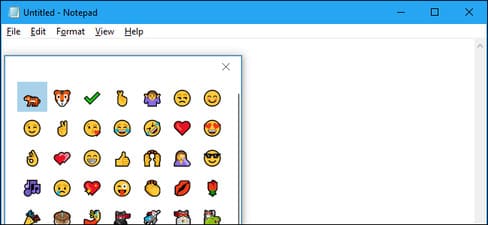
If you are an emoji lover, there is a very easy way to insert emojis into any document. To do so, press Windows + Period (“.”) on your keyboard. In the small menu that pops up, you can go through the full list of emojis available in Windows 10. When you find the emoji you want, click it and Windows will insert it. into whatever text you’re working on.
Virtual Desktop
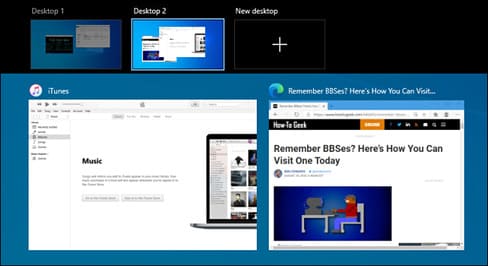 If your workspace feels cramped, a virtual desktop can help you manage your open windows and keep your desktop organized by task or topic. To add a new virtual desktop, click the Task View icon on your taskbar or press Windows + Tab. In Task View, click the “New Desktop” button at the top of the screen. (If you don’t see virtual desktops in Task View, make sure they’re enabled in Settings > System > Multitasking.) You now have another monitor to work with, and you can switch between them at any time in Task View by clicking each monitor’s thumbnail.
Add time in Notepad
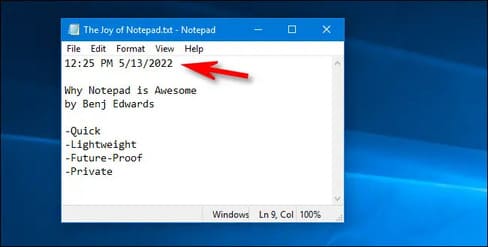
If you like taking notes in Notepad, you’ll love this tip. To add the date and time in Notepad, press F5 on your keyboard. Or you can choose Edit > Time/Date in the menu. The current date and time will appear immediately at your cursor position.
Snip & Sketch
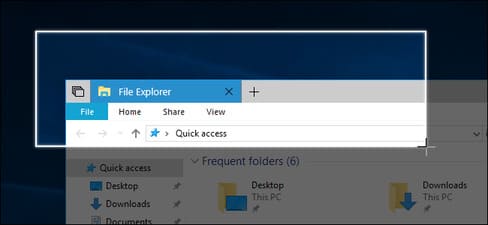
This built-in application can take a screenshot of any area of your screen and it can also create a full screenshot of a web page with the click of a button. To launch Snip & Sketch, press Windows + Shift + S on your keyboard. Or you can open the Start menu and type “Snip & Sketch”, then press Enter. To take a screenshot, click the “New” button on the toolbar, then use your mouse to highlight the area you want. You will see the results in the window and can save the results by clicking the save button on the toolbar.
Backup on Windows
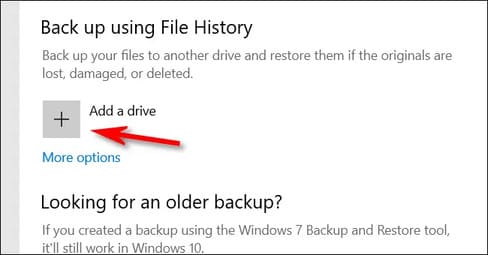
By default, a built-in Windows 10 feature called File History make backups of your files every hour, but you can change the frequency to as little as every 10 minutes. It is similar to Time Machine on a Mac. To enable File History, press Windows + i to open Settings, then navigate to Update & Security > Backup. Under “Back Up Using File History”, click the “Add a Drive” button and select a drive (usually an external drive) where you want Windows to save backups. You can configure File History’s settings if you click “More Options” under Update & Security > Backup.
Record Screen Video with Xbox Game Bar
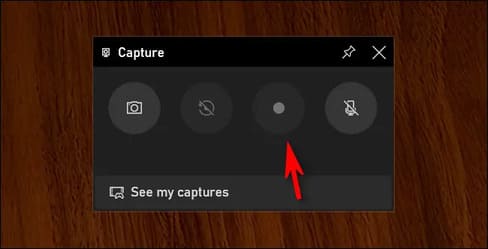
The Xbox Game Bar is one of Windows 10’s most powerful secret weapons. It’s designed for gamers, but anyone can use its features, including a handy screen recorder. . To use it, press Windows + G to open the Game Bar. In the main Game Bar menu, click the small “Capture” icon. In the “Capture” window, use the record button to start recording your screen. Click “Stop Recording” when you are done. You will find the video file in your Videos folder.
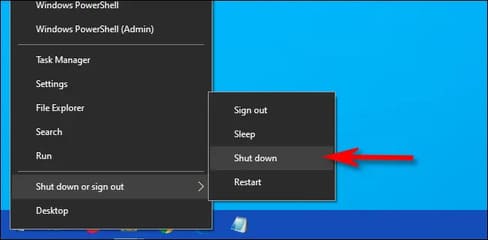
The Power User menu, which you can enable by pressing Windows + X on your keyboard or right-clicking the Start button, gives you quick access to some of Windows’ most important tools and settings, such as Tasks. Manager, Device Manager, Event Manager, Disk Management, Network Connections, etc. It even includes sleep and shutdown options, and you can quickly open File Explorer with a few clicks.
Focus Assist
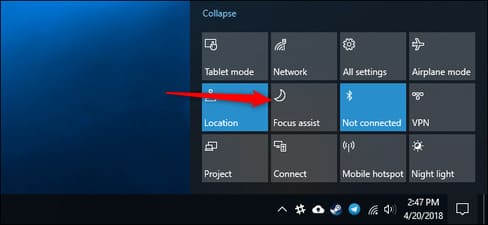
If you want to block notifications, Focus Assist will help you. When enabled, you will not receive any notifications in the corner of the screen. To enable this feature, click the Action Center icon at the far right of the taskbar. Next, click the “Focus Assist” button. If you don’t see the “Focus Assist” button, click “Expand” at the bottom of the Action Center. In Settings > System > Focus Assist, you can choose to enable Focus Assist at specific times, or customize which notifications you want to see when Focus Assist is on.
View Clipboard history
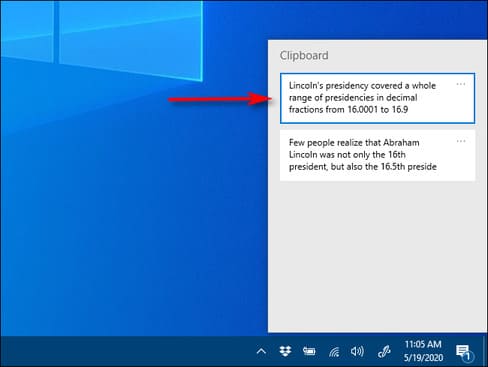
Surely many times you have cleared the clipboard by copying something else. Fortunately, Windows 10 has a built-in feature called Clipboard History, which you can turn on in Settings > System > Clipboard and toggle the Clipboard History button. After you do that, you can view the Clipboard history as easily as pressing Windows + V at any time. If you enable “Sync Across Devices”, you can share your Clipboard history with other Windows computers where you are signed in with the same Microsoft Account.
Night Lights
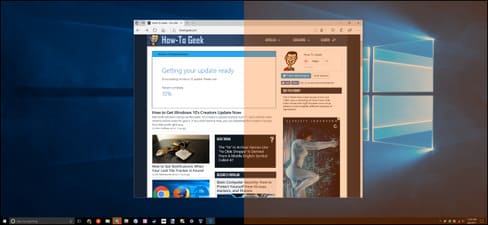
To enable it, open the Action Center and click the “Night Light” button. Or you can open Settings and navigate to System > Display and turn on “Night Light”. If you click “Night Light Settings” in the same menu, you can adjust the color tone and even automatically schedule Night Light to turn on and off at certain times of the day.







