A good camera is also known as webcam on computers often used to call video call. However, if you have problems with video calls with Messegner, Skype or other software on Windows 10, it may be a camera error. We will learn 6 ways to fix the camera error that does not work on Windows 10.
| Join the channel Telegram belong to Anonyviet 👉 Link 👈 |

If the camera on Windows 10 does not work, you can try the way to fix the camera error below
Check the camera connection
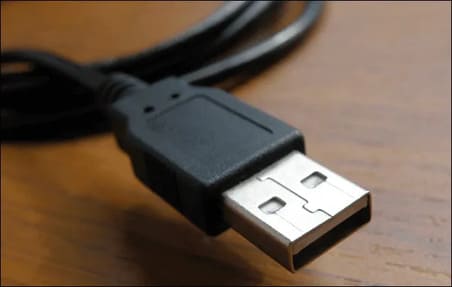
It is important to remember that your camera must first be connected to the computer. If you are using a USB camera, make sure that the USB head is firmly connected to the computer’s USB port. If still not, try plugging the USB camera into other ports on your computer.
For Bluetooth Camera, you need to check whether it is connected and bluetooth is operating on your PC.
- Click the icon Action Center In the bottom right corner of the taskbar. From there, choose the icon Bluetooth To turn on Bluetooth, then right -click and choose Go to Settings For quick access to Bluetooth settings menu.
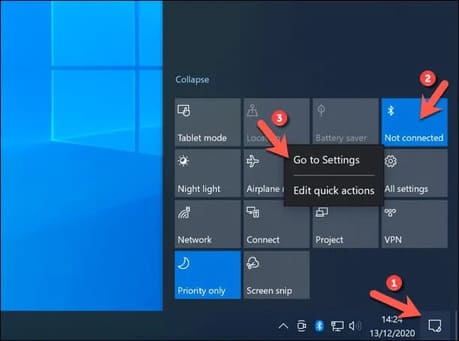
- Bluetooth camera will be listed in the menu. If not, choose Add Bluetooth or other Device To pair the camera with your PC and follow the screen process. After being paired, your camera will be available in the application you have selected.
The built -in camera will always be used by default (unless the privacy installation is blocked). You can check this yourself by opening the application Window 10 Camera Pre -installed that you can find in the Start Menu.
Check the lens
A common camera error is that the camera lens is dirty or covered, your camera will be damaged or not working. A common way to protect your privacy is to stick the camera lens (especially if you are using a built -in camera) with a tape or something similar.
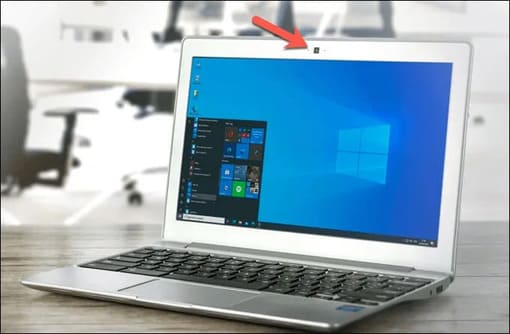
If you see a black or blurred camera video, check the camera lens. If the lens is dirty or sticky, wipe it away.
Camera security configuration in Windows
It is important to protect your privacy, especially when it comes to your camera data or microphone. Thankfully, Microsoft has known this, so they have easy -to -use privacy settings to block the use of unnecessary cameras and microphones on Windows 10.
However, if these settings are operating, you may not use your camera in third -party applications or services (or with other Microsoft applications). You can change these settings and enable camera access in Settings.
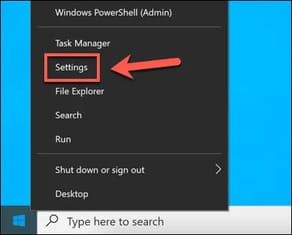
1. First, right -click on Start menu and choose Settings.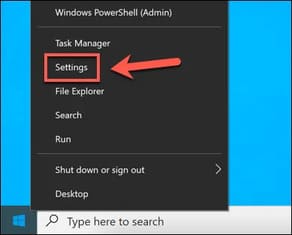
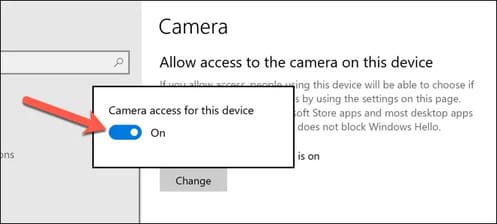
2. In Settings, select Privacy> Camera. To enable the camera access, select the button Change in the part Allow access to the camera on this deviceslide the button ON.
 3. You will also need to grant camera access to applications by turning on the function Allow Apps to Access Your Camera.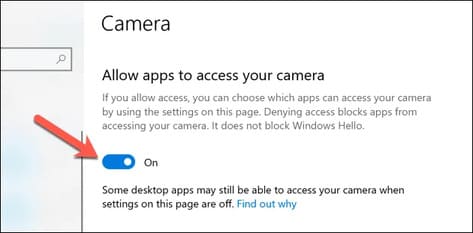
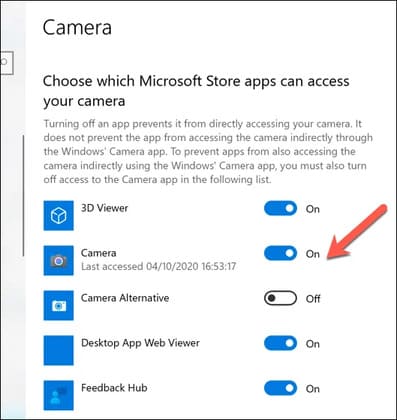 5. If you want default applications to access the camera, roll down the part Allow Desktop Apps to Access Your Camerathen slide the button ON.
Turn off camera applications and try other applications
Most users will find that when the camera is detected and operates in the built -in camera application on Windows 10, it will be able to access in any camera or web call application that you have installed. However, not always, with unknown errors and application conflicts sometimes will prevent you from using your camera.
If there are two open applications trying to use the camera, one of the two applications will not work. Make sure your application is accessing the camera and has been granted access to the camera.
If the camera is operating, but the application you choose is still not working, then I will show you a way to determine the problem is due to software or hardware. For example, if the camera application of Windows 10 works but the video calling application is not, then the problem may be due to the application, not your hardware.
Restart the device in Device Manager
If the camera does not work, you can force it to reboot by turning off and turning on it in Device Manager.
- To access Device Manager, right -click on Start Menu and choose Device Manager.
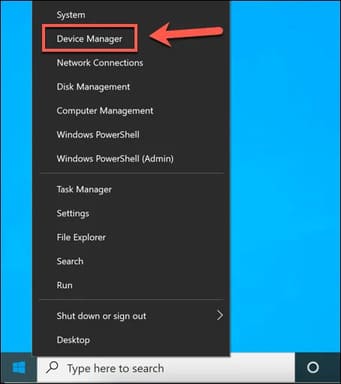
- In the Device Manager menu, look for your camera device in the Cameras category. If you are using Bluetooth camera, you can see it is listed in the Bluetooth category. When you find your camera, right -click on it, then choose Properties.
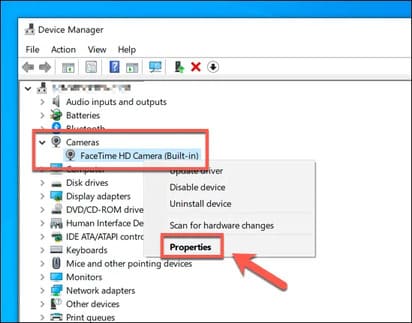
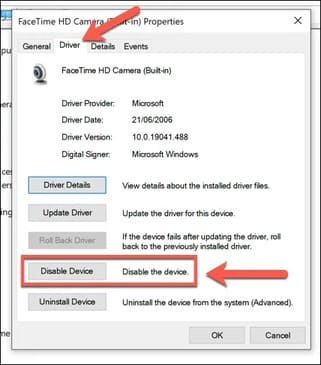
- In the menu Propertieschoose tab Driverthen choose Disable Device. Windows will ask you to confirm, so choose Yes.
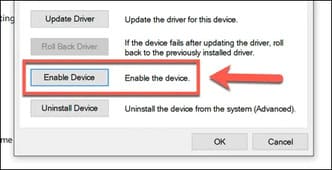
- After disabling, choose Enable Device To turn on your camera again.
Update the Windows and Driver systems
Microsoft regularly releases new system updates for Windows, introduces new features and fixes errors. The problem with Windows 10 camera may be caused by an unknown error, so the installation of updates can solve the problem.
Similarly, equipment manufacturers often release new driver updates to help solve problems between hardware (cameras) and software (Windows itself, as well as any camera applications installed). You can install a new driver and update the system with Windows Update.
- To access Windows Update, right -click on Start Menu and select Settings.
- In the menu Settings, select Update & Security> Windows Update. Select Check for updates To find new system updates and drivers and allow Windows Update to start downloading and installing them. If there is a new feature update, choose Download and Install.
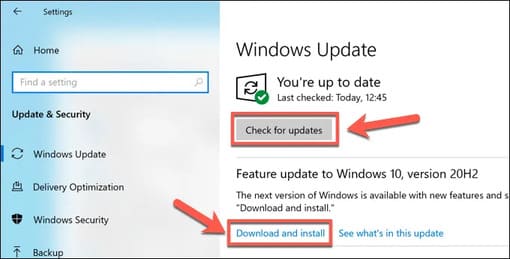
If your device is new, supported driver may not be available in the Windows Update system. If so, download the driver from the device’s homepage to install.
Fix camera error on Windows 10
When the Windows 10 camera does not work, the above steps (in most cases) will help solve the problem. If not, you may need to try a new camera or consider the options to replace your video call. Also check it Your camera is hacked No.