• Home
  • News
  • Software
  • Knowledge
  • MMO
  • Tips
  • Security
  • Network
  • Office
AnonyViet - English Version
  • Home
  • News
  • Software
  • Knowledge
  • MMO
  • Tips
  • Security
  • Network
  • Office
No Result
View All Result
  • Home
  • News
  • Software
  • Knowledge
  • MMO
  • Tips
  • Security
  • Network
  • Office
No Result
View All Result
AnonyViet - English Version
No Result
View All Result

How to turn Clipboard synchronization on Windows 10 to avoid data loss

AnonyViet by AnonyViet
January 28, 2025
in Tips
0

Windows 10 allows you to access Clipboard history, pinning data used frequently and synchronized on all devices. However, if you do not want Microsoft to synchronize any sensitive data on the cloud, you can turn it off completely. You don't want your links to be seen by Microsoft. This is how to turn off synchronization on Windows 10.

Join the channel Telegram belong to Anonyviet 👉 Link 👈

0

By default, Clipboard synchronization is turned off. If it is available, you can change the features of the clipboard in Settings> System> Clipboard. But when you turn on the synchronization feature, it will automatically sync everything you have copied.

Clipboard As the data you have copied or cut from the text that has not been pasted into other places, the willow copied will be saved to the temporary memory of the operating system. For example, if you type ABC, then black up ABC and right -click the Copy, then the action has saved ABC and Clipboard.

How to turn Clipboard synchronization on Windows 10 to avoid data loss

To prevent any user on the computer activates this feature and accidentally synchronize sensitive data like a password with Microsoft server, you can completely turn off this feature.

Windows 10 Home: Clipboard synchronization off through Registry Editor

Before starting, make sure you back up Registry. Because the Registry Editor is a very powerful tool and the abuse of it can make your system unstable or even inactive. As long as you follow the following ways, your lover (PC) will be safe. Proposal does not perform without the supervision of relatives.

You should also create one System Restore Before continuing. If there is any problem, you can return to the moment before creating that System Restore.

Oke, after completing the above steps, press Windows + R and enter “Regedit” to open the Registry Editor. Or type RegEDIT in the Start button

Open Regedit

Go to this path:

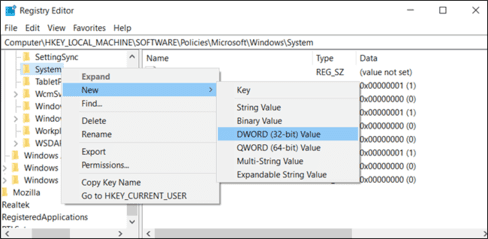
HKEY_LOCAL_MACHINE\SOFTWARE\Policies\Microsoft\Windows\System

Here, right click on the “System” folder, select New> Dword (32bit) Value.
3 1

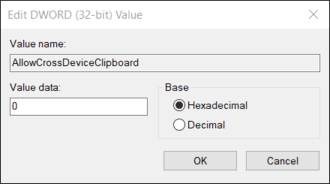
Name it “Allowcrossdevicolipboard”. Double mouse and put the value as “0”.
4

That's it. To re -enable Clipboard synchronization feature, just reset the value for it as “1” or delete it.

Download the hack file

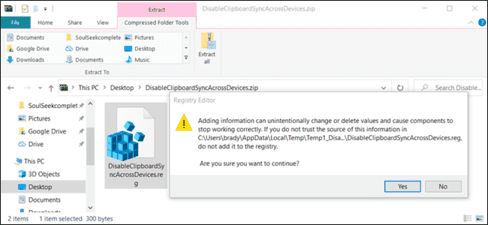
If you are lazy to do not want to edit yourself or your relatives are not there, just need it Download this file. Solve the downloaded file candle, open the file “disablebliploardsyncacrossdevices.reg”, and agree to change the Registry. If you want to turn on, open the file “EnableElipipboardSyncacrossdevices.reg” and do the same.
5

You can also easily create your own version of Registry hack This article.

Windows 10 Pro and Enterprise: Turn off Clipboard sync through Group Policy

As above, create System Restore first and do whatever you do.

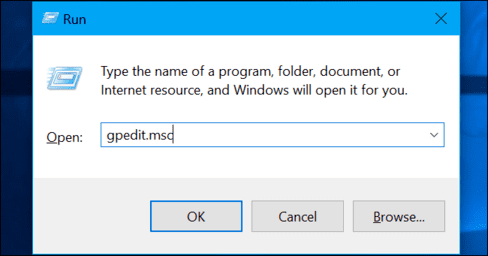
First, click Windows + R and enter GPEDIT.MSC, then press Enter.
6

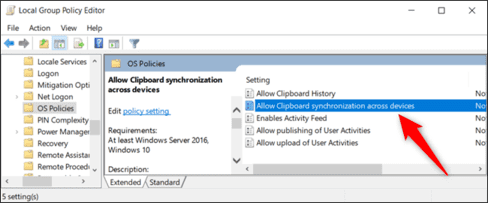
Go Computer Configuration> Administrative Templates> System> OS Policies.
7

Open “Allow Synchronization Across Devices”, select “Disabled” and click “OK” to save change.

8

Done, close the policy editor and you don't need to restart your device.
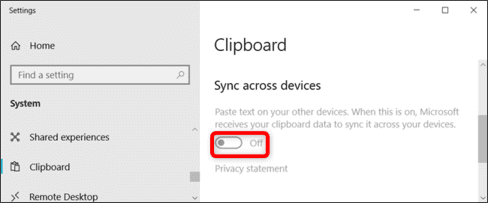
Turn off Clipboard Windows 10 clips

To enable Clipboard synchronization, return to the upper path. Double -mouse on “Allow Synchronization Across Devices” and transferred it to “Not Configured” or “Enabled”.


Previous Post

Instructions for running Android applications on Linux with Waydroid

Next Post

Instructions for downloading and installing Bing Wallpaper on Microsoft Store

AnonyViet

AnonyViet

Related Posts

How to change the default font on Windows 10
Tips

How to change the default font on Windows 10

April 13, 2026
5 tips for using a Browser to replace an App (helps save RAM, time and money)
Tips

5 tips for using a Browser to replace an App (helps save RAM, time and money)

April 13, 2026
How to make funny MeMe photos without Photoshop within 10 seconds
Tips

How to make funny MeMe photos without Photoshop within 10 seconds

April 11, 2026
How to quickly design your own Logo without Photoshop
Tips

How to quickly design your own Logo without Photoshop

April 10, 2026
How to convert Website into App on Windows
Tips

How to convert Website into App on Windows

April 9, 2026
Instructions for getting 3 months of Adobe Express Pro for free
Tips

Instructions for getting 3 months of Adobe Express Pro for free

April 9, 2026
Next Post
Instructions for downloading and installing Bing Wallpaper on Microsoft Store

Instructions for downloading and installing Bing Wallpaper on Microsoft Store

0 0 votes
Article Rating
Subscribe
Login
Notify of
guest

guest

0 Comments
Oldest
Newest Most Voted
Inline Feedbacks
View all comments

Recent News

How to add Watermark to Google Docs to protect copyright

How to add Watermark to Google Docs to protect copyright

April 19, 2026
How to intercept traffic using Burp Suite to analyze HTTP/HTTPS

How to intercept traffic using Burp Suite to analyze HTTP/HTTPS

April 18, 2026
How to avoid Adblock detection on Youtube with 4 good tips

How to avoid Adblock detection on Youtube with 4 good tips

April 17, 2026
How to transfer ChatGPT data to Claude is extremely simple

How to transfer ChatGPT data to Claude is extremely simple

April 16, 2026
How to add Watermark to Google Docs to protect copyright

How to add Watermark to Google Docs to protect copyright

April 19, 2026
How to intercept traffic using Burp Suite to analyze HTTP/HTTPS

How to intercept traffic using Burp Suite to analyze HTTP/HTTPS

April 18, 2026
How to avoid Adblock detection on Youtube with 4 good tips

How to avoid Adblock detection on Youtube with 4 good tips

April 17, 2026
AnonyViet - English Version

AnonyViet

AnonyViet is a website share knowledge that you have never learned in school!

We are ready to welcome your comments, as well as your articles sent to AnonyViet.

Follow Us

Contact:

Email: anonyviet.com[@]gmail.com

Main Website: https://anonyviet.com

Recent News

How to add Watermark to Google Docs to protect copyright

How to add Watermark to Google Docs to protect copyright

April 19, 2026
How to intercept traffic using Burp Suite to analyze HTTP/HTTPS

How to intercept traffic using Burp Suite to analyze HTTP/HTTPS

April 18, 2026
No Result
View All Result
  • Home
  • News
  • Software
  • Knowledge
  • MMO
  • Tips
  • Security
  • Network
  • Office

wpDiscuz
0
0
Would love your thoughts, please comment.x
()
x
| Reply