• Home
  • News
  • Software
  • Knowledge
  • MMO
  • Tips
  • Security
  • Network
  • Office
AnonyViet - English Version
  • Home
  • News
  • Software
  • Knowledge
  • MMO
  • Tips
  • Security
  • Network
  • Office
No Result
View All Result
  • Home
  • News
  • Software
  • Knowledge
  • MMO
  • Tips
  • Security
  • Network
  • Office
No Result
View All Result
AnonyViet - English Version
No Result
View All Result

Instructions for finding BitLocker Recovery Key on Windows 11/10

AnonyViet by AnonyViet
October 25, 2024
in Tips
0

BitLocker is a powerful drive encryption feature on Windows 10 and 11 that helps protect your data from unauthorized access. When BitLocker is enabled, a BitLocker Recovery Key will be generated. This key is extremely important, because you will need it to unlock the drive in case something goes wrong. This article will guide you in detail how to find it BitLocker Recovery Key on Windows 10 and 11, along with troubleshooting solutions.

Join the channel Telegram belong to AnonyViet 👉 Link 👈

What is BitLocker?

BitLocker is a hard drive encryption feature that helps protect your data from unauthorized access. When BitLocker is enabled, it generates a 48-digit recovery key. This key is like a special password, you will need to use it to unlock your computer's hard drive if something goes wrong.
What is BitLocker?
What is BitLocker?

See more: Instructions PowerShell programming on Windows

How to find the BitLocker Recovery Key

BitLocker Recovery Key can be stored in a variety of locations, depending on the choices you made during encryption setup. The following are the two most widely used methods.

Method 1: Through Microsoft Account

Step 1: Access Microsoft account Recovery Keys website.

Step 2: Next, use your Microsoft account to sign in.

Step 3: Search for your device in the list and see the corresponding BitLocker Recovery Key.

Note: This only works if you chose to save your recovery key to your Microsoft account when you turned on BitLocker.
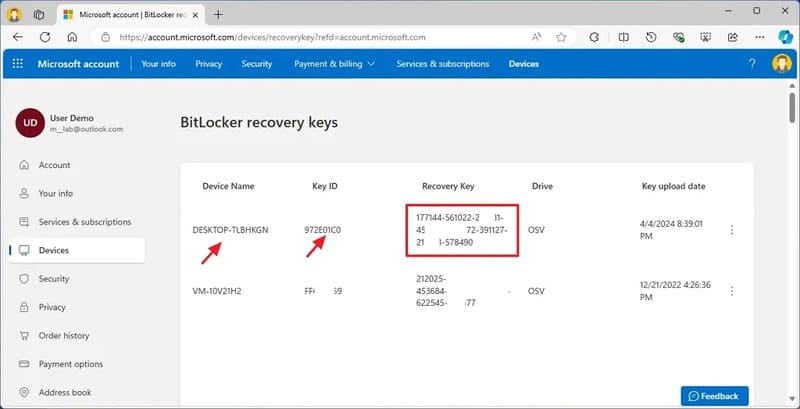
Through your Microsoft Account

Method 2: Through text file

The BitLocker recovery key will be displayed in the file. Record this key carefully.

Step 1: Connect a USB or external hard drive containing the BitLocker Recovery Key text file.

Step 2: Open the file with a text editor to see the key. The BitLocker recovery key will be displayed in the file
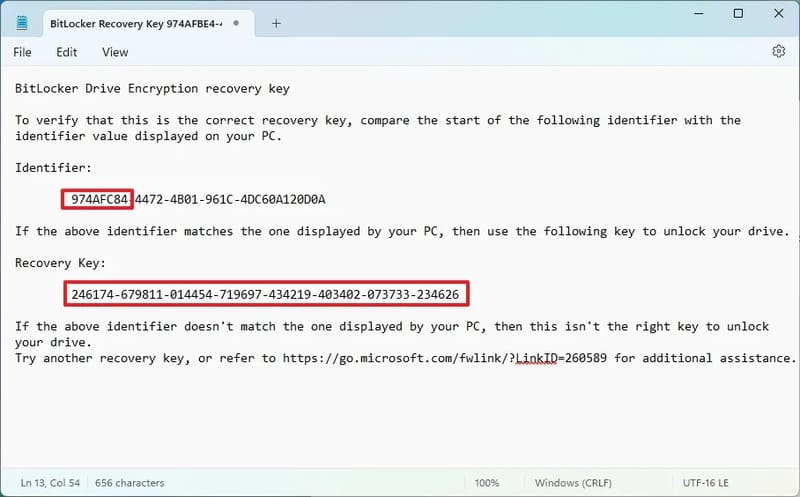
Through text file
Through text file

Instructions for using BitLocker Recovery Key

When your computer crashes and asks for a recovery key, follow these steps:

Step 1: Check “Recovery Key ID” (first 8 digits) displayed on the screen.

Step 2: Find the BitLocker recovery key using one of the methods above.

Step 3: Find “Key ID” that matches “Recovery Key ID” on the screen to determine the correct recovery key for your computer.
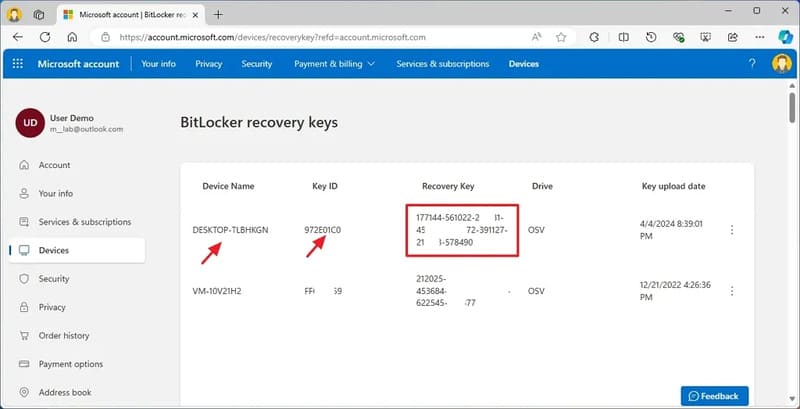
Find "Key ID" coincides with "Recovery Key ID"
Find “Key ID” that matches “Recovery Key ID”

Step 4: Enter the recovery key into the BitLocker blue screen.
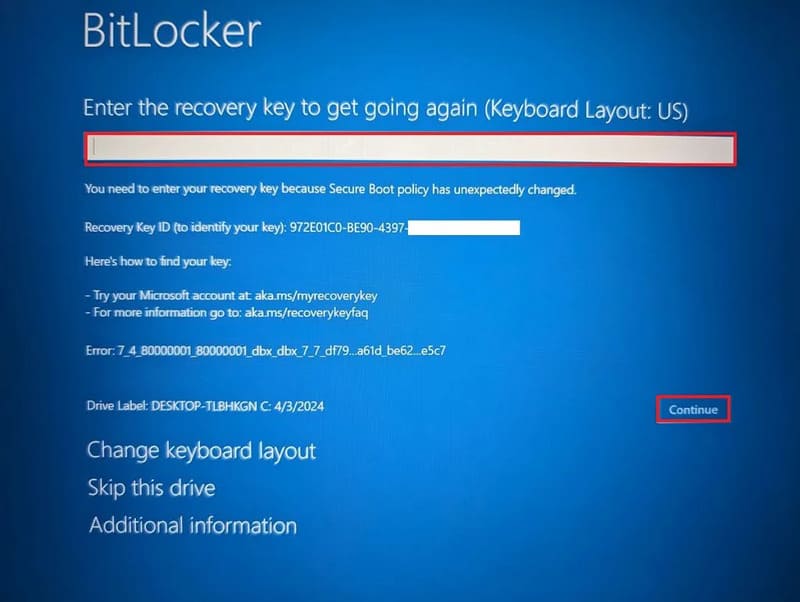
Enter the recovery key

Step 5: Click the “Continue” button.

After completing the steps, the computer will be unlocked and Windows will start normally.

Advice

Always back up your BitLocker recovery key to avoid losing important data in the event of a crash. You can save it to your Microsoft account, print it to paper, or save it to a file on USB.

See more: VirtualBox vs VMWare vs Hyper-V: Which virtual machine should I use?

Conclusion

Protecting personal and work data is extremely important in today's digital age. BitLocker Recovery Key plays a key role in ensuring data security when using BitLocker encryption. Always remember to back up and store your BitLocker Recovery Key in a safe place to avoid unnecessary trouble in the future.


Tags: BitlockerfindingInstructionsKeyRecoveryWindows
Previous Post

3 super simple ways to register for 5G Viettel at home

Next Post

Haiper: Create super smooth transition videos from photos using AI

AnonyViet

AnonyViet

Related Posts

How to change the default font on Windows 10
Tips

How to change the default font on Windows 10

April 13, 2026
5 tips for using a Browser to replace an App (helps save RAM, time and money)
Tips

5 tips for using a Browser to replace an App (helps save RAM, time and money)

April 13, 2026
How to make funny MeMe photos without Photoshop within 10 seconds
Tips

How to make funny MeMe photos without Photoshop within 10 seconds

April 11, 2026
How to quickly design your own Logo without Photoshop
Tips

How to quickly design your own Logo without Photoshop

April 10, 2026
How to convert Website into App on Windows
Tips

How to convert Website into App on Windows

April 9, 2026
Instructions for getting 3 months of Adobe Express Pro for free
Tips

Instructions for getting 3 months of Adobe Express Pro for free

April 9, 2026
Next Post
Haiper: Create super smooth transition videos from photos using AI

Haiper: Create super smooth transition videos from photos using AI

0 0 votes
Article Rating
Subscribe
Login
Notify of
guest

guest

0 Comments
Oldest
Newest Most Voted
Inline Feedbacks
View all comments

Recent News

How to intercept traffic using Burp Suite to analyze HTTP/HTTPS

How to intercept traffic using Burp Suite to analyze HTTP/HTTPS

April 18, 2026
How to avoid Adblock detection on Youtube with 4 good tips

How to avoid Adblock detection on Youtube with 4 good tips

April 17, 2026
How to transfer ChatGPT data to Claude is extremely simple

How to transfer ChatGPT data to Claude is extremely simple

April 16, 2026
How to authenticate the owner’s SIM on VNeID from April 15

How to authenticate the owner’s SIM on VNeID from April 15

April 15, 2026
How to intercept traffic using Burp Suite to analyze HTTP/HTTPS

How to intercept traffic using Burp Suite to analyze HTTP/HTTPS

April 18, 2026
How to avoid Adblock detection on Youtube with 4 good tips

How to avoid Adblock detection on Youtube with 4 good tips

April 17, 2026
How to transfer ChatGPT data to Claude is extremely simple

How to transfer ChatGPT data to Claude is extremely simple

April 16, 2026
AnonyViet - English Version

AnonyViet

AnonyViet is a website share knowledge that you have never learned in school!

We are ready to welcome your comments, as well as your articles sent to AnonyViet.

Follow Us

Contact:

Email: anonyviet.com[@]gmail.com

Main Website: https://anonyviet.com

Recent News

How to intercept traffic using Burp Suite to analyze HTTP/HTTPS

How to intercept traffic using Burp Suite to analyze HTTP/HTTPS

April 18, 2026
How to avoid Adblock detection on Youtube with 4 good tips

How to avoid Adblock detection on Youtube with 4 good tips

April 17, 2026
No Result
View All Result
  • Home
  • News
  • Software
  • Knowledge
  • MMO
  • Tips
  • Security
  • Network
  • Office

wpDiscuz
0
0
Would love your thoughts, please comment.x
()
x
| Reply