• Home
  • News
  • Software
  • Knowledge
  • MMO
  • Tips
  • Security
  • Network
  • Office
AnonyViet - English Version
  • Home
  • News
  • Software
  • Knowledge
  • MMO
  • Tips
  • Security
  • Network
  • Office
No Result
View All Result
  • Home
  • News
  • Software
  • Knowledge
  • MMO
  • Tips
  • Security
  • Network
  • Office
No Result
View All Result
AnonyViet - English Version
No Result
View All Result

2 ways to turn off the Shutdown Anyway notification when shutting down in Windows

AnonyViet by AnonyViet
April 28, 2024
in Tips
0

Are you annoyed by the Shut down anyway message every time you turn off your computer? Did you know that you can simply disable this notification? Let's find out with AnonyViet How to turn off the Shut down anyway notification in Windows through the article below!

Join the channel Telegram belong to AnonyViet 👉 Link 👈

The reason why the message “Shut down anyway” appears

The “Shut down anyway” message is a Windows security feature that prevents shutdowns while there are still running or unsaved applications. If you click the “Shut down anyway” button, Windows will force shut down those applications and may cause data loss or file corruption. If you click the “Cancel” button, Windows will return to the desktop so you can process the applications that are still running.
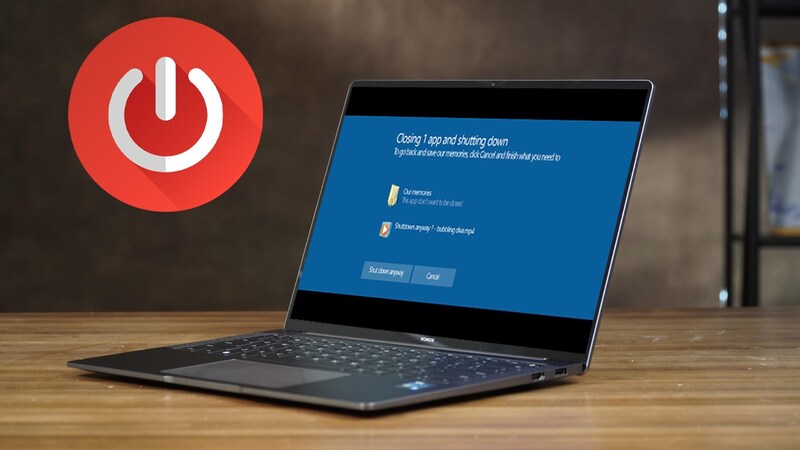
How to turn off the Shut down anyway notification
The reason why the message “Shut down anyway” appears

The message “Shut down anyway” often appears when you have not turned off applications such as Word, Photoshop, Lightroom or many other software. However, now applications have become smarter, can automatically save data or ask you again when reopening. Therefore, the “Shut down anyway” message may be unnecessary and annoying to users.

2 ways to turn off the Shut down anyway notification on Windows

To turn off the “Shut down anyway” message in Windows, you can do it in two ways:

Method 1: Use Local Group Policy Editor

Step 1: Press the Windows + R key combination to open the Run dialog box, then type gpedit.msc > Press Enter to open the Local Group Policy Editor window.
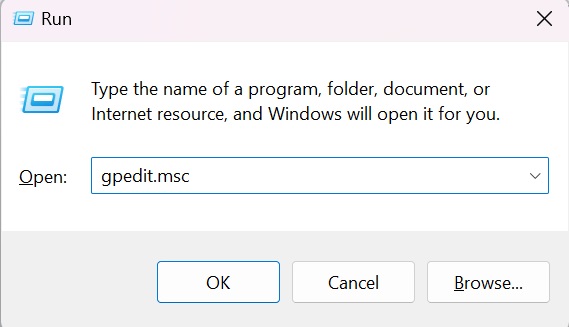
How to turn off the Shut down anyway notification
Type gpedit.msc > Press Enter

Step 2: In the Local Group Policy Editor window, select the path: Computer Configuration – Administrative Templates – System – Shutdown Options.

Step 3: Double click on “Turn off automatic termination of applications that block or cancel shutdown” to open the settings window.

Step 4: Select Enabled, then click Apply and OK to save the changes.
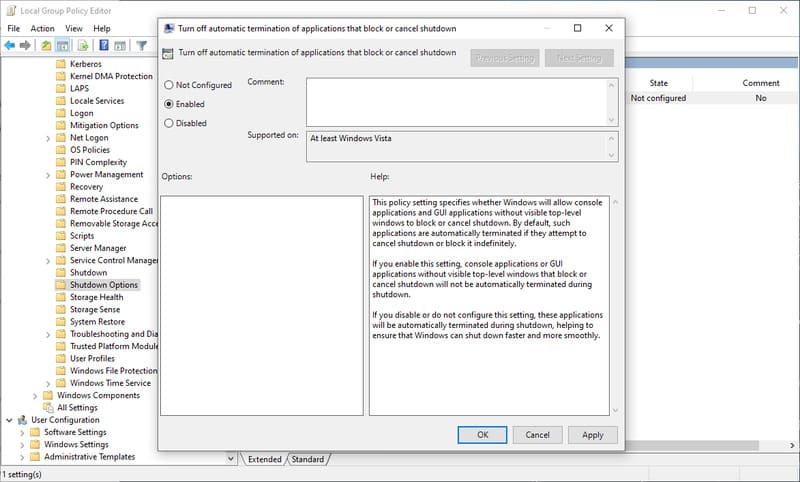
How to turn off the Shut down anyway notification
Select Enabled > Click Apply and OK

Method 2: Use Registry Editor

Step 1: Press the Windows + R key combination to open the Run dialog box, then type regedit and press Enter to open the Registry Editor.
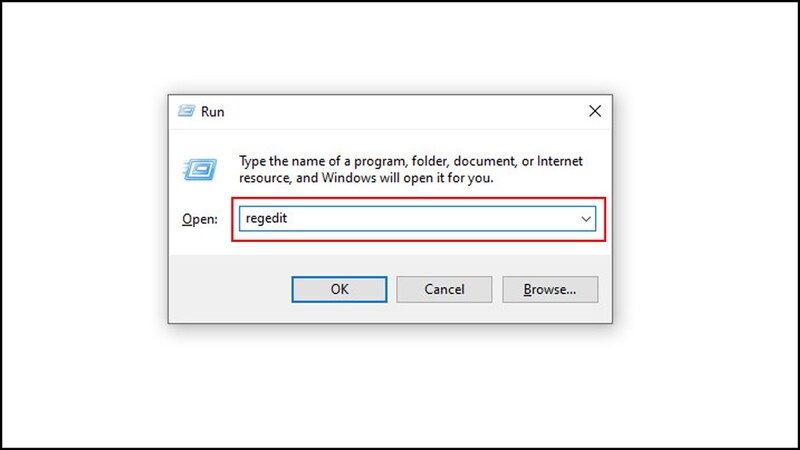
How to turn off the Shut down anyway notification
Type regedit and press Enter

Step 2: In the Registry Editor window, follow this path:

HKEY_CURRENT_USER\Control Panel\Desktop

Step 3: Right-click on the empty area on the right, select New – String Value.
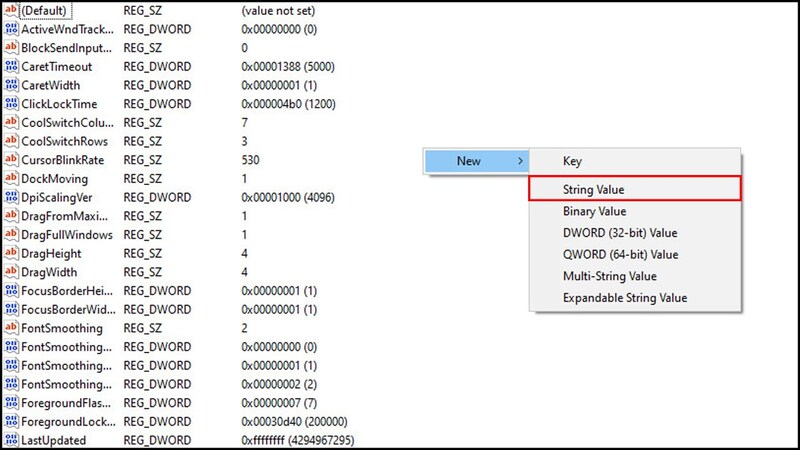
How to turn off the Shut down anyway notification
Select New – String Value

Step 4: Name the new value AutoEndTask, then double-click the newly created AutoEndTask, type 1 in the Value data box and click OK to save the changes.
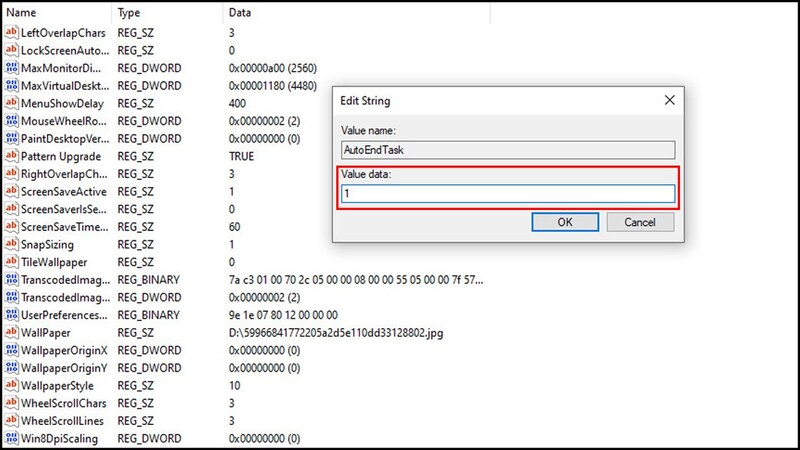
How to turn off the Shut down anyway notification
Type the number 1 in the Value data box

After completing either of the above methods, restart your computer to apply the settings. Since then, Windows will automatically turn off running applications when you turn off the device, and will no longer display the “Shut down anyway” message.

Epilogue

Hope this article has helped you figure it out How to turn off the Shut down anyway notification in Windows easily. If you have any questions or suggestions, please leave a comment below. Good luck!


The article scored: 5/5 – (100 votes)

Tags: NotificationShutdownshuttingturnwaysWindows
Previous Post

Hướng dẫn tạo Ruồi chạy trên Website

Next Post

Adobe Express – Generative Fill integrated design application is available on iOS and Android

AnonyViet

AnonyViet

Related Posts

How to change the default font on Windows 10
Tips

How to change the default font on Windows 10

April 13, 2026
5 tips for using a Browser to replace an App (helps save RAM, time and money)
Tips

5 tips for using a Browser to replace an App (helps save RAM, time and money)

April 13, 2026
How to make funny MeMe photos without Photoshop within 10 seconds
Tips

How to make funny MeMe photos without Photoshop within 10 seconds

April 11, 2026
How to quickly design your own Logo without Photoshop
Tips

How to quickly design your own Logo without Photoshop

April 10, 2026
How to convert Website into App on Windows
Tips

How to convert Website into App on Windows

April 9, 2026
Instructions for getting 3 months of Adobe Express Pro for free
Tips

Instructions for getting 3 months of Adobe Express Pro for free

April 9, 2026
Next Post
Adobe Express – Generative Fill integrated design application is available on iOS and Android

Adobe Express - Generative Fill integrated design application is available on iOS and Android

0 0 votes
Article Rating
Subscribe
Login
Notify of
guest

guest

0 Comments
Oldest
Newest Most Voted
Inline Feedbacks
View all comments

Recent News

Japanese Watch Week: Choose the color that suits your destiny, start the new year well at Mobile World

Japanese Watch Week: Choose the color that suits your destiny, start the new year well at Mobile World

April 20, 2026
4K Video Downloader Plus – Tool to download YouTube videos on macOS

4K Video Downloader Plus – Tool to download YouTube videos on macOS

April 20, 2026
How to add Watermark to Google Docs to protect copyright

How to add Watermark to Google Docs to protect copyright

April 19, 2026
How to intercept traffic using Burp Suite to analyze HTTP/HTTPS

How to intercept traffic using Burp Suite to analyze HTTP/HTTPS

April 18, 2026
Japanese Watch Week: Choose the color that suits your destiny, start the new year well at Mobile World

Japanese Watch Week: Choose the color that suits your destiny, start the new year well at Mobile World

April 20, 2026
4K Video Downloader Plus – Tool to download YouTube videos on macOS

4K Video Downloader Plus – Tool to download YouTube videos on macOS

April 20, 2026
How to add Watermark to Google Docs to protect copyright

How to add Watermark to Google Docs to protect copyright

April 19, 2026
AnonyViet - English Version

AnonyViet

AnonyViet is a website share knowledge that you have never learned in school!

We are ready to welcome your comments, as well as your articles sent to AnonyViet.

Follow Us

Contact:

Email: anonyviet.com[@]gmail.com

Main Website: https://anonyviet.com

Recent News

Japanese Watch Week: Choose the color that suits your destiny, start the new year well at Mobile World

Japanese Watch Week: Choose the color that suits your destiny, start the new year well at Mobile World

April 20, 2026
4K Video Downloader Plus – Tool to download YouTube videos on macOS

4K Video Downloader Plus – Tool to download YouTube videos on macOS

April 20, 2026
No Result
View All Result
  • Home
  • News
  • Software
  • Knowledge
  • MMO
  • Tips
  • Security
  • Network
  • Office

wpDiscuz
0
0
Would love your thoughts, please comment.x
()
x
| Reply